
What Is CSS Code for a Website? A Complete Beginner’s Guide | CSS is one of the most important technologies used to create modern websites because it controls how web pages look, how content is arranged, and how visitors interact with different visual elements. When you visit a website with attractive colours, readable fonts, well-organised sections, responsive layouts, and smooth visual effects, CSS is usually responsible for most of these design features. Although HTML provides the structure and content of a web page, CSS makes that structure visually appealing and easier to navigate.
If you are learning website development, building a WordPress website, or trying to understand how websites work, knowing what CSS code for a website means will help you make better decisions when designing and maintaining your online presence. You do not need to become a professional web developer to understand the fundamentals of CSS, because even basic knowledge can help you customise website layouts, adjust colours, improve readability, and make your pages look more professional.
This guide explains what CSS code is, how it works, why websites need it, and how you can write and apply CSS to your own website. It also covers practical examples, common CSS properties, different methods of adding CSS, and useful tips for beginners who want to improve their website design.
Table of Contents
What Is CSS Code for a Website? A Complete Beginner’s Guide
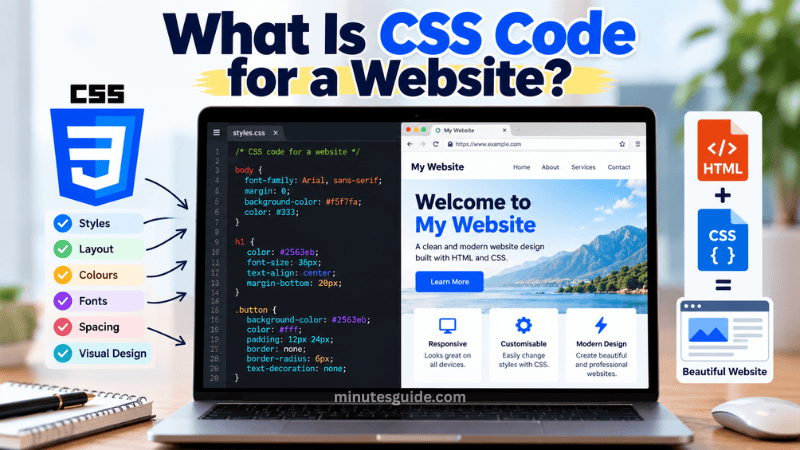
What Is CSS Code for a Website?
CSS stands for Cascading Style Sheets, which is a stylesheet language used to control the presentation and visual appearance of HTML documents. In simple terms, CSS tells a web browser how elements on a website should look and where they should appear on the page.
For example, HTML can create a heading, a paragraph, an image, or a navigation menu. However, HTML alone does not provide the same level of control over colours, spacing, typography, and page layout that CSS offers. By adding CSS rules, you can change the heading colour, increase the paragraph font size, add space between sections, create a background colour, or arrange several elements into columns.
Consider a simple HTML heading that displays the words "Welcome to My Website". Without additional styling, the browser displays the heading according to its default styling rules. If you want the heading to appear in blue, use a larger font size, or align it to the centre of the page, you can apply CSS to achieve the desired appearance.
Here is an example of CSS code:
h1 {
    color: blue;
    font-size: 36px;
    text-align: center;
}
This CSS code instructs the browser to display all HTML <h1> headings in blue, set their font size to 36 pixels, and align their text to the centre.
CSS is widely used in personal websites, business websites, blogs, online stores, web applications, and content management systems such as WordPress. It can be applied to a small number of elements or used to manage the visual design of an entire website containing hundreds of pages.
Why Is CSS Important for Website Development?
CSS plays an important role in website development because the appearance and organisation of a website influence how visitors understand its content and navigate between pages. A website may contain useful information, but visitors can find it difficult to read or use if the text is poorly arranged, the colours are distracting, or the page layout does not adapt to their devices.
By using CSS, developers can create a consistent visual design that helps visitors identify headings, distinguish links from ordinary text, understand the page structure, and interact with important elements such as buttons and navigation menus.
There are several reasons why CSS is essential for modern websites.
1. CSS Controls Website Appearance
One of the main purposes of CSS is to control the visual appearance of website elements. You can use it to change text colours, background colours, font families, font sizes, borders, shadows, and many other design properties.
For example, a business website may use a particular shade of blue for its headings, a white background for its content sections, and a contrasting colour for its contact buttons. CSS allows the developer to apply these styles consistently throughout the website.
Without CSS, creating and maintaining a consistent design would be considerably more difficult. Developers would have fewer convenient ways to separate the presentation of a page from its underlying content.
2. CSS Improves Website Layout
CSS provides tools for organising content into different sections and positioning elements according to the website's design requirements. These tools include Flexbox, CSS Grid, margins, padding, positioning, and other layout properties.
For example, you can use CSS Grid to arrange blog articles into three columns on a desktop screen, while allowing the articles to appear in a single column on a mobile phone. You can also use Flexbox to align a logo and navigation menu horizontally within a website header.
These layout capabilities help developers create websites that are organised, visually balanced, and easier for visitors to navigate.
3. CSS Supports Responsive Web Design
Responsive web design is an approach that allows a website to adapt to different screen sizes and device types. A responsive website should remain usable whether visitors access it using a desktop computer, laptop, tablet, or smartphone.
CSS supports responsive design through techniques such as flexible layouts, relative units, flexible images, and media queries. Media queries allow developers to apply particular styles when certain conditions, such as the viewport width, are met.
For instance, a website might display a horizontal navigation menu on a desktop computer but use a more compact navigation layout on a smartphone. Similarly, CSS can reduce font sizes, adjust spacing, and rearrange content columns to make the page easier to view on smaller screens.
Responsive design is important because visitors use a wide variety of devices, and a website that works well only on desktop computers may provide a poor experience for mobile users.
4. CSS Helps Maintain a Consistent Design
A consistent website design makes it easier for visitors to recognise the site's visual identity and understand how different pages relate to one another. CSS makes this consistency easier to achieve because a shared stylesheet can apply the same colours, typography, spacing, and component styles across multiple pages.
For example, if every page on your website uses the same heading colours and button styles, visitors can move between articles, product pages, and contact pages without encountering unnecessary design differences.
When you need to update a shared design element, you can often modify a single CSS rule instead of manually editing the appearance of each page. This approach can save time and reduce the likelihood of inconsistent formatting.
5. CSS Can Improve Readability and Accessibility
A well-designed website should make its content easy to read and understand. CSS helps achieve this by allowing developers to control line height, text width, font size, spacing, and the contrast between text and background colours.
For example, a long blog article may become easier to read when the text has sufficient line spacing and the content area is not excessively wide. Appropriate spacing between headings and paragraphs also helps readers identify different sections without feeling overwhelmed by large blocks of text.
However, CSS alone does not guarantee an accessible website. Developers should also use appropriate HTML elements, meaningful link text, keyboard-accessible controls, visible focus indicators, and sufficient colour contrast. These practices work together to make a website more usable for people with different needs.
How Does CSS Work on a Website?
CSS works by applying a collection of style rules to HTML elements. When a browser loads a web page, it processes the HTML structure and determines which CSS declarations apply to the elements on that page.
The browser then calculates the styles that should be used and renders the page according to those rules, taking into account factors such as the browser's default styles, inherited properties, selector specificity, and the order in which rules appear.
To understand this process, it is helpful to learn the basic structure of a CSS rule.
The Basic Structure of CSS Code
A CSS rule generally contains a selector and a declaration block. The selector identifies the HTML elements that should receive the styling, while the declarations specify which properties should be changed and what values those properties should use.
For example:
p {
    color: #333333;
    font-size: 18px;
    line-height: 1.6;
}
This code contains several important components.
pis the selector that targets HTML paragraph elements.coloris a CSS property that controls the text colour.#333333is the value assigned to the colour property.font-sizecontrols the size of the text.18pxsets the font size to 18 pixels.line-heightcontrols the height of each line of text relative to the font size.1.6sets the line height to 1.6 times the font size.
The opening and closing curly braces contain the declarations for the selected elements. Each declaration usually consists of a property, a colon, a value, and a semicolon.
Once this rule is applied to a web page, paragraph text will use a dark grey colour, an 18-pixel font size, and a line height of 1.6.
How CSS Selectors Work
CSS selectors determine which HTML elements receive particular styles. Learning how to use selectors correctly is important because a selector that targets the wrong element can change the appearance of unrelated parts of a website.
The following are common CSS selectors.
Element selector
An element selector targets HTML elements by their tag names.
h2 {
    color: green;
}
This rule changes the text colour of all <h2> headings to green.
Class selector
A class selector targets elements that contain a particular class attribute. Class selectors begin with a period.
.highlight {
    background-color: yellow;
}
To apply this style, an HTML element must use the corresponding class.
<p class="highlight">This paragraph is highlighted.</p>Class selectors are useful when you want to apply the same styling to selected elements without affecting every element of the same type.
ID selector
An ID selector targets an element with a specific ID attribute and begins with a hash symbol.
#main-title {
    color: navy;
}
You can apply this rule to an HTML element such as:
<h1 id="main-title">Welcome to My Website</h1>An ID should generally identify a unique element within a page, while classes can be reused across multiple elements.
Descendant selector
A descendant selector targets elements located inside another element.
article p {
    color: #444444;
}
This rule applies the specified text colour to paragraphs inside an <article> element, rather than to every paragraph on the page.
Understanding these selectors allows you to apply CSS more precisely and reduces the risk of unintentionally changing other website elements.
What Are the Different Types of CSS?
There are three commonly taught methods of applying CSS to an HTML document: inline CSS, internal CSS, and external CSS. Each method serves a particular purpose, although external CSS is generally the preferred approach for maintaining the design of a larger website.
1. Inline CSS
Inline CSS is written directly inside an HTML element using the style attribute. This method allows you to apply a style to one specific element without creating a separate stylesheet rule.
For example:
<p style="color: red; font-size: 18px;">
    This is a red paragraph.
</p>
In this example, the paragraph text appears red and uses a font size of 18 pixels.
Inline CSS can be useful when testing a small visual change or applying a one-off style to an element. However, using it extensively can make HTML difficult to maintain because the styling becomes mixed with the content.
It can also make it harder to apply consistent design changes across multiple pages, particularly when similar inline styles are repeated throughout a website.
2. Internal CSS
Internal CSS is written inside a <style> element, usually within the <head> section of an HTML document. This method allows you to define multiple CSS rules in the same HTML file.
For example:
<!DOCTYPE html>
<html lang="en">
<head>
    <meta charset="UTF-8">
    <title>My Website</title>

    <style>
        body {
            background-color: #f5f5f5;
            font-family: Arial, sans-serif;
        }

        h1 {
            color: navy;
            text-align: center;
        }

        p {
            color: #333333;
            font-size: 18px;
        }
    </style>
</head>
<body>
    <h1>Welcome to My Website</h1>
    <p>This is an example of internal CSS.</p>
</body>
</html>
In this example, the internal stylesheet defines the background colour, font family, heading appearance, and paragraph styling.
Internal CSS is suitable for small projects, demonstrations, or individual pages that require their own styling. However, if you want to apply the same design to many pages, maintaining separate internal stylesheets can result in duplicated code.
3. External CSS
External CSS is stored in a separate file with the .css extension. The HTML document connects to that file using a <link> element, allowing the browser to load the stylesheet and apply its rules.
For example, an HTML file can include the following code inside its <head> section:
<link rel="stylesheet" href="styles.css">The corresponding styles.css file might contain:
body {
    font-family: Arial, sans-serif;
    background-color: #f5f5f5;
    margin: 0;
}

h1 {
    color: navy;
    text-align: center;
}

p {
    color: #333333;
    font-size: 18px;
    line-height: 1.6;
}
This approach separates the website's content from its presentation, making the project easier to organise and maintain. You can also use the same stylesheet across several HTML pages, which helps keep the website's appearance consistent.
External stylesheets may also be cached by the browser, potentially reducing the amount of CSS that needs to be downloaded again when visitors navigate between pages on the same website.
For most multi-page websites, external CSS is a practical and maintainable choice.
What Are the Most Common CSS Properties?
CSS includes hundreds of properties that developers can use to control the appearance and behaviour of website elements. Beginners do not need to memorise all of them immediately, because understanding a few commonly used properties is enough to begin customising a basic web page.
The following table introduces several useful CSS properties and explains how they affect a website.
| CSS Property | Purpose | Example |
|---|---|---|
| color | Changes the colour of text. | color: blue; |
| background-color | Sets the background colour of an element. | background-color: lightgray; |
| font-family | Specifies the typeface used for text. | font-family: Arial, sans-serif; |
| font-size | Controls the size of text. | font-size: 18px; |
| font-weight | Controls the thickness of text. | font-weight: 700; |
| text-align | Aligns text horizontally. | text-align: center; |
| margin | Controls the space outside an element's border. | margin: 20px; |
| padding | Controls the space between content and its border. | padding: 15px; |
| border | Adds a border around an element. | border: 1px solid black; |
| border-radius | Rounds the corners of an element. | border-radius: 8px; |
| width | Sets or constrains an element's width. | width: 100%; |
| max-width | Sets the maximum permitted width. | max-width: 800px; |
| display | Controls how an element participates in layout. | display: flex; |
| box-shadow | Adds a shadow around an element's box. | box-shadow: 0 2px 8px #cccccc; |
These properties can be combined to create different visual effects. For example, a content box might use a white background, internal padding, rounded corners, and a subtle shadow to separate it visually from the page background.
When choosing values, it is important to consider readability, accessibility, and consistency. Extremely small text, insufficient colour contrast, and excessive spacing can make a website difficult to use even when the CSS syntax is technically correct.
How to Write CSS Code for a Website
Writing CSS code for a website becomes easier when you understand the relationship between HTML elements and the styles applied to them. You can begin with a simple example and gradually introduce more properties as you become familiar with the language.
The following steps demonstrate how to create a basic web page with CSS.
Step 1: Create an HTML File
Start by creating a new file named index.html. This file will contain the HTML structure and the content that visitors see when they open the web page.
You can use a code editor such as Visual Studio Code or another plain-text editor to create the file.
Add the following HTML code:
<!DOCTYPE html>
<html lang="en">
<head>
    <meta charset="UTF-8">
    <meta name="viewport" content="width=device-width, initial-scale=1.0">
    <title>My First Website</title>
    <link rel="stylesheet" href="styles.css">
</head>
<body>
    <header>
        <h1>Welcome to My Website</h1>
        <p>Learn the basics of website design.</p>
    </header>

    <main>
        <h2>About This Website</h2>
        <p>This website demonstrates how CSS changes the appearance of HTML content.</p>
        <a href="#contact">Learn More</a>
    </main>

    <footer id="contact">
        <p>Contact us for more information.</p>
    </footer>
</body>
</html>
This HTML document contains a header, a main content section, a link, and a footer. It also includes a viewport meta tag, which helps the browser display the page appropriately on different screen sizes.
The stylesheet link tells the browser to look for a file named styles.css in the same directory as the HTML file.
Step 2: Create a CSS File
Next, create another file named styles.css in the same folder as index.html.
Add the following CSS code:
body {
    margin: 0;
    font-family: Arial, sans-serif;
    background-color: #f4f6f8;
    color: #333333;
    line-height: 1.6;
}

header {
    background-color: #1f4e79;
    color: white;
    text-align: center;
    padding: 40px 20px;
}

header h1 {
    margin-bottom: 10px;
}

main {
    max-width: 800px;
    margin: 30px auto;
    padding: 20px;
    background-color: white;
    border-radius: 8px;
}

main h2 {
    color: #1f4e79;
}

main a {
    display: inline-block;
    background-color: #1f4e79;
    color: white;
    padding: 10px 16px;
    text-decoration: none;
    border-radius: 5px;
}

main a:hover {
    background-color: #163a5a;
}

footer {
    text-align: center;
    padding: 20px;
    color: #555555;
}
This stylesheet controls the background, text colours, spacing, content width, and appearance of the link. It also adds a hover effect, which changes the link's background colour when a visitor moves a mouse pointer over it.
The max-width property prevents the main content area from becoming excessively wide on large screens, while margin: 30px auto creates vertical spacing and horizontally centres the content box when its width is smaller than the available space.
The padding property adds space inside the header and content area, making the layout less cramped and easier to read.
Step 3: Open the Website in a Browser
Once you have saved both files, open index.html in a web browser. The browser will read the HTML document, load the linked CSS file, and display the page using the styles you have defined.
If the stylesheet is connected correctly, you should see a coloured header, a light background, a white content section, and a styled link.
If the page appears without the expected formatting, check whether the CSS file has been saved with the correct filename and placed in the correct directory. Also make sure that the href value in the HTML document matches the location of your stylesheet.
Step 4: Experiment with CSS Values
After the initial page works, experiment with different CSS values to understand how individual properties affect the result.
For example, change the header's background colour from #1f4e79 to #198754 to create a green header. You can also increase the main content's maximum width, change the font family, adjust the spacing, or add a border to the content box.
Make one change at a time and reload the page to observe the effect. This method helps you understand which CSS properties control particular visual features and makes it easier to identify errors.
Step 5: Test Different Screen Sizes
A website that looks good on a desktop computer may not display as intended on a smaller screen. Therefore, test the page using your browser's developer tools or by opening it on different devices.
Check whether the text remains readable, the content fits within the viewport, and the link remains easy to interact with. If the layout needs further adjustment, you can use flexible widths and media queries to improve its behaviour on different screen sizes.
How to Add CSS Code to a WordPress Website
If you use WordPress, you can customise many aspects of your website without creating an HTML file from scratch. WordPress themes already include stylesheets, and the platform provides several ways to add your own CSS rules.
The most suitable method depends on your active theme, the type of customisation you want to make, and whether you want the changes to remain separate from the theme's original files.
1. Use the Additional CSS Feature
Many WordPress installations provide an Additional CSS area through the Customizer. Depending on your theme and WordPress setup, you can usually find it by opening the WordPress dashboard and navigating to Appearance, then Customise, and selecting Additional CSS.
Enter your CSS rules in the available editor and preview the changes before publishing them.
For example, if you want to change the colour of all level-two headings, you could use:
h2 {
    color: #1f4e79;
}
If you want to adjust the appearance of article paragraphs, you might use:
.entry-content p {
    line-height: 1.8;
    margin-bottom: 20px;
}
The second example targets paragraphs inside an element with the entry-content class, which is commonly used by WordPress themes. However, class names vary between themes, so you may need to inspect your website's HTML to confirm the correct selector.
Block themes may offer different editing interfaces, and the Additional CSS option may not appear in exactly the same place on every WordPress installation.
2. Use the Site Editor
If your WordPress website uses a block theme, you may be able to customise your site's overall design through the Site Editor. Open Appearance and select Editor if that option is available in your dashboard.
The Site Editor provides controls for managing templates, template parts, colours, typography, and other global design settings. Some themes and WordPress versions also provide access to custom CSS through the relevant styles or editing interface.
Where possible, use the built-in design controls for ordinary changes, such as adjusting global colours and typography. These settings are often easier to manage than writing custom CSS and may be more compatible with the theme's design system.
3. Use a Child Theme
A child theme is a separate WordPress theme that inherits much of its functionality and styling from a parent theme. It allows you to add custom code without directly modifying the original theme files.
A child theme can be useful when you need to maintain a more extensive collection of CSS rules or make other technical customisations. However, creating and maintaining a child theme requires more technical knowledge than using the WordPress design interface.
Avoid editing the parent theme's stylesheet directly because your changes may be overwritten when the theme is updated. Before making significant changes, create a backup and test your modifications on a staging website whenever possible.
4. Use a Custom CSS Plugin
Some WordPress plugins provide an interface for adding custom CSS to a website. These tools may offer features such as organising styles, targeting specific pages, or managing custom code independently of the theme.
A plugin can be useful if your preferred theme does not provide a convenient CSS editor or if you want a dedicated interface for managing additional styles. However, installing a plugin solely to add a few simple CSS rules may be unnecessary when an existing WordPress feature already meets your needs.
Before installing a plugin, check its compatibility, maintenance history, reputation, and effect on your site's performance.
What Is the Difference Between HTML and CSS?
HTML and CSS are closely related technologies, but they perform different functions in website development. HTML defines the structure and meaning of the content, while CSS controls how that content is presented visually.
For example, HTML can identify a piece of text as a main heading, a paragraph, or a navigation link. CSS then determines whether the heading should be blue, whether the paragraph should have a particular line height, and whether the navigation links should be arranged horizontally.
Understanding the difference between these technologies helps beginners determine whether a particular website change requires HTML, CSS, or both.
| Feature | HTML | CSS |
|---|---|---|
| Full name | HyperText Markup Language | Cascading Style Sheets |
| Main purpose | Defines the structure and meaning of web content. | Controls the presentation and layout of web content. |
| Common examples | Headings, paragraphs, images, links, and forms. | Colours, fonts, spacing, borders, and layouts. |
| File extension | .html or .htm | .css |
| Syntax | Uses elements and tags. | Uses selectors, properties, and values. |
| Content structure | Defines the page's content and semantic structure. | Determines how that content is displayed. |
| Reuse | HTML structures can be used across multiple pages. | One stylesheet can style multiple pages. |
| Example | Welcome | h1 { color: blue; } |
HTML and CSS are normally used together because a website needs both meaningful content and an appropriate visual presentation. CSS does not replace HTML, and HTML does not provide the same specialised styling capabilities as CSS.
JavaScript is another commonly used web technology. Unlike HTML and CSS, JavaScript can implement interactive behaviour, such as opening a menu when a button is clicked, validating form input, or updating page content without a full page reload.
What Is the Difference Between CSS and JavaScript?
CSS and JavaScript have different responsibilities, although both can contribute to the user experience of a website.
CSS is primarily responsible for presentation, including colours, spacing, layouts, transitions, and certain visual states. JavaScript is a programming language that allows developers to implement logic and interactive behaviour.
For example, CSS can change a button's appearance when a visitor moves the mouse pointer over it. JavaScript can respond when the visitor clicks that button by opening a dialog, submitting data, or displaying additional content.
Modern CSS can also support more advanced visual effects and animations without JavaScript, while JavaScript may sometimes change CSS classes or styles in response to user actions. The technologies therefore complement one another rather than serving as direct replacements.
Does CSS Affect Website Speed and SEO?
CSS can influence website performance because browsers must download and process the stylesheets required to render a page. A large or inefficient stylesheet may increase the amount of data transferred or delay the browser from displaying certain content, particularly when the stylesheet is render-blocking.
However, CSS does not automatically make a website slow. Well-organised stylesheets, sensible use of shared CSS, removal of unused rules, and appropriate caching can help keep the styling system efficient.
If you manage a WordPress website, consider reviewing your theme and plugins to determine whether they load unnecessary CSS files on pages that do not require them. Performance optimisation tools may help reduce unused CSS or minify stylesheets, although the results should be tested carefully because automated optimisation can occasionally interfere with website layouts.
CSS can also support SEO indirectly by improving readability, mobile usability, and the overall user experience. A responsive layout can make content easier to use on mobile devices, while clear typography and sensible spacing can help visitors read longer articles.
Nevertheless, CSS is not a substitute for useful content, crawlable HTML, descriptive titles, appropriate heading structure, or sound technical SEO. A visually attractive website still needs relevant information and a technically accessible structure to perform well in search results.
Common CSS Mistakes Beginners Should Avoid
Learning CSS involves experimentation, and beginners will sometimes encounter unexpected design problems. Understanding the most common mistakes can help you identify errors more quickly and avoid making unnecessary changes to your website.
1. Forgetting Curly Braces
Every standard CSS rule requires an opening and a closing curly brace around its declaration block. If a brace is missing, the browser may interpret part of the stylesheet incorrectly, causing some rules to stop working as expected.
For example, the following code is incomplete:
h1 {
    color: blue;
    font-size: 32px;
The corrected version includes the closing brace:
h1 {
    color: blue;
    font-size: 32px;
}
When your CSS does not behave as expected, check the syntax around the affected rule before assuming the property itself is incorrect.
2. Using the Wrong Selector
A CSS selector must match the elements you intend to style. If you write .heading but the HTML element does not have a heading class, the rule will not target that element.
For example:
.heading {
    color: red;
}
This rule applies to an element such as <h2 class="heading">Example</h2>, but it does not automatically target every heading on the page.
If a rule does not work, inspect the HTML element and confirm that its class, ID, or tag name matches the selector.
3. Overusing Important Declarations
The !important annotation gives a declaration priority over many competing declarations in the cascade, although other important declarations, cascade origins, layers, and specificity rules can affect the final result.
For example:
h1 {
    color: red !important;
}
Using !important repeatedly can make styles harder to override and maintain, particularly when a website contains many custom rules or uses a complex theme.
Whenever possible, use appropriate selectors and organise your stylesheet so that rules can work together without unnecessary priority overrides.
4. Ignoring Mobile Devices
A layout that works on a large screen may become cramped or difficult to navigate on a mobile phone. Fixed-width content boxes, oversized images, and long navigation menus are common causes of mobile layout problems.
Use flexible dimensions, responsive images, and media queries where necessary. Test the website at different viewport widths instead of assuming that a layout will work correctly on every device.
5. Editing the Wrong Stylesheet
A website may load CSS from its theme, plugins, customisation settings, and external resources. Editing one stylesheet does not necessarily change the final appearance if another rule overrides it or if the browser is still using a cached version.
Before changing website files, identify which stylesheet controls the element you want to modify. After making the change, inspect the browser's developer tools and refresh the page to check whether the new rule has been applied.
For WordPress websites, avoid modifying original theme files unless you have a clear reason and an appropriate backup or update-safe strategy.
Best Practices for Writing Clean CSS Code
Writing CSS that works is important, but writing CSS that remains understandable and easy to maintain is equally valuable. A stylesheet that is organised from the beginning is easier to update when the website grows or when several pages share the same design.
First, use clear class names that describe the role of each component. Names such as .site-header, .article-card, and .contact-button are generally more meaningful than vague names such as .blue-box or .thing-1, especially when the design changes later.
Second, group related rules together and maintain consistent formatting. For example, you can keep global typography settings near the beginning of the stylesheet, followed by layout rules, reusable components, and responsive adjustments. Consistent indentation also makes it easier to identify missing braces and other syntax errors.
Third, avoid duplicating identical declarations unnecessarily. If several elements require the same colour or spacing, consider using shared classes or CSS custom properties. Custom properties allow you to define reusable values that can be changed centrally.
For example:
:root {
    --primary-color: #1f4e79;
    --text-color: #333333;
    --content-width: 800px;
}

h1,
h2 {
    color: var(--primary-color);
}

body {
    color: var(--text-color);
}

main {
    max-width: var(--content-width);
}
In this example, the custom properties are defined inside the :root selector and reused throughout the stylesheet. If you decide to change the primary colour or maximum content width, you can update the corresponding variable rather than searching for every occurrence of the original value.
Finally, test your CSS after significant changes. Check the website on desktop and mobile screens, confirm that links and controls remain visible, and ensure that new styles do not unintentionally affect unrelated components. When working on an established website, make a backup or use a staging environment before applying extensive changes to the live site.
Conclusion
CSS code is an essential part of website development because it controls the visual presentation, layout, spacing, typography, colours, and responsive behaviour of web pages. By combining CSS with HTML, developers can transform basic website content into a structured and visually appealing experience that works across different screen sizes and devices.
If you are learning website development, begin by understanding the basic CSS syntax, selectors, and commonly used properties. Practise changing text colours, adjusting margins and padding, styling headings, and creating simple layouts before moving on to more advanced techniques such as Flexbox, CSS Grid, media queries, and custom properties.
For WordPress users, learning basic CSS can also make website customisation easier because you can modify selected design elements without necessarily changing the theme's original files. Whether you are building a personal blog, a business website, or an online store, a solid understanding of CSS will help you create a more consistent, readable, responsive, and maintainable website.
Frequently Asked Questions About CSS Code for a Website
What is CSS code for a website?
CSS, which stands for Cascading Style Sheets, is a stylesheet language used to control the visual appearance and layout of a website. It allows developers to customise colours, fonts, text sizes, spacing, borders, backgrounds, and page layouts. CSS works alongside HTML, which provides the structure and content of a web page, to create an organised and visually appealing website.
What does CSS stand for?
CSS stands for Cascading Style Sheets. It is a language used to describe how HTML elements should be displayed in a web browser. By using CSS, developers can apply consistent design rules across multiple pages without having to specify the appearance of every element individually.
What is an example of CSS code?
A simple example of CSS code is:h1 { color: blue; font-size: 36px; text-align: center; }
This code changes all level-one headings to blue, sets their font size to 36 pixels, and centres their text. CSS rules consist of selectors, properties, and values that determine how selected HTML elements appear on a web page.
What is the difference between HTML and CSS?
HTML defines the structure and meaning of website content, while CSS controls its visual presentation. For example, HTML creates a heading or paragraph, whereas CSS determines its colour, font size, spacing, and alignment. Both technologies work together to create functional and visually appealing websites.
What are the three types of CSS?
The three commonly taught types of CSS are inline CSS, internal CSS, and external CSS. Inline CSS is written directly inside an HTML element using the style attribute. Internal CSS is placed inside a <style> element within an HTML document, while external CSS is stored in a separate .css file and connected to the HTML document using a <link> element.
How do I add CSS code to a website?
You can add CSS to a website using inline styles, an internal stylesheet, or an external stylesheet. For a website with multiple pages, an external stylesheet is generally a practical option because it allows you to manage the design in one place. If you use WordPress, you may also be able to add custom CSS through the Additional CSS feature, the Site Editor, or a suitable plugin, depending on your theme and WordPress configuration.
Can I create a website using CSS alone?
No, CSS alone is not sufficient to create a conventional website because it is designed to control presentation rather than define the complete structure and content of a page. HTML is normally used to provide headings, paragraphs, images, links, and other content elements, while CSS styles those elements. JavaScript can be added when interactive behaviour or more complex functionality is required.
Is CSS difficult to learn for beginners?
CSS is relatively approachable for beginners because you can start by learning a small number of properties, such as color, background-color, font-size, margin, and padding. As you gain experience, you can progress to more advanced techniques such as Flexbox, CSS Grid, media queries, and CSS custom properties. Practising with a simple HTML page is an effective way to understand how different CSS rules affect a website's appearance.
Does CSS improve website SEO?
CSS can support SEO indirectly by improving readability, responsive design, mobile usability, and the overall user experience. For example, appropriate typography and spacing can make articles easier to read, while responsive layouts help visitors use a website on different devices. However, CSS alone does not guarantee higher search rankings because SEO also depends on factors such as content quality, technical accessibility, site performance, and relevance to users' searches.
Can I use CSS to customise a WordPress website?
Yes, you can use CSS to customise many visual aspects of a WordPress website, including headings, paragraphs, buttons, navigation menus, backgrounds, and content layouts. Depending on your theme, you can add CSS through the WordPress Customizer, Site Editor, a custom CSS plugin, or a child theme. It is advisable to avoid editing the original theme files directly because updates may overwrite your modifications.
What is the difference between CSS and JavaScript?
CSS controls the presentation of website elements, including their colours, layouts, spacing, and visual effects. JavaScript is a programming language used to implement logic and interactive behaviour, such as opening menus, validating forms, and updating content in response to user actions. Although CSS can create certain animations and interactive visual states, JavaScript is generally used when more complex behaviour is required.
Does CSS affect website loading speed?
Yes, CSS can affect website loading speed because browsers need to download and process stylesheets to display a page correctly. Large stylesheets, excessive unused rules, and inefficient styling practices may contribute to slower rendering. You can improve efficiency by removing unnecessary CSS, organising stylesheets carefully, and using appropriate caching and optimisation techniques while testing the website to ensure that its layout continues to work correctly.
What is an external CSS file?
An external CSS file is a separate stylesheet saved with the .css file extension. It contains styling rules that can be applied to one or more HTML documents. To connect an external stylesheet to an HTML page, add a link element inside the document's <head> section, such as <link rel="stylesheet" href="styles.css">. This approach makes it easier to maintain consistent styling across multiple pages.
How can I check CSS code on a website?
You can inspect CSS code using the developer tools available in modern web browsers, including Google Chrome, Microsoft Edge, and Firefox. Right-click an element on a web page and select the option to inspect it. The developer tools will show the element's HTML and the CSS rules affecting its appearance. You can also experiment with CSS values temporarily in the browser to understand how a particular change affects the page.
References
- What is CSS and how is CSS used on websites? - umbraco.com
- What Is CSS? How to Use it in Web Design - elementor.com/blog
