
How to Limit Post Revisions WordPress: A Complete Guide for Better Performance | WordPress automatically saves revisions every time you update a post or page. While this feature is incredibly useful for recovering previous versions of your content, allowing WordPress to store an unlimited number of revisions can gradually increase your database size. Over time, this may affect website performance, backup size, and database optimization, especially for websites that publish content regularly.
If you are looking for a practical way to improve your WordPress website without sacrificing the safety of your content, learning how to limit post revisions WordPress is one of the easiest maintenance tasks you can perform.
In this guide, you will learn what post revisions are, why limiting them is beneficial, how to configure the revision limit safely, and what mistakes you should avoid during the process.
Table of Contents
How to Limit Post Revisions WordPress: A Complete Guide for Better Performance
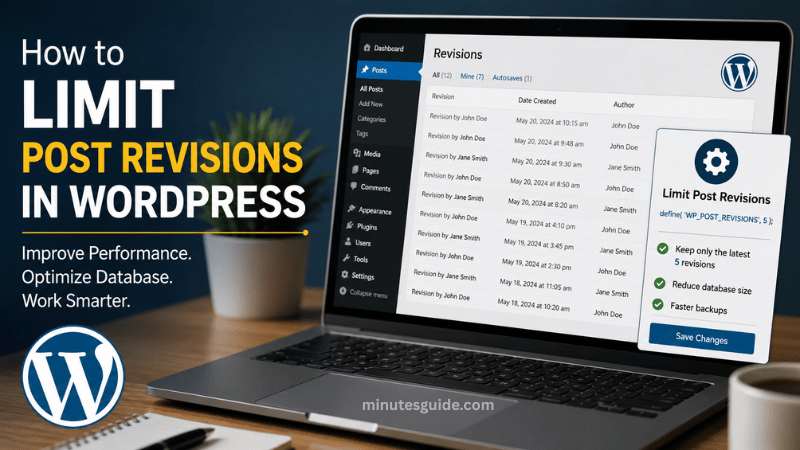
What Are WordPress Post Revisions?
WordPress post revisions are automatically saved copies of your posts and pages whenever changes are made. Every time you click Save Draft, Update, or Publish, WordPress creates a new revision and stores it in your database.
This revision history allows you to compare different versions of your content and restore an earlier version if necessary. It provides a valuable safety net for writers, editors, and website administrators who regularly modify content.
For example, if you accidentally delete an important section from an article or make changes that negatively affect the content, you can simply restore a previous revision instead of rewriting everything from scratch.
Although this feature is extremely useful, it also has a downside. Every revision occupies space inside your WordPress database. A website with hundreds or thousands of published articles may accumulate tens of thousands of revision records over time.
Why Should You Limit Post Revisions?
Many website owners assume revisions consume very little storage, but this is only true for small websites. As your website grows, unlimited revisions can become a significant source of database bloat.
Limiting revisions provides several benefits.
Smaller Database Size
Each revision is stored as a separate record inside your WordPress database.
Imagine publishing 500 articles while editing each article 30 times. Instead of storing only 500 posts, your database could contain over 15,000 revision records.
Reducing unnecessary revisions helps keep your database cleaner and easier to manage.
Faster Database Queries
A smaller database generally performs better because WordPress has fewer records to process.
Although revisions may not directly slow down every page request, they can increase database maintenance time and affect backup, migration, and optimization processes.
Faster Website Backups
Every database backup includes revision records unless they are removed.
The more revisions your database stores, the larger your backup files become.
Smaller backups:
- Upload faster
- Download faster
- Restore faster
- Require less storage space
Easier Database Maintenance
Database optimization plugins and hosting tools work more efficiently when unnecessary revisions are minimized.
This reduces clutter and helps keep your database organized.
Better Long-Term Website Performance
Limiting revisions is considered a preventive maintenance practice.
Instead of waiting until your database becomes excessively large, you control its growth from the beginning.
Should You Disable Revisions Completely?
Generally, the answer is no.
Completely disabling revisions removes one of WordPress's most valuable safety features.
Without revisions:
- Mistakes cannot be easily reversed.
- Editors lose version history.
- Collaboration becomes more difficult.
- Content recovery becomes limited.
For most websites, limiting revisions instead of disabling them offers the ideal balance between performance and functionality.
How Many Revisions Should You Keep?
There is no universal number that works for every website.
The ideal limit depends on your workflow, publishing frequency, and the number of people managing your content.
| Website Type | Recommended Revision Limit |
|---|---|
| Personal Blog | 3–5 |
| Business Website | 5–10 |
| News Website | 10–20 |
| Multi-author Blog | 10–20 |
| WooCommerce Store | 5–10 |
| Portfolio Website | 3–5 |
These recommendations help preserve useful editing history while preventing excessive database growth.
Method 1: Limit Post Revisions Using wp-config.php
This is the most reliable and recommended method.
Open your website's wp-config.php file using your hosting File Manager or FTP client.
Locate the following section:
/* That's all, stop editing! Happy publishing. */Add this line immediately above it:
define('WP_POST_REVISIONS', 5);In this example, WordPress will keep only the five most recent revisions for every post and page.
Whenever a sixth revision is created, the oldest revision is automatically removed.
You may replace the number 5 with any value that suits your website.
For example:
define('WP_POST_REVISIONS', 3);or
define('WP_POST_REVISIONS', 10);Once the file is saved, WordPress immediately begins following the new revision limit.
It is important to understand that this setting affects future revisions only. Existing revision records remain inside the database unless you remove them manually.
Method 2: Use a WordPress Plugin
If you prefer not to edit configuration files, several plugins allow you to manage revisions from the WordPress dashboard.
Popular options include:
- WP-Optimize
- Advanced Database Cleaner
- WP-Sweep
These plugins allow you to:
- Remove old revisions
- Optimize database tables
- Schedule automatic cleanup
- Reduce unnecessary database clutter
This approach is particularly suitable for beginners who are uncomfortable editing WordPress files.
Method 3: Remove Existing Revisions
Limiting revisions does not automatically delete older revisions that already exist.
If your website has been running for several years, you may already have thousands of stored revisions.
Cleaning them up can significantly reduce database size.
Many database optimization plugins include an option to delete old revisions safely.
Always create a complete database backup before performing any cleanup.
Understanding the WP_POST_REVISIONS Constant
The WP_POST_REVISIONS constant accepts different values.
| Value | Result |
|---|---|
| true | Unlimited revisions (default behavior) |
| false | Disable revisions completely |
| 0 | Disable revisions |
| 3 | Keep the latest 3 revisions |
| 5 | Keep the latest 5 revisions |
| 10 | Keep the latest 10 revisions |
For most websites, using a number between 3 and 10 provides an excellent balance.
Advantages and Disadvantages of Limiting Revisions
| Advantages | Disadvantages |
|---|---|
| Smaller database | Less revision history |
| Faster backups | Older versions eventually disappear |
| Easier optimization | Editors have fewer restore points |
| Better long-term maintenance | Not suitable for projects requiring extensive version history |
| Reduced database clutter | Requires choosing an appropriate limit |
The benefits generally outweigh the disadvantages for most WordPress websites.
Best Practices When Limiting Post Revisions
Following a few best practices ensures you receive the benefits without losing valuable editing history.
Choose a Reasonable Limit
Avoid setting the limit too low.
Keeping between five and ten revisions usually provides enough recovery points for most websites.
Keep Automatic Backups
Revision limits should never replace regular backups.
A proper backup protects your entire website, while revisions only protect individual posts and pages.
Optimize Your Database Regularly
Periodic database optimization removes unnecessary overhead and improves overall performance.
Monthly optimization is usually sufficient for most websites.
Monitor Database Growth
Check your database size occasionally through your hosting control panel or database management plugin.
If database growth appears excessive, review your revision settings and cleanup schedule.
Test Before Making Changes
Whenever you modify your wp-config.php file, double-check your syntax.
A small typo inside this file can cause your website to display a critical error.
Common Mistakes to Avoid
| Mistake | Why It Is a Problem | Better Approach |
|---|---|---|
| Disabling revisions completely | Removes recovery history | Limit revisions instead |
| Setting the limit to 1 | Very little editing history remains | Keep at least 3–5 revisions |
| Forgetting database backups | Cleanup mistakes may become irreversible | Always back up first |
| Never removing old revisions | Existing revisions continue occupying space | Perform periodic cleanup |
| Editing the wrong configuration file | Settings will not work | Verify you are editing the correct wp-config.php |
Avoiding these mistakes helps maintain a healthy WordPress installation.
Does Limiting Revisions Improve Website Speed?
The answer is both yes and no.
Limiting revisions does not directly make your pages load faster because revision records are not normally loaded when visitors browse your website.
However, it indirectly contributes to better performance by:
- Reducing database size
- Speeding up database optimization
- Making backups faster
- Improving migration efficiency
- Simplifying maintenance
- Reducing database clutter over time
The impact becomes more noticeable on websites with thousands of posts and frequent content updates.
Is Limiting Revisions Safe?
Yes.
Using the WP_POST_REVISIONS constant is an officially supported WordPress feature.
As long as you choose a reasonable limit and maintain regular backups, limiting revisions is considered a safe and recommended optimization practice.
Thousands of WordPress websites use this configuration to keep their databases manageable without sacrificing important editing history.
Conclusion
Knowing how to limit post revisions WordPress is a simple yet effective way to improve long-term database management. While WordPress revisions provide valuable protection against accidental changes, storing unlimited revisions can gradually increase database size and create unnecessary clutter.
By configuring the WP_POST_REVISIONS constant, choosing an appropriate revision limit, and cleaning up older revisions periodically, you can maintain a leaner database while still preserving enough editing history for recovery. Combined with regular backups and routine database optimization, this approach helps keep your WordPress website organized, efficient, and easier to maintain as your content library continues to grow.
Conclusion
What are WordPress post revisions?
WordPress post revisions are automatically saved versions of your posts and pages. Every time you update, save, or publish content, WordPress creates a revision that allows you to restore an earlier version if needed.
Why should I limit post revisions in WordPress?
Limiting post revisions helps prevent your WordPress database from becoming unnecessarily large. A smaller database is easier to maintain, speeds up backups, and can improve overall database performance over time.
Does limiting post revisions improve website speed?
Limiting post revisions does not directly make your website load faster for visitors. However, it helps keep your database optimized, which can improve backup, migration, and maintenance processes while reducing database clutter.
How many post revisions should I keep?
For most WordPress websites, keeping between 3 and 10 revisions per post is sufficient. Personal blogs typically need only 3 to 5 revisions, while larger websites with multiple authors may benefit from keeping 10 to 20 revisions.
How do I limit post revisions in WordPress?
You can limit post revisions by adding the following line to your wp-config.php file:define('WP_POST_REVISIONS', 5);
Replace the number 5 with the maximum number of revisions you want WordPress to keep for each post.
Can I disable post revisions completely?
Yes, WordPress allows you to disable revisions by setting the WP_POST_REVISIONS constant to false or 0. However, this is generally not recommended because you will lose the ability to restore previous versions of your content.
Will limiting revisions delete existing revisions?
No. The revision limit only applies to new revisions created after you change the setting. Existing revisions remain in your database until they are removed manually or with a database optimization plugin.
Can I limit revisions without editing the wp-config.php file?
Yes. Several WordPress plugins, such as WP-Optimize, Advanced Database Cleaner, and WP-Sweep, allow you to manage and clean up post revisions through the WordPress dashboard without editing any files.
Is it safe to edit the wp-config.php file?
Yes, provided you edit the correct file carefully and create a backup before making changes. Even a small syntax error in wp-config.php can cause your website to display a critical error, so it is important to verify your changes before saving.
Should I remove old revisions after limiting them?
Yes. Limiting revisions prevents excessive future growth, but it does not remove existing revision records. Periodically deleting old revisions helps reduce database size and keeps your WordPress installation clean and efficient.
Revisions
- How to Disable or Limit WordPress Post Revisions Tutorial - siteground.com
- WordPress Limit Revisions: Speed Up Your Site In Under 5 Minutes - blogvault.net
