
WooCommerce is one of the most popular WordPress plugins for creating an online store. It is a simple but powerful eCommerce solution that allows you to turn a regular WordPress website into a fully functional online store.
With WooCommerce, you can sell physical products, digital products, subscriptions, services, and many other types of products directly from your website. You can also configure important eCommerce features such as payment methods, shipping options, product management, and order processing.
WooCommerce is widely used by businesses of different sizes, from small online sellers to established eCommerce businesses. One of the main reasons for its popularity is its flexibility. You can start with the basic WooCommerce settings and gradually add more features as your business grows.
In this guide, I will show you how to install and set up the WooCommerce plugin step by step. The setup process is suitable for beginners who have already installed WordPress and want to start building their own online store.
Table of Contents
Install and Setup the WooCommerce Plugin – Complete Guide
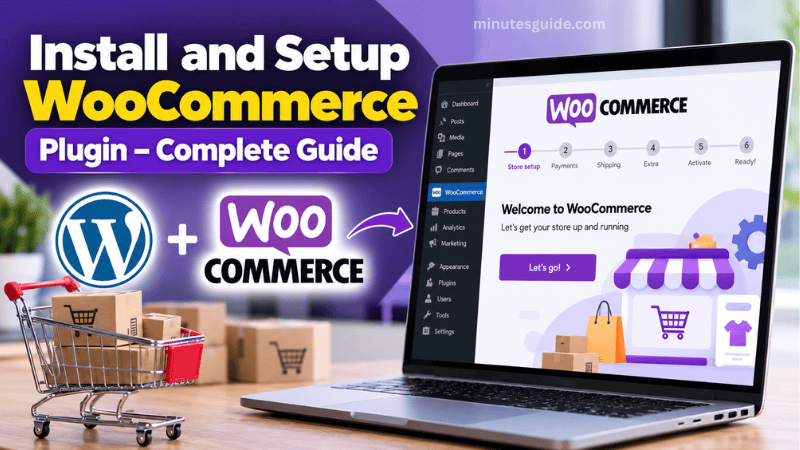
Install and Setup WooCommerce
Before installing WooCommerce, make sure that you already have a WordPress website. If you have not installed WordPress yet, you should complete the WordPress installation first.
Once WordPress is ready, you can install WooCommerce directly from the WordPress dashboard.
Step 1: Log in to Your WordPress Dashboard
First, log in to your WordPress administration dashboard.
After logging in, look at the menu on the left side of the dashboard and navigate to:
Plugins > Add New Plugin
This page allows you to search for and install plugins directly from the WordPress plugin directory.
Step 2: Search for and Install WooCommerce
On the Add Plugins page, use the search box to search for "WooCommerce".
Look for the official WooCommerce plugin and click the Install Now button.
Wait for WordPress to complete the installation. Once the installation has finished, click Activate to enable WooCommerce on your website.
After WooCommerce has been activated successfully, you will be taken to the WooCommerce setup process.
Step 3: Start the WooCommerce Setup Wizard
After activating WooCommerce, you will be presented with a setup wizard. This wizard helps you configure the basic settings required to start operating your online store.
The setup wizard guides you through several important areas of your store.
Depending on the version of WooCommerce you are using, the exact appearance and order of the setup screens may be slightly different. However, the main settings generally cover areas such as:
- Store setup
- Payments
- Shipping
- Extra features
- Activation
- Completion
We will go through these settings one by one.
Step 4: Configure Your Store
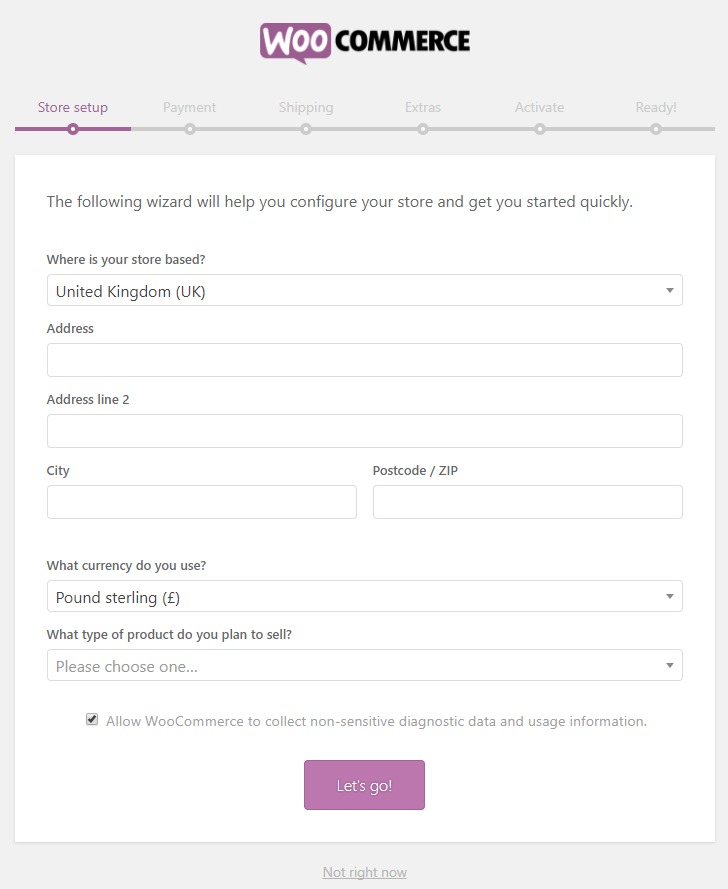
The first part of the setup process is the Store Setup section.
Here, you need to provide some basic information about your online store. This may include your store address, country or region, currency, and the type of products you intend to sell.
Make sure that you enter the correct information because some of these settings can affect how your store displays prices, handles payments, and calculates shipping.
For example, if your business operates in Malaysia, you should select the appropriate country or region and configure Malaysian Ringgit (MYR) if that is the currency you use for your products.
You should also select the type of products that you plan to sell. Consider your actual business model when completing this section rather than selecting options that you do not need.
Once you have entered the required information, click the "Let's go!" button to continue.
Step 5: Configure Payment Methods
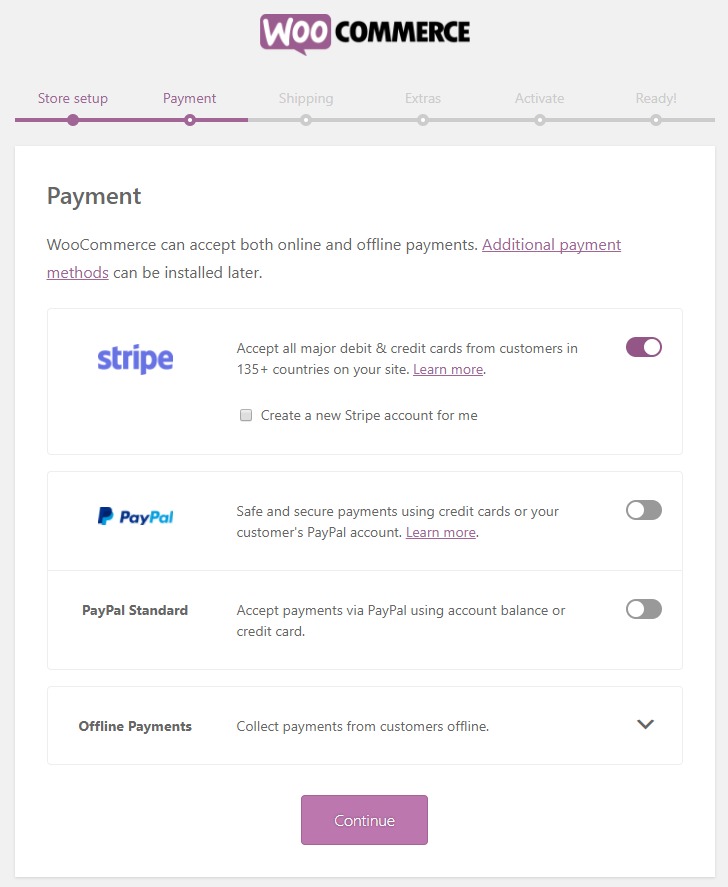
The next section is the Payment section.
This is where you can select the payment methods that customers can use when purchasing products from your store.
WooCommerce may provide some basic payment options during the initial setup. The available options can vary depending on your location and the current WooCommerce setup process.
Select the payment method that is appropriate for your business.
If the payment method you want to use is not available during the initial setup, there is no need to worry. WooCommerce supports many additional payment gateways through extensions and third-party plugins.
For example, depending on your target customers and country, you may later install a payment gateway that supports credit cards, online banking, digital wallets, or other payment methods.
For now, select the payment option that is suitable for your store and continue with the setup.
Click the Continue button to proceed to the next section.
Step 6: Configure Shipping
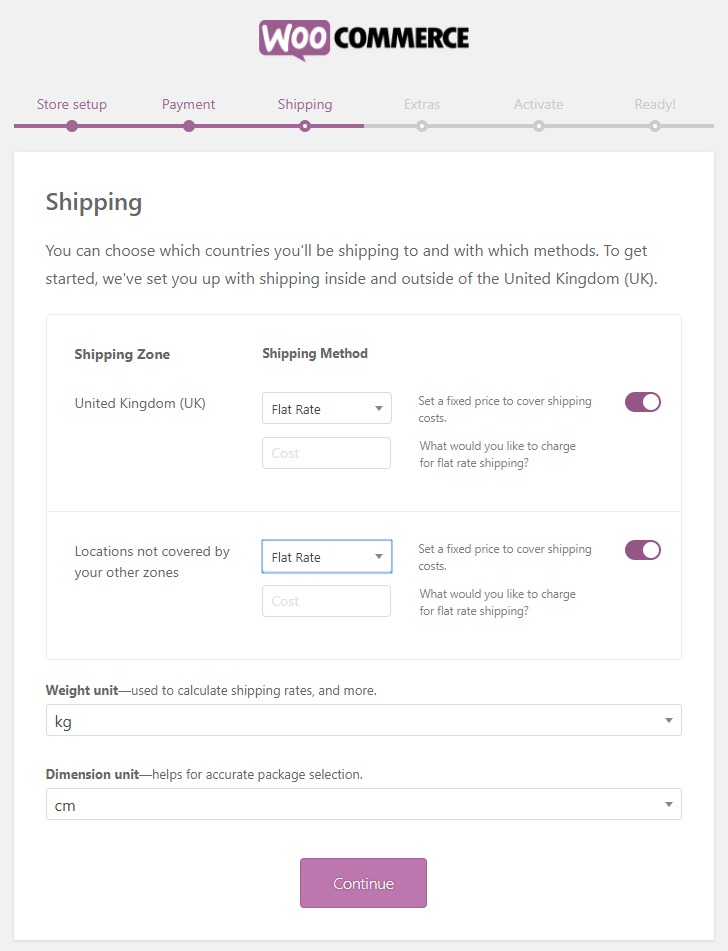
The next step is the Shipping section.
Shipping configuration is particularly important if you sell physical products. This section allows you to determine how much customers should pay for delivery and how your store handles shipping based on different locations.
You can configure shipping zones and determine the shipping cost for each zone.
For example, you may want to charge one shipping rate for customers within your local area and another rate for customers located in different states or regions.
You can also configure shipping-related units such as weight and dimensions. Make sure that you use consistent units throughout your store because these settings may affect shipping calculations and product information.
Take some time to determine how you want your shipping charges to work before continuing.
Once you have configured the basic shipping settings, click the Continue button.
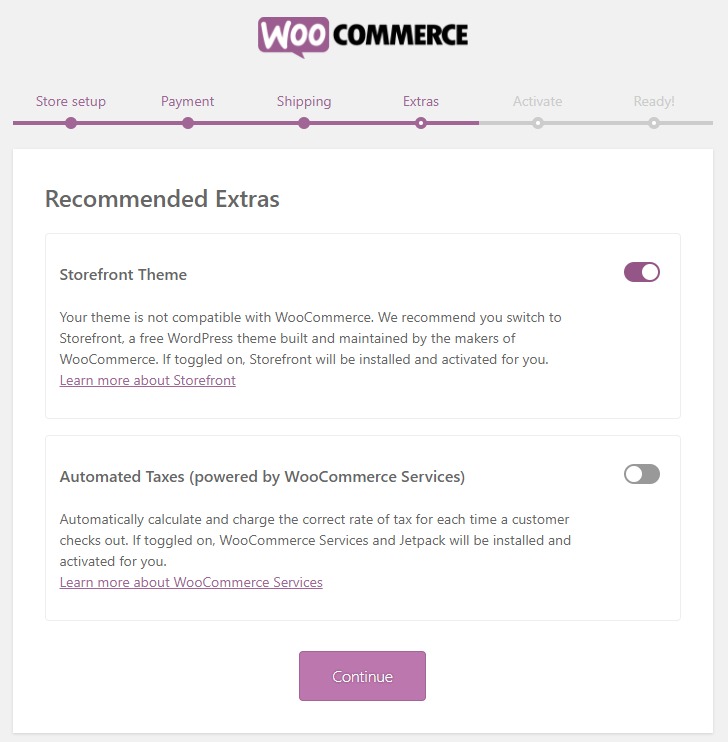
Step 7: Review the Extra Features
Next, you may see an Extra section during the WooCommerce setup process.
This section can contain additional features, recommendations, or optional services that can be used with WooCommerce.
You do not necessarily need to enable every available option when you are setting up your store for the first time.
If you are a beginner and only want to create a basic online store, you can skip optional features and return to them later when you have a better understanding of your store's requirements.
If you want to learn more about an option before making a decision, you can review the information provided on the setup screen.
Once you are ready, click the Continue button.
Step 8: Skip Jetpack if You Do Not Need It
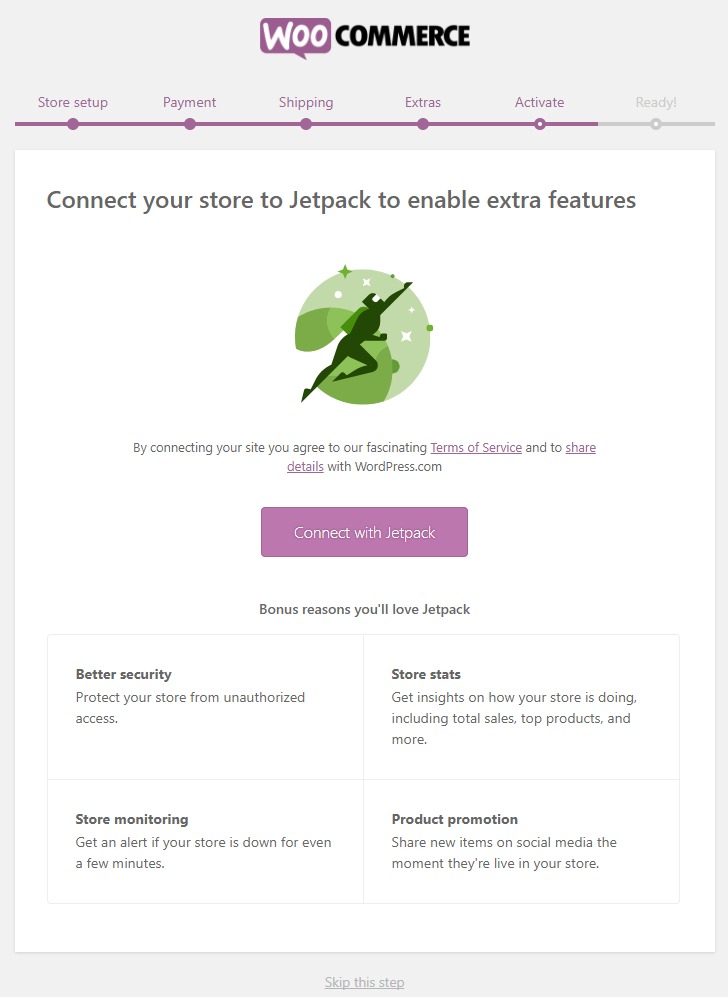
During the setup process, WooCommerce may provide an option to connect your store with Jetpack.
Jetpack is another WordPress-related service that provides various additional features. However, connecting Jetpack is not necessarily required for a basic WooCommerce store.
If you do not need the additional features offered by Jetpack, you can skip this step and continue setting up WooCommerce.
For a beginner who simply wants to start selling products with the basic WooCommerce functionality, keeping the initial setup simple can make the process easier.
You can always review additional extensions and services later when you know exactly what your online store needs.
Click the Continue button to proceed.
Step 9: Complete the WooCommerce Setup
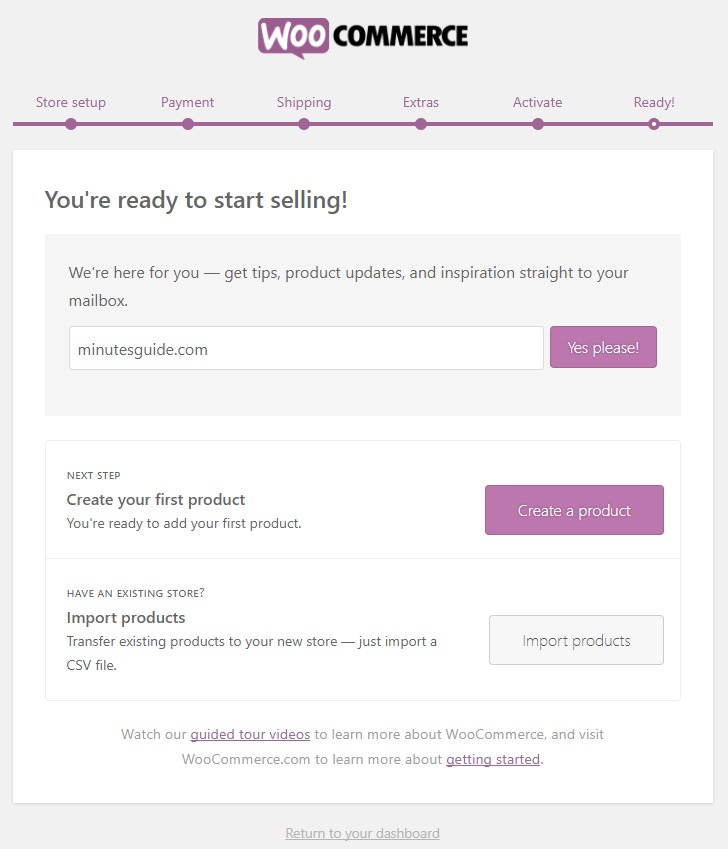
You should now reach the final part of the WooCommerce setup wizard.
At this stage, the basic configuration of your WooCommerce store has been completed.
You can choose to return to your WordPress dashboard or continue with the next step, such as creating your first product.
If you are not ready to add products yet, click "Return to your dashboard".
If you already have your product information prepared, you can choose the option to create a product and begin adding products to your store.
What Should You Do After Installing WooCommerce?
After completing the basic WooCommerce setup, your website is ready for further configuration.
The setup wizard provides the essential settings needed to get started, but WooCommerce contains many additional options that you can configure according to your business requirements.
For example, you may later need to configure:
- Product categories
- Products and product variations
- Inventory
- Tax settings
- Shipping zones
- Additional payment gateways
- Customer accounts
- Email notifications
- Checkout settings
- Privacy settings
- Store pages
- Order management
You do not need to configure everything immediately. If you are creating a simple online store, it is usually better to start with the essential settings and gradually configure additional features as your requirements become clearer.
You should also test your store before accepting real orders. Check the product pages, cart, checkout process, payment method, shipping charges, and customer emails to make sure everything works as expected.
Conclusion
WooCommerce makes it relatively easy to transform a WordPress website into an online store. The initial setup wizard helps you configure the basic store information, payment methods, shipping options, and other essential settings.
In this guide, you have learned how to install and set up the WooCommerce plugin step by step, starting from installing the plugin through the WordPress dashboard and ending with completing the initial setup wizard.
The setup wizard is sufficient for getting a basic WooCommerce store started. However, WooCommerce also provides many advanced settings and extensions that you can explore as your online business grows.
Once the basic setup is complete, the next step is to add your products and configure your store according to your specific business requirements.
Frequently Asked Questions (FAQs)
What is WooCommerce?
WooCommerce is an eCommerce plugin for WordPress that allows you to turn a WordPress website into an online store. It provides features for managing products, orders, payments, shipping, customers, and other important aspects of an online business.
Is WooCommerce free to use?
Yes, the core WooCommerce plugin is free to install and use. However, some additional features, payment gateways, themes, extensions, hosting services, and other third-party tools may require payment.
Do I need WordPress to use WooCommerce?
Yes. WooCommerce is designed to work with WordPress. You need to have a WordPress website before you can install and use the WooCommerce plugin.
How do I install WooCommerce in WordPress?
You can install WooCommerce from your WordPress dashboard by going to Plugins > Add New Plugin. Search for "WooCommerce", click Install Now, and then click Activate. After activation, WooCommerce will guide you through the initial setup process.
What information is required during WooCommerce setup?
The initial setup generally requires information such as your store location, currency, product type, payment methods, and shipping information. The exact options may vary depending on your WooCommerce version and location.
Do I need to configure payment methods immediately?
You should configure at least one suitable payment method before accepting real customer orders. However, you can complete the initial WooCommerce installation first and configure additional payment gateways later.
Can I add more payment gateways after installing WooCommerce?
Yes. You can add additional payment gateways after completing the initial setup. Many payment providers offer WooCommerce extensions or plugins that allow you to accept different types of payments.
Do I need to configure shipping if I sell physical products?
Yes. If you sell physical products, you should configure your shipping settings before accepting orders. WooCommerce allows you to create shipping zones and define shipping methods and costs for different locations.
Can I skip some WooCommerce setup options?
Yes. Some setup options are optional and can be configured later. However, important settings such as payment, shipping, tax, and store information should be reviewed before your store starts accepting real orders.
Do I need Jetpack to use WooCommerce?
No. Jetpack is not required for WooCommerce to function. You can skip the Jetpack connection if you do not need its additional features.
What should I do after installing WooCommerce?
After installing WooCommerce, you should add your products, create product categories, configure payment and shipping methods, review tax settings, configure store emails, and test the checkout process before launching your store.
Should I test my WooCommerce store before accepting orders?
Yes. Testing your store before accepting real orders is highly recommended. You should test product pages, the shopping cart, checkout process, payment methods, shipping charges, order processing, and customer email notifications to make sure everything works correctly.
References
- Installing and Uninstalling WooCommerce Documentation - woocommerce.com
- Install and set up WooCommerce - godaddy.com
