
How to Install Plugin On WordPress | WordPress is one of the most powerful and flexible content management systems available today. One of the biggest reasons behind its popularity is the extensive plugin ecosystem that allows users to extend the functionality of their websites without writing a single line of code. Whether you want to improve search engine optimization, enhance website security, create online forms, build an online store, or optimize website performance, there is likely a plugin designed specifically for your needs.
If you are new to WordPress, learning how to install plugin on WordPress is one of the first essential skills you should master. Installing plugins is a simple process, but understanding the different installation methods, best practices, and common mistakes can help you avoid compatibility issues and maintain a secure, high-performing website.
This comprehensive guide explains everything you need to know about how to install plugin on WordPress, including the various installation methods, plugin management tips, troubleshooting techniques, and important security recommendations.
Table of Contents
How to Install Plugin on WordPress: A Complete Beginner's Guide
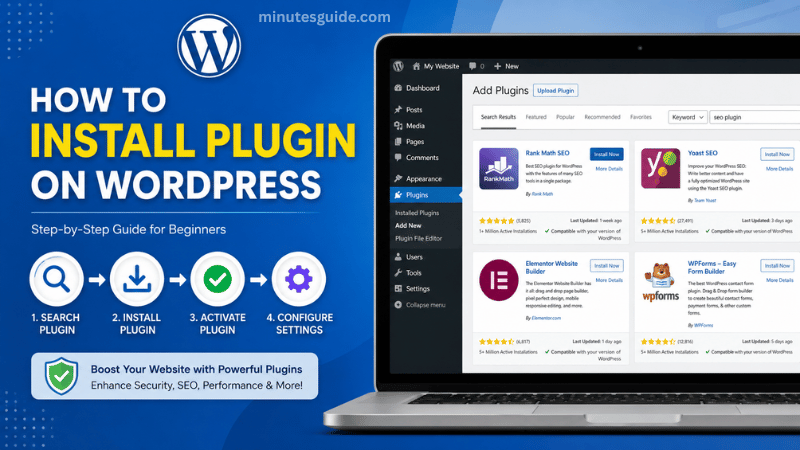
What Is a WordPress Plugin?
A WordPress plugin is a software extension that adds new features or enhances existing functionality on your WordPress website. Plugins allow website owners to customize their sites without modifying the WordPress core files.
Plugins can provide a wide variety of functions, including:
- Search engine optimization (SEO)
- Website security
- Contact forms
- Image galleries
- Website caching
- Online stores
- Membership systems
- Social media integration
- Website backups
- Analytics tracking
Instead of hiring a developer to build custom features, you can often install a plugin that performs the task immediately.
Why Plugins Are Important
Plugins transform a basic WordPress installation into a fully customized website.
Some major benefits include:
Easy Website Customization
Plugins allow beginners to add advanced features through a simple installation process without needing programming knowledge.
Save Development Time
Rather than building custom functionality from scratch, plugins provide ready-made solutions that can be installed within minutes.
Improve Website Performance
Caching, image optimization, and database optimization plugins can significantly increase website loading speed.
Enhance Website Security
Security plugins protect websites against malware, brute-force attacks, spam, and unauthorized login attempts.
Improve User Experience
Plugins make websites more interactive with contact forms, chat systems, booking systems, image sliders, and much more.
Before Installing a Plugin
Before learning how to install plugin on WordPress, it is important to prepare your website properly.
Update WordPress
Always use the latest version of WordPress to ensure compatibility with newer plugins.
Backup Your Website
Installing incompatible plugins may occasionally cause website issues. A complete backup allows you to restore your website quickly if something goes wrong.
Check Plugin Compatibility
Review the plugin page to ensure it supports your current version of WordPress.
Read User Reviews
User ratings and reviews often provide valuable insights into plugin reliability, customer support, and potential problems.
Check Last Updated Date
Avoid plugins that have not been updated for several years, as they may contain security vulnerabilities or compatibility issues.
Method 1: How to Install Plugin on WordPress from the Plugin Directory
This is the easiest and most common installation method.
Step 1: Log into Your WordPress Dashboard
Open your WordPress Admin Dashboard by visiting:
yourdomain.com/wp-admin
Enter your username and password.
Step 2: Navigate to Plugins
From the left navigation menu:
Plugins → Add New
This opens the official WordPress Plugin Directory.
Step 3: Search for a Plugin
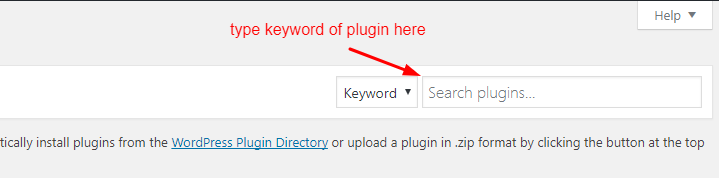
Use the search bar in the upper-right corner.
For example, you can search for:
- Elementor
- Rank Math
- WooCommerce
- WPForms
- LiteSpeed Cache
WordPress will instantly display matching plugins.
Step 4: Click Install Now
Locate the plugin you want and click the Install Now button.
WordPress automatically downloads the plugin from the official repository.
Step 5: Activate the Plugin
Once installation finishes, click Activate.
The plugin becomes active immediately.
Many plugins will now appear in the dashboard sidebar with their own settings pages.
Method 2: How to Install Plugin on WordPress Using ZIP File Upload
Premium plugins are usually downloaded as ZIP files.
If you purchased a plugin from a developer, this is the installation method you will use.
Step 1: Download the Plugin ZIP File
Download the plugin package from the developer's website.
Do not extract the ZIP file.
Step 2: Login to WordPress
Open your WordPress Dashboard.
Step 3: Open Plugin Installation Page
Navigate to:
Plugins → Add New
Click:
Upload Plugin
Step 4: Choose the ZIP File
Click:
Choose File
Select the plugin ZIP file.

Step 5: Install
Click:
Install Now
WordPress uploads and installs the plugin automatically.
Step 6: Activate
After installation completes, click:
Activate Plugin
The plugin is now ready to use.
Method 3: How to Install Plugin on WordPress Using FTP
FTP installation is generally used when:
- Plugin installation fails
- File upload limits are exceeded
- Advanced troubleshooting is required
Step 1: Extract the Plugin
Unzip the plugin on your computer.
Step 2: Connect via FTP
Use an FTP client such as FileZilla.
Connect using your hosting FTP credentials.
Step 3: Navigate to Plugins Folder
Open:
wp-content/plugins/
Step 4: Upload Plugin Folder
Upload the extracted plugin folder into:
wp-content/plugins/
Step 5: Activate the Plugin
Return to:
Plugins → Installed Plugins
Locate your plugin.
Click:
Activate
The plugin is now installed successfully.
How to Verify That the Plugin Is Installed
You can confirm installation by visiting:
Plugins → Installed Plugins
You should see the plugin listed among your installed plugins.
Most plugins also add:
- Settings page
- Dashboard menu
- Configuration wizard
- Notification banner
If everything appears correctly, the installation was successful.
How to Configure a Plugin
Installing a plugin is only the beginning.
Many plugins require additional configuration.
Common setup tasks include:
- Entering API keys
- Configuring security settings
- Choosing display options
- Setting cache preferences
- Connecting third-party services
- Creating forms or templates
Always review the plugin documentation for recommended settings.
How to Update WordPress Plugins
Keeping plugins updated is essential for both security and performance.
To update plugins:
- Go to Dashboard.
- Navigate to Updates.
- Select available plugin updates.
- Click Update Plugins.
Alternatively:
Plugins → Installed Plugins
Click:
Update Now
when available.
How to Delete a Plugin
If you no longer use a plugin, removing it helps reduce clutter and potential security risks.
Step 1
Go to:
Plugins → Installed Plugins
Step 2
Deactivate the plugin.
Step 3
Click Delete.
WordPress permanently removes the plugin files.
Common Plugin Installation Errors
Sometimes plugin installation may fail.
Below are common problems and solutions.
Plugin Is Incompatible
Older plugins may not support newer versions of WordPress.
Solution:
Choose a recently updated plugin.
Maximum Upload Size Exceeded
Large premium plugins sometimes exceed your hosting upload limit.
Solution:
Increase PHP upload size or use FTP installation.
White Screen of Death
Conflicting plugins may crash your website.
Solution:
Deactivate the plugin using FTP or your hosting file manager.
Memory Limit Error
Some plugins require more PHP memory.
Solution:
Increase your PHP memory limit through your hosting provider.
Permission Errors
Incorrect file permissions can prevent installation.
Solution:
Reset WordPress file permissions or contact your hosting provider.
Best Practices When Installing Plugins
Following best practices helps maintain a healthy WordPress website.
Install Only Necessary Plugins
Avoid installing plugins you do not actually use.
Too many unnecessary plugins can increase maintenance requirements and create compatibility issues.
Choose Reputable Developers
Install plugins from trusted developers with positive ratings and active support.
Read Documentation
Good documentation helps you configure plugins correctly and troubleshoot problems more easily.
Test New Plugins
If possible, test new plugins on a staging website before deploying them on a live site.
Keep Plugins Updated
Regular updates protect your website against newly discovered security vulnerabilities.
Remove Inactive Plugins
Inactive plugins still occupy server space and may become security risks if left outdated.
Popular Plugins Worth Installing
Here are some widely used WordPress plugins that many website owners find useful.
Rank Math SEO
Helps improve on-page SEO, XML sitemaps, schema markup, and keyword optimization.
Elementor
A drag-and-drop page builder that enables users to create professional website layouts without coding.
WooCommerce
Transforms a standard WordPress website into a fully functional online store.
WPForms
Allows users to create contact forms, surveys, payment forms, and registration forms using an intuitive visual builder.
LiteSpeed Cache
Improves website speed with page caching, image optimization, CSS optimization, and browser caching.
UpdraftPlus
Creates automatic website backups that can be restored whenever necessary.
Wordfence Security
Protects websites against malware, brute-force attacks, and suspicious login attempts.
Mistakes Beginners Should Avoid
Many beginners make similar mistakes when installing plugins.
These include:
- Installing too many plugins
- Ignoring plugin updates
- Downloading plugins from unofficial websites
- Not creating backups
- Using abandoned plugins
- Installing duplicate plugins with similar functions
- Forgetting to configure plugin settings after activation
Avoiding these mistakes will help maintain a faster, safer, and more stable website.
Conclusion
Learning how to install plugin on WordPress is an essential skill for every website owner. Plugins allow you to extend your website's capabilities without needing advanced technical knowledge, making WordPress one of the most flexible website platforms available.
Whether you install plugins directly from the WordPress Plugin Directory, upload premium plugin ZIP files, or use FTP for manual installation, the overall process is straightforward when you follow the correct steps. Taking time to choose reliable plugins, keep them updated, and remove those you no longer need will help ensure your website remains secure, fast, and easy to manage.
By following the methods and best practices outlined in this guide, you can confidently install and manage WordPress plugins while building a website that meets your goals and delivers a better experience for your visitors.
Conclusion
Can I install plugins on WordPress.com?
Only WordPress.com plans that support plugins allow custom plugin installation. Self-hosted WordPress.org websites provide full plugin functionality.
Is it safe to install free plugins?
Yes. Plugins from the official WordPress Plugin Directory generally undergo review before publication. However, always choose plugins with positive reviews, regular updates, and active developer support.
How many plugins should I install?
There is no fixed limit. Focus on installing only the plugins your website genuinely requires. Website quality depends more on plugin quality and optimization than on the total number installed.
Can I deactivate a plugin without deleting it?
Yes. Deactivating a plugin temporarily disables its functionality while keeping its files and settings on your website. You can reactivate it later if needed.
What happens if a plugin causes website errors?
You can deactivate the problematic plugin from the WordPress dashboard. If you cannot access the dashboard, use FTP or your hosting file manager to rename the plugin folder, which automatically disables the plugin.
References
- How to install WordPress plugins: A beginner's guide - hostinger.com/tutorials
- How to Install a WordPress Plugin - Step by Step - wpbeginner.com
