
How to Improve WordPress Security: A Complete Guide | WordPress is one of the most widely used content management systems for building websites, blogs, online stores, business websites, and membership platforms. Its flexibility, extensive plugin ecosystem, and user-friendly administration interface make it an attractive choice for website owners. However, like any other website platform, WordPress requires proper security measures to protect it from hackers, malware, unauthorized access, data theft, and other online threats.
Learning how to improve WordPress security is essential for anyone who manages a WordPress website, whether it is a personal blog, a corporate website, or an e-commerce store. A security incident can result in stolen information, damaged website files, unexpected downtime, lost revenue, and a decline in visitor trust. In serious cases, a compromised website may be used to distribute malicious software, send spam emails, or redirect visitors to dangerous websites without the owner's knowledge.
Fortunately, you do not need to be a cybersecurity expert to improve the security of your WordPress website. By following established security practices, keeping your software updated, controlling user access, maintaining reliable backups, and monitoring suspicious activity, you can significantly reduce the risk of a successful attack.
This complete guide explains practical ways to improve WordPress security, from basic precautions to more advanced security measures. Each recommendation is designed to help website owners build a safer WordPress environment and maintain better protection over time.
Table of Contents
How to Improve WordPress Security: A Complete Guide
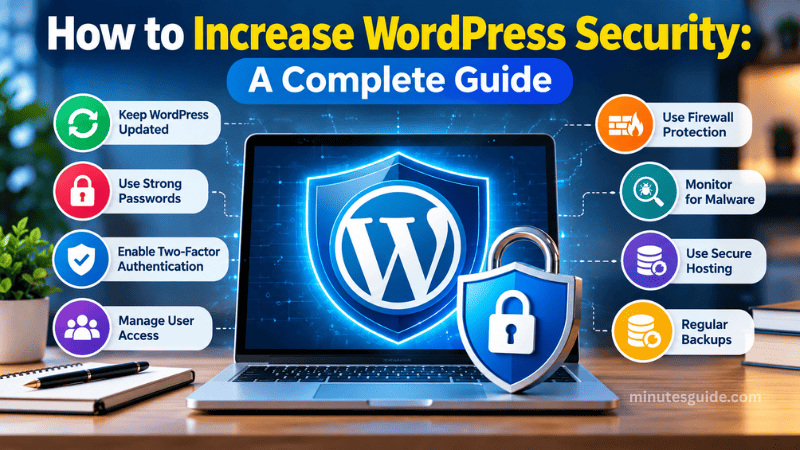
1. Keep WordPress Core, Themes, and Plugins Updated
One of the most important ways to increase WordPress security is to keep your website's software up to date. WordPress core, themes, and plugins are maintained by developers who regularly release updates to fix bugs, improve performance, introduce features, and address security vulnerabilities. When a vulnerability becomes publicly known, attackers may attempt to exploit websites that continue running an outdated version of the affected software.
An outdated plugin or theme can create a security weakness even when the main WordPress installation is running the latest version. For this reason, website owners should review updates for all installed components rather than focusing exclusively on WordPress core.
Update WordPress Core
WordPress releases maintenance and security updates to address issues that could affect website stability or expose installations to attacks. You can check for available updates from the WordPress administration dashboard by navigating to Dashboard > Updates.
Before installing major updates, make sure you have a recent backup of your website and confirm that your theme and essential plugins are compatible with the new version. For routine maintenance and security releases, applying updates promptly is generally recommended, although you should still follow an appropriate backup and testing procedure.
Automatic updates can also help reduce the time your website remains exposed to known vulnerabilities. Depending on your website's requirements, you can enable automatic updates for minor WordPress releases and configure a suitable update process for major releases.
Update Themes and Plugins
Themes and plugins extend WordPress functionality, but they can also introduce security risks when they contain vulnerable code or are no longer maintained. Visit Dashboard > Updates regularly to review available updates and install them after taking appropriate precautions.
For business websites and online stores, consider testing significant updates on a staging website before applying them to the live installation. This approach helps identify compatibility problems without unnecessarily disrupting visitors or customers.
Remove Outdated and Unused Components
Deactivating an unnecessary plugin does not always eliminate every associated security concern. Although deactivated plugins generally do not execute their normal functionality, their files remain on the server and may still present a risk if a vulnerable component can be accessed or exploited.
Delete plugins and themes that you no longer need, provided they are not required by your active website configuration. If you use a parent theme and a child theme, retain the components necessary for your installation to function correctly.
Choose software that receives regular maintenance and security updates. If a plugin has been abandoned by its developer, investigate a maintained alternative instead of continuing to depend on potentially vulnerable software.
2. Use Strong Passwords for All User Accounts
Weak passwords are one of the most preventable causes of unauthorized access to website administration accounts. Attackers may use automated tools to test commonly used passwords, leaked credentials, and combinations obtained from previous data breaches.
To increase WordPress security, create strong, unique passwords for your WordPress administrator account, hosting account, database administration tools, FTP or SFTP accounts, and any other service that can access your website.
A strong password should be sufficiently long, difficult to guess, and different from passwords used on other websites. A password manager can help you generate and securely store complex passwords without requiring you to memorize every credential.
Avoid Common Passwords
Do not use passwords based on your name, website name, business name, date of birth, or other information that may be publicly available. Avoid predictable combinations such as admin123, password123, or a familiar word followed by a short sequence of numbers.
Never reuse the same password across multiple services. If another website suffers a data breach, a reused password could allow attackers to attempt access to your WordPress dashboard or hosting account.
Change Default and Compromised Credentials
The default username admin has historically been common on WordPress installations, making it an obvious target for automated login attempts. Use a unique username when creating new accounts, and review existing accounts to ensure that every user is legitimate.
Changing a username alone does not secure an account if the password is weak. If an administrator account uses a predictable username, prioritize a strong password, multifactor authentication, and appropriate login protections.
If you suspect that a password has been exposed, change it immediately and review active sessions, account permissions, and recent activity. Update any other services where the same password was used.
3. Enable Two-Factor Authentication (2FA)
Two-factor authentication, commonly known as 2FA, adds another layer of protection to the WordPress login process. Instead of relying exclusively on a username and password, the system requires an additional verification method before granting access.
Depending on the authentication solution, this additional factor may be a code generated by an authenticator application, a hardware security key, or another supported verification method. Even if an attacker obtains your password, the additional requirement can make unauthorized access substantially more difficult.
How to Enable 2FA in WordPress
Standard WordPress installations do not provide a complete built-in two-factor authentication system for every user account, so you may need a reputable authentication plugin or an identity provider that supports 2FA.
After selecting a suitable solution, configure it for administrator accounts first. Test the login process carefully and keep recovery codes in a secure location so you do not lose access if your phone or authentication device becomes unavailable.
For websites managed by several employees or contributors, enforce two-factor authentication for privileged accounts wherever possible. Extending the requirement to all users is worth considering when the website contains sensitive information or provides access to important business functions.
Why 2FA Matters
Passwords can be stolen through phishing, malware, password reuse, or data breaches affecting unrelated services. Two-factor authentication reduces the likelihood that a stolen password alone will be sufficient to compromise an account.
For stronger protection, consider phishing-resistant authentication methods, such as hardware security keys or passkeys, when they are supported by your WordPress authentication setup. These methods can offer better resistance to fraudulent login pages than verification codes alone.
4. Install a Reliable WordPress Security Plugin
A reputable WordPress security plugin can help you identify suspicious activity, monitor important files, strengthen login protection, and detect known malware. Depending on the product, it may also provide a web application firewall, security notifications, IP blocking, or additional hardening features.
A security plugin is useful because it consolidates several protective functions into a manageable interface. However, installing a plugin does not automatically make a website secure, and no single security product can prevent every type of attack.
Choose a Security Plugin Carefully
Before installing a security plugin, check its maintenance history, compatibility with your WordPress version, documentation, support quality, and reputation. Review its permissions and resource requirements, particularly if your website operates on a hosting plan with limited server resources.
Avoid installing several plugins that perform identical security functions without a clear reason. Overlapping firewalls, login restrictions, and scanning systems may create conflicts, increase server load, or make troubleshooting more difficult.
Features to Look For
A suitable security solution may provide the following features:
- Malware scanning to identify suspicious files and known malicious code.
- Login protection to limit repeated failed authentication attempts.
- File integrity monitoring to detect unexpected changes to important files.
- Security notifications to alert administrators to suspicious activity.
- Firewall protection to filter certain malicious requests before they reach vulnerable application components.
- Security audit logs to help investigate unusual account activity.
Some features are included only in paid plans, while others may depend on server configuration. Review the plugin's documentation to understand which protections are active and whether any additional configuration is required.
Understand the Limitations of Security Plugins
A security plugin cannot compensate for weak hosting security, poor password practices, neglected updates, or insecure application code. Some attacks may also occur outside the areas monitored by the plugin.
For better protection, combine a security plugin with regular maintenance, secure hosting, reliable backups, access controls, and continuous monitoring.
5. Protect the WordPress Login Page
The WordPress login page is a common target for automated attacks because it provides an entry point to the website's administrative functions. Attackers may attempt thousands of username and password combinations in the hope of discovering valid credentials. Although repeated login attempts do not always result in a successful breach, they can consume server resources and create unnecessary security risks.
Taking steps to protect the login page can help reduce these threats and make unauthorized access more difficult.
Limit Failed Login Attempts
Consider using a reputable security plugin or hosting-level protection to limit repeated failed login attempts. For example, the system can temporarily restrict an account or block an IP address after a defined number of unsuccessful attempts.
Configure these restrictions carefully because legitimate users may occasionally enter incorrect credentials, and attackers can distribute their attempts across multiple IP addresses. Login rate limiting is useful, but it should be combined with strong passwords and two-factor authentication.
Change the Default Login URL Carefully
Some WordPress security plugins allow you to change the standard login URL from /wp-login.php to a custom address. This may reduce automated attacks that target the default login path, but it should be treated as an additional precaution rather than a primary security measure.
Changing the login URL does not prevent an attacker from exploiting another vulnerability or accessing a compromised account. Keep your authentication protections in place even if you use a custom login address.
Before changing the URL, confirm that the configuration works correctly for administrators and any applications that rely on WordPress authentication. Document the new address securely so that you do not accidentally lock yourself out.
Disable Unnecessary Login Features
If your website does not require public registration, consider disabling it under Settings > General by clearing the Membership option. This prevents visitors from registering through the standard WordPress registration process.
You should also review password-reset settings, login-related integrations, and other authentication features to ensure that they meet your website's requirements without introducing unnecessary exposure.
6. Use Secure WordPress Hosting
Your hosting provider plays a significant role in protecting your website. Even if you configure WordPress correctly, weak server security or poor isolation between customer accounts can expose your website to risks beyond your direct control.
A reliable hosting provider should maintain its server software, monitor infrastructure, apply security updates, and provide appropriate access controls. Look for a provider that offers clear security documentation and responsive technical support.
Choose a Hosting Provider With Strong Security Features
Before purchasing a hosting plan, review the security features included in the service. Useful features may include:
- Free or supported SSL/TLS certificates.
- Server-level firewalls and network protection.
- Malware detection and security monitoring.
- Automatic backups with clearly documented retention periods.
- Secure file-transfer access through SFTP or SSH where available.
- Current, supported PHP versions.
- Account isolation and protection against unauthorized access.
Shared hosting can be suitable for many small websites, but the provider's account isolation and security practices matter. For websites with higher security requirements, consider managed WordPress hosting or another environment with more specialized controls.
Keep PHP and Server Software Updated
WordPress depends on server software, including PHP and a database system. Running unsupported versions may expose the website to known vulnerabilities that no WordPress plugin can fully address.
Check the PHP version used by your website and confirm that it is supported by both WordPress and your installed themes and plugins. Before upgrading PHP or changing other server components, take a backup and test the website for compatibility.
Ask your hosting provider to manage server-level updates if you do not have the technical expertise or permissions to perform them safely.
7. Enable HTTPS With an SSL/TLS Certificate
HTTPS protects information transmitted between a visitor's browser and your website by encrypting the connection. It helps prevent third parties on the network from reading or modifying data in transit.
To use HTTPS, your website needs a valid SSL/TLS certificate. Many hosting providers offer free certificates, although some websites may require more specialized certificate management.
Configure WordPress to Use HTTPS
After installing and activating a certificate, configure WordPress to use the HTTPS version of your website. You can review the WordPress Address (URL) and Site Address (URL) fields under Settings > General.
If your website already contains pages, images, scripts, or stylesheets that reference HTTP resources, you may need to update those URLs to prevent mixed-content warnings. Test important pages, forms, login functions, and checkout processes after making the change.
Also, configure appropriate HTTP-to-HTTPS redirects so that visitors using the old HTTP address are directed to the secure version. Confirm that the redirects work correctly and do not create loops.
HTTPS is essential for protecting data in transit, but it does not prevent every form of attack. A website can still be compromised through vulnerable plugins, stolen credentials, malicious code, or insecure server configuration.
8. Remove Unnecessary WordPress User Accounts
Every WordPress user account creates another potential entry point that needs to be managed. Accounts belonging to former employees, contractors, guest writers, or service providers may become security risks when they remain active without a legitimate purpose.
Review the Users section of your WordPress dashboard regularly and confirm that every account belongs to someone who should have access.
Apply the Principle of Least Privilege
The principle of least privilege means giving each user only the permissions required to perform their responsibilities. WordPress includes several standard roles, such as Administrator, Editor, Author, Contributor, and Subscriber.
Use the lowest suitable role for each user instead of automatically granting Administrator access. For example, a writer who only needs to prepare and publish articles may not require permission to install plugins, change website settings, or manage other users.
| WordPress role | Typical responsibilities | Security consideration |
|---|---|---|
| Administrator | Manages site settings, users, themes, and plugins | Restrict this role to trusted users who genuinely need full access |
| Editor | Manages and publishes content, including content written by others | Suitable for content managers who do not need full site administration |
| Author | Writes and publishes their own posts | Appropriate for writers who manage their own articles |
| Contributor | Writes and edits their own posts but cannot publish them directly | Useful for writers whose content requires editorial approval |
| Subscriber | Manages their own profile and has limited site access | Suitable for websites that provide registered-user features |
When removing an account, transfer ownership of its content to an appropriate user where necessary. For users who no longer require access, revoke their permissions promptly and review any associated application passwords or external integrations.
9. Disable File Editing From the WordPress Dashboard
WordPress traditionally includes built-in editors that allow administrators to modify theme and plugin files directly through the dashboard. Although this functionality can be convenient during development, it creates additional risk if an unauthorized person gains access to an administrator account.
An attacker who obtains sufficient permissions may use the editor to insert malicious code into a theme or plugin. Disabling dashboard-based file editing helps reduce the available options for an attacker who has compromised an account.
You can disable the built-in theme and plugin file editors by adding the following configuration to the appropriate wp-config.php file:
define( 'DISALLOW_FILE_EDIT', true );Place the directive before the line that says /* That's all, stop editing! Happy publishing. */, if that line is present in your configuration.
Back up the file before editing it, and avoid adding duplicate definitions of the same constant. If you manage a multisite installation or use a specialized deployment process, confirm the appropriate configuration for your environment.
This setting disables the dashboard editors, but it does not prevent all file changes. Administrators with server access may still modify files through other methods, so secure SSH, SFTP, hosting control panel, and deployment credentials as well.
10. Configure Appropriate WordPress File Permissions
File permissions determine which users and processes can read, modify, or execute files and directories on your server. Incorrect permissions may allow unauthorized modification of website files or expose sensitive information.
WordPress security depends partly on ensuring that files are writable only by the users and processes that genuinely require write access.
Use Restrictive Permissions
Common starting points for many standard WordPress installations include 644 for files and 755 for directories. These values allow the owner to modify files and directories while limiting write permissions for other users.
However, these values are not universal requirements. The appropriate permissions depend on your hosting environment, file ownership, deployment process, and server configuration. Some environments require different settings to operate securely.
Avoid setting files or directories to 777 simply to resolve a permission error. This grants broad write access and can create unnecessary security exposure.
Protect the wp-config.php File
The wp-config.php file contains important configuration information, including database connection credentials and security-related settings. If an attacker gains access to these credentials, the consequences may extend beyond the WordPress dashboard.
Use appropriate file ownership and permissions to restrict access to this file. Some hosting environments also support additional server-level protections, but their suitability depends on the server configuration.
Do not share database credentials publicly, commit production configuration files to public code repositories, or store secrets in locations accessible to unauthorized users.
11. Back Up Your WordPress Website Regularly
Backups are an essential part of a WordPress security strategy because no preventive measure can guarantee complete protection. If your website is compromised, a recent clean backup may allow you to restore its content and functionality without rebuilding everything from the beginning.
A complete WordPress backup should include the website's files and database. Files contain themes, plugins, uploads, and core components, while the database stores posts, pages, settings, user information, and other essential data.
Automate the Backup Process
Use a trusted backup plugin or a hosting service that supports automated backups. Choose a backup frequency based on how frequently your website changes and how much data you can afford to lose.
For example, a website that publishes articles occasionally may need a different schedule from an online store that processes orders throughout the day. E-commerce websites should pay particular attention to database backup frequency because new orders and customer records can be lost if the most recent backup is too old.
Store Backups Outside the Website Server
Do not rely exclusively on backups stored on the same server as your WordPress installation. If the server is compromised, damaged, or inaccessible, the backups may also be lost or affected.
Keep protected copies in a separate storage location, such as a suitable cloud storage service or another secure system. Restrict access to backup files because they may contain sensitive information, and use encryption where appropriate.
Test Your Backups
A backup is only useful if it can be restored successfully. Periodically test the restoration process in a staging environment and confirm that the website functions correctly after recovery.
Document the restoration procedure so that you or another administrator can respond quickly during an incident. Regularly testing backups is particularly important before major software updates, migrations, or significant website changes.
12. Monitor Your Website for Malware and Suspicious Activity
Website monitoring helps you identify potential security problems before they cause extensive damage. Warning signs may include unfamiliar administrator accounts, unexpected file modifications, unusual login activity, suspicious redirects, or unexplained changes to website content.
A combination of security scanning, audit logs, hosting-level monitoring, and manual reviews can help you detect these issues.
Scan for Malware
Use a reputable security solution to scan WordPress files and identify known malware patterns or suspicious modifications. Review the scan results carefully because automated tools can occasionally produce false positives or fail to recognize previously unknown threats.
If a scan identifies a suspicious file, investigate its origin before deleting or modifying it. Removing the wrong file may break your website, while deleting only the visible malicious file may leave other parts of an attack untouched.
Review Login and Administrative Activity
Check available logs for repeated failed logins, unexpected account creation, unfamiliar administrator activity, and unusual changes to plugins or themes. Hosting providers may also offer access logs and security event records that help you investigate suspicious requests.
If you discover evidence of a compromise, preserve relevant logs when possible, secure affected accounts, and follow an incident-response process rather than assuming that a single scan or password change has resolved the problem.
13. Disable XML-RPC or Restrict It When Unnecessary
XML-RPC is a WordPress interface that allows certain remote applications and services to communicate with a WordPress website. Some older applications and integrations depend on it, although many modern workflows use the WordPress REST API or other authentication mechanisms.
When XML-RPC is not required, disabling or restricting access to it may reduce exposure to attacks that target this interface. However, disabling it without checking your integrations can break legitimate functionality.
Before making changes, identify whether your website uses XML-RPC for mobile publishing, remote publishing tools, or other services. If the interface is necessary, consider suitable access restrictions, monitoring, and authentication controls rather than disabling it indiscriminately.
Remember that disabling XML-RPC does not eliminate every route through which attackers may attempt to access WordPress. Your overall security strategy should still include updates, strong authentication, and server protection.
14. Use a Web Application Firewall (WAF)
A web application firewall helps protect a website by inspecting HTTP and HTTPS requests and filtering traffic that matches configured security rules. Depending on its implementation, it may help block malicious requests associated with common web attacks, automated scanning, and known exploit patterns.
A WAF can operate at different levels. A cloud-based firewall may filter traffic before it reaches your hosting server, while a server-level or application-level firewall may inspect requests closer to the WordPress installation.
Configure Firewall Protection Properly
Choose a firewall that suits your hosting environment and security requirements. Review its configuration to ensure that legitimate visitors, search engine crawlers, payment integrations, and other required services are not blocked unnecessarily.
Keep firewall rules updated and review security events periodically. If your firewall offers rate limiting or bot protection, configure these features carefully to reduce abusive traffic without preventing legitimate users from accessing the website.
A WAF provides an additional layer of defense, but it cannot replace secure application code, software updates, strong passwords, or reliable backups.
15. Avoid Cracked and Nulled WordPress Themes and Plugins
Cracked or nulled WordPress themes and plugins are unauthorized copies distributed outside the developer's legitimate licensing and distribution channels. They may appear attractive because they offer paid functionality without the normal purchase cost, but they can expose your website to serious security risks.
Files distributed through untrusted sources may contain backdoors, hidden malicious scripts, spam links, or code designed to steal information. Because the software may have been modified, you cannot safely assume that it behaves like the original version.
Download Software From Trusted Sources
Obtain WordPress themes and plugins from the official WordPress.org directory, the developer's official website, or another reputable marketplace authorized to distribute the software.
Before installing a component, review its maintenance history, compatibility information, documentation, and support availability. Avoid downloading software from websites that cannot establish its origin or provide reliable information about its developer.
If you discover a nulled plugin or theme on an existing website, replace it with a legitimate version where possible. If you suspect malicious code has already been introduced, conduct a security review rather than assuming that uninstalling the component removes every trace of the compromise.
16. Create a WordPress Security Maintenance Routine
Increasing WordPress security is an ongoing responsibility rather than a one-time task. New vulnerabilities are discovered, software changes, employees leave, and website functionality evolves. A regular maintenance routine helps ensure that security protections remain appropriate as your website grows.
The following checklist can help you organize essential security activities.
| Frequency | Security task | Purpose |
|---|---|---|
| Daily or automated | Run scheduled backups and review critical security alerts | Improve recovery readiness and identify urgent threats |
| Weekly | Review available updates, backup status, and suspicious activity | Reduce exposure to known vulnerabilities |
| Monthly | Review user accounts, plugin usage, and security configuration | Remove unnecessary access and software |
| Quarterly | Test backup restoration and review hosting security | Confirm that recovery and infrastructure controls remain effective |
| After major changes | Test website functionality, review permissions, and verify backups | Reduce the risk of introducing new security weaknesses |
| Immediately after a suspected breach | Restrict compromised access, investigate activity, and begin recovery procedures | Limit damage and restore a trustworthy environment |
Adjust this schedule according to your website's complexity, traffic, and sensitivity. A high-traffic business website or online store may require more frequent reviews than a small personal blog.
Conclusion
Learning how to increase WordPress security is essential for protecting your website, its visitors, and the information it stores. Although no website can be made completely immune to attacks, a well-planned security strategy can significantly reduce the likelihood of compromise and limit the impact of incidents.
Start with the fundamentals: keep WordPress core, themes, and plugins updated, use strong and unique passwords, enable two-factor authentication, restrict administrator access, and choose a reputable hosting provider. Strengthen these measures with HTTPS, appropriate file permissions, a suitable security plugin, firewall protection, and regular malware monitoring.
Reliable backups are equally important because preventive measures cannot eliminate every possible threat. Maintain separate backup copies and test the restoration process so that you can recover your website if something goes wrong.
Most importantly, treat WordPress security as a continuous process. Review your website regularly, remove unnecessary software and user accounts, monitor suspicious activity, and respond promptly when a potential vulnerability is discovered. By following these practices consistently, you can build a more secure WordPress website and provide visitors with a safer, more reliable online experience.
Frequently Asked Questions About WordPress Security
How can I increase WordPress security?
You can increase WordPress security by keeping WordPress core, themes, and plugins updated, using strong and unique passwords, enabling two-factor authentication, and installing a reputable security plugin. You should also use HTTPS, restrict user permissions, configure appropriate file permissions, maintain regular backups, and monitor your website for suspicious activity. Combining these measures provides stronger protection than relying on a single security solution.
What is the best WordPress security plugin?
The best WordPress security plugin depends on your website's requirements, hosting environment, and preferred security features. Popular options include Wordfence Security, Solid Security, and Sucuri Security. Before choosing a plugin, review its available features, maintenance history, compatibility, and pricing. Avoid installing multiple plugins with overlapping functions unless you have a specific reason to do so.
Is WordPress secure by default?
WordPress includes several security features and receives regular maintenance updates, but no content management system is completely immune to attacks. The security of a WordPress website also depends on the quality of its hosting environment, the themes and plugins it uses, password practices, user permissions, and ongoing maintenance. Website owners should implement additional security measures to reduce the risk of unauthorized access and malware infections.
How often should I update WordPress?
You should check for updates regularly and install security updates as soon as reasonably possible after taking appropriate precautions. WordPress core, themes, and plugins can contain vulnerabilities that attackers may exploit. For major updates, consider creating a backup and testing the changes on a staging website before applying them to your live installation. Automated updates can also help reduce exposure to known vulnerabilities.
Does changing the WordPress login URL improve security?
Changing the default WordPress login URL may reduce automated login attempts targeting the standard login path. However, it does not provide comprehensive protection against hackers. You should combine this measure with strong passwords, two-factor authentication, login rate limiting, and regular security monitoring. A custom login URL should be treated as an additional precaution rather than a replacement for essential security controls.
Why should I avoid cracked or nulled WordPress plugins and themes?
Cracked or nulled WordPress plugins and themes may contain malicious code, backdoors, hidden spam links, or scripts designed to steal sensitive information. They may also lack legitimate updates and developer support, leaving your website exposed to security vulnerabilities. Download themes and plugins from trusted sources, such as the official WordPress.org directory, the developer's official website, or an authorized marketplace.
How can I protect my WordPress website from hackers?
To protect your WordPress website from hackers, use strong passwords, enable two-factor authentication, update all software, restrict administrator access, and configure a suitable firewall. Remove unused plugins and themes, review user accounts, and monitor suspicious login attempts. Regular backups are also essential because they can help you restore your website if an attack causes damage or disrupts its functionality.
How often should I back up my WordPress website?
The appropriate backup frequency depends on how often your website changes and how much data you can afford to lose. A small blog that publishes occasionally may require less frequent backups than an online store that processes orders throughout the day. Store backup copies separately from your website server and test the restoration process periodically to confirm that your files and database can be recovered successfully.
Is HTTPS enough to secure a WordPress website?
No. HTTPS encrypts information transmitted between a visitor's browser and your website, helping protect data in transit from interception or modification. However, it does not prevent attacks involving weak passwords, vulnerable plugins, malicious code, or compromised hosting accounts. For effective protection, combine HTTPS with regular updates, strong authentication, access controls, malware monitoring, and secure backups.
What should I do if my WordPress website is hacked?
If your WordPress website is hacked, contact your hosting provider if necessary, restrict compromised access, and change affected credentials using a trusted device. Preserve relevant logs where possible, investigate suspicious files and user accounts, and identify the likely cause of the compromise. Restore the website from a verified clean backup or perform a thorough cleanup, update vulnerable software, and review server security before returning the website to normal operation. If sensitive customer information may have been exposed, assess your notification and reporting obligations under applicable laws.
References
- How to improve WordPress security - cloudflare.com
- 10 WordPress Security Best Practices and Tips for 2026 - miniorange.com
