
Have you found a better deal for domain registration, or are you planning to move your domain name to a different provider? If so, transferring your domain to a new registrar may help you manage your website more conveniently and potentially reduce your annual registration costs. Domain registration prices vary between providers, and some registrars offer lower introductory prices or more affordable renewal fees than others.
In this tutorial, I will explain how to transfer a domain name from your current registrar to a new registrar, step by step. Although the exact process and interface may differ between providers, the general procedure is similar for many domain extensions, including popular extensions such as .com and .net.
For this tutorial, I will use FastComet as an example of the new provider. However, you can apply the same general process when transferring your domain to another registrar, provided that the new provider supports your domain extension.
Before we begin, it is important to understand that transferring a domain name is not necessarily the same as moving your website to a new hosting server. A domain transfer changes the registrar responsible for managing your domain registration. Your website files, database, email accounts, and hosting service may remain with your existing provider unless you move them separately.
The general steps for transferring a domain are as follows:
- Obtain the EPP code or domain authorization code from your current registrar.
- Start the domain transfer request with your new registrar.
- Enter the authorization code and complete the payment if required.
- Check your email for any transfer confirmation or approval requests.
- Approve the transfer and wait for the process to finish.
- Verify that your domain is now managed by the new registrar.
Now, let us go through each step in detail.
Table of Contents
How to Transfer a Domain to a New Host: A Step-by-Step Guide
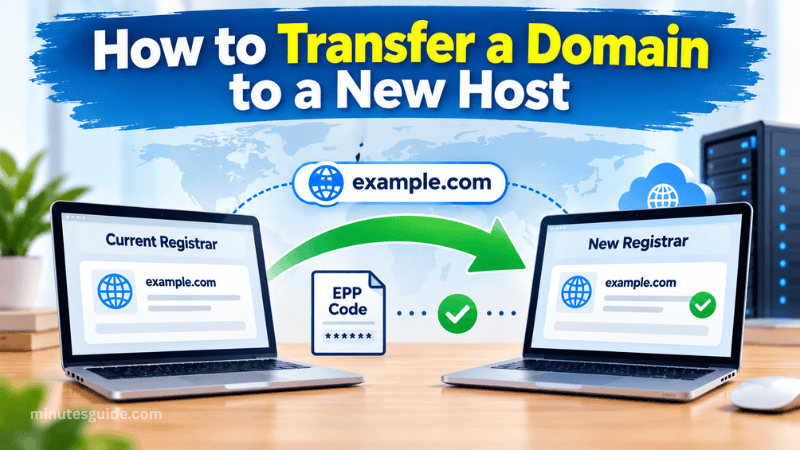
Transfer a Domain to a New Registrar
Before starting the transfer process, you should check whether your domain meets the requirements set by your current registrar and the registry responsible for your domain extension. Preparing these details in advance can help prevent unnecessary delays or rejected transfer requests.
Requirements Before Transferring Your Domain
Make sure you have checked the following requirements before proceeding:
- The domain name must be eligible for transfer and should not be subject to a transfer restriction.
- You must have access to the email address associated with your domain registration or the relevant authorized contact.
- You must be able to obtain the EPP code, also known as the authorization code or transfer code, if your domain extension requires one.
- The domain must be unlocked at the current registrar, where an applicable transfer lock is enabled.
- You should check whether any minimum registration period or waiting period applies to your domain.
- Your domain should have sufficient time remaining before expiration to complete the transfer safely.
- You should have access to your current registrar account so that you can manage the domain settings.
For many generic domain extensions, such as .com and .net, a transfer may be restricted during the first 60 days after initial registration, within 60 days of a previous transfer, or following certain changes to the registrant's contact information. The applicable rules depend on the circumstances and registrar policies.
There is also no universal requirement that every domain must have more than 15 days remaining before expiration. Nevertheless, starting the transfer well before the expiration date is strongly recommended because the process may take several days.
If you are unsure whether your domain is eligible for transfer, contact your current registrar or the new registrar for assistance. You should also check the transfer requirements for your particular domain extension.
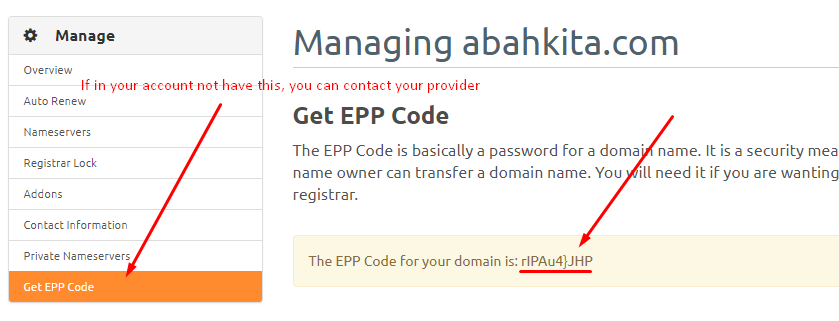
Step 1: Obtain the EPP Code from Your Current Registrar
The first step is to obtain the EPP code from the registrar that currently manages your domain name.
An EPP code is an authorization code used to help verify that a domain transfer has been requested by an authorized person. Depending on the provider and domain extension, it may also be called an Auth-Code, authorization code, or transfer code.
To obtain this code, log in to your current registrar account and look for the domain management section. Select the domain name you want to transfer and check whether an option such as “Transfer Out,” “Get EPP Code,” “Authorization Code,” or “Domain Transfer” is available.
Some providers display the code directly in the control panel, while others require you to submit a request through their customer support team. If you cannot find the option, contact your registrar and ask for the authorization code.
Once you have obtained the code, keep it somewhere secure until you are ready to submit your transfer request. Do not share it with unauthorized individuals because it is used as part of the process for authorizing a domain transfer.
You should also check whether your domain has a transfer lock enabled. If it does, you may need to disable the lock before the new registrar can process your request. The exact procedure depends on your current provider.
Step 2: Start the Domain Transfer with Your New Provider
After obtaining the EPP code, visit the website of your chosen new registrar and log in to your account. If you do not already have an account, you may need to create one before starting the transfer.
In this tutorial, I will use FastComet as the example provider.
Log in to your FastComet account and navigate to the domain management section. In the original tutorial, the transfer option is located under:
Domains → Transfer
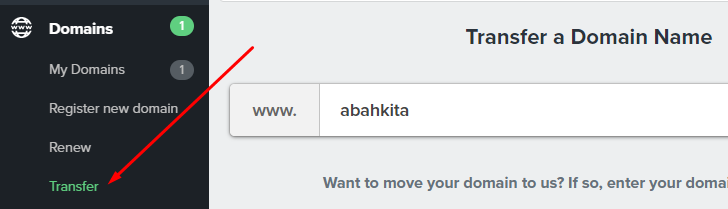
The menu names and interface may change over time, so look for the equivalent domain transfer option if the layout is different.
Once you have opened the transfer page, enter the domain name you want to transfer. Make sure that you enter the complete domain name correctly, without spelling mistakes or unnecessary characters.
After entering your domain name, click the “Check Availability” button or the equivalent option provided by the website.
The system will check whether your domain can be transferred to the new registrar. If the domain is eligible, you can proceed to the next step. If the transfer cannot be initiated, review the message displayed on the screen and contact the relevant provider if necessary.
Remember that you should transfer your existing domain rather than register a completely new domain name. A transfer request is intended to move the management of your existing registration to another registrar.
Step 3: Enter the EPP Code and Complete Your Order
Once the system confirms that your domain is available for transfer, you will be directed to the next page.
On this page, locate the field provided for the EPP code or domain authorization code. Enter the code you obtained from your current registrar.

Check the code carefully before continuing. An incorrect code may cause the transfer request to fail or require you to repeat part of the process.
After entering the code, click the “Update Cart” button, as shown in the original FastComet tutorial, or select the equivalent option available on the current website.
You will then be directed to the checkout or payment page. Review the transfer fee, applicable taxes, and other charges before completing your order.
Many domain transfers include a registration renewal for an additional year, although the exact billing and renewal rules depend on the domain extension and registrar. Review the order details so that you understand what you are paying for and whether the transfer affects your domain's expiration date.
Once you have checked the details, complete the payment if required and submit the transfer request. Keep any order confirmation or transaction reference provided by the new registrar for future reference.
Step 4: Check Your Email for a Transfer Confirmation
After submitting your transfer request, check the email account associated with your domain registration and the email account you use with the new registrar.
You may receive an email asking you to confirm that you want to transfer the domain. The message may contain a confirmation link or instructions that you must follow before the transfer can proceed.
Open the email and read the instructions carefully. If you are asked to confirm the transfer, follow the instructions provided by the registrar.
If you cannot find the email in your inbox, check your spam or junk folder. You should also verify that your registered contact information is correct and that the email address remains accessible.
Some transfer procedures require approval from the registered domain holder, while others may involve additional confirmation steps depending on the registrar and domain extension.
Do not ignore a confirmation request. If the required approval is not completed within the specified period, the transfer may be delayed or cancelled.
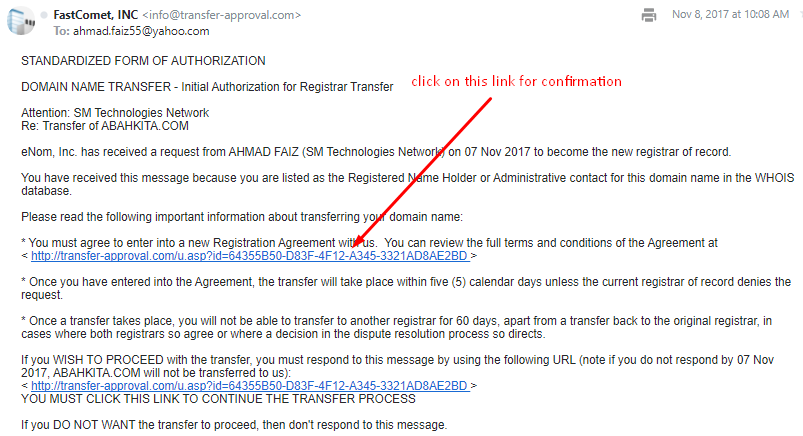
Step 5: Approve the Domain Transfer
After opening the confirmation link, you may be directed to a page where you can approve or decline the transfer request.
If you initiated the transfer and want to continue, select the approval option. In the original tutorial, the available options are described as “Approve” and “Decline.”
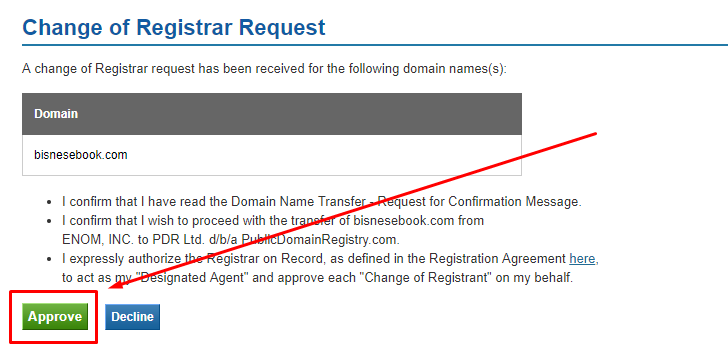
Read the information displayed on the page before making your selection. Confirm that the domain name and destination registrar are correct, then approve the request if you intend to proceed.
Depending on the registrar and domain extension, you may receive more than one confirmation email. You may also need to complete an approval step through your current registrar's account.
If you receive a message stating that the transfer has been approved, keep it for your records. However, approval does not always mean that the entire transfer has already finished. The registrar and registry may still need time to complete the remaining processing steps.
If you did not request the transfer, do not approve it. Instead, contact your registrar to investigate the request and protect your domain from unauthorized changes.
Step 6: Confirm That the Transfer Request Was Accepted
After approving the transfer, check the status of your request through your new registrar's account.
Look for a message confirming that the transfer request was accepted or is being processed. Depending on the provider, the status may appear as “Pending,” “In Progress,” “Processing,” or another similar description.
If the system displays a successful submission message, it generally means that your request has been accepted for processing. It does not necessarily mean that the domain has already been transferred completely.
If the transfer fails, read the error message carefully. Common reasons include an incorrect authorization code, a domain that remains locked, an applicable 60-day restriction, or an incomplete confirmation process.
If you encounter a problem, contact the current or new registrar and provide your domain name and transfer reference number, if available. They can help identify the cause and explain what action is required.
Step 7: Wait for the Domain Transfer to Finish
Once all required steps have been completed, you must wait for the transfer to finish.
The original tutorial recommends allowing approximately five to seven days for the process. This is a reasonable planning estimate for many domain transfers, although the actual time can vary. Some transfers finish sooner, while others take longer if additional verification or troubleshooting is required.
During this period, monitor your email and check the transfer status through your new registrar's account. If you receive another approval request or a notification about a problem, follow the instructions provided.
When the transfer is complete, log in to your new registrar's account and confirm that the domain appears in your domain list. Review the domain's registration details and expiration date to ensure that the information is correct.
You should also verify your domain's nameservers and DNS settings. If you intend to keep your existing website and email service running, make sure that the necessary DNS records remain configured correctly. A registrar transfer does not automatically mean that your website files, databases, or email hosting have moved to the new provider.
If you are transferring only the domain registration and keeping your current hosting service, you can usually continue using the existing hosting provider by retaining the appropriate nameserver or DNS configuration.
If you are moving both the domain registration and website hosting, you may need to complete a separate website migration and update the relevant DNS settings. Plan these changes carefully to minimise website downtime and email interruptions.
Conclusion
In this tutorial, you have learned how to transfer a domain from your current registrar to a new registrar. The process generally involves obtaining an EPP code, starting the transfer with your new provider, entering the authorization code, completing any required payment and confirmation steps, and waiting for the transfer to finish.
Although the exact instructions may differ between providers, understanding the general process makes it easier to move your domain without unnecessary complications. Before starting, check the eligibility requirements for your domain extension, make sure you can access the relevant email accounts, and allow enough time before your domain expires.
Most importantly, remember that transferring a domain registration is different from transferring a website to a new hosting server. If you want to keep your existing website online, review your DNS settings and hosting arrangements before making any changes.
By following these steps and checking the instructions provided by your registrar, you can complete the domain transfer process more confidently and manage your domain through your preferred provider.
Important fact-checking notes
I recommend retaining the original screenshots where they correspond to the revised steps. The article's original sequence skips Step 7 and jumps from Step 6 to Step 8; the revised version corrects that numbering.
The main factual corrections are supported by ICANN's official guidance on domain transfers and authorization codes.
| Original statement or issue | Recommended correction |
|---|---|
| Every domain must be at least 60 days old. | Explain that 60-day restrictions apply to many generic domains in specific circumstances, rather than presenting this as a universal rule for every extension. |
| Every domain must have more than 15 days remaining before expiration. | Present this as a precautionary recommendation, not a universal transfer requirement. |
| The domain must unlock ID protection service. | Clarify that the domain's transfer lock may need to be disabled. Privacy protection is a separate setting and does not always have to be disabled. |
| A successful message means the transfer is complete. | Distinguish successful submission or approval from final transfer completion. |
| The domain transfer automatically moves the website. | Explain that domain registration, website hosting, and DNS configuration are separate matters. |
Frequently Asked Questions About Domain Transfers
What Is a Domain Transfer?
A domain transfer is the process of moving the management of a domain name from one domain registrar to another. For example, you can transfer a domain from your current registrar to FastComet if you prefer to manage your domain through its services. A domain transfer does not automatically move your website files, database, or email accounts to a new hosting provider.
How Do I Transfer a Domain to a New Registrar?
To transfer a domain to a new registrar, first obtain the EPP code or authorization code from your current registrar. Next, unlock your domain if necessary, submit a transfer request through your new registrar, enter the authorization code, and complete any required payment or confirmation steps. Finally, wait for the transfer to finish and verify that your domain appears in your new registrar account.
What Is an EPP Code, and Why Do I Need It?
An EPP code, also known as an authorization code or transfer code, is a security code used to authorize the transfer of a domain name between registrars. It helps verify that the transfer request is legitimate. The code is usually available through your current registrar's domain management panel or by contacting its customer support team.
How Long Does It Take to Transfer a Domain?
A domain transfer commonly takes several days and may take approximately five to seven days, depending on the domain extension, registrar procedures, and approval requirements. Some transfers finish sooner, while others may take longer if the domain is locked, the authorization code is incorrect, or additional verification is required. Check your registrar's transfer status page for the latest information.
Can I Transfer a Domain Before It Expires?
Yes, you can generally initiate a domain transfer before its expiration date, provided that the domain meets the applicable transfer requirements. However, it is advisable to begin the process well in advance to allow enough time for verification and processing. Avoid waiting until the last minute, as a delayed or unsuccessful transfer could complicate domain renewal.
Does Transferring a Domain Also Transfer My Website?
No. Transferring a domain name does not automatically transfer your website files, database, email accounts, or hosting service. The transfer changes which registrar manages your domain registration. If you also want to move your website to a new hosting provider, you must migrate the website separately and configure the necessary DNS settings.
Will My Website Go Offline During a Domain Transfer?
A domain transfer does not normally cause website downtime by itself if the existing nameserver and DNS settings remain correctly configured. However, changing nameservers or DNS records during the process can affect website accessibility and email delivery if the settings are incorrect. Before making changes, confirm that your DNS records and hosting arrangements will continue to work as expected.
Can I Transfer a Domain Without an EPP Code?
It depends on the domain extension and the registrar's transfer procedures. Many popular generic domain extensions, including .com and .net, require an authorization code for a registrar transfer. If you cannot obtain the code, contact your current registrar to resolve the issue before submitting the transfer request.
Why Is My Domain Transfer Failing?
A domain transfer may fail because the authorization code is incorrect, the domain is locked, a mandatory waiting period applies, the domain is ineligible for transfer, or a required confirmation has not been completed. Incorrect registration contact details or other registry restrictions may also cause problems. Review the error message and contact your current or new registrar for assistance.
Do I Need to Renew My Domain When Transferring It?
Many domain transfers involve a transfer fee that includes an additional year of registration, but the exact rules depend on the domain extension and registrar. Some extensions have different renewal procedures or restrictions. Check the checkout page and transfer terms before paying to understand the cost and how the transfer will affect your domain's expiration date.
Can I Transfer My Domain to FastComet?
You can transfer your domain to FastComet if your domain extension is supported and the domain meets the applicable transfer requirements. Generally, you will need to obtain the authorization code from your current registrar, submit the transfer request through FastComet, complete any required payment, and approve the transfer if requested. Check FastComet's current domain transfer instructions for the latest requirements.
Is It Safe to Transfer a Domain to Another Registrar?
Transferring a domain to a reputable registrar is generally safe when you follow the correct procedure and protect your account credentials and authorization code. Before starting, verify that the new registrar supports your domain extension, ensure that your registration contact details are accessible, and keep a record of your existing DNS settings. Only approve transfer requests that you have initiated or explicitly authorized.
References
- Domain Transfer | Domain Name Transferring Made Easy - godaddy.com
- How to transfer a domain name - cloudflare.com
