
If you own a local business, creating a Google Business Profile is one of the most important steps you can take to improve your online presence. A properly configured profile allows potential customers to discover your business when they search on Google Search or Google Maps, while also giving you greater control over essential information such as your business name, address, phone number, website, opening hours, photos, and customer reviews.
Although many people search for information about how to set up Google Business Account, Google officially refers to this service as Google Business Profile. The profile is designed primarily for businesses that interact with customers in person, either at a physical location or by travelling to customers within a specific service area.
The setup process is relatively straightforward, but completing each step correctly is important. Incorrect business information, duplicate profiles, inappropriate categories, or inaccurate addresses can create problems with verification and may affect how your business appears on Google.
This guide explains how to set up Google Business Account from beginning to end, including eligibility requirements, creating or claiming a profile, choosing the correct business information, completing verification, optimizing the profile, and maintaining it after setup.
Table of Contents
How to Set Up Google Business Account
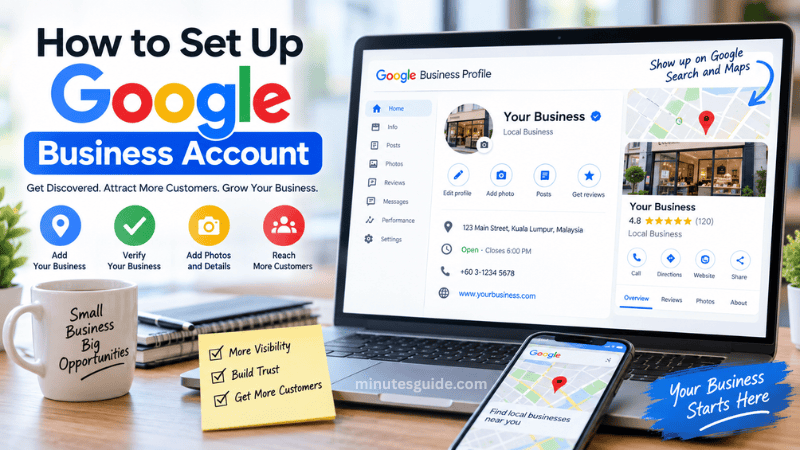
What Is a Google Business Profile?
Google Business Profile is a free Google service that allows eligible businesses to manage their presence on Google Search and Google Maps. Once a profile has been added and verified, business owners can provide customers with important information about their company and interact with them directly through Google's platforms.
For example, a completed Business Profile can display information such as:
- Business name
- Business category
- Physical address
- Service area
- Telephone number
- Website
- Opening hours
- Business photos
- Products or services
- Customer reviews
- Other relevant business information
This information can make it significantly easier for potential customers to understand what your business offers and decide whether to contact or visit you.
A Business Profile can therefore function as a digital storefront for a local business. When someone searches for a nearby service or business, Google can display relevant Business Profiles in Search and Maps.
Who Can Create a Google Business Profile?
Before learning how to set up Google Business Account, you should first determine whether your business is eligible.
Google generally requires an eligible business to make in-person contact with customers during its stated business hours. This can include businesses with a physical location that customers visit as well as service-area businesses that travel to customers.
Examples of potentially eligible businesses include:
- Restaurants
- Retail stores
- Salons and barbers
- Repair businesses
- Professional service providers
- Medical and dental practices
- Local contractors
- Cleaning services
- Plumbers
- Electricians
- Businesses that visit customers at their locations
Online-only businesses that do not have a physical customer interaction or service customers in person generally do not qualify for a Google Business Profile. Google also identifies certain other businesses and situations as ineligible, including certain properties offered for rent or sale and lead-generation companies.
If you are uncertain about eligibility, it is important to check Google's current Business Profile eligibility guidelines before creating a listing.
Step 1: Create or Sign In to a Google Account
The first step in learning how to set up Google Business Account is having a Google Account that you can use to manage your business profile.
You can use an existing Google Account or create a new one. Google also allows you to use a company email address with a Google Account, so you do not necessarily have to use a Gmail address.
If the business already has an established Google Account used by the owner or organization, consider using that account rather than creating unnecessary additional accounts.
It is also important to ensure that the account is controlled by the actual business owner or an authorized representative. Google states that only business owners or authorized representatives should verify and manage a Business Profile.
If several people need access to the profile, appropriate management access can be provided instead of sharing the account password.
Step 2: Search for Your Business on Google
Before creating a completely new profile, search for your business on Google.
This step is important because Google may already have a Business Profile for your company. A profile can exist even if you did not personally create it.
Search for your business name together with your city or location. You can also search for the business directly on Google Maps.
If an existing unverified profile belongs to your business, you may be able to claim it rather than creating another listing. Google specifically recommends claiming an existing unverified profile when appropriate.
Creating duplicate profiles for the same business can cause unnecessary confusion and may violate Google's guidelines. Google recommends having only one profile per business.
Step 3: Add or Claim Your Business
If your business does not have an existing profile, you can add it through Google's Business Profile system.
Go to Google's Business Profile setup page and select the option to add your business. Google currently provides the official process through its Business Profile platform.
You will then be asked to provide information about the business.
If an existing unverified profile is found, select the option to claim and manage the business instead.
If another person has already verified the profile and you are the legitimate owner, you may need to request ownership rather than creating a second profile. This process helps Google maintain accurate ownership information.
Step 4: Enter Your Correct Business Name
Your business name should be entered exactly as your business is represented in the real world.
For example, if your registered and publicly used business name is "ABC Computer Services," you should not add unnecessary keywords such as "ABC Computer Services - Best Computer Repair in Kuala Lumpur" simply to try to attract more searches.
Google's guidelines state that a business name should reflect the real-world name used consistently on the business's storefront, website, stationery, and other branding. Adding unnecessary information to the business name can result in problems, including possible suspension.
This is one of the most important steps when learning how to set up Google Business Account because inaccurate naming can affect the credibility and compliance of the entire profile.
Step 5: Choose the Most Appropriate Business Category
Google will ask you to select a category that describes your business.
Choose the category that most accurately represents your primary business activity. Avoid selecting unrelated categories simply because you believe they may generate more visibility.
For example, a business primarily providing plumbing services should select an appropriate plumbing-related category rather than choosing several unrelated categories.
Google recommends selecting the fewest categories necessary to describe the business's core operations accurately.
The primary category can be particularly important because it helps Google understand what type of business you operate.
You may be able to add additional relevant categories where appropriate, but every category should accurately describe a genuine aspect of the business.
Step 6: Enter Your Business Address or Service Area
The next step is to provide information about where your business operates.
If customers visit your physical location, enter the correct business address. The address should be accurate and correspond to the real-world location of the business.
If you operate as a service-area business and travel to customers rather than receiving customers at a storefront, Google provides options for defining your service area.
Do not use a P.O. box or an inappropriate remote mailbox address as the business location. Google has specific address requirements that businesses must follow.
Accuracy is especially important because customers may use Google Maps to navigate directly to your business.
Step 7: Add Your Phone Number and Website
Add the primary telephone number customers use to contact your business.
You should also add your official business website if one is available.
Google's guidelines emphasize that the phone number and website associated with a Business Profile should be the authoritative contact information for the business and should be verifiable by the business owner.
Avoid using misleading contact information or websites that do not genuinely represent the business.
Before publishing the information, check that your phone number works correctly and that your website loads properly on both desktop and mobile devices.
Step 8: Add Your Business Hours
Accurate opening hours are essential because customers often check Google before visiting a business.
Enter your normal operating hours carefully and make sure they reflect the hours during which customers can actually interact with your business.
You should also update your profile when your operating hours change.
For example, if your business normally operates from Monday to Saturday but closes on Sunday, the profile should clearly communicate this information.
Special hours may also need to be updated for public holidays, seasonal changes, or temporary closures.
Keeping business information accurate is important because Google states that complete and accurate information can help businesses appear in relevant local search results.
Step 9: Verify Your Business
Verification is one of the most important stages of setting up a Google Business Profile.
Google uses verification to confirm that you are authorized to manage the business. Once verification is completed, you gain control over the Business Profile and can manage important business information.
The verification methods available to you are determined automatically by Google. Depending on your business, region, public information, and other factors, Google may offer methods such as phone, text, video, or other verification options.
If video verification is offered, you may be required to demonstrate evidence of the business location, equipment, products, signage, or your ability to manage the business.
Follow Google's instructions carefully rather than attempting to bypass the verification process.
You should also keep verification codes confidential. Google specifically warns users not to share verification codes with other people, including individuals who help manage the Business Profile.
Step 10: Complete Your Business Profile
After verification, review the profile and complete as many relevant sections as possible.
A complete profile gives customers more information about your business and can make your listing more useful.
Depending on your business type, consider adding:
- A detailed business description
- High-quality photographs
- Business logo
- Cover image
- Products
- Services
- Website
- Telephone number
- Opening hours
- Service areas
- Relevant business links
Google allows businesses to edit information such as their address, hours, contact information, and photos after the profile has been verified.
Do not add information simply to make the profile look fuller. Every detail should be accurate and useful to customers.
Step 11: Write a Professional Business Description
Your business description should clearly explain what the business does and what customers can expect.
A useful description can include your main services, products, areas of specialization, and relevant background information.
For example, instead of writing a vague description such as:
"Welcome to our business. We provide excellent services."
A more informative description might explain the specific services offered, the customers served, and the business's area of operation.
Google recommends using the description to provide useful information about the products and services offered, as well as the business's mission and history. The description should be honest, relevant, and useful to customers.
Avoid stuffing the description with repetitive keywords, unnecessary promotional claims, or unrelated information.
Step 12: Upload High-Quality Photos
Photos can make your Business Profile more informative and visually appealing.
Consider uploading authentic photographs that accurately represent your business.
Useful images may include:
- Business exterior
- Business interior
- Products
- Services
- Staff members
- Equipment
- Work environment
- Logo
- Other relevant business photographs
High-quality images can help potential customers understand what your business looks like before they visit.
Avoid using misleading images or photographs that do not accurately represent the business.
Step 13: Manage Customer Reviews
Customer reviews are an important component of a Business Profile.
Encourage genuine customers to leave honest reviews about their experiences with your business. You should not attempt to manufacture reviews or manipulate customers into providing misleading feedback.
When customers leave reviews, respond professionally and respectfully.
Positive reviews should be acknowledged when appropriate, while negative reviews should be addressed calmly and constructively.
A professional response demonstrates that the business pays attention to customer feedback.
Reviews can also provide useful information about areas where your business can improve.
Step 14: Keep Your Business Information Updated
Creating a profile is not the end of the process.
You should regularly review your Business Profile to ensure that the information remains accurate.
Update the profile whenever there are changes to:
- Business hours
- Telephone number
- Website
- Address
- Service area
- Products
- Services
- Business description
- Photos
- Other customer-facing information
Google specifically recommends keeping business information up to date because accurate information can improve the usefulness of your profile and help customers find the correct details.
An outdated profile can create a poor customer experience. For example, a customer may arrive at a business after seeing opening hours that are no longer correct.
Step 15: Follow Google's Business Profile Guidelines
Following Google's guidelines is essential if you want to maintain your Business Profile over the long term.
Your profile should accurately represent your business and comply with Google's policies regarding business information, content, reviews, photos, and other profile elements.
Some common mistakes to avoid include:
- Creating duplicate profiles
- Adding keywords unnecessarily to the business name
- Using an inaccurate address
- Choosing irrelevant categories
- Providing misleading information
- Creating fake reviews
- Using inappropriate content
- Claiming a business without authorization
Violations can result in content restrictions, profile restrictions, or other enforcement actions.
How Long Does Google Business Profile Verification Take?
Verification time depends on the method and circumstances associated with your profile.
Google states that after completing verification steps, its review can take up to five working days in some cases. Some profiles may be verified instantly, including certain situations involving website verification through Google Search Console.
Therefore, you should not assume that every Business Profile will become fully verified immediately after submitting the information.
If Google requests additional information, provide accurate evidence that demonstrates your connection to the business.
Common Mistakes When Setting Up a Google Business Profile
Understanding how to set up Google Business Account also means knowing what mistakes to avoid.
One common mistake is creating a second profile when an existing profile already belongs to the business. Instead, search Google Maps first and determine whether the existing profile can be claimed.
Another mistake is entering a business name that contains unnecessary promotional keywords. Your business name should represent the real-world name of the business.
Using an incorrect address is another serious problem. The address should accurately represent where customers can find or interact with the business.
Businesses should also avoid creating profiles for locations where they have no legitimate business presence or customer interaction.
Finally, do not ignore the profile after verification. Business information can become outdated, and customers rely on the information shown on Google when deciding whether to contact or visit a business.
How Google Business Profile Can Help Your Business
A properly maintained Business Profile can provide several advantages for local businesses.
| Benefit | Explanation |
|---|---|
| Google Search visibility | Helps customers discover relevant business information when searching on Google |
| Google Maps presence | Allows eligible businesses to appear on Google Maps |
| Customer trust | Provides customers with verified business information and reviews |
| Contact opportunities | Makes it easier for customers to find phone numbers, websites, and other contact options |
| Business information | Allows you to communicate hours, services, location, and other important details |
| Customer interaction | Provides opportunities to respond to reviews and share business content |
| Local discovery | Helps customers discover businesses relevant to searches in their local area |
Google explains that Business Profiles can help businesses attract customers by improving how their information appears online and directing customers to websites, social media, booking links, and other destinations.
Final Checklist for Setting Up a Google Business Account
Before considering your setup complete, review the following checklist:
- Create or use an appropriate Google Account.
- Confirm that your business is eligible.
- Search Google Maps for an existing profile.
- Claim an existing profile if appropriate.
- Create a new profile if one does not exist.
- Enter the real-world business name.
- Select the most appropriate primary category.
- Enter an accurate physical address or service area.
- Add the correct telephone number.
- Add your official website.
- Set accurate opening hours.
- Complete Google's verification process.
- Add a professional business description.
- Upload authentic and high-quality photos.
- Add relevant products or services where available.
- Monitor and respond to customer reviews.
- Keep business information updated.
- Follow Google's Business Profile policies.
Conclusion
Learning how to set up Google Business Account is an important step for any eligible local business that wants to establish a stronger presence on Google Search and Google Maps.
Although the service is commonly referred to as a Google Business Account, Google's current terminology is Google Business Profile. The process involves creating or claiming the profile, entering accurate business information, selecting an appropriate category, providing an address or service area, completing verification, and maintaining the profile over time.
The most important principle is accuracy. Your business name, location, contact information, opening hours, category, description, photographs, and other details should accurately represent your real business and comply with Google's guidelines.
Once the profile has been verified and properly completed, continue maintaining it rather than treating the setup as a one-time task. Regularly updating your information, adding relevant photographs, responding to customers, and keeping your business details accurate can provide a better experience for people who discover your business through Google.
For the latest setup instructions, Google's official Business Profile Learning Center provides guidance covering business setup, verification, editing information, and managing photos and videos.
Frequently Asked Questions About Setting Up a Google Business Profile
What is a Google Business Profile?
Google Business Profile is a free Google service that allows eligible businesses to manage how their business information appears on Google Search and Google Maps. Businesses can provide details such as their name, address, phone number, opening hours, website, photos, services, and customer reviews.
Is Google Business Profile free to use?
Yes. Creating and managing a Google Business Profile is free. Businesses do not need to pay Google to create a standard Business Profile, although they may choose to spend money separately on Google Ads or other advertising services.
Is a Google Business Profile the same as a Google Business Account?
The terms are often used interchangeably, but Google officially calls the service Google Business Profile. A Google Account is the account you use to access and manage the Business Profile, while the Business Profile itself is the public business listing displayed across Google's services.
Who can create a Google Business Profile?
Generally, eligible businesses that interact with customers in person can create a Business Profile. This includes businesses with physical locations that customers visit and service-area businesses that travel to customers. Online-only businesses without in-person customer interaction generally do not qualify.
Do I need a physical business address?
Not necessarily. Businesses that serve customers at their own location can provide a physical address, while eligible service-area businesses can configure a service area instead. The information provided must accurately represent how and where the business operates.
How long does Google Business Profile verification take?
The verification time varies depending on the verification method and individual business circumstances. Some businesses may be verified quickly, while others may require additional review. Google states that certain verification reviews can take up to five working days.
Why does Google require business verification?
Verification helps Google confirm that the person managing the Business Profile is authorized to represent the business. It also helps maintain the accuracy and reliability of business information displayed to customers.
Can I create more than one Google Business Profile for the same business?
Generally, you should not create duplicate profiles for the same business location. If your business already has a profile, you should normally claim and manage the existing profile rather than creating another one.
What business information should I add to my profile?
You should provide accurate and complete information that customers need to understand and contact your business. This can include your business name, primary category, address or service area, phone number, website, opening hours, business description, services, products, and photographs.
Can I change my Google Business Profile after verification?
Yes. Business owners and authorized managers can update many aspects of a Business Profile after verification. You should update the information whenever important details such as business hours, contact information, services, or location change.
How important are photos on a Google Business Profile?
Photos can help potential customers understand your business before they visit or contact you. Consider uploading authentic, high-quality images of your business exterior, interior, products, services, staff, equipment, and other relevant aspects of your operation.
How can I get more customer reviews?
You can encourage genuine customers to leave honest reviews about their experiences with your business. However, you should avoid creating fake reviews, purchasing reviews, or using misleading methods to manipulate your review ratings.
Should I respond to Google reviews?
Yes. Responding professionally to reviews can demonstrate that your business values customer feedback. Thank customers for positive feedback and address negative reviews calmly and constructively without revealing private customer information.
Can I add keywords to my Google Business Profile name?
Your business name should reflect the real-world name of your business. Adding unnecessary keywords or promotional phrases to the business name is not recommended and can violate Google's Business Profile guidelines.
What happens if I provide incorrect information?
Incorrect or misleading information can create a poor customer experience and may cause problems with your Business Profile. In serious cases, violations of Google's guidelines can result in restrictions or suspension. It is therefore important to ensure that all information accurately represents the actual business.
How often should I update my Google Business Profile?
You should review your profile regularly and update it whenever your business information changes. At a minimum, check important details such as opening hours, phone numbers, website links, services, address, and photos to ensure that customers are seeing current information.
Can a Google Business Profile help my business appear on Google Maps?
Yes. An eligible and verified Business Profile can appear on Google Maps. This makes it easier for customers searching for businesses or services in a particular area to discover your company and access useful information about it.
Can I manage my Google Business Profile from my phone?
Yes. Google provides ways for business owners and authorized users to manage Business Profile information through Google's services on supported mobile devices. You can perform tasks such as updating business information, managing photos, and responding to customer reviews.
What should I do if someone else owns my Business Profile?
If another person has verified a profile that represents your business, you should use Google's ownership request process rather than creating a duplicate profile. You may need to demonstrate that you are authorized to manage the business.
What is the most important thing to remember when setting up a Google Business Profile?
The most important principle is accuracy. Your business name, location, contact information, opening hours, category, description, photographs, and other details should accurately represent your real business. Maintaining accurate information after setup is equally important because customers rely on Google when deciding whether to contact or visit a business.
Rujukan
- Google Business Profile: Get Listed on Google - business.google.com
- How to Set Up a Google Business Profile - coursera.org
