
How to Install Actions In Photoshop: Step-by-Step Guide for Beginners | If you frequently edit photos in Adobe Photoshop, you may eventually find yourself repeating the same tasks over and over again. Adjusting colors, applying filters, creating effects, resizing images, sharpening photographs, adding borders, or preparing images for social media can take considerable time when every step has to be completed manually. Fortunately, Photoshop provides a feature called Actions that can automate a sequence of editing commands and significantly simplify repetitive workflows.
Learning how to install actions in Photoshop is particularly useful for photographers, graphic designers, content creators, bloggers, digital marketers, and anyone who regularly processes multiple images. Once an action has been installed, you can run the recorded sequence of commands with only a few clicks instead of manually repeating every individual editing step.
This guide explains how to install actions in Photoshop step by step, including how to locate the Actions panel, load an .atn action file, run the installed action, troubleshoot common installation problems, and organize your actions for future projects.
Table of Contents
How to Install Actions In Photoshop: Step-by-Step Guide for Beginners
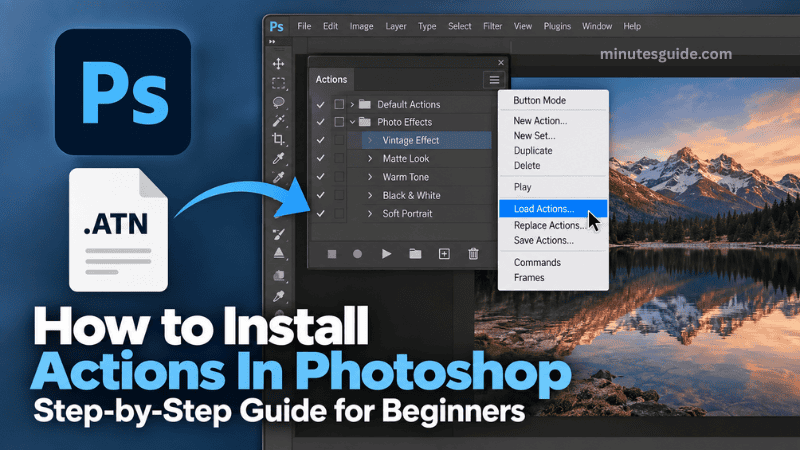
What Are Photoshop Actions?
Photoshop Actions are recorded sequences of commands that Photoshop can play back automatically. An action can contain multiple operations, including menu commands, tool operations, panel adjustments, and other supported editing tasks. Instead of manually performing every operation, you can run the action and allow Photoshop to reproduce the recorded workflow.
For example, imagine that you regularly prepare product photographs for your website. You may normally open an image, adjust its brightness, increase contrast, sharpen the photograph, resize it, add a watermark, and save it in a particular format. If these steps have been recorded as an action, Photoshop can perform the sequence automatically when you play the action.
Actions are particularly useful when you need to apply similar editing processes to many images. They can help reduce repetitive work and make your workflow more consistent because the same recorded commands can be executed repeatedly.
Photoshop action files generally use the .atn extension. Adobe's documentation specifically identifies .atn as the file extension used for Photoshop action sets.
What You Need Before Installing a Photoshop Action
Before learning how to install actions in Photoshop, you should make sure that you have the correct action file and understand what the downloaded package contains.
Most third-party Photoshop actions are distributed as downloadable files. Depending on the creator, the download may contain an .atn file together with other resources such as instructions, brushes, patterns, gradients, presets, or sample images.
The most important file for installing a traditional Photoshop Action is the .atn file. If the downloaded package is compressed as a ZIP or another archive format, you normally need to extract it before attempting to load the action.
It is also important to read the instructions supplied by the action creator. Some actions depend on additional Photoshop resources, and an action may not produce the expected result if those required resources have not been installed.
For example, an action may depend on particular brushes, fonts, patterns, or other assets. Installing only the .atn file may therefore not be sufficient for the complete effect described by the creator.
Step 1: Download the Photoshop Action
The first step is to obtain a Photoshop action from a trusted source. Action files can be created by professional designers, photographers, developers, or other Photoshop users and may be available as free or paid downloads.
After downloading the action, locate the file on your computer. If the download is contained inside a ZIP archive, extract the archive before continuing.
For example, you might see a folder containing a file with a name such as:
Vintage-Photo-Effect.atn
The exact filename will depend on the action you downloaded.
Do not rename the .atn file unless there is a specific reason to do so. Keeping the original filename can make it easier to identify the action later, especially when you have downloaded several different action sets.
You should also keep a backup copy of the original action file. This is useful if you accidentally remove the action from Photoshop or need to install it again on another computer.
Step 2: Open Adobe Photoshop
Launch Adobe Photoshop on your computer and wait until the application has completely loaded.
You do not necessarily need to open an image before installing an action. The action can be loaded through the Actions panel, although you will need an appropriate document when you want to test or apply the action.
If Photoshop is already open, you can continue directly to the next step.
It is a good idea to make sure that you are using the desktop version of Photoshop for the instructions in this guide. Adobe's current desktop documentation provides the Actions workflow through the Actions panel.
Step 3: Open the Actions Panel
The next step is to open the Actions panel.
From the Photoshop menu, select:
Window > Actions
This opens the Actions panel, where you can view, load, organize, edit, and play actions.
Adobe's current documentation confirms that the Actions panel can be opened through Window > Actions.
Depending on your Photoshop workspace and version, the appearance of the panel may differ slightly. The location of buttons, icons, and other interface elements can also change between Photoshop releases.
If you cannot immediately see the Actions panel, check the Window menu again and make sure that Actions is enabled.
Step 4: Open the Actions Panel Menu
Once the Actions panel is visible, look for the panel menu. In different Photoshop versions and interface layouts, this may appear as a menu icon or a small menu button associated with the Actions panel.
Click the Actions panel menu to display its available commands.
You should see several options related to managing actions. Look for an option called:
Load Actions
This is the command used to import an existing Photoshop action set into the Actions panel. Adobe's official instructions specifically recommend using Load Actions from the Actions panel menu and then selecting the .atn file you want to import.
Step 5: Select Load Actions
Click Load Actions from the Actions panel menu.
Photoshop will open a file selection window that allows you to locate the action file stored on your computer.
Navigate to the folder where you extracted or saved the downloaded Photoshop action.
For example, if you extracted the action to your Downloads folder, navigate to:
Downloads
Then locate the appropriate .atn file.
Select the file and click Load.
Photoshop should then import the action set into the Actions panel.
This is the main installation process, and in most cases it only takes a few seconds. Adobe also documents another supported method in which an action set file can be dragged directly into the Photoshop interface.
Step 6: Find the Newly Installed Action
After Photoshop finishes loading the .atn file, look at the Actions panel.
The newly installed action should appear as an action set. You may need to expand the action set to see the individual actions inside it.
An action set can contain one action or multiple related actions. For example, a downloaded photography package might contain several effects such as:
- Warm Color Effect
- Vintage Effect
- Black and White Effect
- Soft Portrait Effect
- Film Effect
The actual names will depend on the action creator.
Click the arrow or expansion control beside the action set to display its individual actions.
If the action appears in the panel, the installation process has been completed successfully.
Step 7: Open an Image to Test the Action
After installing the action, open an image that you can use for testing.
You can select:
File > Open
and then choose the image you want to edit.
For your first test, it is generally better to use a copy of the original photograph rather than your only original file. This gives you an opportunity to examine the action's result without risking the original image.
This is especially important when testing unfamiliar actions because different actions can make substantial changes to an image.
Step 8: Select the Action
Return to the Actions panel and expand the action set if necessary.
Click the action that you want to use.
Make sure that you select the actual action rather than only selecting the action set.
Once the appropriate action is selected, you can use the Play button or the relevant playback command to execute it. Adobe explains that selecting an action and clicking Play executes the recorded commands associated with that action.
Step 9: Click Play
After selecting the desired action, click the Play button in the Actions panel.
Photoshop will begin executing the recorded commands.
Depending on how the action was created, the process may take only a few seconds or may require additional interaction.
Some actions automatically complete the entire sequence without requiring user input. Other actions may pause at particular points and display a dialog box that requires you to enter values or make selections.
Adobe notes that some actions include modal controls that allow you to specify values or interact with a dialog box when the action pauses.
Do not assume that every action will produce exactly the same result on every image. The outcome can depend on factors such as image dimensions, layer structure, color mode, selected objects, available fonts, and other resources required by the action.
Step 10: Check the Result
Once the action has finished playing, carefully examine the image.
Look at the layers, colors, effects, masks, and other changes that the action has created.
If the action produces the expected result, you can continue using it for your projects.
If the result looks different from the preview provided by the action creator, do not immediately assume that the installation failed. The problem may instead be related to the image being used or to missing resources required by the action.
For example, an action designed for a particular photograph size may behave differently when applied to an image with substantially different dimensions.
How to Install Photoshop Actions by Dragging the File
Another method you can use to install an action is to drag the .atn file directly into the Photoshop interface.
First, open Photoshop and locate the .atn file using File Explorer on Windows or Finder on macOS.
Then drag the action file into the Photoshop interface.
Adobe documents dragging an action set file into the Photoshop interface as another way to load actions.
Although this method can be convenient, using Load Actions from the Actions panel is often easier for beginners because it clearly shows the import process and allows you to select the exact action file you want to install.
How to Remove an Installed Photoshop Action
If you no longer need an action, you can remove it from the Actions panel.
Open:
Window > Actions
Then select the action or action set that you want to remove.
Depending on your Photoshop version and interface, you can use the panel's delete command or right-click the action and select the appropriate deletion option.
Adobe's current documentation states that actions can be deleted from the Actions panel.
Before deleting an action that you may need in the future, make sure you still have the original .atn file. If you do not have a backup, you may need to obtain or recreate the action again.
How to Save Photoshop Actions for Backup
If you create your own actions or install actions that you want to preserve, it is a good idea to save them as an action set.
Adobe recommends saving actions as .atn files so that they can be transferred between Photoshop installations or computers.
To save an action, select the appropriate action set in the Actions panel and choose Save Actions from the panel menu.
Choose a suitable location and save the resulting .atn file.
Keeping a backup of your important actions is particularly useful before updating Photoshop, reinstalling the application, or moving to a new computer.
Adobe specifically documents the use of saved .atn files for migrating actions between Photoshop versions and between different computers.
Common Problems When Installing Photoshop Actions
Although installing an action is normally straightforward, beginners can sometimes encounter problems after loading an action.
The Action File Does Not Appear
If the action does not appear in Photoshop, first check whether you selected the correct .atn file.
If the downloaded file is still inside a ZIP archive, extract it before trying to load it.
You should also verify that the file is actually a Photoshop action file. The standard action-set extension is .atn.
The Action Loads but Does Not Work
An action may successfully appear in the Actions panel but fail when you attempt to play it.
One possible reason is that the action depends on resources or conditions that are not present in your document.
For example, an action might expect a particular layer name, image structure, selection, font, brush, or other resource.
Read the instructions supplied with the action and check whether the creator has specified any requirements.
The Result Looks Different From the Preview
Actions do not necessarily produce identical results on every image.
An action may have been created using a photograph with particular dimensions, lighting, colors, layers, or tonal characteristics.
When applied to a substantially different photograph, the same recorded commands can produce a different visual result.
In such situations, you may need to adjust the resulting layers or modify the action's settings rather than reinstalling it.
Photoshop Does Not Have the Actions Panel Visible
If you cannot find the Actions panel, use:
Window > Actions
This should display the panel in the Photoshop workspace. Adobe's current documentation continues to identify Window > Actions as the standard way to access the panel.
Actions Disappear After a Photoshop Update
Actions can sometimes appear to be missing after a Photoshop update or when Photoshop is installed on another computer.
Adobe recommends saving actions as .atn files so they can be loaded into another Photoshop installation.
For this reason, you should not rely exclusively on the actions currently displayed in Photoshop. Keep copies of important action sets in a separate backup location.
How to Organize Photoshop Actions
If you regularly install Photoshop actions, your Actions panel can eventually become crowded.
A useful approach is to organize related actions into action sets.
For example, you could create separate groups for:
- Portrait Effects
- Product Photography
- Social Media
- Black and White
- Color Correction
- Vintage Effects
- Web Images
Organizing actions this way makes it easier to locate the correct effect when working on a project.
Adobe supports creating and organizing action sets, and actions can be rearranged, duplicated, renamed, or deleted through the Actions panel.
You can also save organized action sets to disk so that they can be transferred to another computer or Photoshop installation.
Tips for Using Photoshop Actions Effectively
Installing an action is only the first step. To get better results, you should also understand how actions interact with your Photoshop documents.
First, always keep an original copy of important images before testing unfamiliar actions. This gives you a safe version to return to if the result is not what you expected.
Second, read the action creator's instructions before using an action. Some actions have specific requirements concerning image size, color mode, layer structure, or other Photoshop settings.
Third, test an action on a sample image before using it on a large batch of important photographs. This gives you an opportunity to identify problems before processing your complete collection.
Fourth, keep backup copies of your favorite .atn files. This is particularly useful if you change computers or install a new version of Photoshop.
Finally, organize your Actions panel as your collection grows. A well-organized collection makes it considerably easier to find the appropriate action when you need it.
Can You Install Multiple Photoshop Actions?
Yes. You can load multiple action sets into Photoshop.
For example, you can install one action set for portrait photography and another for product photography. Each set can contain multiple individual actions.
However, installing a large number of actions without organizing them can make the Actions panel difficult to navigate. Creating logical action sets and maintaining backup copies can therefore make your workflow easier to manage.
Can Photoshop Actions Be Used on Multiple Images?
Actions can be used on individual files, and Photoshop also provides workflows for applying actions to multiple files.
This can be particularly useful for repetitive tasks such as resizing images, applying consistent effects, or preparing large collections of photographs.
Adobe describes Actions as a way to automate repetitive editing tasks and indicates that actions can be played back on a single file or across multiple files.
However, you should test an action carefully before applying it to a large collection of images. If the action is not suitable for the image structure or content, applying it repeatedly can create unwanted results across many files.
Final Thoughts
Learning how to install actions in Photoshop is a relatively simple process once you understand where the Actions panel is located and how Photoshop imports .atn files.
The basic process is to download the action, extract the files if necessary, open Photoshop, select Window > Actions, choose Load Actions from the Actions panel menu, select the .atn file, and then test the newly installed action on an image. Adobe officially documents this workflow as the standard method for loading additional Photoshop actions.
Once an action has been installed, you can select it from the Actions panel and play it to execute its recorded commands. Depending on the action, Photoshop may perform the entire process automatically or pause at certain points for additional input.
For beginners, the most important thing is to remember that installing an action and using an action are two different steps. Loading the .atn file makes the action available in Photoshop, while clicking Play actually executes the recorded editing commands.
It is also worth keeping backup copies of important action files. Adobe recommends saving actions as .atn files when you need to migrate them between Photoshop versions or computers.
With a properly organized collection of actions, repetitive Photoshop tasks can become considerably easier to manage, allowing you to spend more time on creative decisions rather than repeatedly performing the same editing commands.
Frequently Asked Questions About Installing Actions in Photoshop
What is a Photoshop Action?
A Photoshop Action is a recorded sequence of commands that Photoshop can execute automatically. Actions are useful for automating repetitive editing tasks, such as applying effects, adjusting colors, resizing images, or creating consistent photo effects.
How do I install Actions in Photoshop?
To install an action, open Photoshop and go to Window > Actions. Open the Actions panel menu, select Load Actions, locate the .atn file on your computer, and click Load. The action set should then appear in the Actions panel.
What file format do Photoshop Actions use?
Traditional Photoshop Actions use the .atn file extension. If you download an action inside a ZIP file, you will normally need to extract the ZIP archive before loading the .atn file into Photoshop.
Where can I find the Actions panel in Photoshop?
You can open the Actions panel by selecting Window > Actions from the Photoshop menu. The panel allows you to load, organize, and play your installed actions.
Why is my Photoshop Action not showing after installation?
If an action does not appear after installation, check that you loaded the correct .atn file and that the downloaded archive was properly extracted. You should also check whether the action was successfully added to the Actions panel.
How do I run an installed Photoshop Action?
Open the Actions panel, select the action you want to use, and click the Play button. Photoshop will then execute the commands recorded in the action. Some actions may pause and require you to provide additional information during the process.
Can I install multiple Actions in Photoshop?
Yes. You can install multiple action sets in Photoshop. However, if you have a large collection of actions, organizing them into logical groups can make them easier to find and use.
Can I install Photoshop Actions by dragging the file?
Yes. Photoshop supports dragging an action set file into the Photoshop interface. You can also use the Load Actions option from the Actions panel menu, which is often easier for beginners.
Why does my Photoshop Action produce a different result from the preview?
The result of an action can vary depending on the image being edited. Differences in image size, lighting, colors, layers, resolution, and other document characteristics can affect the final result. Some actions may also require specific resources or document settings.
How do I remove an Action from Photoshop?
Open the Actions panel, select the action or action set you want to remove, and use the panel's delete command. Before deleting an important action, make sure you have a backup copy of its original .atn file.
Can I use Photoshop Actions on multiple images?
Yes. Photoshop provides automation features that allow actions to be applied to multiple images. This can be useful when you need to perform the same editing process on a large collection of photographs.
Should I back up my Photoshop Actions?
Yes. It is recommended to keep backup copies of important Photoshop action sets. Saving the original .atn files allows you to reinstall your actions if they are accidentally deleted or when you move to another computer.
Do Photoshop Actions work on every image?
Not necessarily. An action may have been designed for particular image characteristics or document structures. An action created for a specific type of photograph may therefore produce unexpected results when applied to a substantially different image.
Can beginners use Photoshop Actions?
Yes. Photoshop Actions are particularly useful for beginners because they can automate complicated or repetitive editing processes. However, beginners should understand what an action does and test unfamiliar actions on copies of their images before using them on important files.
Do I need to reinstall Actions when I move to another computer?
If the actions are not transferred automatically with your Photoshop setup, you may need to load them again on the new computer. Keeping your .atn files backed up makes the migration process much easier.
References
- How to Install + Use Photoshop Actions - jenwagner.co
- How to Install Actions in Photoshop - retouchingacademy.com
