
Amazon Simple Storage Service (Amazon S3) is one of the most widely used cloud storage services in the world. Businesses, developers, website owners, and organizations rely on Amazon S3 to securely store and manage files of all sizes. Whether you need to store images, videos, backups, documents, software packages, or website assets, Amazon S3 provides a highly scalable and reliable solution.
If you are new to Amazon Web Services (AWS), learning how to download files from Amazon S3 may seem confusing at first. Fortunately, Amazon provides several methods for downloading files, allowing users to choose the approach that best suits their technical skills and workflow.
In this comprehensive guide, you will learn how to download files from Amazon S3 using the AWS Management Console, AWS CLI, pre-signed URLs, SDKs, and third-party applications. You will also discover common troubleshooting tips, security considerations, and best practices for downloading files efficiently.
Table of Contents
How to Download Files from Amazon S3: A Complete Step-by-Step Guide
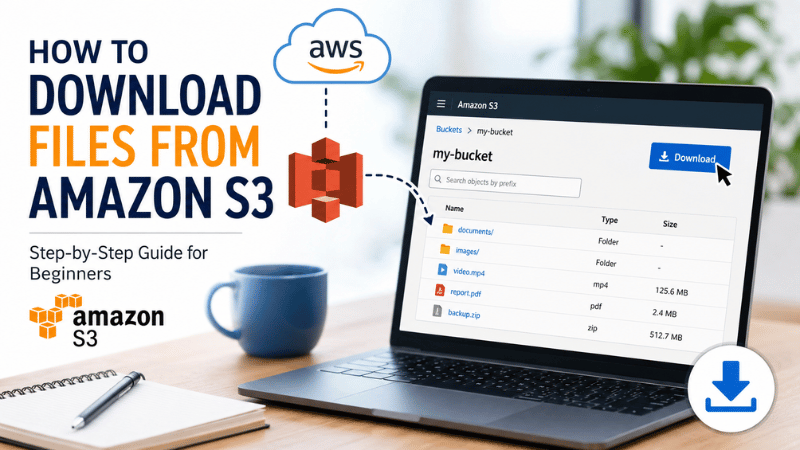
What Is Amazon S3?
Amazon S3, short for Amazon Simple Storage Service, is an object storage service provided by Amazon Web Services (AWS). Unlike traditional file systems, Amazon S3 stores data as objects inside containers known as buckets. Every object consists of the file itself, metadata, and a unique key that identifies its location within the bucket.
Amazon S3 is designed for high durability, exceptional availability, and virtually unlimited scalability. Millions of organizations use Amazon S3 for:
- Website hosting
- File backups
- Disaster recovery
- Application storage
- Data lakes
- Media storage
- Software distribution
- Log storage
- Static website assets
Before learning how to download files from Amazon S3, it is important to understand that access permissions determine whether you can download a file. If you do not have permission, Amazon S3 will deny the download request regardless of the download method you use.
Requirements Before Downloading Files from Amazon S3
Before attempting to download files, make sure you have the following:
- An AWS account
- Access to the appropriate S3 bucket
- Permission to read objects
- Internet connection
- AWS credentials (for CLI or SDK methods)
- Installed AWS CLI if using command-line tools
Having the correct permissions is the most important requirement. Even if you know the bucket name and object key, Amazon S3 will not allow downloads without proper authorization.
Method 1: How to Download Files from Amazon S3 Using the AWS Management Console
The AWS Management Console is the easiest method for beginners because it provides a graphical user interface.
Step 1: Sign in to AWS
Open your web browser and log in to your AWS account using your credentials.
After signing in, navigate to the AWS Console homepage.
Step 2: Open Amazon S3
Search for "S3" using the AWS search bar.
Click Amazon S3 to open the S3 dashboard.
Step 3: Select Your Bucket
The dashboard displays all buckets that your account can access.
Choose the bucket containing the file you want to download.
Step 4: Locate the File
Browse through folders if necessary until you find the desired object.
Amazon S3 organizes objects using prefixes that resemble folders, although technically everything remains an object within the bucket.
Step 5: Download the File
Select the checkbox beside the file.
Click the "Download" button.
Your browser will immediately begin downloading the selected file.
If the file is very large, download speed will depend on your network connection and browser capabilities.
Method 2: How to Download Files from Amazon S3 Using AWS CLI
The AWS Command Line Interface (CLI) is the preferred option for developers, system administrators, and automation tasks.
Install AWS CLI
Download and install AWS CLI from the official AWS website.
Verify the installation by running:
aws --version
Configure AWS CLI
Run:
aws configure
You will be prompted for:
- Access Key ID
- Secret Access Key
- Region
- Output format
Download a Single File
Use the following command:
aws s3 cp s3://your-bucket-name/file.txt .
This command copies the file from Amazon S3 into your current directory.
Download to a Specific Folder
aws s3 cp s3://your-bucket-name/file.txt C:\Downloads\
Windows users can specify local folders using Windows file paths.
Linux and macOS users may use:
aws s3 cp s3://your-bucket-name/file.txt /home/user/downloads/
Download an Entire Folder
Amazon S3 folders are actually prefixes.
Use:
aws s3 cp s3://your-bucket-name/folder/ ./folder --recursive
The recursive option downloads every object stored under the specified prefix.
Method 3: How to Download Files from Amazon S3 Using AWS SDK
Software developers often integrate downloads directly into applications.
AWS provides SDKs for numerous programming languages including:
- Python
- Java
- JavaScript
- C#
- PHP
- Go
- Ruby
Example using Python (Boto3):
import boto3

s3 = boto3.client('s3')

s3.download_file(
    'your-bucket-name',
    'document.pdf',
    'document.pdf'
)
This simple script downloads the object from Amazon S3 and saves it locally.
Applications frequently use this approach to automate file transfers without requiring manual downloads.
Method 4: How to Download Files from Amazon S3 Using a Pre-Signed URL
Sometimes users should download files without having direct AWS credentials.
This is where pre-signed URLs become useful.
A pre-signed URL temporarily grants access to a private object.
The URL contains:
- Bucket information
- Object key
- Expiration time
- Temporary authorization
Users simply open the link in a browser.
The download begins automatically if the URL has not expired.
This method is commonly used for:
- Customer downloads
- Invoice delivery
- Report downloads
- Secure document sharing
- Temporary file access
Method 5: Download Files Using Third-Party S3 Clients
Several desktop applications simplify Amazon S3 file management.
Popular examples include:
- Cyberduck
- WinSCP
- S3 Browser
- Mountain Duck
- Commander One (macOS)
These applications provide graphical interfaces similar to Windows Explorer or Finder.
Users can drag and drop files between local storage and Amazon S3 without writing commands.
This method is ideal for users who prefer visual interfaces over command-line tools.
Downloading Multiple Files
If you need multiple files, downloading them individually can become time-consuming.
Instead, use recursive download commands.
Example:
aws s3 cp s3://example-bucket/images ./images --recursive
Alternatively:
aws s3 sync s3://example-bucket/images ./images
The sync command downloads new and updated files while skipping identical files.
This approach saves bandwidth and reduces download times.
Downloading Large Files
Amazon S3 supports extremely large objects.
When downloading large files:
- Use a stable internet connection.
- Prefer AWS CLI over browser downloads.
- Resume interrupted downloads if supported.
- Avoid unreliable public Wi-Fi.
- Ensure sufficient local storage space.
AWS CLI generally performs better for large files because it supports optimized transfers.
Understanding S3 Object Permissions
Downloads depend entirely on IAM permissions and bucket policies.
Common permissions include:
s3:GetObject
Allows downloading individual objects.
s3:ListBucket
Allows listing files inside buckets.
Bucket Policies
Administrators can allow or deny downloads using bucket policies.
IAM Policies
Organizations typically grant download permissions through IAM roles or users.
If permissions are missing, users usually receive an "Access Denied" error.
Common Download Errors
Access Denied
This usually indicates insufficient permissions.
Possible solutions include:
- Verify IAM permissions.
- Check bucket policy.
- Confirm object ownership.
- Ensure the object still exists.
NoSuchKey
This error means the specified object cannot be found.
Verify:
- File name
- Folder prefix
- Capitalization
Amazon S3 object keys are case-sensitive.
Expired Pre-Signed URL
Generate a new URL if the previous one has expired.
Network Timeout
Retry the download using a more stable internet connection.
Large files are more susceptible to network interruptions.
Best Practices for Downloading Files from Amazon S3
Following best practices helps ensure secure, efficient, and reliable downloads.
Use Least-Privilege Access
Only grant download permissions to users who genuinely require them.
Restricting unnecessary access reduces security risks and helps protect sensitive data.
Encrypt Sensitive Files
Whenever possible, encrypt confidential files before storing them in Amazon S3.
Even if unauthorized access occurs, encrypted files remain significantly more secure.
Monitor Download Activity
Enable AWS logging features such as CloudTrail to monitor download requests.
Monitoring activity helps detect suspicious behavior and supports security audits.
Keep AWS CLI Updated
Regularly update AWS CLI to benefit from performance improvements, bug fixes, and security enhancements.
Older versions may lack support for newer Amazon S3 features.
Verify File Integrity
For important downloads, compare checksums or hashes to confirm that files have not been corrupted during transfer.
Integrity verification is especially valuable when downloading large backups or software packages.
Comparing Different Download Methods
Choosing the most suitable method to download files from Amazon S3 depends on your level of technical expertise, the number of files you need to transfer, and whether the process will be performed manually or automated. While beginners often prefer the AWS Management Console because of its intuitive graphical interface, developers and IT professionals typically rely on the AWS CLI or SDKs for greater flexibility, faster performance, and scripting capabilities. If you need to securely share files with customers or colleagues without providing AWS credentials, pre-signed URLs offer a simple and secure solution.
The comparison table below highlights the strengths of each download method, making it easier to determine which option best fits your specific requirements.
| Method | Best For | Technical Skill | Automation | Speed |
|---|---|---|---|---|
| AWS Console | Beginners | Low | No | Good |
| AWS CLI | Developers | Medium | Excellent | Excellent |
| SDK | Applications | High | Excellent | Excellent |
| Pre-Signed URL | End Users | Very Low | Limited | Good |
| Third-Party Clients | General Users | Low | Limited | Good |
Security Considerations
Downloading files from Amazon S3 should always follow security best practices. Avoid sharing AWS access keys with unauthorized individuals, and never embed sensitive credentials directly into public applications or repositories.
When distributing downloadable files to customers or clients, use pre-signed URLs instead of making your entire bucket publicly accessible. This approach limits access to specific objects for a defined period, significantly reducing the risk of unauthorized downloads.
Organizations should also implement Multi-Factor Authentication (MFA) for AWS accounts whenever possible. Combining MFA with properly configured IAM policies provides an additional layer of protection against compromised credentials.
Regularly reviewing bucket policies, IAM roles, and access logs helps identify excessive permissions or unusual download activity before it becomes a security issue.
Advantages of Amazon S3 Downloads
Amazon S3 offers several advantages compared to traditional file storage systems.
- Highly reliable infrastructure
- Excellent scalability
- Secure access control
- Multiple download methods
- Integration with applications
- Global availability
- High-speed data transfers
- Support for automation
- Cost-effective storage
- Enterprise-grade durability
These features make Amazon S3 suitable for personal projects, startups, and large enterprises alike.
Conclusion
Understanding how to download files from Amazon S3 is an essential skill for anyone working with AWS. Whether you prefer the simplicity of the AWS Management Console, the efficiency of the AWS CLI, the flexibility of SDKs, or the convenience of pre-signed URLs, Amazon S3 provides a solution for every type of user.
Choosing the right download method depends on your technical expertise, the number of files you need, and whether the process will be manual or automated. Beginners often find the AWS Management Console sufficient for occasional downloads, while developers and IT professionals typically rely on the AWS CLI or SDKs for faster, scriptable workflows. Organizations that need to share files securely with customers or partners commonly use pre-signed URLs to provide temporary access without exposing sensitive credentials.
By following the best practices outlined in this guide—such as maintaining proper IAM permissions, using secure authentication, verifying file integrity, and keeping your tools updated—you can download files from Amazon S3 safely, efficiently, and with confidence. Mastering these techniques will help you make the most of Amazon S3's powerful cloud storage capabilities while ensuring that your data remains secure and easily accessible whenever you need it.
Frequently Asked Questions (FAQs)
What is Amazon S3?
Amazon S3 (Simple Storage Service) is a cloud object storage service offered by Amazon Web Services (AWS). It enables individuals and organizations to store, manage, and retrieve files securely from virtually anywhere. Amazon S3 is widely used for website hosting, backups, application data, media storage, and disaster recovery because of its high durability, scalability, and availability.
How do I download files from Amazon S3?
There are several ways to download files from Amazon S3. You can use the AWS Management Console for a simple graphical interface, the AWS Command Line Interface (CLI) for command-line access, AWS SDKs for application development, pre-signed URLs for temporary secure downloads, or third-party S3 clients such as Cyberduck or WinSCP.
Can I download files from Amazon S3 without an AWS account?
Yes. If the file owner provides a pre-signed URL or the object is publicly accessible, you can download the file without creating an AWS account or logging into AWS. Simply open the provided link in your web browser before it expires.
Why am I getting an "Access Denied" error when downloading from Amazon S3?
An "Access Denied" error usually indicates that your AWS Identity and Access Management (IAM) permissions or the bucket policy do not allow you to access the requested object. Contact the bucket administrator or review your permissions to ensure you have the required s3:GetObject permission.
How can I download an entire folder from Amazon S3?
Although Amazon S3 stores objects rather than traditional folders, you can download all files under a specific prefix by using the AWS CLI with the --recursive option. This command copies every object within the selected folder-like structure to your local computer.
What is the difference between the aws s3 cp and aws s3 sync commands?
The aws s3 cp command copies specific files or folders from Amazon S3 to your local system. In contrast, the aws s3 sync command compares the source and destination, downloading only new or modified files. This makes sync more efficient for regularly updating local copies of large datasets.
Is it safe to download files from Amazon S3?
Yes. Amazon S3 is designed with multiple security features, including encryption, IAM access controls, bucket policies, and SSL/TLS encryption during data transfer. Following AWS security best practices helps ensure that file downloads remain secure.
Can I resume interrupted Amazon S3 downloads?
In many cases, yes. The AWS CLI is generally more reliable than web browsers for downloading large files because it provides optimized transfer capabilities. For very large downloads, using the AWS CLI or specialized S3 transfer tools is recommended.
How do I download files from Amazon S3 using AWS CLI?
First, install and configure the AWS CLI with your AWS credentials. Then use the aws s3 cp command to download individual files or the aws s3 sync command to download multiple files or entire directories from your S3 bucket.
Can I download multiple files at the same time?
Yes. The AWS CLI supports downloading multiple files by using the --recursive option or the sync command. Third-party S3 clients also allow you to select and download multiple objects simultaneously through their graphical interfaces.
What file types can be downloaded from Amazon S3?
Amazon S3 can store and deliver virtually any file type, including documents, images, videos, audio files, PDFs, ZIP archives, software installers, backups, databases, and application assets. As long as you have the necessary permissions, you can download supported objects regardless of their format.
Which method is best for downloading files from Amazon S3?
The best method depends on your needs. The AWS Management Console is ideal for beginners and occasional downloads, while the AWS CLI is better suited for developers and administrators who need automation or bulk transfers. Pre-signed URLs are the preferred choice for securely sharing files with users who do not have AWS accounts, and AWS SDKs are best for integrating downloads directly into applications.
References
- How to Download Files from S3 Using the AWS CLI - oneuptime.com
- Downloading an entire S3 bucket? - stackoverflow.com
