
If you manage a website hosted on a cPanel server, there are situations where you may need to check the PHP version, installed extensions, configuration values, server environment, and other PHP-related settings. One of the simplest ways to obtain this information is by creating a PHP information file using the built-in phpinfo() function.
The process to create a PHP information file is relatively straightforward, even if you do not have extensive technical knowledge. You only need access to your cPanel account, the File Manager feature, and a basic PHP file containing a few lines of code.
In this guide, you will learn how to create php info file in cPanel, place it in the correct website directory, access it through a web browser, understand the information displayed by the file, and remove the file safely after you have finished checking your PHP configuration.
Important: A
phpinfo()page can expose a considerable amount of information about your server and PHP environment. For security reasons, you should avoid leaving a publicly accessible phpinfo file on a production website longer than necessary. PHP's official documentation confirms thatphpinfo()can display configuration, extensions, server information, environment variables, paths, HTTP headers, and other details.
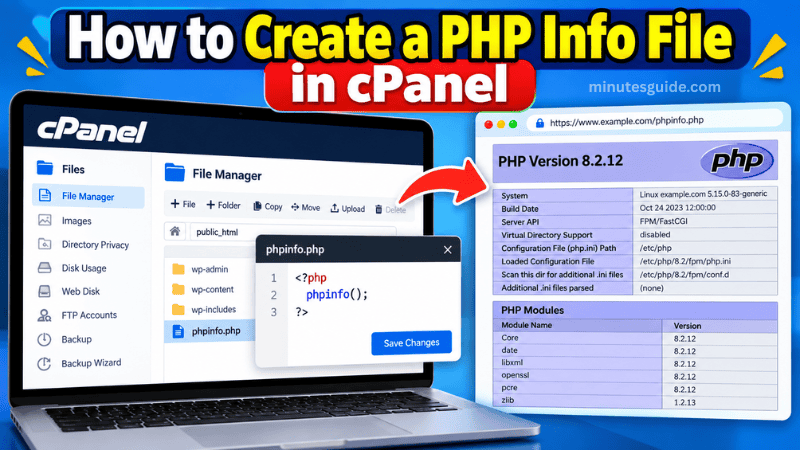
Table of Contents
How to Create PHP info File In cPanel For Check PHP Information
What Is a PHP Info File?
A PHP info file is a small PHP script that uses the phpinfo() function to display detailed information about the PHP environment running on a server.
The most common filename used for this purpose is:
phpinfo.phpThe actual filename does not have to be phpinfo.php. You could use another filename such as info.php, php-details.php, or another valid PHP filename. However, phpinfo.php is widely understood and is convenient when performing temporary server configuration checks.
The contents of the file are very simple:
<?php
phpinfo();
?>
When this file is executed through a web browser, PHP processes the phpinfo() function and generates a detailed HTML page containing information about the current PHP environment.
According to the PHP documentation, phpinfo() provides information about the current state of PHP, including the PHP version, compilation options, extensions, server information, operating system information, configuration values, environment information, paths, and other details.
This makes the function particularly useful when you need to determine how PHP is configured for a specific website.
Why Do You Need to Create a PHP Info File?
There are several reasons why website owners, developers, and system administrators may need to create php info file on a cPanel hosting account.
One of the most common reasons is to verify which PHP version is actually being used by a website. The PHP version selected in a hosting control panel may not always be the version you expect, particularly when a server contains multiple domains, subdomains, PHP handlers, or different PHP configurations.
A PHP information page allows you to verify the PHP version being used when the request is processed by the web server.
For example, you may want to determine whether your website is running PHP 8.1, PHP 8.2, PHP 8.3, PHP 8.4, or another version supported by your hosting provider.
Another common reason is to check whether a particular PHP extension is enabled. Applications such as WordPress, Laravel, WooCommerce, and other PHP-based systems may require specific extensions to function correctly.
You can also use the page to investigate PHP configuration values such as:
memory_limitupload_max_filesizepost_max_sizemax_execution_timemax_input_varsmax_input_timemax_file_uploadsdisplay_errorsmax_execution_time
The PHP information page can therefore be useful when troubleshooting compatibility problems, upload limitations, application errors, or unexpected PHP behaviour.
What Information Does phpinfo() Display?
The amount of information displayed by phpinfo() is extensive.
By default, calling:
phpinfo();uses INFO_ALL, which instructs PHP to display all available phpinfo information. PHP's documentation identifies several categories of information that can be displayed, including general information, configuration, modules, environment variables, predefined variables, credits, and licensing information.
Some of the most useful information includes the following.
PHP Version
The PHP information page displays the version of PHP currently running the request.
This is particularly useful when you have changed the PHP version in cPanel and want to confirm that the change is actually being applied to your website.
Loaded PHP Extensions
The page displays PHP modules and extensions that are currently loaded.
This can help you determine whether extensions such as:
- cURL
- OpenSSL
- MySQLi
- PDO
- GD
- Imagick
- ZIP
- mbstring
- XML
- Intl
are available on your hosting environment.
The exact extensions available depend on your server configuration and the PHP version selected for your domain.
PHP Configuration
The page displays configuration directives and their current values.
In many cases, you will see both local and master values for PHP directives. This is particularly useful when troubleshooting configuration differences between the server-level settings and settings applied to a specific website or directory.
php.ini Information
You can also identify information relating to PHP's configuration files, including the loaded php.ini configuration.
This can help when you are trying to determine which PHP configuration is actually being used by a particular website.
Server Information
Depending on the hosting configuration, the page can provide information about the web server and operating environment.
This information can be useful when troubleshooting server-specific compatibility issues.
How to Create PHP Info File in cPanel
Now that you understand what a PHP info file is and why it is useful, you can create one directly through cPanel's File Manager.
cPanel's File Manager allows users to create, edit, upload, download, rename, and manage website files directly from the hosting control panel.
The following method does not require SSH access and can normally be completed entirely through the cPanel interface.
Step 1: Log In to Your cPanel Account
The first step is to log in to your hosting account's cPanel dashboard.
Your hosting provider normally provides a cPanel login URL when you purchase a hosting package. Depending on the hosting company, you may access cPanel through a custom URL, a hosting client area, or a standard cPanel login address.
After successfully logging in, you should see the main cPanel dashboard.
The appearance of the dashboard can vary depending on the cPanel version, theme, and configuration used by your hosting provider. Therefore, the exact position of individual icons may differ slightly from one hosting account to another.
Step 2: Open File Manager
From the cPanel dashboard, locate the section related to files.
Look for:
Files → File ManagerClick File Manager to open the file management interface.
cPanel officially identifies File Manager as the interface for managing files and directories within your hosting account. It can also be used to create new files and folders.
Once File Manager opens, you will see the directories and files associated with your hosting account.
Step 3: Open the Website's Document Root
The next step is to navigate to the directory where your website's PHP files are stored.
For many primary domains, this directory is:
public_htmlTherefore, a typical path may look like:
/home/username/public_html/However, you should not assume that every domain uses public_html.
If you have an addon domain, subdomain, or multiple websites under the same cPanel account, each domain may have a different document root.
For example, a website could use a directory such as:
/home/username/example.com/or:
/home/username/public_html/example/The correct location is the document root assigned to the domain you want to test.
Placing the file in the wrong directory can result in a browser error or a situation where the file exists on the server but cannot be accessed through the intended website address.
Step 4: Create a New PHP File
After opening the correct website directory, look for the + File button in the File Manager toolbar.
Click:
+ FilecPanel's current documentation describes this process as selecting + File, entering the desired filename and location, and then selecting Create New File.
For this example, enter:
phpinfo.phpMake sure that the file ends with .php.
Do not accidentally create a file named:
phpinfo.php.txtbecause that would be treated as a text file rather than a PHP script.
After entering the filename, confirm that the location is the correct website directory.
Then click:
Create New FileThe new PHP file should now appear in File Manager.
Step 5: Edit the PHP Info File
After creating the file, select phpinfo.php.
You can usually right-click the file and select Edit, or select the file and use the appropriate editing option in the File Manager toolbar.
The exact interface may vary slightly between cPanel versions and hosting configurations, but the basic process remains the same.
Remove any existing content in the newly created file and enter the following code:
<?php
phpinfo();
?>
This is the complete PHP info script.
There is no need to add HTML code, CSS, JavaScript, database credentials, or other PHP functions for a basic PHP configuration check.
The PHP documentation provides the same basic approach: calling phpinfo() from a PHP script generates a page containing useful information about the PHP system and configuration.
After entering the code, save the file.
Step 6: Access the PHP Info File
Once the file has been created, open a web browser.
You then need to enter the URL corresponding to the location of the file.
If your website is:
https://www.example.com/and the file is located directly inside the website's document root, the URL will normally be:
https://www.example.com/phpinfo.phpEnter the URL into your browser and press Enter.
If everything is configured correctly, PHP will execute the script and display the PHP information page.
You should see a page containing extensive information about your PHP environment.
Step 7: Check the PHP Version
One of the first things you should check on the phpinfo page is the PHP version.
The version is generally displayed prominently near the top of the page.
For example, you may see something similar to:
PHP Version 8.x.xThe exact version depends on the PHP version configured for your website.
This is useful if you have recently changed your PHP version through cPanel and want to confirm that the website is actually using the new version.
For example, if you selected PHP 8.3 in your hosting control panel but the phpinfo page reports another version, this may indicate that the domain is using a different configuration or PHP handler.
Step 8: Check PHP Extensions
Another useful section is the list of loaded PHP modules.
You can search the page for a specific extension using your browser's Find function.
On Windows, press:
Ctrl + FOn macOS, press:
Command + FThen enter the name of the extension you want to check.
For example, if an application requires cURL, search for:
curlIf you are checking image-processing functionality, you may search for:
gdor:
imagickThe information displayed by phpinfo() can help you determine whether the relevant module is loaded.
Step 9: Check PHP Memory Limit
The memory_limit directive is another important configuration value.
Search the phpinfo page for:
memory_limitYou may see values such as:
128M
256M
512M
The available value depends on the configuration established by your hosting provider and any domain-level PHP settings.
This setting determines the maximum amount of memory that a PHP script can generally allocate during execution.
If a PHP application reports that it does not have sufficient memory, checking this value can be an important part of the troubleshooting process.
Step 10: Check Upload Limits
The phpinfo page can also help you inspect PHP upload-related settings.
Search for:
upload_max_filesizeand:
post_max_sizeThese settings are particularly relevant if you are unable to upload large images, documents, plugins, themes, or other files through a PHP-based application.
For example, a hosting account may have an upload limit of:
upload_max_filesize = 64Mwhile the application may have its own separate limitations.
It is important to understand that changing a PHP setting does not automatically override every limitation imposed by the web server, application, CMS, hosting account, or reverse proxy.
Step 11: Check max_execution_time
Another useful directive is:
max_execution_timeThis setting controls how long a PHP script is generally allowed to execute before PHP terminates it.
It can be relevant when troubleshooting tasks that take a long time, such as large imports, backups, complex database operations, or certain plugin processes.
However, PHP execution time can be affected by other server-level and application-level limits, so the value shown by phpinfo() should not necessarily be interpreted as the only timeout affecting a request.
Step 12: Check PHP Configuration Values
The phpinfo page allows you to inspect numerous PHP directives.
Depending on your hosting configuration, you may find values for settings such as:
display_errors
error_reporting
file_uploads
max_input_vars
max_input_time
memory_limit
post_max_size
upload_max_filesize
session.gc_maxlifetime
These values can be extremely useful when diagnosing a PHP application.
For example, if a website developer tells you that the server requires a larger max_input_vars value, you can use the phpinfo page to determine the current configuration.
PHP Info File Example
For convenience, the complete file should contain only the following:
<?php
phpinfo();
?>
You can copy and paste this code directly into the newly created PHP file.
There is no requirement to place the code inside an HTML document because phpinfo() generates the required HTML output when executed through the web server.
Alternative PHP Info File With Selected Information
The standard:
phpinfo();command displays a large amount of information.
However, PHP also allows you to specify which categories should be displayed.
For example:
<?php
phpinfo(INFO_MODULES);
?>
This can display information related to loaded PHP modules.
PHP defines several constants for controlling the output, including INFO_GENERAL, INFO_CONFIGURATION, INFO_MODULES, INFO_ENVIRONMENT, INFO_VARIABLES, INFO_CREDITS, and INFO_LICENSE.
For a simple troubleshooting task, however, using the default phpinfo() function is usually the easiest approach because it provides a comprehensive overview of the PHP environment.
How to Create PHP Info File Using cPanel Terminal
If your hosting provider gives you access to the cPanel Terminal, you can also create the file from the command line.
For example, you could navigate to the website's document root and create the file using a text editor.
The basic PHP code remains:
<?php
phpinfo();
?>
However, using File Manager is generally easier for users who are unfamiliar with SSH or command-line administration.
cPanel also documents creating a phpinfo.php file through server access and recommends appropriate ownership and 0644 permissions when creating it as a root user for a domain.
For normal cPanel users, File Manager is usually the simpler option because it does not require command-line access.
Common Problems When Creating a PHP Info File
Although creating php info file is straightforward, you may occasionally encounter problems when attempting to access it.
1. The Page Shows 404 Not Found
If the browser displays:
404 Not Foundthe file may not be located in the correct document root.
Return to cPanel File Manager and verify that phpinfo.php exists in the directory corresponding to the domain you are accessing.
Also check that the URL matches the actual domain and filename.
2. The Page Downloads Instead of Executing
If the browser attempts to download the PHP file instead of displaying the PHP information page, the server may not be processing PHP correctly for that domain.
This could indicate a problem with the PHP handler, web server configuration, domain configuration, or hosting environment.
In such a situation, contact your hosting provider if you do not have server-level access.
3. You See a Blank Page
A blank page can be caused by PHP configuration, server errors, permission problems, or application-level issues.
Check the file contents carefully and ensure that it contains valid PHP syntax:
<?php
phpinfo();
?>
You should also verify that the file has a .php extension and is located within the correct document root.
4. You Cannot Create the File
If cPanel does not allow you to create or modify the file, your hosting account may have restrictions on File Manager operations, storage limits, permissions, or account-level access.
In this situation, check your hosting account configuration or contact the hosting provider.
Is It Safe to Leave phpinfo.php on Your Website?
It is generally not recommended to leave a publicly accessible phpinfo.php file on a production website permanently.
The reason is that phpinfo() can reveal a substantial amount of information about your PHP environment.
For example, the page may reveal:
- PHP version
- PHP configuration
- Loaded extensions
- Server information
- Directory paths
- Environment information
- Configuration values
- HTTP-related information
- PHP build information
- Other server and runtime details
PHP's documentation specifically describes phpinfo() as outputting extensive information about the current PHP configuration and environment.
While this information is useful for legitimate troubleshooting, exposing it publicly can provide unnecessary information to anyone who discovers the URL.
PHP's security documentation also emphasizes that server-side PHP environments require appropriate security considerations and configuration.
Therefore, the best practice is to create the file temporarily, perform your checks, and remove it immediately afterward.
How to Delete PHP Info File From cPanel
After you have finished checking your PHP configuration, return to cPanel.
Open:
File ManagerNavigate to your website's document root and locate:
phpinfo.phpSelect the file and choose:
DeleteConfirm the deletion when prompted.
You should also test the URL afterward:
https://www.example.com/phpinfo.phpThe page should no longer be accessible.
This final verification is useful because it confirms that the temporary diagnostic file has actually been removed from the publicly accessible website directory.
Should You Use phpinfo() for WordPress?
Yes, phpinfo() can be useful when troubleshooting WordPress hosting environments.
For example, you may want to check the PHP version before installing or updating a plugin or theme.
You may also need to verify PHP extensions or configuration values when troubleshooting a WordPress website.
However, WordPress itself may expose some PHP and server information through its own Site Health tools, depending on the information you need.
Therefore, a phpinfo file is best viewed as a server-level diagnostic tool rather than something that needs to remain on your WordPress website permanently.
PHP Info File vs PHP Version Checker
A simple PHP version checker and a phpinfo file are not exactly the same thing.
A basic version checker could contain:
<?php
echo phpversion();
?>
This would display only the PHP version.
By comparison:
<?php
phpinfo();
?>
provides a much more comprehensive overview of the PHP environment.
If you only need to know the PHP version, the smaller script may be sufficient.
If you need to investigate extensions, configuration values, paths, server information, or other PHP settings, phpinfo() is considerably more useful.
Best Practices When Using a PHP Info File
When you create php info file, it is important to follow several basic security and management practices.
Use It Only When Necessary
A phpinfo file is primarily a diagnostic tool.
There is usually no reason to keep it on a live website after you have completed your troubleshooting.
Use a Non-Obvious Temporary Location When Appropriate
If your troubleshooting requirements allow it, you can place the file somewhere that is not directly exposed through the public website.
However, remember that phpinfo() needs to be executed through PHP to show the web-based output.
Remove the File After Testing
This is one of the most important recommendations.
Once you have collected the information you need, delete the file from your hosting account.
Do Not Put Passwords Into the File
The standard phpinfo script does not require usernames, passwords, database credentials, API keys, or other sensitive information.
Do not add credentials to the script.
Do Not Modify PHP Settings From the phpinfo File
The purpose of the file is to inspect PHP information, not to permanently configure PHP.
If you need to change PHP directives, use the configuration mechanisms provided by your hosting environment, such as the appropriate cPanel PHP management tools or .user.ini, depending on the hosting setup.
cPanel documents .user.ini as one method for customizing PHP directives on a per-directory basis.
Frequently Used PHP Settings to Check
When troubleshooting a website, the following settings are among the more useful values to inspect.
| PHP Setting | Why It Matters |
|---|---|
| memory_limit | Determines the memory available to PHP scripts |
| upload_max_filesize | Controls the maximum PHP upload file size |
| post_max_size | Controls the maximum size of POST data |
| max_execution_time | Limits PHP script execution time |
| max_input_time | Controls the time allowed for input processing |
| max_input_vars | Limits the number of input variables |
| max_file_uploads | Limits simultaneous file uploads |
| display_errors | Indicates whether PHP errors are displayed |
| error_reporting | Controls which PHP errors are reported |
| file_uploads | Indicates whether PHP file uploads are enabled |
These values can help you identify configuration issues before making changes to your website.
Final Thoughts
Learning how to create php info file in cPanel is a useful skill for website owners, developers, bloggers, and anyone managing a PHP-based website.
The process is simple: log in to cPanel, open File Manager, navigate to the correct website document root, create a file named phpinfo.php, add the phpinfo() function, save the file, and access it through your browser.
The resulting page provides detailed information about the PHP environment, including the PHP version, loaded modules, configuration directives, server information, and other runtime details. PHP officially documents phpinfo() as a function designed to output information about the current PHP configuration and environment.
The main advantage of this method is that it allows you to verify the actual PHP environment being used by your website rather than relying entirely on settings shown in the hosting control panel.
At the same time, you should treat the generated information as sensitive server configuration data. Because a publicly accessible phpinfo page can reveal extensive details about your hosting environment, it is best to use the file temporarily and delete it immediately after completing your checks.
If you frequently manage websites through cPanel, knowing how to create php info file can make PHP troubleshooting significantly easier, particularly when you need to verify PHP versions, extensions, memory limits, upload limits, execution limits, and other configuration settings.
Frequently Asked Questions About Creating a PHP Info File in cPanel
What is a PHP info file?
A PHP info file is a small PHP script that uses the phpinfo() function to display detailed information about the PHP environment running on a website. It can show the PHP version, installed extensions, configuration directives, server information, and various PHP settings.
How do I create a PHP info file in cPanel?
To create a PHP info file in cPanel, open File Manager, navigate to your website's document root, and create a new file named phpinfo.php. Edit the file and add the following code:<?php phpinfo(); ?>
Save the file and access it through your browser using a URL such as https://www.example.com/phpinfo.php.
What is the code for a PHP info file?
The basic code for a PHP info file is:<?php phpinfo(); ?>
This code instructs PHP to display detailed information about the current PHP configuration and server environment.
Where should I put the phpinfo.php file in cPanel?
The file should normally be placed inside the document root of the website you want to check. For the primary domain of many cPanel accounts, this directory is usually public_html. However, addon domains and subdomains may use different document root directories.
How can I check my PHP version using phpinfo?
After creating the phpinfo.php file, open its URL in your browser. The PHP version is normally displayed near the top of the resulting page. This allows you to verify the PHP version actually being used by the website.
Can I check PHP extensions using phpinfo?
Yes. A PHP information page displays the PHP modules and extensions loaded by the server. You can use your browser's Find function, such as Ctrl + F on Windows, to search for a particular extension such as curl, gd, imagick, mysqli, or mbstring.
Can phpinfo show the PHP memory limit?
Yes. You can search the PHP information page for memory_limit to determine the PHP memory limit currently applied to the website. This can be useful when troubleshooting memory-related errors or applications that require a higher PHP memory allocation.
Can I check the PHP upload limit with phpinfo?
Yes. You can check values such as upload_max_filesize and post_max_size on the PHP information page. These settings are particularly useful when troubleshooting problems involving large file uploads.
Is it safe to leave phpinfo.php on my website?
It is generally not recommended to leave a publicly accessible phpinfo.php file on a production website permanently. The page can reveal detailed information about your PHP and server environment. It is better to use the file temporarily for troubleshooting and delete it after obtaining the required information.
How do I delete phpinfo.php from cPanel?
Log in to cPanel and open File Manager. Navigate to the directory where phpinfo.php is located, select the file, and choose the Delete option. You should then test the URL in your browser to confirm that the file is no longer publicly accessible.
Why does my phpinfo.php page show a 404 error?
A 404 error usually means that the requested file cannot be found at the specified URL. Check whether phpinfo.php is located in the correct document root and make sure that the URL matches the domain and filename exactly.
Why is my PHP file downloading instead of displaying PHP information?
If the browser downloads the PHP file instead of executing it, PHP may not be configured or processed correctly for the domain. This can be related to the PHP handler, web server configuration, or hosting environment. Contact your hosting provider if you do not have access to the required server-level settings.
Can I use phpinfo.php to check WordPress PHP settings?
Yes. A phpinfo page can help WordPress website owners check the PHP version, extensions, memory limit, upload limits, execution time, and other PHP configuration values. However, you should remove the file after completing your troubleshooting because it exposes detailed server information.
References
- PHP Guide: Create a phpinfo File - fastcomet.com
- How to Create phpinfo File and Check PHP Information - hostinger.com
