
How to Create a WooCommerce Checkout URL? | Sometimes, you may want to create a direct link to the WooCommerce checkout page so that customers can purchase a product without having to navigate through the shopping cart page. This approach is particularly useful when you want to simplify the purchasing process and make it easier for customers to complete their orders.
For example, if you are promoting a product through a sales page, email campaign, social media post, or advertisement, you can add a direct checkout link to your order button. When customers click the button, they will be taken to the checkout page with the selected product added to their cart.
Creating a direct checkout link can help reduce unnecessary steps in the purchasing process. It also allows you to create a more convenient shopping experience, especially for customers who are ready to buy a specific product.
Table of Contents
How to Create a WooCommerce Checkout URL?
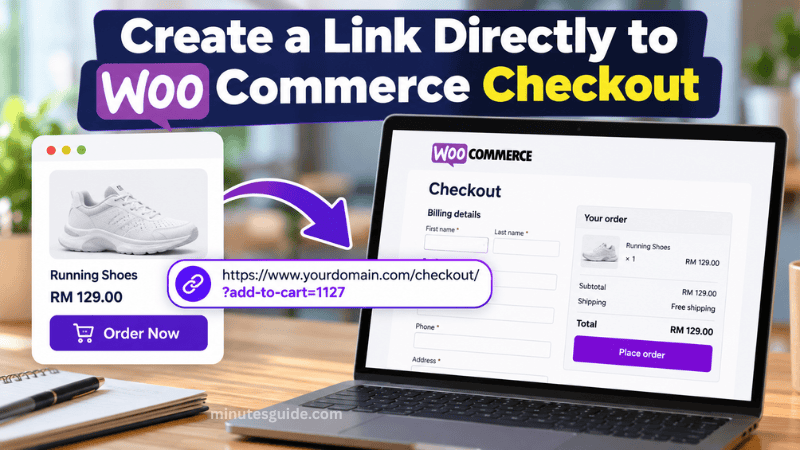
You can create a direct checkout link by using the product ID and your WooCommerce checkout page URL. You do not necessarily need to install an additional plugin or modify your theme's code for this basic method.
Before starting, make sure WooCommerce is installed and activated on your WordPress website and that the product you want to sell is published and available for purchase.
Please note that this tutorial creates a separate checkout link. It does not automatically change the default Add to Cart button displayed on your product pages.
Step 1: Find the WooCommerce Product ID
The first step is to find the product ID of the item you want customers to purchase. WooCommerce assigns a unique ID to every product in your store, allowing the system to identify the correct item when someone clicks your checkout link.
To find the product ID, log in to your WordPress dashboard and navigate to Products > All Products.
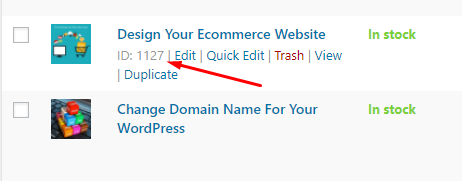
You will see a list of products available in your WooCommerce store. Find the product you want to use and move your mouse pointer over its title. WooCommerce will display several options beneath the product name, including Edit, Quick Edit, Trash, and View. The product ID should also appear in this area.
Write down the product ID because you will need it when creating the direct checkout link.
For example, if the product ID is 1127, you will use the number 1127 in the URL. Your product ID will be different, depending on the products in your store.
Step 2: Create the Direct Checkout Link
After finding the product ID, you can construct the URL that directs customers to your WooCommerce checkout page.
Use the following URL format:
Replace www.yourdomain.com with your actual website domain and replace PRODUCT_ID with the ID of the product you want to add to the cart.
For example, if your website is www.yourdomain.com and the product ID is 1127, the direct checkout link will look like this:
When a customer opens this link, WooCommerce attempts to add the specified product to the shopping cart and direct the customer to the checkout page.
Make sure you use the correct checkout page URL. Although /checkout/ is a common checkout page address, your website may use a different URL depending on your WordPress and WooCommerce settings.
To check your checkout page, go to WooCommerce > Settings > Advanced in your WordPress dashboard and look for the page assigned as the Checkout page. Open that page on your website and copy its URL.
If your checkout page uses a different address, replace /checkout/ in the example with the correct path.
Step 3: Add the Link to Your Order Button
Once you have created the direct checkout URL, you can use it wherever you want customers to start the purchasing process.
For example, you can add the link to an Order Now or Buy Now button on a sales page. You can also share it through email marketing campaigns, social media posts, messaging applications, or other promotional materials.
If you are using the WordPress block editor, edit the page containing your button, select the button block, and enter the direct checkout URL in its link field. If you are using a page builder such as Elementor, open the button settings and paste the URL into the Link field.
Save or update the page after inserting the link.
When a customer clicks the button, WooCommerce should add the selected product to the cart and take the customer to the checkout page, provided that the URL and store settings are configured correctly.
Step 4: Test the Direct Checkout Link
Before sharing the link with customers, test it to make sure it works as expected.
Open the link in a new browser tab and check whether the correct product appears at checkout. Confirm that the product name, quantity, and price are correct and that the customer can proceed with the payment process.
If the link sends you to the cart page instead of the checkout page, review your WooCommerce settings and any plugins that may affect the add-to-cart process or page redirection. Your store may also use a custom checkout URL or checkout configuration that requires a different approach.
It is important to test the link on both desktop and mobile devices, particularly if you intend to share it through social media or messaging applications.
How to Add a Specific Quantity to the Checkout Link
If you want customers to purchase more than one unit of a product, you can add a quantity parameter to the URL.
Use this format:
Replace PRODUCT_ID with your product ID and QUANTITY with the number of units you want to add.
For example, if the product ID is 1127 and you want to add three units, the URL will look like this:
When customers open the link, WooCommerce attempts to add three units of the product to the cart before proceeding to checkout.
Keep in mind that the final quantity may be affected by product stock, purchase limits, and other WooCommerce settings. This method is most straightforward for simple products. Variable products may require the appropriate variation ID and additional variation information.
Conclusion
Creating a direct link to WooCommerce checkout is a simple way to help customers move from a sales page or promotional message to the purchasing process. By using the correct product ID and checkout page URL, you can create a dedicated link without necessarily installing an additional plugin.
You can place the link on an Order Now button, a sales page, an email campaign, or a social media post. However, remember to test the link before publishing it to ensure that the correct product is added and customers reach the intended checkout page.
For stores that need more advanced features, such as generating shareable links for multiple products or automatically applying coupon codes, WooCommerce also provides a separate shareable checkout URL feature. You can learn more in the official WooCommerce documentation on creating shareable checkout URLs.
FAQ About How to Create a Link Directly to WooCommerce Checkout
How do I create a direct checkout link in WooCommerce?
You can create a direct checkout link by using your WooCommerce checkout page URL and the product ID. For example, use https://www.yourdomain.com/checkout/?add-to-cart=1127, replacing the domain with your website address and 1127 with your actual product ID.
How do I find a WooCommerce product ID?
Log in to your WordPress dashboard and navigate to Products > All Products. Find the product you want to sell and hover your mouse over its title. The product ID will usually appear among the details displayed beneath the product name.
Can I send customers directly to checkout without visiting the cart page?
Yes. You can use a direct checkout link that adds a product to the cart and directs customers to the checkout page. However, the result may depend on your checkout URL, WooCommerce settings, and any plugins that affect cart or checkout behaviour.
Can I create a WooCommerce checkout link for multiple quantities?
Yes. You can add a quantity parameter to the URL. For example, https://www.yourdomain.com/checkout/?add-to-cart=1127&quantity=3 attempts to add three units of product ID 1127 to the cart before checkout. Stock availability and purchase restrictions may affect the final quantity.
Can I use a direct checkout link for a variable product?
Yes, but variable products generally require the correct product variation ID and the relevant variation attributes. A basic link containing only the parent product ID may not select the intended variation. Test the link to ensure the correct size, colour, or other option is selected.
Do I need a plugin to create a direct WooCommerce checkout link?
No. For a basic product checkout link, you can use WooCommerce's built-in add-to-cart URL parameters without installing an additional plugin. However, a plugin or WooCommerce's shareable checkout URL feature may be useful if you need advanced options, such as custom checkout flows or coupon codes.
Why is my WooCommerce direct checkout link not working?
Common causes include an incorrect product ID, an incorrect checkout page URL, an unpublished or unavailable product, stock restrictions, or conflicts with plugins and custom code. Check your URL, confirm that the product is available for purchase, and test the link in a private browser window.
Can I add a direct checkout link to a Buy Now button?
Yes. You can paste the direct checkout URL into the link field of a WordPress button block or a page builder such as Elementor. When visitors click the Buy Now button, they can be directed to checkout with the selected product added to their cart, provided the link is configured correctly.
Can I share a WooCommerce direct checkout link on WhatsApp or social media?
Yes. You can share the link through WhatsApp, Facebook, email, or other platforms. Customers who click it will be directed to your website. Before sharing the link, test it on mobile devices and ensure that the product is added correctly and the checkout page works as expected.
What is the difference between a direct checkout link and a shareable checkout URL?
A direct checkout link can use WooCommerce's add-to-cart URL parameters to add a product and direct customers to checkout. WooCommerce's shareable checkout URL feature provides another way to create checkout links, including support for specifying products and coupon codes. The best method depends on the requirements of your online store.
References
- Generate Cart & Checkout Links Documentation - woocommerce.com/document
- How to Create a WooCommerce Checkout URL - funnelkit.com
