
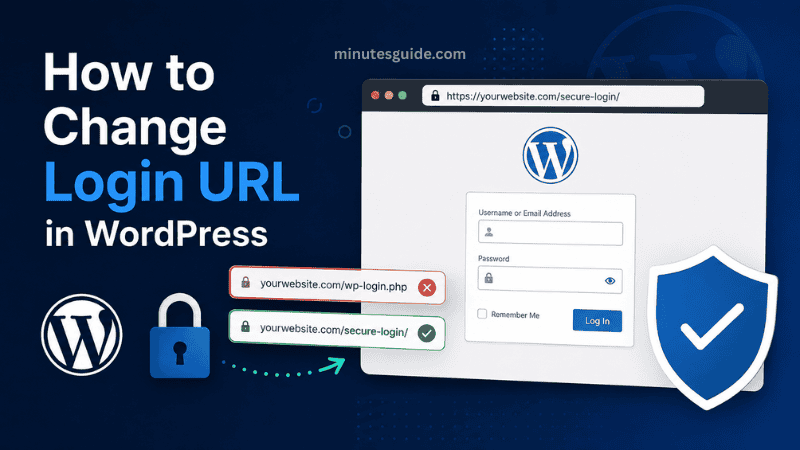
How to Change Login URL in WordPress | The default WordPress login URL is one of the most recognizable paths on a WordPress website. In a standard installation, administrators can access the login screen by visiting wp-login.php, while visiting /wp-admin/ when logged out normally redirects users to the login page.
Although WordPress is designed with security in mind, using the default login URL can make your website an easier target for automated bots that continuously scan websites for common login endpoints. Changing the login URL can reduce unnecessary requests to the standard login page and add another layer to your website's security strategy.
If you are wondering how to change login URL in WordPress, the simplest approach for most website owners is to use a dedicated plugin such as WPS Hide Login. The plugin allows you to replace the default login URL without modifying WordPress core files.
This guide explains how to change the WordPress login URL safely, how to choose a suitable custom URL, how to test the new login address, what to do if you forget the new URL, and what additional security measures you should use alongside a changed login URL.
Table of Contents
How to Change Login URL in WordPress
What Is the WordPress Login URL?
The WordPress login URL is the web address used to access the WordPress authentication screen. On a standard WordPress installation, the primary login address is:
The wp-admin address can also be used to reach the administration area. When a visitor who is not logged in attempts to access /wp-admin/, WordPress normally redirects that visitor to the login page.
For example, if your website is:
your default login URL will normally be:
The problem is not that wp-login.php is inherently insecure. WordPress itself expects this standard endpoint and many plugins and themes are designed around it. However, because the path is predictable, automated software can easily identify it and repeatedly send login requests to the page.
Changing the login URL makes the standard login endpoint less obvious. Instead of using:
you could use a custom address such as:
or:
The exact custom slug is up to you.
Why Change the WordPress Login URL?
There are several reasons why website administrators choose to change the default WordPress login URL.
Reduce Automated Login Requests
One of the main benefits is reducing the number of automated requests directed at the standard WordPress login endpoint.
Bots commonly scan websites for predictable paths, including wp-login.php. Once they identify the login page, they may repeatedly attempt usernames and passwords against it.
Changing the URL means automated software looking specifically for the default endpoint may no longer reach the login form.
This does not make your website immune to attacks, but it can reduce a particular type of unwanted traffic.
Add Another Layer of Security
Changing the login URL should be considered an additional security measure rather than a complete security solution.
WordPress recommends broader security practices such as strong passwords, two-step authentication, regular updates, secure hosting, backups, and other hardening measures.
A custom login URL can therefore be used as one component of a wider WordPress security strategy.
Reduce Unnecessary Server Requests
If your website receives a large number of automated requests to wp-login.php, changing the login endpoint may reduce some of that unwanted traffic.
The actual effect depends on the type of bots targeting your website. Sophisticated attackers may discover the new login URL or identify other ways of interacting with the authentication system.
Therefore, changing the URL should not be viewed as a substitute for a firewall, rate limiting, strong authentication, or other security controls.
What You Should Do Before Changing the Login URL
Before changing your WordPress login URL, it is important to prepare your website properly.
Create a Backup
Create a complete backup of your WordPress website before making security-related changes.
Your backup should ideally include both the WordPress files and the database. A recent backup gives you a recovery option if the login system stops working correctly or another plugin conflicts with the change.
You should also make sure you know how to restore the backup before making significant changes.
Make Sure You Have Administrator Access
You need access to the WordPress dashboard and sufficient permissions to install and activate plugins.
If you manage the website for someone else, make sure you have an administrator account before changing the login URL.
Record the New Login URL
Once you create a custom login URL, save it somewhere secure.
You may also want to bookmark the new login page in your browser. The WPS Hide Login documentation specifically warns that the new address needs to be remembered or bookmarked because the standard wp-login.php and wp-admin access behavior changes when the plugin is active.
Do not rely solely on memory, especially if you manage several WordPress websites.
How to Change Login URL in WordPress Using a Plugin
For most WordPress users, the easiest way to change the login URL is by using a dedicated plugin.
One established option is WPS Hide Login, which is available through the official WordPress Plugin Directory. The plugin is designed specifically for changing the login URL and does not rename or modify the WordPress core wp-login.php file.
Here is how to change login URL in WordPress using WPS Hide Login.
Step 1: Log In to Your WordPress Dashboard
First, log in to your WordPress administration dashboard using your existing login URL.
For example:
After successful authentication, you should be taken to the WordPress dashboard.
Step 2: Open the Plugins Section
From the WordPress dashboard, go to:
Plugins → Add New
The exact appearance of the screen can vary slightly depending on your WordPress version and dashboard configuration.
Step 3: Search for WPS Hide Login
Use the plugin search field and enter:
WPS Hide Login
Look for the plugin developed by Remy Perona.
The official WordPress Plugin Directory currently lists WPS Hide Login as a plugin for changing the WordPress login URL.
WPS Hide Login on WordPress.org
Step 4: Install the Plugin
Click the option to install WPS Hide Login.
After WordPress finishes installing the plugin, click Activate.
According to the plugin's official documentation, activation redirects you to the relevant settings area where you can configure the new login URL.
Step 5: Open the WPS Hide Login Settings
After activation, go to:
Settings → WPS Hide Login
You should see an option for changing the login URL.
The plugin does not literally rename the WordPress core login file. Instead, it intercepts requests and changes which URL provides access to the login form.
This approach is preferable to manually modifying WordPress core files because direct modifications to core files can create maintenance and compatibility problems.
Step 6: Enter Your New Login URL
You will normally see a field where you can specify the new login slug.
For example, instead of:
wp-login.php
you could enter:
secure-login
Your new login URL would then become:
You could also choose a different slug such as:
member-access
which would produce:
Step 7: Save the Changes
After entering your preferred login slug, save the settings.
The login URL should now be changed.
Immediately copy the new URL and save it somewhere secure.
Do not close the browser or log out until you have confirmed that the new login address works correctly.
How to Choose a Good Custom Login URL
Choosing a custom login slug requires some thought.
You should select something that is easy for you to remember but not unnecessarily obvious.
Examples include:
secure-access
site-login
member-access
dashboard-access
private-login
Avoid using personal information such as your name, date of birth, business registration number, or other information that could make the URL easier to guess.
You should also avoid creating an excessively complicated URL that you might forget.
The purpose is to make the login endpoint less predictable, not to create a URL that is impossible for you to remember.
How to Test Your New WordPress Login URL
Testing the new login address is an important step.
Open a private or incognito browser window and visit your new login URL.
For example:
You should see the WordPress login screen.
Enter your normal WordPress username or email address and password.
If you can successfully log in, the new login URL is working correctly.
Next, log out and test the old address:
The old login endpoint should no longer provide the standard login form when the plugin is functioning correctly. WPS Hide Login states that the standard wp-login.php page and the wp-admin directory become inaccessible when the custom login URL is active.
Testing from an incognito window is useful because it prevents an existing authenticated session from giving you a misleading result.
Does Changing the Login URL Improve WordPress Security?
Yes, but only as one layer of protection.
Changing the login URL can make the default login endpoint less obvious and can reduce automated requests aimed specifically at wp-login.php.
However, it does not make your website completely secure.
WordPress itself describes security as a combination of multiple practices, including strong passwords, two-step authentication, secure configuration, updates, backups, monitoring, and other hardening measures.
It is therefore better to think of a changed login URL as reducing exposure rather than eliminating the possibility of an attack.
For example, an attacker who discovers your new login URL could still attempt to authenticate against it.
A strong security configuration should therefore combine the custom URL with other protections.
Additional WordPress Security Measures You Should Use
Use a Strong Administrator Password
Your administrator password should be long, unique, and difficult to guess.
Avoid passwords based on your name, website name, company name, common dictionary words, or predictable combinations.
WordPress recommends avoiding short passwords and passwords based on personal or website information.
Never reuse your WordPress administrator password on another website.
Enable Two-Factor Authentication
Two-factor authentication provides an additional authentication step beyond the username and password.
Even if an attacker obtains your password, the additional authentication requirement can make unauthorized access considerably more difficult.
For websites containing important business, customer, financial, or personal information, two-factor authentication is especially valuable.
Keep WordPress Updated
Keep WordPress, themes, and plugins updated.
Security vulnerabilities can exist in outdated software, and WordPress identifies outdated plugins and software as an important source of security risk.
Do not install abandoned or unnecessary plugins simply because they offer attractive features.
Remove Unused Plugins and Themes
Unused software increases the amount of code installed on your website.
If you no longer need a plugin or theme, consider removing it rather than simply leaving it inactive.
Before removing anything, confirm that the software is genuinely unused and that it is not required by another component of your website.
Use HTTPS
Your WordPress website should use HTTPS so that login credentials and other sensitive communication are transmitted through an encrypted connection.
WordPress documentation strongly recommends secure HTTPS connections for login activity and explains that secure authentication cookies are used when logging in through HTTPS.
Make sure the entire website consistently uses HTTPS rather than mixing HTTP and HTTPS URLs.
Use a Security Plugin or Firewall
A security plugin or server-level firewall can provide protections that changing the login URL cannot provide by itself.
Depending on the solution, security systems can help detect suspicious activity, block malicious requests, limit login attempts, and monitor security events.
Changing the login URL should therefore be considered complementary to these protections.
Pros and Cons of Changing the WordPress Login URL
| Pros | Cons |
|---|---|
| Makes the default login endpoint less predictable | You can lock yourself out if you forget the new URL |
| Can reduce automated requests to wp-login.php | It does not provide complete protection against attacks |
| Easy to implement with a dedicated plugin | Plugin compatibility should be considered |
| Does not require modifying WordPress core files when using a suitable plugin | Some third-party tools may expect the standard login URL |
| Can be combined with other security measures | Advanced attackers may discover the custom URL |
| Can reduce unnecessary login-page traffic | It should not replace strong passwords or two-factor authentication |
What Happens to wp-admin After Changing the Login URL?
This depends on the method and plugin you use.
With WPS Hide Login, the plugin documentation states that the standard wp-login.php page and the wp-admin directory become inaccessible to users who are not logged in.
This means you should not assume that you can simply return to:
to log in after changing the URL.
Instead, use the new login address that you configured.
Once authenticated, your normal WordPress administration functions should continue to be available according to the plugin's behavior and your website configuration.
What If You Forget the New Login URL?
Forgetting the custom login URL is one of the most important risks to consider.
If you use WPS Hide Login and forget the custom address, its official documentation provides recovery methods.
One option is to access the WordPress database and locate the whl_page value in the relevant options table. Another option is to remove the wps-hide-login plugin directory from the site's plugins directory, after which the standard wp-login.php address can become available again.
Database or filesystem recovery should be performed carefully.
If you are not comfortable using phpMyAdmin, FTP, a hosting file manager, or database tools, contact your hosting provider or an experienced WordPress administrator before changing files or database values.
What If the New Login URL Does Not Work?
If the new login page does not work after configuration, do not immediately make multiple changes at the same time.
First, confirm that you are using the exact URL and spelling that you configured.
Next, clear your browser cache and cookies and test the URL using an incognito window.
You should also check whether your caching plugin or server cache is interfering with the new login page.
The WPS Hide Login documentation specifically notes that websites using certain page caching plugins may need the new login slug excluded from caching.
If the issue continues, temporarily disable the login URL plugin and check whether another plugin or theme is causing a conflict.
Can You Change the Login URL Without a Plugin?
Technically, WordPress provides developer-level mechanisms for modifying the login URL returned by functions.
For example, the WordPress wp_login_url() function normally generates a login URL based on wp-login.php, and WordPress provides a login_url filter that developers can use to modify the generated URL.
However, this does not mean that simply changing the URL generated by wp_login_url() automatically changes the actual WordPress authentication endpoint.
The login system still needs to process requests correctly, which makes this approach more complicated than using a dedicated solution designed for changing the login endpoint.
For most website owners, using a maintained plugin is considerably easier and less risky than manually modifying WordPress authentication behavior.
Advanced WordPress developers may implement a custom solution when they have a specific architectural reason for doing so, but this should be tested thoroughly before deployment on a production website.
Should You Manually Rename wp-login.php?
Manually renaming wp-login.php is generally not recommended.
WordPress core expects its files and authentication mechanisms to work in a particular way. Directly modifying core files can create compatibility and maintenance problems, particularly when WordPress is updated.
A dedicated plugin such as WPS Hide Login takes a different approach. Its documentation states that it does not literally rename or modify WordPress core files and instead intercepts requests for the login page.
Avoid editing WordPress core files unless you have a strong technical reason and understand the consequences.
Is Changing the Login URL Enough to Stop Brute-Force Attacks?
No.
Changing the login URL can reduce exposure to automated software that targets the default login endpoint, but it should not be considered a complete brute-force protection mechanism.
An attacker who discovers the new URL can potentially target it in the same way as the old URL.
For stronger protection, combine the custom login URL with strong unique passwords, two-factor authentication, login attempt protection, firewalls, regular software updates, and monitoring.
WordPress's security guidance specifically recommends strong passwords and additional authentication measures as part of a broader security strategy.
Does Changing the Login URL Affect WordPress Updates?
Changing the login URL through a dedicated plugin should not require you to modify WordPress core files.
WPS Hide Login specifically states that it does not rename or modify core files.
Nevertheless, you should always test important website functionality after WordPress core, plugin, or theme updates.
This is particularly important if your website uses membership systems, WooCommerce, page caching, security plugins, custom login forms, or third-party integrations.
Does Changing the Login URL Affect SEO?
Changing the login URL generally has little direct impact on normal search engine optimization because the WordPress login page is not a page that should normally be indexed as part of your public website content.
The custom login URL is intended for administrators, authors, members, or other authenticated users rather than public visitors.
You should not create a custom login URL specifically for SEO purposes.
The primary purpose is to modify access to the authentication endpoint and potentially reduce unwanted automated login requests.
Best Practices When Changing Your WordPress Login URL
Follow these practices when changing the login URL:
- Create a full website backup before making changes.
- Use a reputable and maintained solution rather than modifying WordPress core files manually.
- Choose a custom login slug that is easy for you to remember.
- Avoid using personal information in the login URL.
- Bookmark the new login address immediately.
- Test the new login URL in an incognito browser window.
- Test the old
wp-login.phpaddress after making the change. - Check caching configuration if the new login page does not work.
- Use HTTPS throughout the website.
- Use a strong and unique administrator password.
- Enable two-factor authentication whenever possible.
- Keep WordPress, themes, and plugins updated.
- Remove unused plugins and themes.
- Maintain regular backups.
- Do not assume that hiding the login URL provides complete protection against attacks.
Final Thoughts
Learning how to change login URL in WordPress is relatively straightforward, particularly when you use a dedicated plugin designed for this purpose. For most WordPress website owners, WPS Hide Login provides a simple way to replace the standard login endpoint without directly modifying WordPress core files.
The most important thing to remember is that changing the login URL is an additional security measure rather than a complete security solution. A custom URL can make the standard login endpoint less predictable and may reduce automated requests directed at wp-login.php, but it cannot prevent a determined attacker from discovering and targeting the new URL.
For better overall protection, combine a custom login URL with strong passwords, two-factor authentication, HTTPS, updated WordPress software, reliable backups, security monitoring, and appropriate firewall or login protection.
Most importantly, save your new login URL somewhere secure before logging out. Losing access to the custom login address can create unnecessary recovery work, while keeping a secure record of the URL makes the change much easier to manage.
Frequently Asked Questions
Why should I change my WordPress login URL?
Changing the WordPress login URL can make the default login endpoint less predictable and may reduce automated requests targeting wp-login.php. However, it should be treated as an additional security measure rather than a replacement for strong passwords, two-factor authentication, firewalls, regular updates, and other WordPress security practices.
What is the default WordPress login URL?
The default WordPress login URL is usually https://yourdomain.com/wp-login.php. You can also access the administration area through https://yourdomain.com/wp-admin/. Visitors who are not logged in are normally redirected to the login page when they attempt to access the administration area.
How can I change the login URL in WordPress?
The easiest method for most website owners is to use a dedicated plugin such as WPS Hide Login. After installing and activating the plugin, you can go to its settings and specify a custom login slug, such as secure-login or member-access.
Is it safe to change the WordPress login URL?
Yes, changing the login URL using a reputable and maintained plugin can be a reasonable additional security measure. However, changing the URL does not make your website completely secure because attackers can potentially discover the new login address. You should continue using strong passwords, two-factor authentication, HTTPS, security monitoring, and regular backups.
Can I change the WordPress login URL without a plugin?
It is technically possible to customize aspects of WordPress login URLs using code and WordPress hooks, but manually modifying the authentication system is more complicated. For most website owners, using a dedicated plugin is safer and easier than manually modifying WordPress core files.
Should I rename wp-login.php manually?
No. Manually renaming or modifying wp-login.php is generally not recommended because WordPress core expects its authentication files and functionality to operate in a specific way. A suitable plugin can change how the login endpoint is accessed without directly modifying WordPress core files.
What happens to wp-login.php after changing the login URL?
When using a plugin such as WPS Hide Login, the standard wp-login.php login address is no longer used as the normal login endpoint. The new custom URL becomes the address you use to access the WordPress login screen.
What happens if I forget my new WordPress login URL?
If you forget your custom login URL, you may need to access your website's files or database to recover the setting, depending on the plugin you used. With WPS Hide Login, the plugin documentation provides recovery methods involving the WordPress database or plugin files. For users who are not comfortable with these methods, contacting their hosting provider or a WordPress professional may be the safest option.
Does changing the login URL prevent brute-force attacks?
No. Changing the login URL can reduce automated attacks that target the standard wp-login.php address, but it does not completely prevent brute-force attacks. Strong passwords, two-factor authentication, login protection, firewalls, rate limiting, and security monitoring should also be used.
Will changing the WordPress login URL affect my website?
Normally, changing the login URL should not affect your public website or published content. However, websites using membership plugins, custom login forms, caching systems, security plugins, or third-party integrations should be tested after changing the login URL to make sure everything continues to function correctly.
Will changing the login URL affect WordPress SEO?
Changing the login URL normally has little direct effect on the SEO performance of a website because the WordPress login page is not intended to be an important publicly indexed content page. The primary purpose of changing the URL is to modify access to the authentication endpoint rather than improve search engine rankings.
Can I change my WordPress login URL again later?
Yes. You can normally change the custom login slug again through the settings of the plugin you are using. Whenever you change it, make sure you record the new URL and test it before logging out of your administrator account.
Should I use a complicated login URL?
A login URL should be sufficiently difficult for automated software to predict, but it should still be easy for you to remember. Avoid using obvious choices such as login, admin-login, or personal information. A memorable custom slug that is not directly associated with your website's administration system can be a practical choice.
What other security measures should I use with a custom login URL?
A custom login URL should be combined with other security measures, including a strong and unique administrator password, two-factor authentication, HTTPS, regular WordPress and plugin updates, reliable backups, security monitoring, and appropriate firewall or login protection. Using several layers of protection provides significantly stronger security than relying on a hidden login URL alone.
References
- What's the best way of changing wp-admin login url? - reddit.com/r/Wordpress
- How To Change The Default WordPress Login URL? - patchstack.com
