
Instagram Stories are one of the most useful ways to share photos, videos, updates, and other content with your followers. However, there is one limitation: Instagram Stories normally disappear from your profile after 24 hours.
If you have a Story that you want your followers to continue seeing after 24 hours, you can save it to your Instagram Highlights. Instagram Highlights are displayed on your profile and allow you to keep selected Stories available for people to view later.
For example, you can create Highlights for different types of content such as travel, food, products, events, pets, tutorials, or personal updates. This makes it easier for visitors to your profile to find important or interesting Stories.
In this tutorial, I will show you how to add Highlights on Instagram, including how to create a new Highlight, choose a Story, change the Highlight cover photo, change the Highlight title, view the Highlight, and delete a Highlight.
Table of Contents
How To Add Highlights On Instagram
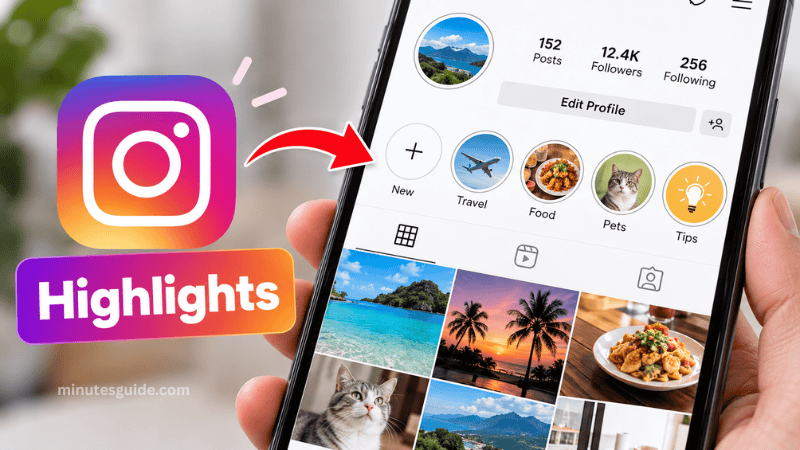
How To Add Highlights On Instagram
Creating an Instagram Highlight is relatively simple. Before you begin, make sure you are logged in to your Instagram account and have at least one Story available to add to a Highlight.
Step 1: Open Your Instagram Profile
First, open the Instagram app and log in to your Instagram account.
Go to your Instagram profile by tapping your profile picture in the bottom navigation menu.
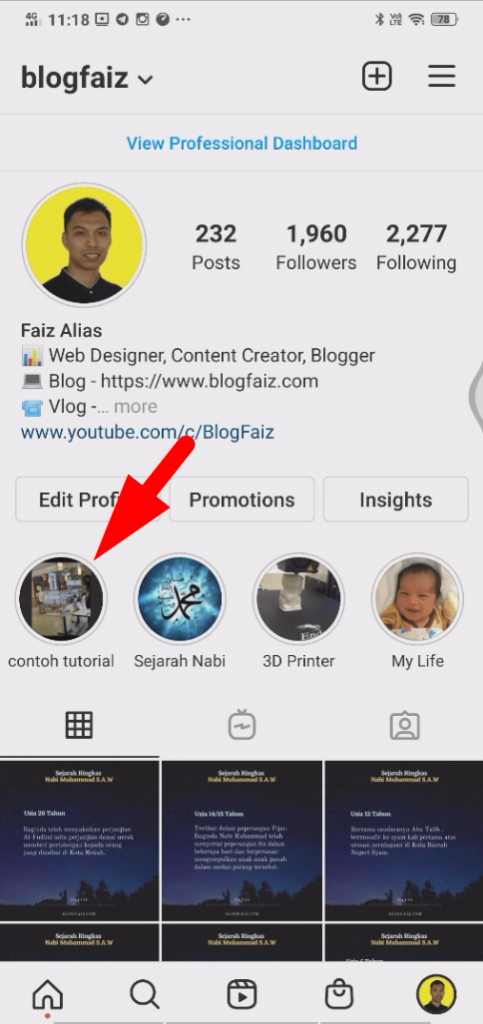
On your profile page, look for the option to create a new Highlight. Depending on your Instagram app version, the interface or position of the button may look slightly different.
Tap the plus (+) button to start creating a new Highlight.
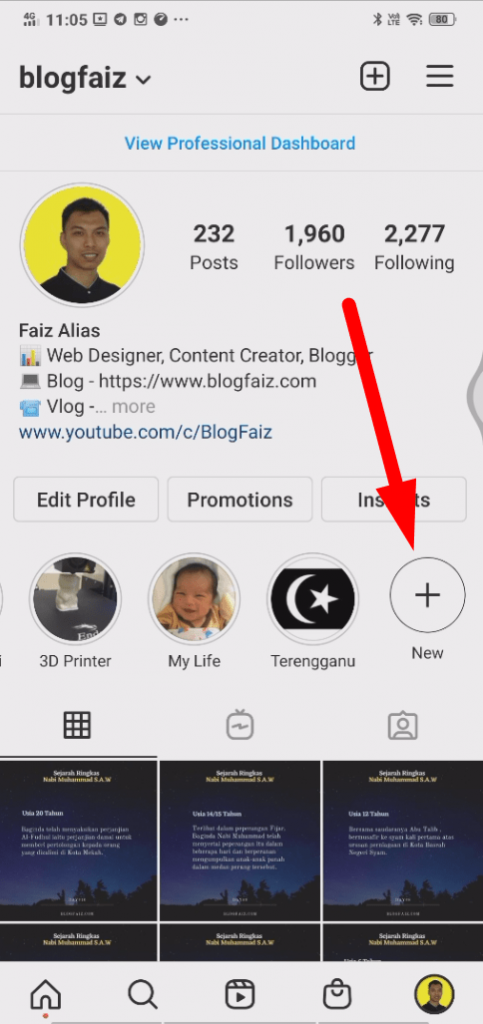
Step 2: Choose a Story
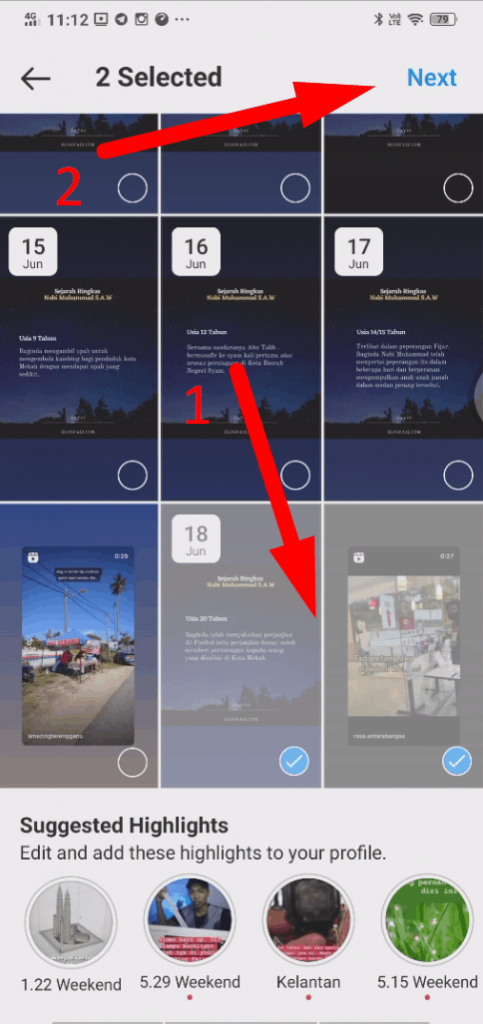
After tapping the plus button, Instagram will allow you to select Stories that you have previously uploaded.
Choose the Story or Stories that you want to add to your new Highlight.
If you have not uploaded any Stories yet, you will need to create a Story first before you can add it to a Highlight.
You can select one Story or multiple Stories, depending on the type of Highlight you want to create.
Once you have selected the Story or Stories you want to use, tap Next.
Step 3: Change the Highlight Cover and Title
Instagram will then show you options to customize your new Highlight.
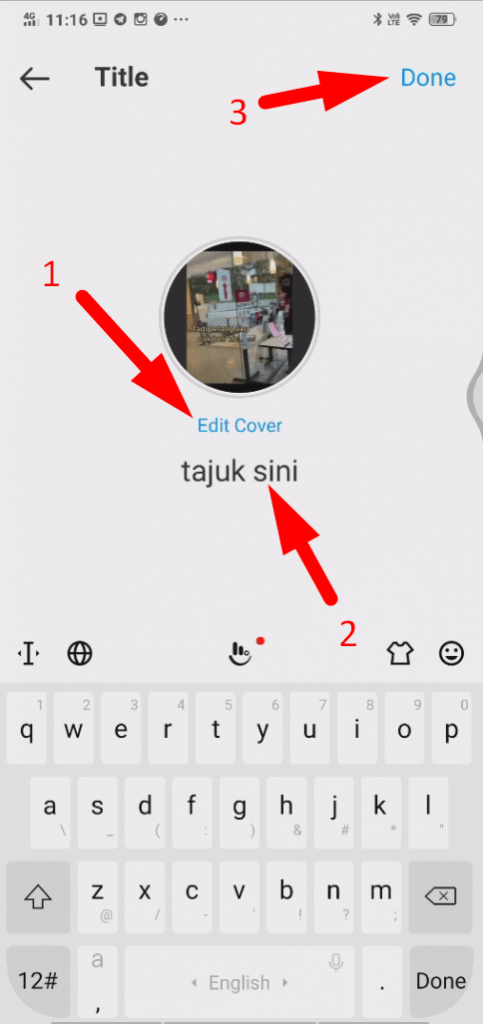
One of the available options is the Highlight cover. The cover is the image that people will see on your profile before they open the Highlight.
To change the cover photo, tap Edit Cover. You can then choose an image to use as the Highlight cover, depending on the options available in your Instagram app.
It is a good idea to choose a cover image that clearly represents the content inside the Highlight. For example, you could use a food-related image for a Highlight containing restaurant or cooking Stories.
Next, enter a title for your Highlight.
Keep the title short and easy to understand because it will appear underneath the Highlight on your Instagram profile. Examples include "Travel", "Food", "Pets", "Work", "Tips", or "Events".
After choosing the cover and entering the title, tap Done to create the Highlight.
Your new Instagram Highlight is now ready.
Step 4: View Your New Instagram Highlight
To view the Highlight you have just created, return to your Instagram profile.
You should see your new Highlight displayed in the Highlights section of your profile.
Tap the Highlight to open it and view the Stories that you added.
The main advantage of Instagram Highlights is that your selected Stories can remain accessible from your profile instead of disappearing from your regular Story after the usual 24-hour period.
You can create multiple Highlights to organize different types of Stories on your profile.
How To Delete an Instagram Highlight
If you no longer want a Highlight to appear on your Instagram profile, you can delete it.
To delete a Highlight, go to your Instagram profile and find the Highlight you want to remove.
Tap and hold the Highlight for a few seconds. Instagram should display options related to managing the Highlight.
Select the option to delete the Highlight and confirm the action when prompted.
Keep in mind that deleting a Highlight removes the Highlight from your profile. If you want to keep the original Story content for another purpose, make sure you understand which content you are removing before confirming the deletion.
Conclusion
Instagram Highlights are a convenient way to keep selected Stories accessible from your profile after they are no longer part of your regular 24-hour Story.
Creating a Highlight is simple. Open your Instagram profile, tap the option to create a new Highlight, select the Story or Stories you want to use, customize the cover and title, and save the Highlight.
You can also create multiple Highlights to organize your content into different categories. If a Highlight is no longer relevant, you can remove it from your profile by using the Highlight management options.
With a few simple steps, you can use Instagram Highlights to organize your Stories and make important content easier for visitors and followers to find.
Frequently Asked Questions About How To Add Highlights On Instagram
What are Instagram Highlights?
Instagram Highlights are collections of Instagram Stories that you choose to keep displayed on your profile. Unlike regular Stories, which normally disappear after 24 hours, Highlights allow selected Stories to remain accessible from your profile.
How do I create a Highlight on Instagram?
To create a Highlight, go to your Instagram profile and tap the option to create a new Highlight. Select the Story or Stories you want to add, choose a cover image, enter a title, and save the Highlight.
Can I add multiple Stories to one Instagram Highlight?
Yes. You can add multiple Stories to the same Highlight. This is useful when you want to organize related content into one collection, such as travel photos, food recommendations, events, or tutorials.
Can I change the cover of an Instagram Highlight?
Yes. You can edit the Highlight and change its cover image. You can choose an image that represents the content inside the Highlight and makes it easier for visitors to understand what the Highlight is about.
Can I change the name of an Instagram Highlight?
Yes. Instagram allows you to edit a Highlight and change its title. Keeping the title short and descriptive can make your profile easier to navigate.
Can I create Instagram Highlights without posting a Story?
Generally, a Highlight is created from Stories that have been posted or saved to your Story archive. If you do not have any eligible Stories available, you may need to post a Story first before adding it to a Highlight.
Do Instagram Highlights disappear after 24 hours?
No. Instagram Highlights are designed to remain visible on your profile after the original Story has passed its normal 24-hour period. They will remain there until you remove or edit them.
Can I delete an Instagram Highlight?
Yes. You can remove a Highlight from your Instagram profile. Open your profile, select the Highlight you want to manage, and use the available options to delete or edit it.
Can I edit an Instagram Highlight after creating it?
Yes. You can edit an existing Highlight to add or remove Stories, change its cover image, or update its title.
How many Instagram Highlights can I create?
Instagram allows users to create multiple Highlights on their profile. You can use separate Highlights to organize different categories of content, although the exact interface and limits may change as Instagram updates its features.
Can other people see my Instagram Highlights?
People who are allowed to view your Instagram content can generally view your Highlights from your profile. The visibility of your Highlights depends on your account privacy settings and the audience of the original Stories.
Can I use a custom photo as an Instagram Highlight cover?
Yes. Instagram provides options for customizing Highlight covers, and you can choose an image that suits the style or topic of your Highlight. A consistent set of covers can also make your profile look more organized.
References
- Add Stories to Instagram Highlights - help.instagram.com
- How to Add Highlights on Instagram: 7 Easy Steps - wikihow.com
