
How to Create Anchor Links in WordPress: A Complete Step-by-Step Guide | Creating anchor links in WordPress is one of the simplest yet most effective ways to improve navigation, enhance user experience, and make long articles easier to read. Whether you publish detailed tutorials, comprehensive guides, documentation, or lengthy blog posts, anchor links help visitors jump directly to the section they want without scrolling through the entire page.
Many professional websites use anchor links because they improve readability and allow users to access information more efficiently. They are commonly used for tables of contents, FAQ sections, knowledge bases, product documentation, and landing pages.
If you are looking for a complete guide to create anchor links in WordPress, this article explains everything from the basics to advanced techniques, including different methods, best practices, common mistakes, and troubleshooting tips.
Table of Contents
How to Create Anchor Links in WordPress: A Complete Step-by-Step Guide
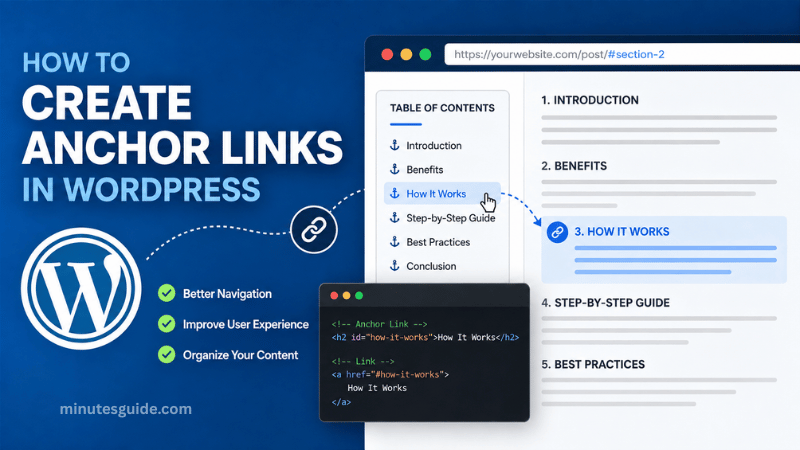
What Are Anchor Links?
Anchor links are clickable hyperlinks that take users to a specific section within the same page or another page instead of loading an entirely new webpage.
Instead of directing visitors to a different URL, an anchor link scrolls the browser directly to a designated heading, paragraph, image, or content block.
For example, clicking a Table of Contents item like "Benefits of Anchor Links" immediately jumps to that section without requiring the reader to manually scroll.
The structure of an anchor link generally looks like this:
https://example.com/article/#benefitsOr within the same page:
#benefitsIn this example:
benefitsis the anchor ID.- The browser searches for the matching HTML element.
- The page automatically scrolls to that location.
Why Creating Anchor Links in WordPress Is Important
Adding anchor links offers numerous advantages for both website visitors and website owners.
Better User Experience
Long articles often contain thousands of words. Readers may only need one particular section, and anchor links allow them to find it instantly.
This reduces unnecessary scrolling and creates a smoother browsing experience.
Easier Navigation
Anchor links make websites more organized.
Instead of presenting one massive wall of text, users can navigate through different sections with a single click.
Professional Appearance
Many authority websites use anchor links alongside tables of contents.
This makes the content appear well-organized, structured, and easier to understand.
Improved Accessibility
Visitors using keyboards or assistive technologies can navigate lengthy pages more efficiently when anchor links are properly implemented.
Potential SEO Benefits
While anchor links are not a direct ranking factor, they can indirectly improve SEO by:
- Increasing user engagement
- Improving page usability
- Reducing bounce rates
- Helping Google understand page structure
- Increasing the likelihood of sitelinks in search results
How Anchor Links Work
Anchor links rely on HTML IDs.
Every anchor destination needs a unique ID.
Example:
<h2 id="features">Features</h2>The link pointing to it would be:
<a href="#features">View Features</a>When clicked, the browser scrolls directly to:
FeaturesMethods for Creating Anchor Links in WordPress
There are several ways to create anchor links depending on your preferred editor and technical knowledge.
| Method | Difficulty | Coding Required | Recommended |
|---|---|---|---|
| Gutenberg Block Editor | Easy | No | Yes |
| Classic Editor | Easy | Minimal | Yes |
| HTML Editor | Medium | Yes | Yes |
| Table of Contents Plugin | Very Easy | No | Best for long articles |
| Page Builder (Elementor, Divi, Beaver Builder) | Easy | No | Yes |
Method 1: Creating Anchor Links in Gutenberg
The Gutenberg editor includes built-in support for HTML Anchors.
Step 1
Open your post or page.
Step 2
Select the heading block where users should jump.
Step 3
Open the Block Settings panel.
Step 4
Expand the Advanced section.
Step 5
Locate the HTML Anchor field.
Example:
installation-guideDo not include:
#Only type:
installation-guideStep 6
Create a link somewhere else.
Example:
#installation-guidePublish or update your page.
Now clicking that link automatically scrolls to the heading.
Method 2: Creating Anchor Links in Classic Editor
If you still use the Classic Editor, switch to the Text editor.
Example:
<h2 id="pricing">Pricing</h2>Create the link:
<a href="#pricing">View Pricing</a>Save the post.
Method 3: Using Custom HTML
Sometimes you need complete control.
Example:
<div id="contact"></div>

<h2>Contact Us</h2>
Create the link:
<a href="#contact">Contact Section</a>Method 4: Creating Anchor Links Between Pages
Anchor links also work across different pages.
Example destination:
https://example.com/services/#pricingUsers visiting that URL automatically land on the Pricing section.
Example:
<a href="https://example.com/services/#pricing">
View Pricing
</a>
Method 5: Creating Anchor Links Using Elementor
Elementor includes a dedicated Menu Anchor widget.
Steps:
- Drag the Menu Anchor widget.
- Enter an anchor ID.
- Create a button or text link.
- Link it using:
#servicesThis is one of the easiest methods for Elementor users.
Method 6: Automatically Creating Anchor Links with a Table of Contents Plugin
Many websites automatically generate anchor links through Table of Contents plugins.
Popular plugins include:
- Easy Table of Contents
- LuckyWP Table of Contents
- SimpleTOC
- Heroic Table of Contents
These plugins automatically:
- Scan headings
- Create anchor IDs
- Generate navigation menus
- Update links whenever headings change
This method saves significant time when publishing long articles.
Best Practices for Creating Anchor Links in WordPress
Following best practices ensures your anchor links remain reliable and user-friendly.
Use Descriptive Anchor IDs
Instead of:
section1Use:
wordpress-securityThis improves readability and makes the code easier to maintain.
Keep IDs Short
Good example:
contactAvoid:
this-is-the-final-contact-information-sectionShort IDs are easier to remember and manage.
Avoid Spaces
Incorrect:
My HeadingCorrect:
my-headingHyphens are recommended instead of spaces.
Use Lowercase Letters
Lowercase IDs reduce confusion and maintain consistency.
Good:
backup-guideInstead of:
BackupGuideEnsure Every ID Is Unique
Duplicate IDs may cause browsers to scroll to the wrong location.
Each anchor should have a different name.
Match Links Exactly
If your heading ID is:
featuresYour link should be:
#featuresNot:
#FeaturesConsistency is essential.
Common Uses of Anchor Links
Anchor links are suitable for many different types of websites.
Examples include:
- Table of Contents
- FAQ navigation
- Product documentation
- Landing pages
- Service pages
- Knowledge bases
- Long tutorials
- Legal pages
- Terms and Conditions
- Privacy Policy
- User manuals
Advantages and Disadvantages of Creating Anchor Links in WordPress
advantages-and-disadvantages-of-creating-anchor-links-in-wordpress.csv
| Advantages | Disadvantages |
|---|---|
| Improves navigation | Requires unique IDs |
| Enhances user experience | Broken links if IDs change |
| Makes long articles easier to read | Needs maintenance after content updates |
| Supports table of contents | Can become confusing with excessive anchors |
| Looks more professional | Poor naming conventions reduce organization |
| Helps visitors locate information quickly | Duplicate IDs can cause navigation issues |
Common Mistakes to Avoid
Many beginners encounter problems because of small mistakes.
Using Duplicate IDs
Every anchor ID must be unique.
Wrong:
id="pricing"
id="pricing"
Forgetting the
Links require the hash symbol.
Correct:
#pricingIncorrect:
pricingAdding Spaces
Wrong:
my headingCorrect:
my-headingDeleting Anchor IDs
If you remove the ID later, every related anchor link stops working.
Always verify your links after editing content.
Linking to Non-Existing Anchors
If no matching ID exists, the browser cannot jump anywhere.
Always double-check spelling.
Troubleshooting Anchor Links
If your anchor links are not working, review the following checklist.
| Problem | Possible Cause | Solution |
|---|---|---|
| Link does nothing | Missing anchor ID | Add the correct ID |
| Scrolls to wrong location | Duplicate IDs | Make every ID unique |
| Page reloads unexpectedly | Incorrect URL | Verify the full link |
| Doesn't jump correctly | Missing "#" | Add the hash symbol |
| Works on desktop only | Theme or JavaScript conflict | Test with a default theme and disable conflicting scripts |
| Stops working after editing | ID was renamed or deleted | Restore or update the anchor ID |
Tips for Better Anchor Link Organization
As your website grows, maintaining consistent anchor links becomes increasingly important. A well-planned naming convention makes it easier to update content, collaborate with other writers, and troubleshoot issues in the future.
Consider using descriptive names that relate directly to the heading or topic. For example, if you have a section about WordPress backups, use an anchor such as wordpress-backup-guide instead of a generic name like section3. This approach makes your HTML easier to understand and reduces the chance of creating duplicate IDs.
If your article contains many sections, organize anchor names using a consistent pattern. For instance, all headings related to installation could begin with install-, while troubleshooting sections could begin with troubleshoot-. Consistency becomes especially valuable when managing large documentation websites.
Do Anchor Links Affect SEO?
Anchor links are not a direct Google ranking factor, but they contribute to several aspects of technical SEO and user experience that can indirectly benefit your website.
When visitors can quickly find the information they need, they are more likely to remain on your page, interact with additional content, and continue browsing your website. These positive engagement signals can improve the overall quality of the user experience.
Search engines also use headings and page structure to better understand the organization of your content. Well-implemented anchor links, especially when paired with a clear table of contents, help reinforce that structure.
In some cases, Google may display jump-to links beneath a search result when it identifies useful anchor destinations within a page. Although there is no guarantee this will happen, using descriptive headings and properly configured anchor links increases the likelihood that search engines can interpret your page effectively.
Conclusion
Creating anchor links in WordPress is a simple but highly valuable technique for improving navigation, readability, and overall user experience. Whether you are using the Gutenberg Block Editor, the Classic Editor, custom HTML, Elementor, or a Table of Contents plugin, anchor links make long pages significantly easier to navigate.
By using clear and descriptive anchor IDs, keeping each ID unique, following consistent naming conventions, and regularly testing your links after making edits, you can ensure that your anchor links remain reliable as your website grows.
For websites that publish comprehensive tutorials, documentation, guides, or lengthy blog posts, creating anchor links in WordPress is a best practice that enhances usability while helping readers locate information quickly and efficiently. Implementing them consistently will contribute to a more professional website and a better browsing experience for every visitor.
Frequently Asked Questions (FAQs)
What are anchor links in WordPress?
Anchor links are hyperlinks that allow visitors to jump directly to a specific section within the same page or to a particular section on another page. They improve navigation and make long articles much easier to read.
Why should I use anchor links in WordPress?
Anchor links help visitors quickly find the information they need without scrolling through an entire page. They also improve the overall user experience, make content more organized, and are especially useful for long-form articles, tutorials, and documentation.
Does creating anchor links in WordPress improve SEO?
Anchor links are not a direct Google ranking factor. However, they can indirectly benefit SEO by improving user experience, increasing engagement, making content easier to navigate, and helping search engines better understand the structure of your page.
Can I create anchor links without using a plugin?
Yes. WordPress includes built-in support for anchor links through the Gutenberg Block Editor. You can add an HTML Anchor to headings and then create links that point to those anchors without installing any additional plugins.
How do I create an anchor link in the Gutenberg editor?
Select the heading you want to link to, open the Block Settings sidebar, expand the Advanced section, and enter a unique name in the HTML Anchor field. Then create a link using the format #your-anchor-name.
Can I create anchor links in the Classic Editor?
Yes. In the Classic Editor, you can manually add an id attribute to an HTML element and then create a hyperlink that points to that ID using the # symbol.
What characters should I use in an anchor ID?
It is recommended to use lowercase letters, numbers, and hyphens. Avoid spaces, special characters, and punctuation because they may cause unexpected behavior in some browsers or themes.
Example:wordpress-guide
Instead of:WordPress Guide!
Can I link to a specific section on another WordPress page?
Yes. Simply combine the page URL with the anchor ID.
Example:https://yourwebsite.com/services/#pricing
When visitors click the link, they will be taken directly to the Pricing section on that page.
Why are my anchor links not working?
Common reasons include:
- The anchor ID does not exist.
- The ID is misspelled.
- The hyperlink is missing the # symbol.
- Multiple elements use the same ID.
- A theme or JavaScript conflict is preventing smooth scrolling.
Checking these issues usually resolves the problem.
Do anchor IDs have to be unique?
Yes. Every anchor ID on a page must be unique. If multiple elements share the same ID, browsers may scroll to the wrong section or behave unpredictably.
Can I create a Table of Contents using anchor links?
Absolutely. A Table of Contents is one of the most common uses of anchor links. Each item in the table links to a corresponding heading, allowing readers to navigate lengthy articles quickly.
Which plugins can automatically create anchor links in WordPress?
Several plugins can automatically generate anchor links and a Table of Contents, including:
- Easy Table of Contents
- LuckyWP Table of Contents
- SimpleTOC
- Heroic Table of Contents
These plugins automatically detect headings and generate anchor links, saving time when publishing long articles.
References
- How to Create Anchor Links in WordPress - elegantthemes.com
- How to Create Anchor Links in WordPress - alacrityfoundation.co.uk
