
In this tutorial, I will show you how to cancel a Google Play subscription using two simple methods.
There may be times when you accidentally subscribe to an app or service on Google Play, or perhaps you no longer need a particular subscription. Whatever the reason, you can cancel the subscription before the next billing cycle to prevent it from automatically renewing.
The process is quite straightforward and can be completed directly from your Android smartphone or from a computer or laptop.
It is important to remember that uninstalling an app does not automatically cancel its subscription. If you uninstall an app without cancelling the subscription, you may still be charged according to the subscription terms.
In this guide, I will show you step by step how to cancel Google Play subscription from both a smartphone and a PC or laptop.
Let's get started.
Table of Contents
How to Cancel Google Play Subscription (Two Easy Methods)
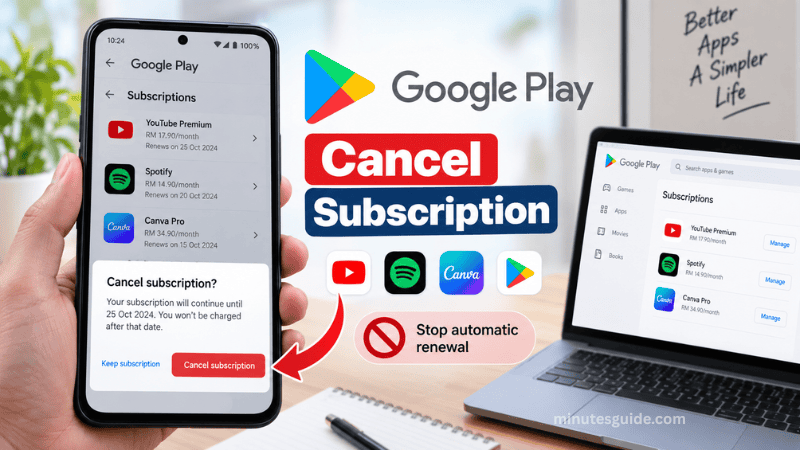
How to Cancel Google Play Subscription
There are two convenient ways to cancel a subscription purchased through Google Play.
The first method is to use the Google Play Store app on your Android smartphone. The second method is to access Google Play from a computer or laptop.
Before you begin, make sure you are signed in to the Google Account that was used to purchase the subscription. If you have multiple Google Accounts on your device, the subscription may not appear if you are using the wrong account.
1. Cancel Google Play Subscription on Smartphone
If you subscribed to an app or service using Google Play, you can cancel it directly from your Android smartphone.
The steps are as follows.
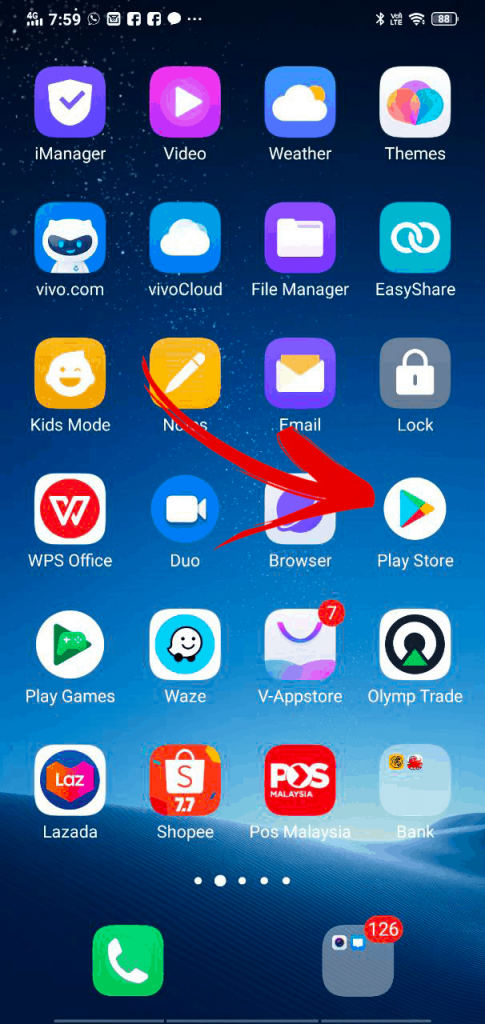
Step 1: Open the Google Play Store
First, open the Google Play Store app on your Android smartphone.
Make sure that you are using the Google Account associated with the subscription you want to cancel. If you have multiple Google Accounts, check the profile icon to make sure you are using the correct account.
Step 2: Tap Your Profile Picture
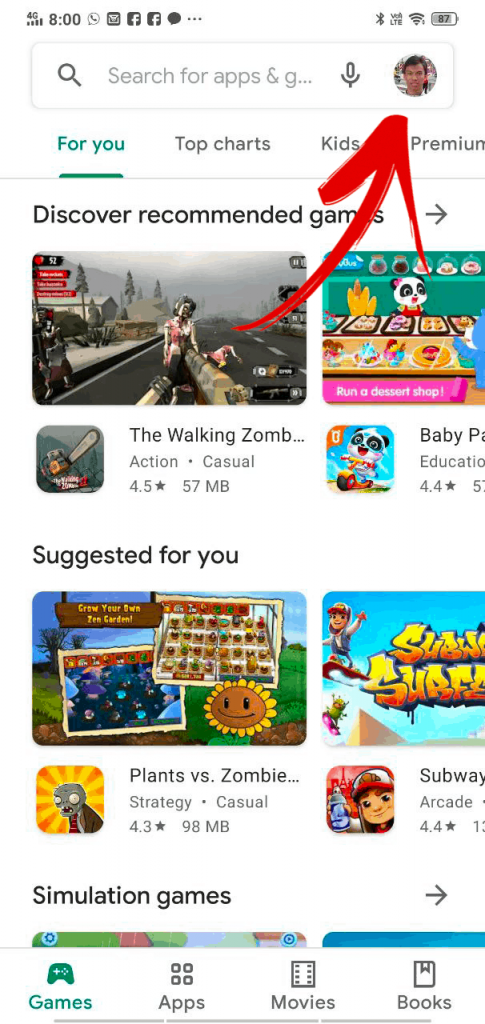
Once the Google Play Store is open, look at the top-right corner of the screen.
Tap your profile picture or Google Account icon to open the Play Store account menu.
Step 3: Select Payments & subscriptions
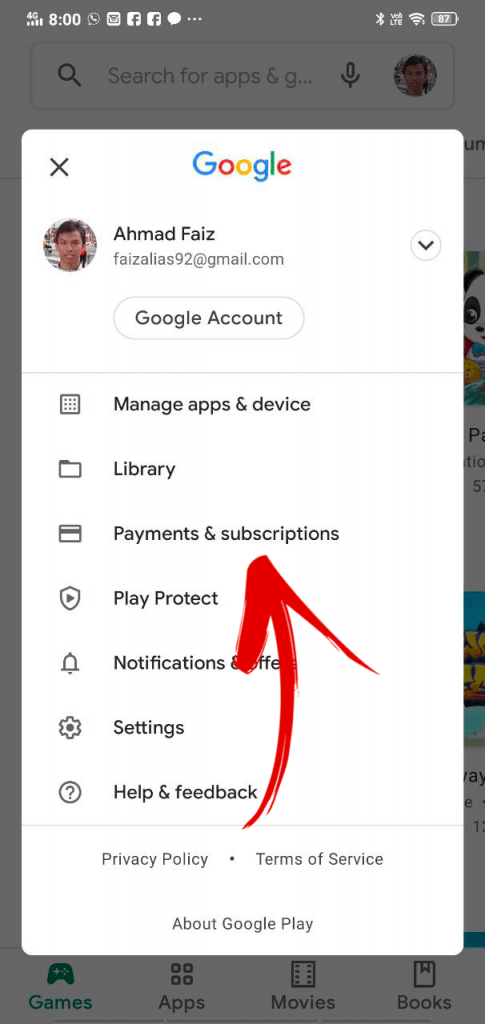
From the menu that appears, select "Payments & subscriptions."
This section contains several options related to your Google Play payments, including your subscriptions, payment methods and transaction information.
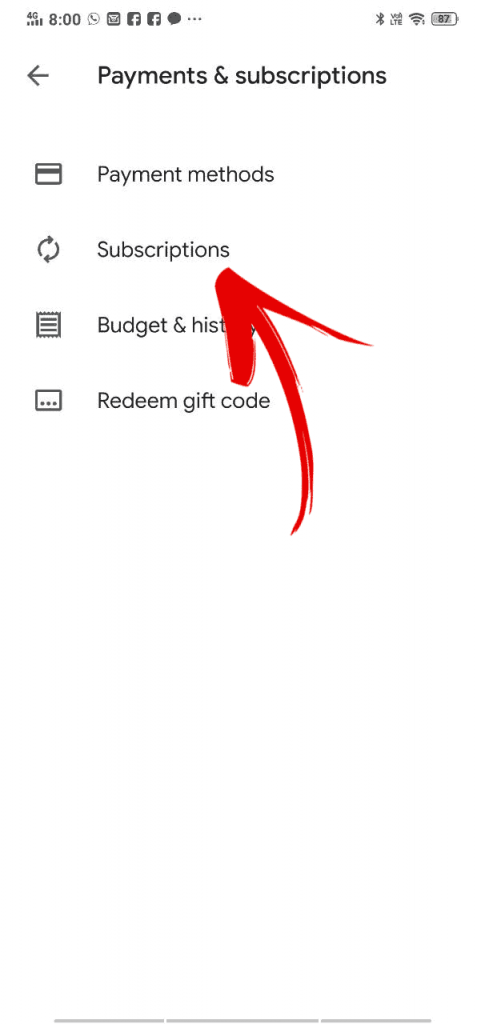
Step 4: Select Subscriptions
Next, tap "Subscriptions."
You will be taken to the subscriptions section, where you can view the subscriptions associated with your Google Account.
Step 5: Select the Subscription You Want to Cancel
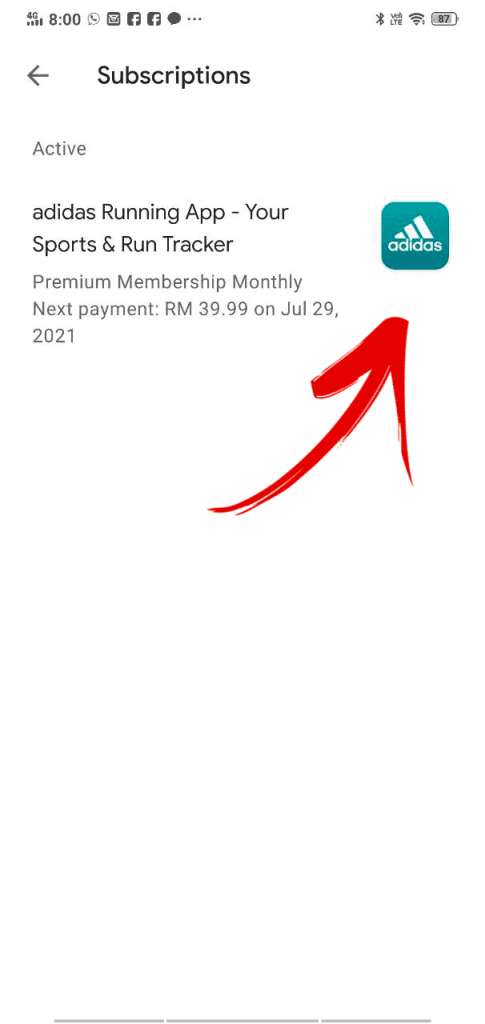
You should now see the subscriptions that are associated with the selected Google Account.
Find the app or service that you no longer want to subscribe to and tap it.
If you cannot find the subscription you are looking for, check whether you are signed in to the correct Google Account. Google also recommends checking other Google Accounts you may have used when making the purchase.
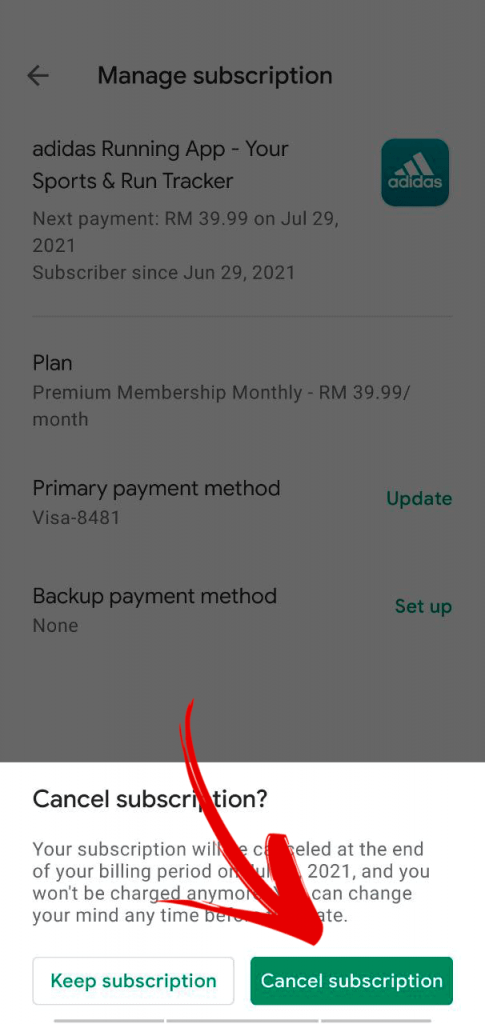
Step 6: Tap Cancel Subscription
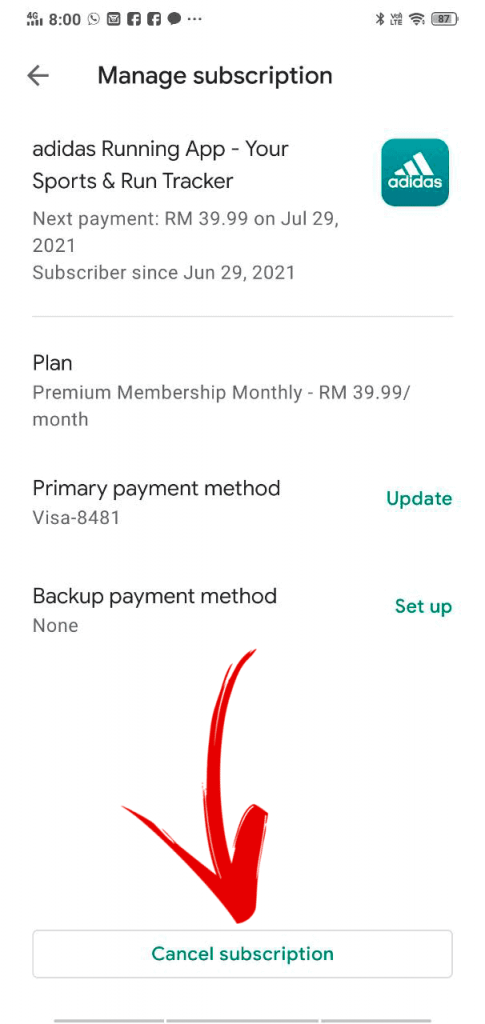
After selecting the subscription, look for the "Cancel subscription" option.
Tap "Cancel subscription" to begin the cancellation process.
Google may provide additional information about what happens when you cancel the subscription. Read the information carefully before continuing.
Step 7: Select a Reason for Cancellation
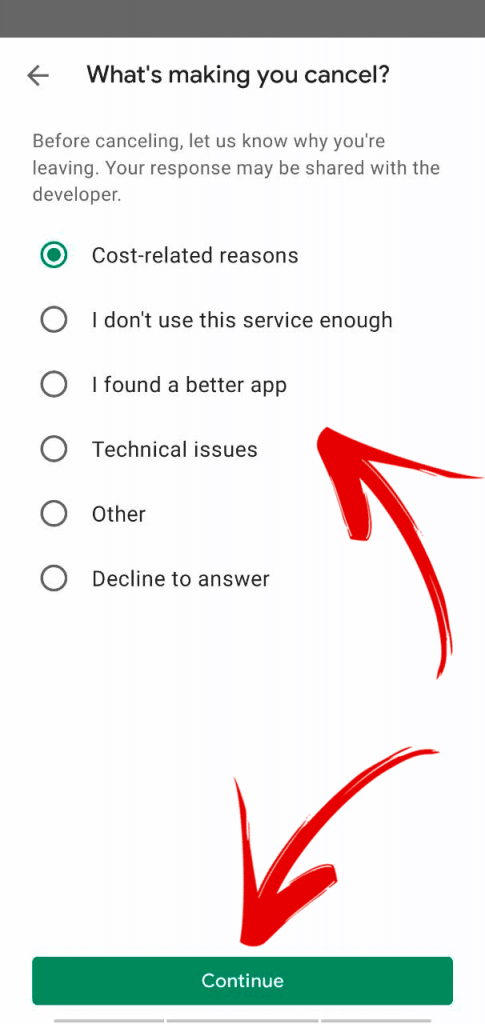
Google Play may ask you to provide a reason for cancelling the subscription.
Select the reason that best describes why you want to cancel it.
After selecting a reason, tap "Continue."
Step 8: Confirm the Cancellation
Finally, follow the instructions shown on the screen to complete the cancellation.
You may need to confirm your decision by selecting "Cancel subscription" again.
Once the cancellation has been successfully completed, check the subscription details to make sure that automatic renewal has been stopped.
Cancelling a subscription generally stops future renewal charges. Depending on the type of subscription, you may still be able to access the subscription content until the end of the current billing period.
2. Cancel Google Play Subscription on PC or Laptop
You can also cancel your Google Play subscription using a computer or laptop. This method is useful if you prefer managing your subscriptions from a larger screen.
Step 1: Go to Google Play
First, open your web browser and go to the Google Play website.
Make sure that you are signed in to the Google Account that you used when purchasing the subscription.
You can manage your subscriptions through the Google Play subscriptions section.
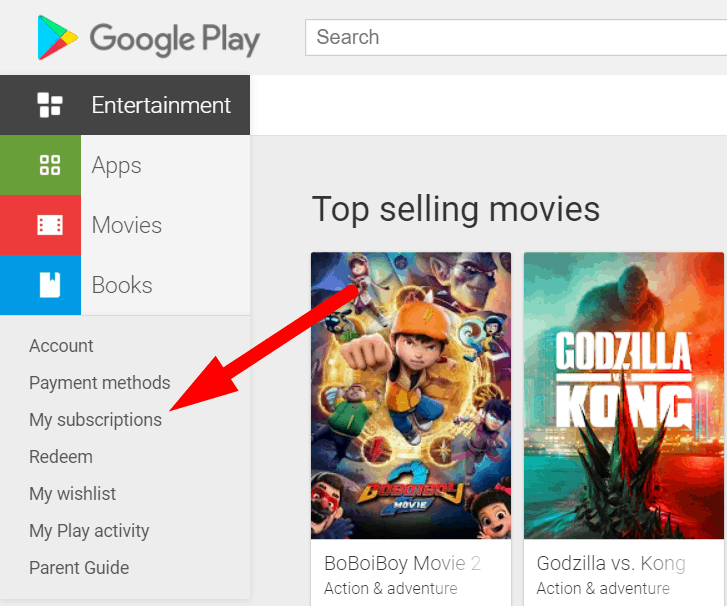
Step 2: Open Your Subscriptions
Go to the subscriptions section in Google Play.
You will see the subscriptions associated with your Google Account.
If you have more than one Google Account, make sure you are using the account that contains the subscription you want to cancel.
Step 3: Select the Subscription
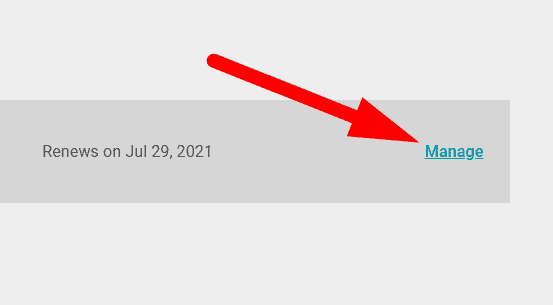
Find the subscription that you want to cancel.
Click "Manage" next to the relevant subscription.
This will open the subscription management page, where you can view information about the subscription and its renewal.
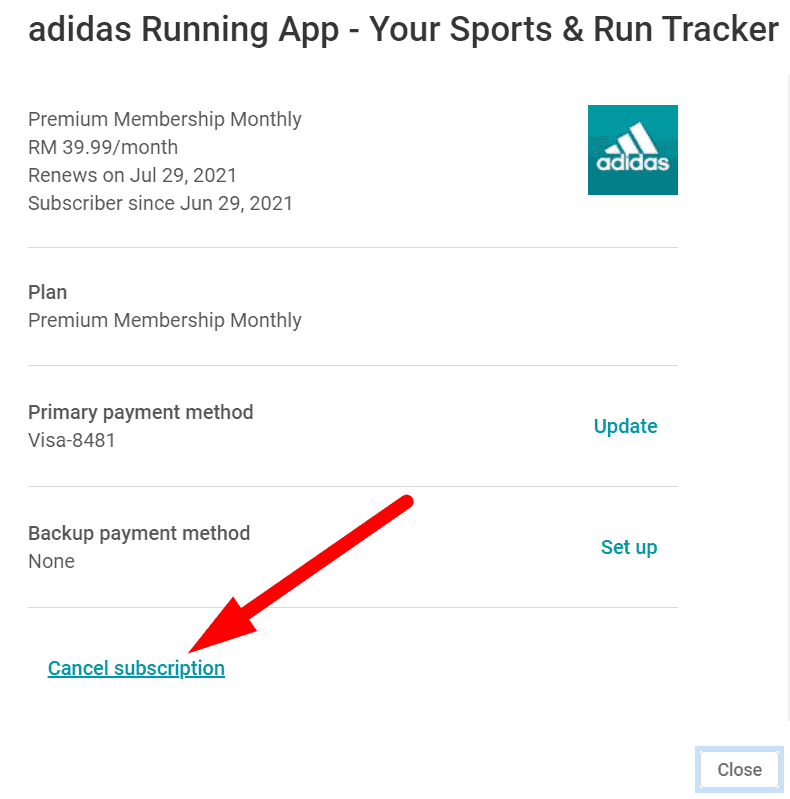
Step 4: Click Cancel Subscription
Look for the "Cancel subscription" option and click it.
Google Play may display information explaining what will happen after you cancel the subscription.
Read the information carefully before proceeding.
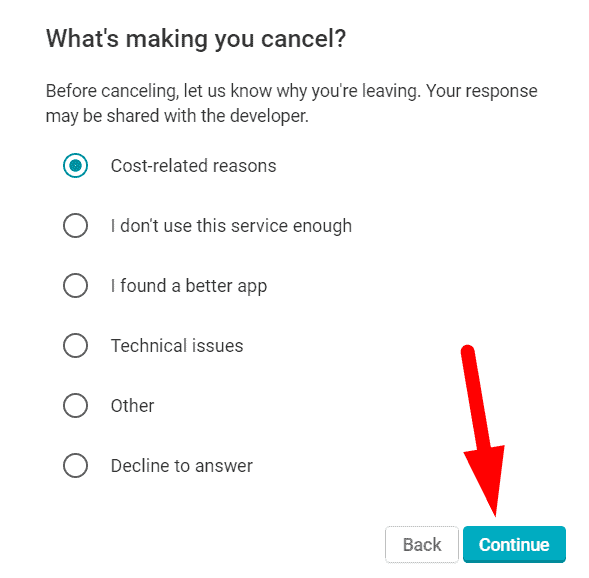
Step 5: Select a Reason
Google may ask you why you want to cancel the subscription.
Choose the reason that best matches your situation and then click "Continue."
The reason you select does not change the basic cancellation process.
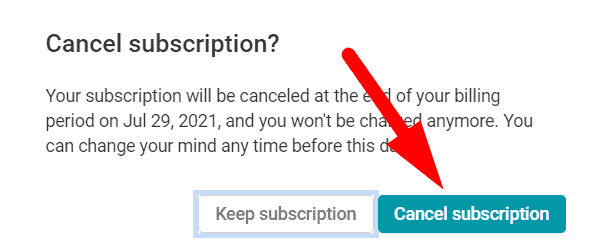
Step 6: Confirm the Cancellation
Google Play will ask you to confirm that you want to cancel the subscription.
Click "Cancel subscription" to complete the process.
After the cancellation is completed, check the subscription page to verify that it has been cancelled successfully.
Google states that cancelling a subscription prevents the next subscription renewal charge, while access to the subscription may continue until the end of the current billing period, depending on the subscription.
What Happens After You Cancel a Google Play Subscription?
After you cancel a Google Play subscription, you generally will not be charged for the next renewal.
However, cancellation does not necessarily mean that your access ends immediately. For many subscriptions, you can continue using the subscribed service until the end of the period that you have already paid for.
For example, if you have a monthly subscription that renews on the 25th of the month and you cancel it on the 10th, you may continue using the service until the current billing period ends. The exact access period depends on the subscription and its terms.
You should also check the subscription details or your Google Play purchase information to confirm the next renewal date.
Does Uninstalling the App Cancel the Subscription?
No.
Simply uninstalling an app from your Android smartphone does not cancel an active Google Play subscription.
This is an important point because some users may assume that removing an app from their phone automatically stops the subscription. It does not.
If you no longer want to pay for a subscription, you need to cancel the subscription separately through Google Play or through the service provider, depending on how the subscription was purchased.
What If You Cannot Find Your Subscription?
If the subscription does not appear in your Google Play subscriptions list, there are several possibilities.
First, check whether you are signed in to the correct Google Account. If you use multiple Google Accounts, the subscription may be associated with another account.
You can also check your email accounts for the original subscription receipt. The receipt may help you identify which Google Account was used to make the purchase. Google recommends checking other accounts and Google Wallet when trying to locate a missing subscription.
Another possibility is that the subscription was not purchased through Google's billing system.
Some apps use alternative billing systems. Subscriptions purchased through an alternative billing system may not appear in the Google Play subscriptions section. In that situation, you may need to contact the app developer or service provider directly to cancel the subscription.
Can You Get a Refund After Cancelling?
Cancelling a subscription and requesting a refund are two different things.
Cancelling a subscription generally stops future renewal, but it does not automatically mean that you will receive a refund for a payment that has already been made.
If you were recently charged and believe that you are eligible for a refund, you can submit a refund request through Google Play. Whether a refund is approved depends on Google's applicable refund policies and the circumstances of the purchase.
Therefore, if you accidentally subscribed to an app or service, cancelling the subscription can prevent future charges, while a separate refund request may be required for an existing payment.
What If You Are Using a Payment Plan?
Some Google Play subscriptions may use payment plans rather than a simple recurring subscription.
According to Google, once a payment method has been charged for a payment plan, cancelling the plan does not necessarily remove the remaining payments that you are already committed to. However, you may be able to stop the payment plan from automatically renewing after the current plan ends.
Therefore, it is important to check the subscription details before assuming that cancelling will immediately stop all remaining payments.
What If the Subscription Is a Prepaid Plan?
Prepaid subscription plans work differently from recurring subscriptions.
A prepaid plan is valid for a specific period and automatically expires when that period ends. You generally do not need to cancel a prepaid plan in the same way as a recurring subscription.
If an unused prepaid subscription is eligible for a refund, you may be able to submit a refund request through Google Play.
Conclusion
Cancelling a Google Play subscription is relatively simple as long as you know where to find the subscription settings.
If you are using an Android smartphone, open the Google Play Store, tap your profile picture, select "Payments & subscriptions," and then choose "Subscriptions." Select the subscription you want to cancel and follow the on-screen instructions.
Alternatively, you can manage your subscriptions through Google Play using a computer or laptop. Select the subscription, click "Manage," choose "Cancel subscription," and follow the instructions to complete the cancellation.
The most important thing to remember is that uninstalling an app does not cancel its subscription. If you no longer want to be charged, make sure you complete the cancellation process and verify that the subscription is no longer set to renew.
If you cannot find the subscription, check that you are signed in to the correct Google Account. If the subscription was purchased using an alternative billing system, you may need to contact the app developer directly to cancel it.
Frequently Asked Questions About Google Play Subscriptions
How do I cancel a Google Play subscription?
You can cancel a Google Play subscription through the Google Play Store app or website. On Android, open Google Play Store, tap your profile picture, select "Payments & subscriptions," choose "Subscriptions," select the subscription you want to cancel, and follow the cancellation instructions.
Does uninstalling an app cancel the Google Play subscription?
No. Uninstalling an app does not automatically cancel its subscription. You must cancel the subscription separately through Google Play or, if applicable, through the service provider's own billing system.
Can I cancel a Google Play subscription from my computer?
Yes. You can manage and cancel eligible Google Play subscriptions from a computer or laptop by signing in to the Google Account used to purchase the subscription and accessing your subscriptions.
Will I still be able to use the app after cancelling the subscription?
In many cases, yes. Cancelling a subscription generally prevents it from renewing, while access to the subscription may continue until the end of the current billing period. The exact terms depend on the subscription.
Will cancelling a Google Play subscription give me a refund?
Not automatically. Cancelling a subscription and requesting a refund are separate processes. If you have already been charged, you may need to submit a separate refund request through Google Play, and eligibility depends on Google's refund policies.
Why can't I find my subscription on Google Play?
If you cannot find a subscription, first check that you are signed in to the correct Google Account. If you use multiple Google Accounts, the subscription may be associated with a different account. You should also check your purchase receipt to identify the account used for the subscription.
What should I do if I subscribed using another billing system?
Some apps and services may use an alternative billing system instead of Google Play's billing system. If your subscription does not appear in Google Play, check the app or service's billing information or contact the developer or service provider for cancellation instructions.
Can I cancel a prepaid Google Play subscription?
A prepaid subscription normally remains active until the prepaid period ends and does not automatically renew in the same way as a recurring subscription. The exact cancellation and refund options depend on the type of prepaid plan.
Can I cancel a Google Play subscription immediately after subscribing?
Yes. You can generally cancel a subscription after subscribing. However, cancellation usually stops future renewal rather than automatically ending access immediately. Depending on the subscription, you may continue to have access until the end of the period you have already paid for.
How can I check whether my Google Play subscription has been cancelled?
After cancelling, return to the subscriptions section in Google Play and check the subscription status. You should also review the renewal information to confirm that the subscription will not automatically renew.
What happens if I forget to cancel my Google Play subscription?
If you do not cancel a recurring subscription before its renewal date, it may automatically renew and your payment method may be charged according to the subscription terms. If you no longer want the service, cancel it before the next renewal date.
Can I cancel a Google Play subscription if I have multiple Google Accounts?
Yes. However, you need to use the Google Account associated with the subscription. If you cannot find the subscription, check your other Google Accounts to determine which account was used to make the purchase.
References
- Cancel a Google Play subscription - support.google.com/googleplay
- How do I Cancel my Subscription in Google Play? - simdif.com
