
How to Get a Refund On Google Play (Two Easy Method) | Have you accidentally purchased an app, game, subscription, or in-app item from Google Play and want to request a refund?
Don't worry. Google Play provides a refund request process for certain purchases, although eligibility depends on factors such as what you purchased, when you made the purchase, how you paid, and your location.
In some situations, you may have made a purchase accidentally, such as when a child or another family member uses your phone and purchases an item without your knowledge. You may also want to request a refund because an app or in-app purchase is not working as expected.
In this tutorial, I will show you how to request a Google Play refund using two methods:
- How to request a Google Play refund using a smartphone
- How to request a Google Play refund using a PC or laptop
The overall process is similar on both devices. You simply need to sign in to the Google Account that was used to make the purchase and follow the refund request instructions.
Before submitting a request, however, it is important to understand that submitting a refund request does not automatically mean that the refund will be approved. Google reviews refund requests according to its applicable refund policies.
Let's get started.
Table of Contents
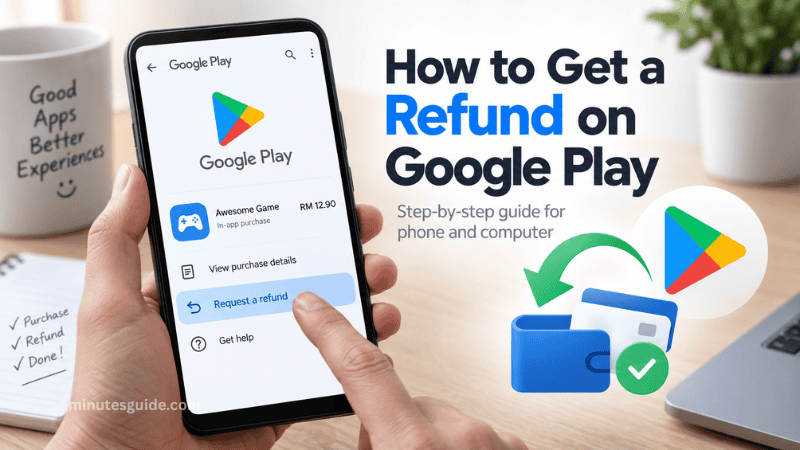
How to Get a Refund On Google Play (Two Easy Methods)
How to Get a Refund On Google Play
Google provides an online self-service process for requesting refunds for eligible Google Play purchases. You can access the official refund request page through Google Play Help.
The exact options displayed during the process may vary depending on your Google Account, purchase, location, and the type of transaction.
Method 1: Request a Google Play Refund on a Smartphone
You can request a Google Play refund directly from your smartphone using a web browser.
You do not necessarily need to use a computer because the refund request process can be completed through the Google Play website.
Step 1: Open Your Browser
First, open a web browser on your smartphone.
You can use Google Chrome, Safari, or another browser that you normally use to access the internet.
Search for:
"Google Play refund request"
Alternatively, you can go directly to Google's official Google Play refund page.
It is important to use Google's official website when submitting a refund request. Avoid websites that claim they can process your Google Play refund for a fee.
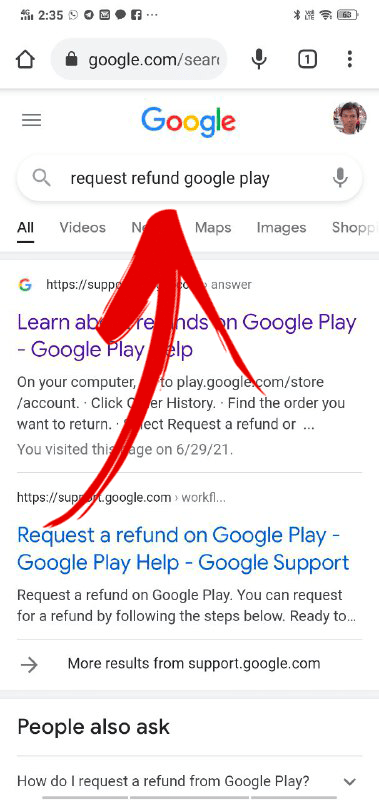
Step 2: Open the Google Play Refund Page
After searching for the refund page, look for the official Google Play Help result.
Google provides a dedicated refund request process that allows users to submit requests for eligible Google Play purchases.
Open the official page and look for the option to request a refund.
You may be asked to sign in to your Google Account if you have not already done so.
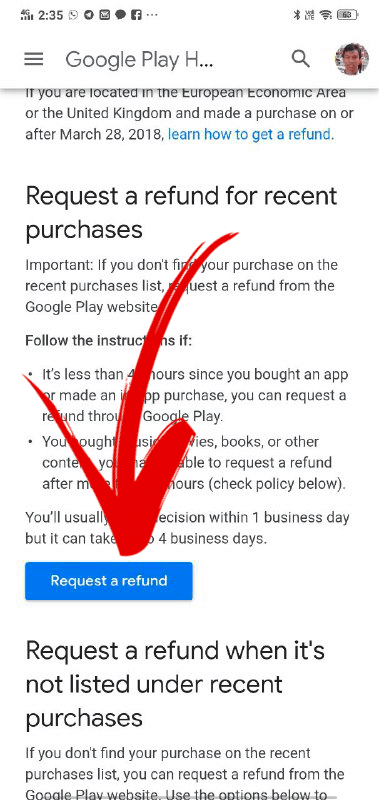
Step 3: Start the Refund Request
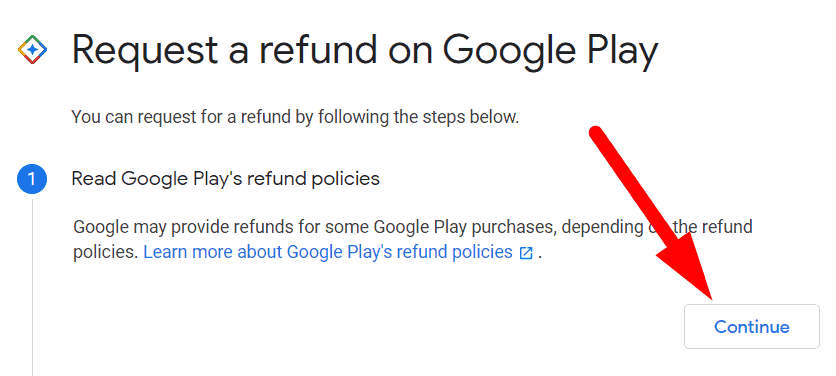
After opening the refund request process, Google may provide information about its refund policies before allowing you to continue.
Take a moment to read the information because refund eligibility can vary depending on the type of purchase and how long ago the purchase was made.
For apps, games, and in-app purchases, Google states that purchases made within the previous 48 hours may be eligible for a refund depending on the circumstances. For requests made after 48 hours, Google generally recommends contacting the app developer.
Once you are ready, continue with the refund request.
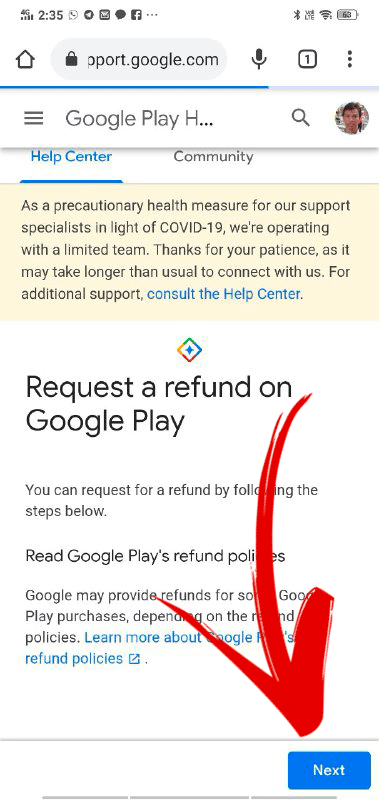
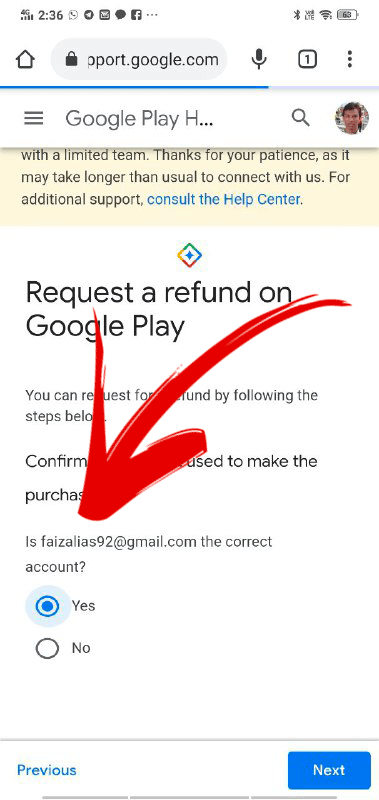
Step 4: Confirm Your Google Account
You may be asked to confirm the Google Account associated with the purchase.
Make sure you are using the same Google Account that was used to make the purchase.
This is important because purchases are associated with a particular Google Account. If you cannot find the purchase, Google recommends checking whether you are signed in to a different Google Account.
If the account is correct, continue to the next step.
Step 5: Select the Purchase
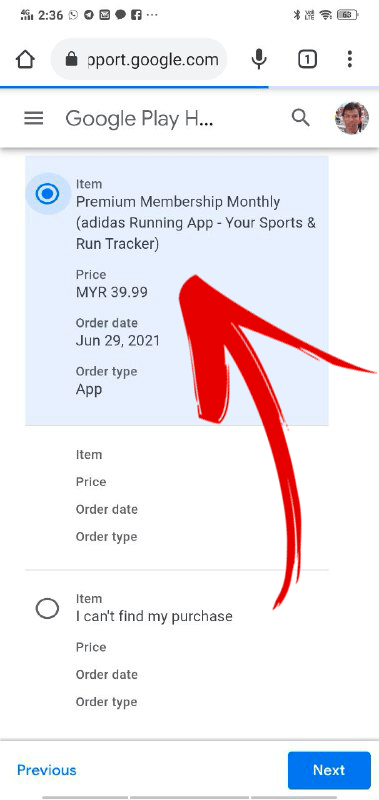
Google will display the purchases that are available for the refund process.
Find the app, game, subscription, or in-app purchase for which you want to request a refund.
Select the relevant purchase and continue.
If you cannot find the transaction, do not immediately assume that the refund process is unavailable. First, check that you are using the correct Google Account.
You can also check your Google Play order history to confirm the transaction.
Step 6: Select the Reason for Your Refund
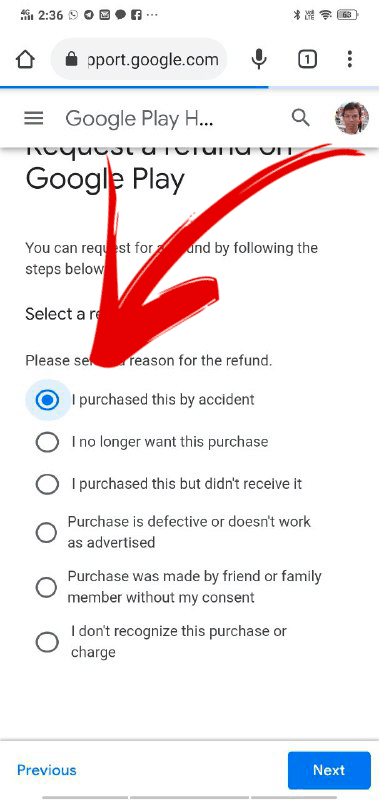
You will then be asked to select the reason for requesting a refund.
Choose the option that most accurately describes your situation.
For example, you may have purchased the item accidentally or experienced a problem with the purchase.
It is better to provide an accurate reason rather than selecting an option simply because you think it will increase the chance of receiving a refund.
If Google asks you to provide additional information, explain the situation clearly and honestly.
Step 7: Review Your Refund Request
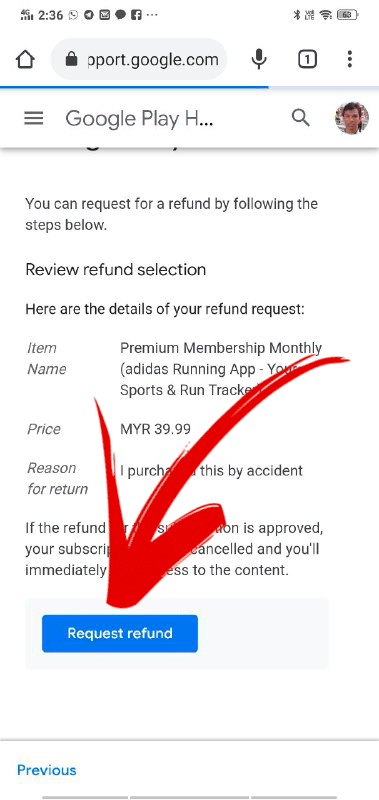
Before submitting the request, carefully review the information you have entered.
Check that:
- You selected the correct Google Account.
- You selected the correct purchase.
- Your reason for requesting the refund is accurate.
- Any additional information you provided is correct.
Once everything is correct, submit the refund request.
Google will then process the request according to its refund policies.
Step 8: Wait for Google's Decision
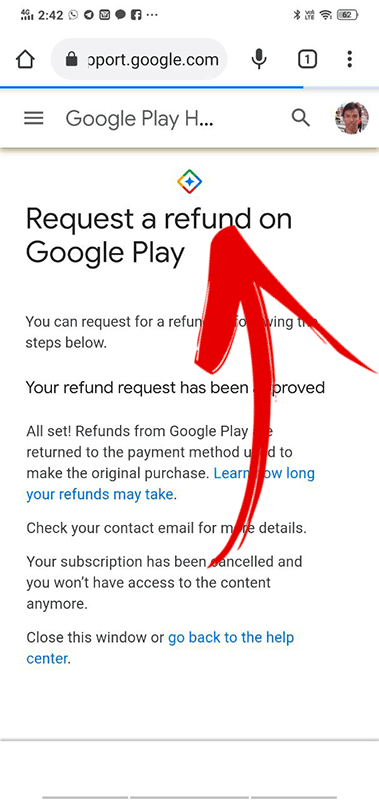
After submitting your request, you need to wait for Google's decision.
Google states that refund decisions typically take 1–4 days.
Submitting the same request multiple times will not make the process faster. Google specifically advises users to allow time for the request to be processed.
If your refund is approved, the money is generally returned through the payment method used for the original purchase. However, the actual time for the money to appear can vary depending on the payment method.
Method 2: Request a Google Play Refund on a PC or Laptop
The second method is very similar to the smartphone method.
The main difference is that you will use a desktop or laptop computer to access Google Play.
This method can be more convenient if you want to review your purchase information on a larger screen.
Step 1: Open a Web Browser
First, open a web browser on your computer.
You can use Google Chrome, Microsoft Edge, Mozilla Firefox, or another modern web browser.
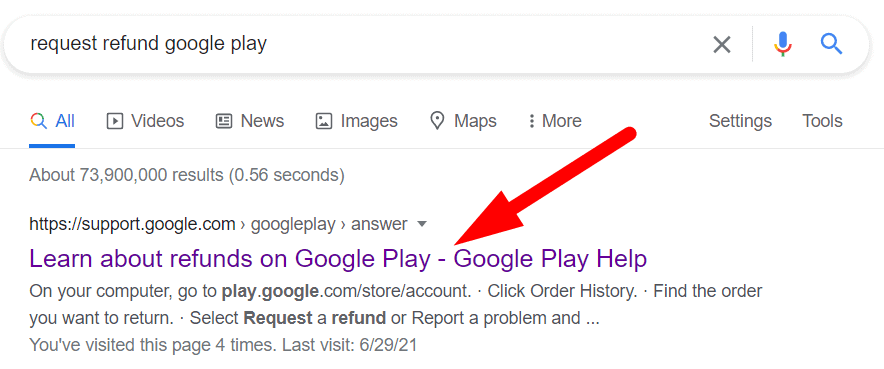
Go to Google Play or search for the official Google Play refund page.
Make sure that you are accessing Google's official website.
Step 2: Sign In to Your Google Account
Sign in using the Google Account that was used to make the Google Play purchase.
This is an important step because the purchase may not appear if you are signed in to a different Google Account.
If you have multiple Google Accounts, check each account if necessary to identify the account associated with the transaction.
Step 3: Open the Refund Request Process
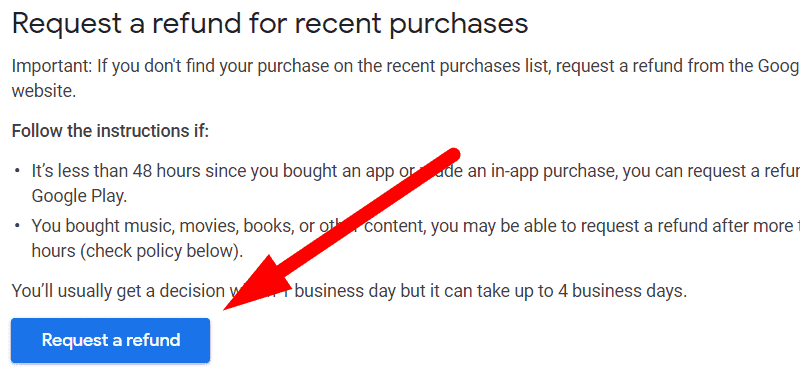
Open Google's official Google Play refund request page.
Google provides a dedicated self-service refund process where you can submit a request for an eligible Google Play purchase.
Follow the instructions shown on the screen to begin the request.
Step 4: Confirm the Purchase Account
Confirm that the Google Account shown on the screen is the account that you used when making the purchase.
If the account is correct, continue.
If the purchase does not appear, check whether you have signed in to the wrong Google Account.
Google specifically notes that a missing order may be associated with another Google Account.
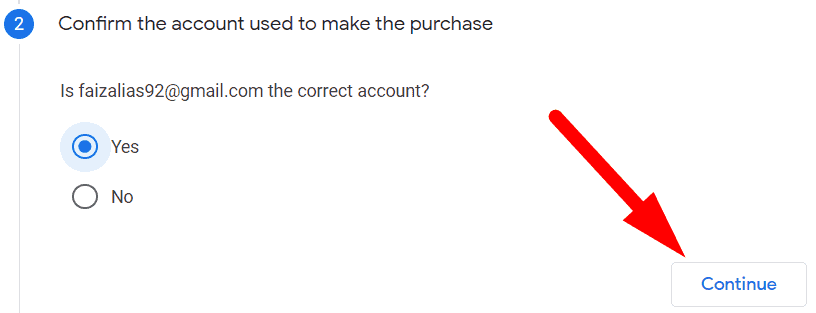
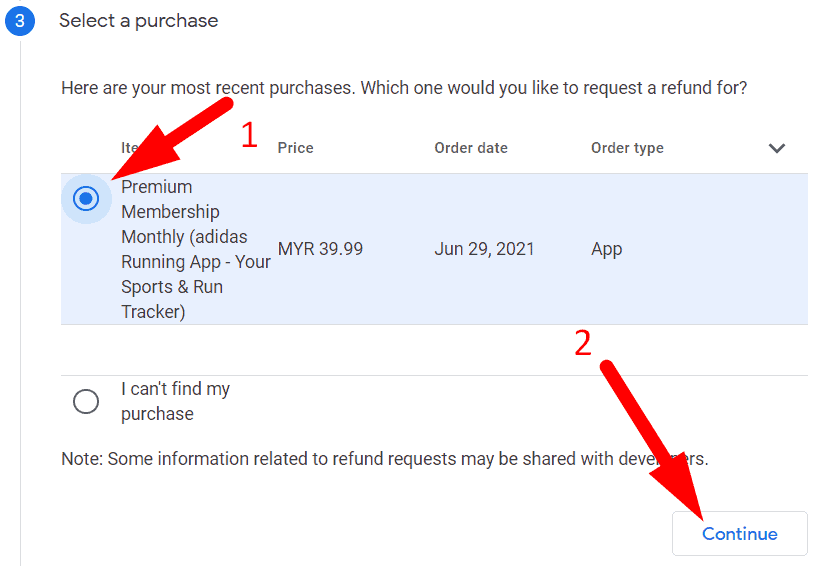
Step 5: Select the Purchase
Look through the available purchases and select the transaction for which you want to request a refund.
Make sure that you select the correct item before continuing.
Depending on the transaction, Google may display an app, game, subscription, or in-app purchase.
If the transaction is not eligible for the available self-service refund process, you may be directed to another option, such as contacting the app developer.
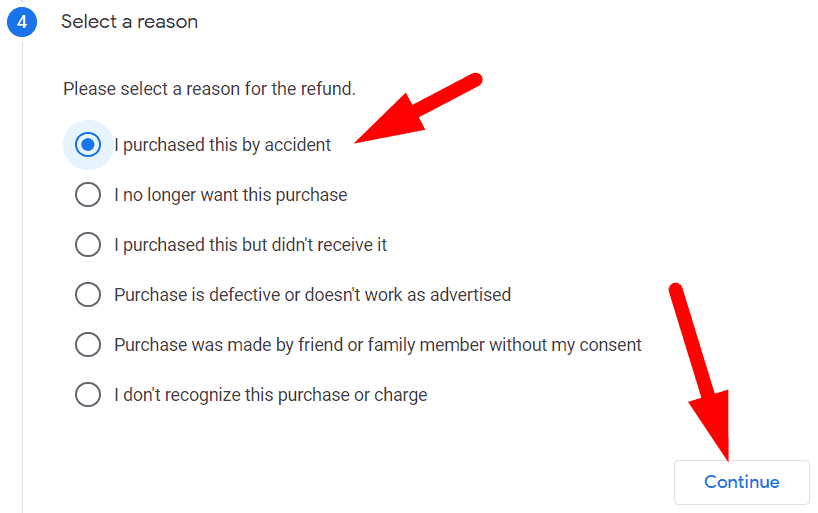
Step 6: Select an Appropriate Reason
Next, select the reason that best describes why you want a refund.
For example, if you accidentally purchased something, select the option that indicates the purchase was accidental, if that option is presented.
If you are experiencing a technical problem with the purchase, choose the option that most accurately describes the problem.
Do not select a reason simply because you think it will guarantee a refund. The information you provide should accurately describe what happened.
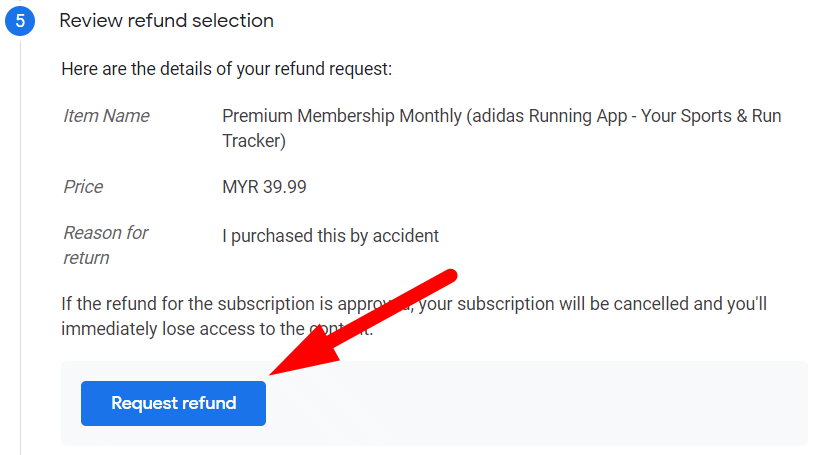
Step 7: Review and Submit the Request
Before submitting the request, review all the information carefully.
Make sure you have selected the correct purchase and provided an accurate explanation.
If everything is correct, submit the refund request.
Google will then review the request.
Step 8: Check Your Refund Status
After submitting your request, you can check its status through Google's refund status page.
Google states that a refund decision typically takes between 1 and 4 days.
If the request is approved, the refund is generally sent back to the payment method used for the original transaction.
However, the time required for the refund to appear can vary depending on the payment method and financial institution.
For example, a refund may not appear in your bank account immediately even after Google has approved it.
Therefore, it is important to distinguish between the refund request being approved and the money actually appearing in your account.
What If Your Google Play Refund Request Is Rejected?
Not every Google Play refund request will be approved.
Google's refund policies depend on several factors, including the type of purchase, the time since the purchase, the payment method, and the user's location.
For apps, games, and in-app purchases, Google says that requests made within 48 hours may be eligible depending on the circumstances. If more than 48 hours have passed, Google generally recommends contacting the developer of the app or game.
The developer may be able to help with problems involving an app or in-app purchase and may process refunds according to its policies and applicable laws.
If you contact the developer, explain the problem clearly and include relevant purchase information when requested.
What If You Cannot Find Your Google Play Purchase?
If you cannot find the purchase you want to refund, first check that you are signed in to the correct Google Account.
Many people have more than one Google Account, especially if they use separate accounts for personal and work purposes.
Google specifically recommends checking whether the order was purchased using a different Google Account if you cannot find it during the refund process.
You can also review your Google Play order history to identify the transaction.
What If Someone Made an Unauthorized Google Play Purchase?
If you find a Google Play purchase on your payment method that you did not make and that was not made by someone you know, Google has a separate process for reporting unauthorized charges.
Google states that unauthorized charges should be reported within 120 days of the transaction.
This situation is different from an accidental purchase made by a family member using your Google Account.
If, for example, a child accidentally makes a purchase using your account, you should use the appropriate refund process rather than treating it as an unauthorized charge.
What Happens After a Refund Is Approved?
Once Google approves a refund, the refund is generally returned to the original payment method.
The exact processing time depends on how you paid.
Google explains that most refunds are processed within 10 business days, although the timeframe can vary depending on the payment method.
Therefore, do not be concerned if the refund does not appear in your bank account immediately after receiving confirmation that the refund was approved.
You can check the refund status if you want to see the current status of your request.
Google Play Refunds in Malaysia
If you are a Google Play user in Malaysia, the payment method used for the original purchase can affect how a refund is returned.
For example, Google states that for users in Malaysia who paid using online banking, refunds are returned to the user's bank account.
Other payment methods may have different refund procedures and processing times.
Therefore, the safest approach is to check the refund information associated with your particular transaction rather than assuming that every refund will be returned in exactly the same way.
Important Things to Remember
Before requesting a Google Play refund, there are several things worth remembering.
First, submitting a refund request does not guarantee that the refund will be approved. Google evaluates requests according to its refund policies.
Second, timing matters. For apps, games, and in-app purchases, Google indicates that requests within 48 hours may be eligible depending on the circumstances, while requests after 48 hours are generally directed to the developer.
Third, make sure you are using the correct Google Account. If you cannot find the purchase, it may have been made through another account.
Finally, avoid submitting multiple refund requests for the same transaction. Google states that multiple requests will not speed up the refund process.
Conclusion
Requesting a refund on Google Play is relatively straightforward when you use Google's official refund process.
In this tutorial, we covered two ways to request a Google Play refund: using a smartphone and using a PC or laptop.
The steps are generally similar on both devices. You need to sign in to the Google Account associated with the purchase, select the relevant transaction, provide an appropriate reason, and submit the refund request.
However, keep in mind that not every purchase is automatically eligible for a refund. Eligibility can depend on the type of purchase, how much time has passed, the payment method, and your location.
If you recently made an accidental purchase, it is worth submitting the refund request as soon as possible. For apps, games, and in-app purchases, Google currently states that requests made within 48 hours may be eligible depending on the circumstances.
If your request is approved, the refund will generally be returned to the original payment method, although the time required for the money to appear can vary.
The most important thing is to use the official Google Play refund process and provide accurate information about your purchase and the reason for requesting a refund.
Frequently Asked Questions About How to Get a Refund On Google Play
Can I get a refund from Google Play?
Yes, you may be eligible for a Google Play refund, depending on the type of purchase, when the purchase was made, your payment method, and your location. Google reviews refund requests according to its applicable refund policies.
How long do I have to request a Google Play refund?
For apps, games, and in-app purchases, Google states that purchases made within 48 hours may be eligible for a refund depending on the circumstances. If more than 48 hours have passed, Google generally recommends contacting the app developer.
How do I request a Google Play refund?
You can request a refund through Google's official Google Play refund process. Sign in with the Google Account used to make the purchase, select the relevant transaction, provide the reason for your request, and submit it for review.
Can I request a Google Play refund from my phone?
Yes. You can use a web browser on your smartphone to access Google's official refund request page. You do not necessarily need a computer to submit a refund request.
Can I request a Google Play refund from a computer?
Yes. You can use a PC or laptop to access Google Play's refund request process. The steps are generally similar to requesting a refund from a smartphone.
How long does Google take to decide on a refund request?
Google states that refund decisions typically take 1–4 days. However, the actual time may vary depending on the circumstances of the request.
How long does it take to receive a Google Play refund?
After a refund is approved, the time required for the money to appear can vary depending on the payment method. Google states that most refunds are processed within 10 business days.
What should I do if I cannot find my Google Play purchase?
First, check that you are signed in to the Google Account that was used to make the purchase. If you have multiple Google Accounts, the purchase may be associated with a different account. You can also check your Google Play order history.
What happens if my Google Play refund request is rejected?
If your request is rejected, the next step depends on the type of purchase and the circumstances. For apps, games, and in-app purchases made more than 48 hours ago, Google generally recommends contacting the app developer for assistance.
Can I get a refund for an accidental Google Play purchase?
You may be able to request a refund for an accidental purchase. However, a refund is not guaranteed. Submit the request as soon as possible and provide an accurate explanation of what happened.
What if someone made a Google Play purchase without my permission?
If you find a Google Play charge that you did not make and that was not made by someone you know, Google provides a separate process for reporting unauthorized charges. Google states that unauthorized charges should generally be reported within 120 days of the transaction.
Will a Google Play refund go back to my original payment method?
Generally, yes. Google normally returns approved refunds to the payment method used for the original purchase. However, the exact process can vary depending on the payment method and location.
Can I get a refund for a Google Play subscription?
Refund eligibility for subscriptions depends on the circumstances and Google's applicable refund policies. If you want to request a refund, use Google's refund process and select the relevant subscription transaction if it is available.
Can I submit the same Google Play refund request multiple times?
It is not recommended. Google states that submitting multiple requests for the same transaction will not speed up the refund process. It is better to wait for the result of the original request.
Can I request a Google Play refund in Malaysia?
Yes. Google Play users in Malaysia can use Google's refund process. The way an approved refund is returned can depend on the payment method used for the original transaction.
What should I do if my Google Play refund has been approved but I have not received the money?
First, check the refund status and allow sufficient time for the refund to be processed. The time required depends on the payment method. If the expected processing period has passed and you still have not received the refund, check with the relevant payment provider or Google Play support.
References
- Request your Google Play refund - support.google.com
- How to get a refund from the Google Play Store - digitaltrends.com
