
Have you ever clicked a link on a website only to find that the page no longer exists or the URL returns an error? These are known as broken links, and they are a common problem for many WordPress websites.
Broken links can create a poor experience for your visitors because they may prevent them from accessing the information they are looking for. If your website contains many broken links, visitors may also lose confidence in the quality and reliability of your content.
Broken links can also affect how search engines crawl and understand your website. While a single broken link does not necessarily mean that your website will lose its search rankings, a website with many outdated or incorrect links can create unnecessary usability and maintenance problems.
The good news is that finding broken links in WordPress does not have to be a difficult task. You can use a WordPress plugin to scan your website and identify links that are no longer working.
In this guide, we will show you how to find broken links in WordPress and how to fix them step by step.
Table of Contents
How to Find Broken Links in WordPress?
What Is a Broken Link?
A broken link is a hyperlink that no longer leads to a valid or accessible destination.
For example, imagine that you have an article containing a link to:
If that page has been deleted or its URL has been changed, visitors who click the link may see a 404 "Page Not Found" error. In this situation, the link is considered broken.
Broken links can occur for several reasons. A page may have been deleted, a website may have changed its domain structure, an external website may have removed a page, or the URL may simply have been entered incorrectly.
Broken links can occur with both internal and external links.
Internal links point to other pages on your own website, while external links point to pages on other websites.
Why Should You Find Broken Links in WordPress?
Regularly checking your website for broken links is an important part of website maintenance.
When visitors encounter broken links, they may become frustrated because they cannot access the information they expected to find. This can make navigation more difficult, especially if the broken link is part of an important article or tutorial.
Broken links can also make older content look neglected. For example, if you published an article several years ago and several of its external links no longer work, the article may no longer provide the same value to readers.
From an SEO perspective, it is also useful to maintain a healthy internal linking structure and make sure important pages are accessible. Search engines can encounter broken URLs while crawling a website, so keeping your links updated is a sensible part of ongoing website maintenance.
How to Find Broken Links in WordPress
There are several ways to check for broken links. For a WordPress website, one convenient approach is to use a broken-link-checking plugin.
In this tutorial, we will use the Broken Link Checker plugin.
The plugin can scan your WordPress website for broken links and provide a central location where you can review and manage the links it finds. The current version also supports checking content such as posts, pages, comments and custom fields, depending on the scanning configuration you use.
Step 1: Log in to Your WordPress Dashboard
First, log in to your WordPress website.
You can normally access your WordPress dashboard by visiting:
yourdomain.com/wp-admin
Replace yourdomain.com with your actual domain name.
Enter your WordPress username and password and click the login button.
Step 2: Install Broken Link Checker
From your WordPress dashboard, go to:
Plugins > Add New
Search for:
Broken Link Checker
Look for the Broken Link Checker plugin by WPMU DEV and install it.
After the installation has finished, click Activate.
The plugin is available through the official WordPress Plugin Directory. Its current feature set includes broken-link monitoring, reports and tools for managing detected links.
If you are not familiar with installing WordPress plugins, you can follow a separate guide on how to install a WordPress plugin.
Step 3: Open the Link Checker
After activating the plugin, open the Broken Link Checker section from your WordPress dashboard.
The exact location and interface may vary depending on the current version of the plugin and whether you are using its cloud-based or local checking functionality.
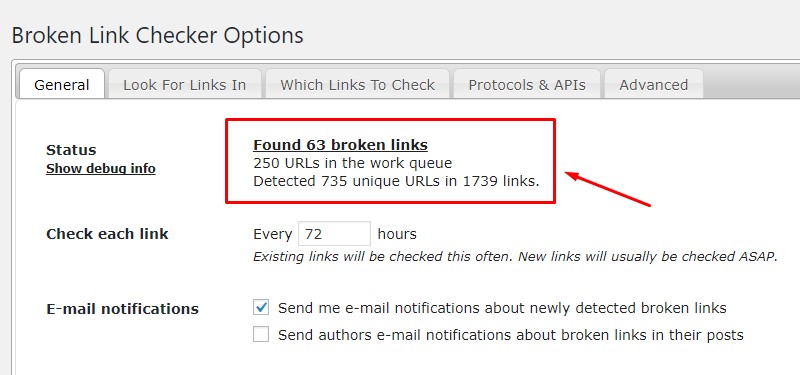
The plugin provides a dashboard where you can review links that have been detected as broken or problematic.
Step 4: Check the Broken Links Report
Once the scan has detected links, review the results carefully.
You should be able to see information about the problematic URL and where the link appears on your website.
Depending on the result, a link may be genuinely broken, redirected, temporarily unavailable, or affected by another type of connection problem.
It is therefore a good idea to verify an important link before making changes.
For example, if the plugin reports that an external website is unavailable, try opening the URL in a separate browser tab. Sometimes an external server may be temporarily unavailable or may block automated requests even though the page is still accessible to normal visitors.
The current Broken Link Checker plugin also provides filtering and reporting features that make it easier to identify problematic links.
How to Fix Broken Links in WordPress
Finding broken links is only the first step. Once you have identified them, you need to decide what should happen to each link.
There are several possible solutions depending on the reason why the link is broken.
Option 1: Replace the Broken URL
If the page has moved to a new URL, replace the old URL with the correct one.
For example, suppose your article contains this link:
You discover that the content has moved to:
You can replace the old URL with the new URL.
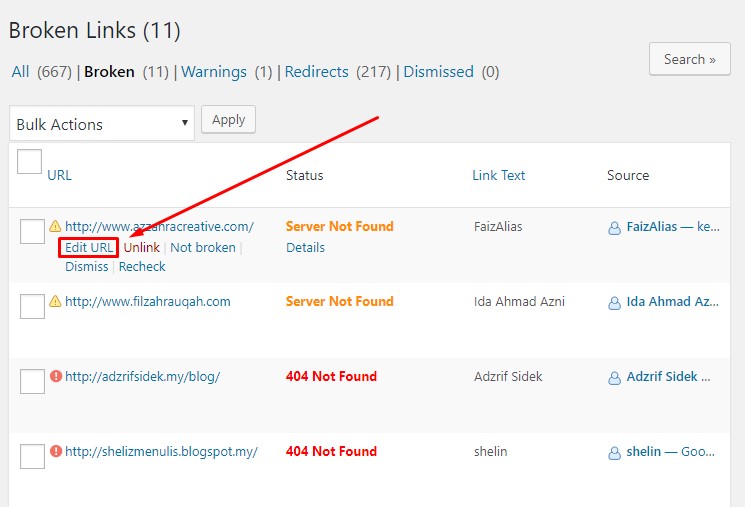
With the Broken Link Checker interface, you can edit detected URLs directly from the dashboard.
Step 1: Find the Broken Link
Go to the broken-links section of the plugin and locate the URL you want to fix.
Review the URL and the page where it appears.
Step 2: Select the Edit URL Option
Hover over or select the broken link.
Depending on the current plugin interface, you should see an option that allows you to edit the URL.
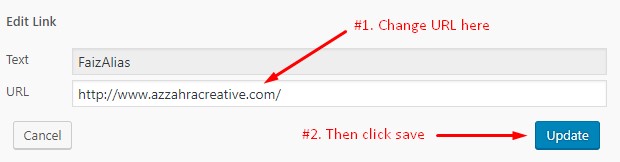
Select the edit option and enter the correct URL.
Step 3: Save the New URL
After entering the correct URL, save the change.
The link should now point to the new destination instead of the broken page.
It is a good idea to open the updated link afterward to make sure it works correctly.
Option 2: Remove the Link
Sometimes there is no suitable replacement for a broken URL.
For example, an external website may have permanently removed an article and there may be no equivalent page available.
In this situation, you may decide to remove the hyperlink instead of replacing it with an unrelated page.
The Broken Link Checker plugin provides options such as unlinking or removing problematic links from its management interface.
However, do not remove a link simply because it has been temporarily reported as unavailable. Check the destination first and make sure it is genuinely no longer useful.
Option 3: Replace the Link With a Relevant Alternative
Another option is to find a different source that provides similar information.
For example, suppose you wrote an article about WordPress security and linked to an external security guide. If that guide has disappeared, you could look for another reliable source covering the same topic.
The replacement should be relevant to the original context.
Avoid replacing a broken link with an unrelated page simply because the new URL works. The purpose of fixing a broken link is to preserve the usefulness of the original content for your readers.
Be Careful When Fixing Broken Links
Not every link reported by a link-checking tool should automatically be changed.
External websites can temporarily experience server problems, timeouts, SSL issues, or restrictions that prevent automated tools from accessing them.
For this reason, check important links manually before removing or replacing them.
You should also pay attention to redirects. A URL that redirects to another working page is not necessarily something that needs to be removed immediately. However, if the destination has changed permanently, updating the link to the final URL can make your content easier to maintain.
How Often Should You Check for Broken Links?
There is no single schedule that is suitable for every website.
A small personal blog with relatively few links may only need periodic checks. A large website with hundreds or thousands of articles and external links may benefit from more frequent monitoring.
Websites that publish content regularly should consider checking their links as part of their normal maintenance routine.
The Broken Link Checker plugin can help automate the process by monitoring links and providing reports or notifications, depending on the configuration and checking method being used.
Tips to Prevent Broken Links
Although it is impossible to prevent every broken link, you can reduce the problem by following a few simple practices.
Check URLs Before Publishing
Before publishing an article, click the important links and make sure they lead to the intended pages.
This is particularly important when adding external links.
Be Careful When Changing Your URLs
If you change the URL of an existing WordPress post or page, remember that other pages on your website may still link to the old URL.
Using appropriate redirects when changing important URLs can help visitors and search engines reach the new location.
Review Older Articles
Older articles are more likely to contain outdated links because websites and pages change over time.
Consider reviewing your older content periodically and checking whether important links are still working.
Keep External Links Relevant
Do not add external links simply to increase the number of links in an article.
Choose useful and relevant sources that provide additional value to your readers.
Conclusion
Broken links are a common problem for WordPress websites, especially websites that have been online for several years and contain a large amount of content.
Fortunately, you do not need to check every link manually. A plugin such as Broken Link Checker can help identify problematic URLs and provide tools for managing them from your WordPress dashboard.
Once you find a broken link, check why it is no longer working. You can then replace it with the correct URL, remove the link, or find a relevant alternative.
Regularly checking your links can help keep your website easier to navigate, maintain the quality of your content, and provide visitors with a better experience.
If your WordPress website contains a large number of articles and links, making broken-link checking part of your regular website maintenance routine can save you considerable time in the long run.
Frequently Asked Questions (FAQ)
What is a broken link in WordPress?
A broken link is a hyperlink that no longer leads to the intended webpage or resource. This can happen when a page has been deleted, a URL has been changed, a website is no longer available, or the URL contains a typing error.
Can broken links affect SEO?
Broken links can negatively affect the user experience and make website navigation more difficult. A large number of broken links can also create unnecessary crawling and accessibility issues. However, having a single broken link does not automatically cause a website to lose its search engine rankings.
How can I find broken links in WordPress?
One of the easiest ways is to use a WordPress plugin such as Broken Link Checker. The plugin can scan your website and help identify URLs that may no longer be working.
Is Broken Link Checker free?
Broken Link Checker has a version available through the WordPress Plugin Directory. However, the available features may vary depending on the version and configuration you use.
Can I find broken links without using a WordPress plugin?
Yes. You can check links manually by opening them and confirming that they work correctly. However, manually checking links can become time-consuming if your website contains hundreds or thousands of links. A link-checking tool can make the process much easier.
What should I do when I find a broken link?
First, check the URL to confirm that it is actually broken. If the page has moved, replace the old URL with the new URL. If the original content has been permanently removed, you can remove the link or replace it with another relevant and reliable resource.
Should I remove every broken link?
Not necessarily. Some links may be temporarily unavailable because of server problems, connection timeouts, or other technical issues. Check the link manually before removing it, particularly if it points to an important external resource.
What is the difference between an internal link and an external link?
An internal link points to another page or resource on the same website. An external link points to a page or resource on another website or domain. Both types of links can become broken over time.
How often should I check my website for broken links?
The ideal frequency depends on the size and activity of your website. Websites with many articles and external links may benefit from more frequent checks, while smaller websites can check their links periodically as part of regular website maintenance.
Why do external links become broken?
External links can become broken when the website owner deletes a page, changes the URL structure, moves the content, changes the domain, or shuts down the website completely. This is one reason why external links should be reviewed periodically.
Are redirected links considered broken links?
Not necessarily. A redirect sends visitors from one URL to another URL. If the redirect works correctly and leads to the intended content, the link is still functional. However, unnecessary or excessive redirects should be reviewed and cleaned up when possible.
Should I check broken links in old WordPress articles?
Yes. Older articles are more likely to contain outdated links because websites, URLs, and online resources can change over time. Regularly reviewing older content can help ensure that your links remain useful and accessible to visitors.
References
- Identify and fix broken links in WordPress - godaddy.com
- How To Find And Fix Broken Links? (5 Methods) 2026 Guide - elementor.com
