
Remove Shipping from WooCommerce: A Complete Guide to Disabling Shipping the Right Way | If you operate a WooCommerce store that sells digital products, services, memberships, bookings, or products that do not require physical delivery, learning how to remove shipping from WooCommerce is an essential part of creating a smooth shopping experience. Unnecessary shipping fields can confuse customers, complicate the checkout process, and even increase cart abandonment.
WooCommerce is designed primarily for physical products, which is why shipping options, shipping addresses, and shipping methods are enabled by default. While these features are useful for online stores selling tangible goods, they become unnecessary when your products do not require shipping.
In this comprehensive guide, you will learn multiple methods to remove shipping from WooCommerce. Whether you want to disable shipping completely, remove shipping for specific products, eliminate shipping fields during checkout, or hide shipping costs based on certain conditions, this guide covers everything you need to know.
Table of Contents
Remove Shipping from WooCommerce: A Complete Guide to Disabling Shipping the Right Way
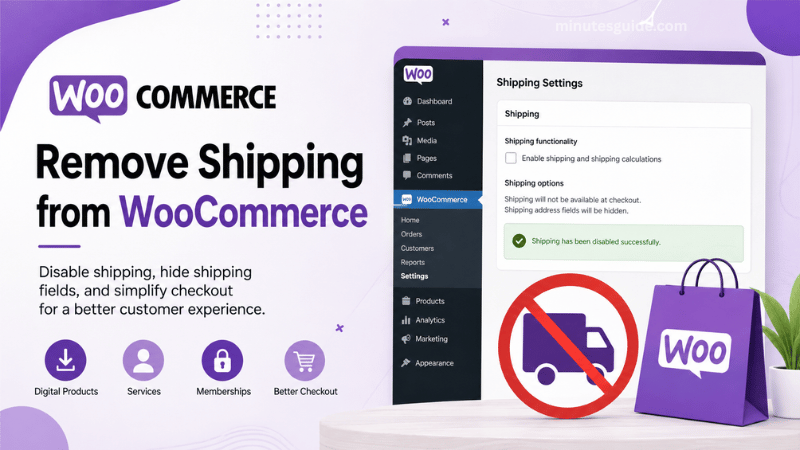
What Does "Remove Shipping from WooCommerce" Mean?
Removing shipping from WooCommerce simply means preventing WooCommerce from asking customers for shipping information or calculating shipping charges when they are not needed.
Depending on your store, this could involve one or more of the following:
- Removing shipping methods
- Disabling shipping zones
- Hiding shipping fields
- Preventing shipping calculations
- Selling only virtual products
- Removing shipping address fields
- Disabling shipping for selected products
The best method depends entirely on the type of products you sell.
Why Remove Shipping from WooCommerce?
There are several legitimate reasons why online store owners choose to remove shipping features.
1. Selling Digital Products
Digital downloads such as:
- eBooks
- Software
- Online courses
- Music
- Templates
- Graphics
- PDF documents
do not require physical delivery. Customers simply download their purchases after payment.
Adding shipping fields only creates unnecessary friction.
2. Offering Professional Services
Businesses selling services such as:
- Web design
- SEO consultation
- Graphic design
- Business consulting
- Online coaching
- Freelancing
never ship physical goods.
Removing shipping creates a cleaner checkout process.
3. Selling Memberships
Membership websites usually sell:
- Premium content
- Community access
- Subscription plans
- Learning platforms
Again, no shipping is involved.
4. Reducing Checkout Abandonment
Customers often become frustrated when asked for unnecessary information.
A shorter checkout form generally means:
- Faster checkout
- Better user experience
- Higher conversion rates
- Lower cart abandonment
Method 1: Make Products Virtual
This is the easiest and most recommended method.
WooCommerce automatically disables shipping for products marked as Virtual.
Steps
- Log into WordPress.
- Go to Products.
- Edit a product.
- Under Product Data, check Virtual.
- Update the product.
Once a product is marked as virtual:
- Shipping is disabled
- Weight disappears
- Dimensions disappear
- Shipping calculations stop
- Shipping methods are ignored
This method works perfectly for digital products and services.
Advantages
| Benefit | Description |
|---|---|
| Very easy | No coding required |
| Official WooCommerce method | Fully supported |
| Safe | No plugins needed |
| Fast | Takes less than one minute |
Method 2: Disable Shipping Zones
WooCommerce uses Shipping Zones to determine shipping methods.
Removing these zones effectively removes shipping options.
Steps
- Go to WooCommerce.
- Select Settings.
- Click Shipping.
- Open Shipping Zones.
- Delete all existing zones.
Without shipping zones:
- No shipping rates
- No shipping methods
- Shipping charges disappear
However, shipping fields may still appear depending on your products.
Method 3: Remove Shipping Classes
Shipping classes are used to organize products for shipping calculations.
If your store no longer ships physical products:
- Open WooCommerce Settings.
- Click Shipping.
- Choose Shipping Classes.
- Delete unused classes.
Examples include:
- Heavy Items
- Fragile Products
- Large Packages
- Furniture
- Electronics
Removing unused shipping classes also helps keep WooCommerce organized.
Method 4: Sell Only Virtual Products
If every product is virtual, WooCommerce automatically skips shipping during checkout.
Examples include:
- Online training
- Memberships
- Software licenses
- Gift cards
- Video downloads
- Photography presets
This is the cleanest setup available.
Method 5: Remove Shipping Address Fields
Sometimes shipping charges are already gone, but customers are still asked to enter a shipping address.
You can disable these fields using WooCommerce settings.
Navigate to:
WooCommerce → Settings → Shipping
Look for options related to shipping destinations.
You can choose settings that reduce unnecessary shipping information depending on your business model.
Method 6: Disable Shipping via Code
Developers who prefer custom solutions can disable shipping programmatically.
Example:
add_filter('woocommerce_cart_needs_shipping', '__return_false');
This tells WooCommerce that the cart never requires shipping.
Before adding custom code:
- Create a backup
- Use a child theme
- Prefer using a snippets plugin instead of editing theme files directly
Method 7: Use a WooCommerce Plugin
Several plugins allow shipping customization without coding.
Popular plugin categories include:
- Checkout field editors
- WooCommerce customization plugins
- Conditional shipping plugins
- Cart optimization plugins
These plugins allow you to:
- Remove shipping fields
- Hide shipping methods
- Customize checkout
- Disable shipping under certain conditions
Method 8: Remove Shipping Based on Product Type
Some stores sell both physical and digital products.
Examples:
- Printed books
- eBooks
- Physical courses
- Online courses
WooCommerce handles mixed carts automatically.
If all products in the cart are virtual:
- Shipping disappears.
If physical products exist:
- Shipping remains available.
This provides the best customer experience.
Method 9: Remove Shipping for Local Pickup Businesses
Businesses offering only local pickup may not need traditional shipping.
Examples include:
- Restaurants
- Bakeries
- Florists
- Grocery stores
- Local farms
Instead of delivery:
- Customers choose pickup
- Shipping costs become unnecessary
Method 10: Customize Checkout
Even after removing shipping, you may want to simplify checkout further.
Common improvements include removing:
- Company name
- Address line 2
- State
- Phone number (where appropriate)
- Order notes
A shorter checkout usually improves conversions.
Common Reasons Shipping Still Appears
Many users believe shipping has been removed, but WooCommerce continues showing shipping options.
Common causes include:
Product Is Not Virtual
Even one physical product causes WooCommerce to calculate shipping.
Always verify:
- Virtual is checked
- Weight is empty
- Dimensions are empty
Shipping Zones Still Exist
Existing shipping zones continue offering shipping methods.
Delete unused zones.
Shipping Plugins Are Active
Plugins may override WooCommerce's default behavior.
Examples include plugins that:
- Calculate shipping
- Connect courier services
- Display live shipping rates
Temporarily deactivate them for testing.
Theme Customizations
Some WooCommerce themes display shipping sections regardless of settings.
Switch temporarily to a default WordPress theme for troubleshooting.
Cache Issues
Sometimes cached pages continue displaying old checkout information.
Clear:
- Browser cache
- Website cache
- CDN cache
- Object cache
Benefits of Removing Shipping from WooCommerce
| Benefit | Explanation |
|---|---|
| Faster checkout | Customers complete purchases more quickly. |
| Better user experience | Only relevant fields are displayed. |
| Fewer customer questions | Eliminates confusion about delivery. |
| Lower cart abandonment | Simpler forms encourage completed purchases. |
| Easier store management | No shipping zones or shipping classes to maintain. |
| Cleaner checkout | Removes unnecessary checkout elements. |
Potential Drawbacks
| Drawback | Explanation |
|---|---|
| Cannot ship physical items | Physical products require shipping settings. |
| Mixed product stores require planning | Digital and physical products must be configured correctly. |
| Plugins may conflict | Some checkout plugins override WooCommerce defaults. |
| Theme compatibility issues | Certain themes require additional customization. |
Best Practices
When removing shipping from WooCommerce, follow these best practices:
Use Virtual Products Whenever Possible
WooCommerce was designed to disable shipping automatically for virtual products.
This is the safest approach.
Test Checkout
Always complete a test purchase.
Verify that:
- Shipping does not appear.
- No shipping charges are calculated.
- Customers are not asked for unnecessary addresses.
- Orders complete successfully.
Keep WooCommerce Updated
New WooCommerce releases frequently improve checkout behavior and compatibility.
Updating regularly also improves security and performance.
Remove Unused Shipping Methods
Unused shipping methods create unnecessary clutter.
Delete:
- Flat Rate
- Free Shipping
- Local Pickup (if unused)
- Table Rate Shipping
- Third-party shipping integrations
When You Should Not Remove Shipping
Shipping should remain enabled if you sell:
- Clothing
- Electronics
- Furniture
- Food
- Handmade products
- Beauty products
- Sports equipment
These products require shipping calculations and customer delivery information.
Troubleshooting Checklist
If shipping still appears after making changes, review the following checklist:
| Item | Check |
|---|---|
| Product marked as Virtual | ✔ |
| Shipping zones removed | ✔ |
| Shipping classes removed | ✔ |
| No physical products in cart | ✔ |
| Shipping plugins disabled for testing | ✔ |
| Theme tested | ✔ |
| Cache cleared | ✔ |
| Checkout tested | ✔ |
Working through each item methodically usually identifies the source of the problem.
Conclusion
Knowing how to remove shipping from WooCommerce is essential for stores that sell digital products, online services, memberships, or any other offerings that do not require physical delivery. By removing unnecessary shipping methods, address fields, and shipping calculations, you create a faster and more intuitive checkout experience that benefits both your customers and your business.
The most reliable approach is to mark eligible products as Virtual, as WooCommerce is designed to automatically bypass shipping requirements for these items. For stores with more specific needs, such as mixed product catalogs or customized checkout flows, additional options like adjusting shipping zones, removing shipping classes, using conditional plugins, or implementing custom code can provide greater flexibility.
Before making changes to your live store, always test the checkout process thoroughly to ensure that shipping is only removed where appropriate and that customers can complete their purchases without issues. With the correct configuration, removing unnecessary shipping features can streamline your WooCommerce store, improve user satisfaction, and contribute to higher conversion rates.
Conclusion
How do I remove shipping from WooCommerce completely?
You can remove shipping completely by ensuring all your products are marked as Virtual, deleting any unnecessary shipping zones, and disabling shipping-related settings. If your store only sells digital products or services, WooCommerce will automatically skip shipping during checkout.
Why is shipping still showing in WooCommerce after I disabled it?
Shipping may still appear if one or more products are not marked as Virtual, shipping zones are still configured, or a plugin or theme is overriding WooCommerce's default shipping behavior. Clearing your website and browser cache can also help ensure recent changes are displayed.
Can I remove shipping for only certain WooCommerce products?
Yes. WooCommerce allows you to mark individual products as Virtual. Shipping will only be required for physical products, making it possible to sell both digital and physical products in the same store.
Do virtual products require shipping in WooCommerce?
No. Virtual products do not require shipping. Once the Virtual option is enabled for a product, WooCommerce automatically removes shipping calculations, shipping methods, and shipping-related fields for that item.
Can I hide the shipping address at checkout?
Yes. If your store does not sell physical products, you can configure WooCommerce to hide unnecessary shipping address fields. This creates a cleaner checkout experience and reduces the amount of information customers need to enter.
Is it possible to remove shipping without using a plugin?
Yes. WooCommerce includes built-in features that allow you to remove shipping without installing additional plugins. Marking products as Virtual and adjusting the shipping settings are usually sufficient for most stores.
Can I remove shipping if I sell both digital and physical products?
Yes. WooCommerce supports mixed-product stores. Shipping is only calculated when a customer's cart contains one or more physical products. If the cart contains only virtual products, shipping will not be displayed.
Will removing shipping improve my checkout conversion rate?
It can. Removing unnecessary shipping fields simplifies the checkout process, reduces customer frustration, and may help lower cart abandonment rates, especially for stores selling digital goods or online services.
Does removing shipping affect payment gateways?
No. Shipping settings and payment gateways are separate features in WooCommerce. Removing shipping does not prevent customers from using payment methods such as PayPal, Stripe, or credit cards.
Can I remove shipping using custom PHP code?
Yes. Developers can use WooCommerce hooks and filters to disable shipping programmatically. However, custom code should be added through a child theme or a code snippets plugin to ensure it is not lost during theme updates.
What happens if I delete all shipping zones?
Deleting all shipping zones removes the available shipping methods from your store. However, if your products are still considered physical, some shipping-related fields may continue to appear until those products are marked as Virtual or additional checkout customizations are applied.
Is removing shipping from WooCommerce safe?
Yes. Removing shipping is completely safe as long as your business does not need to deliver physical products. For stores selling digital downloads, memberships, subscriptions, or services, disabling shipping helps streamline the checkout experience without affecting order processing.
References
- How can I remove Shipping from a WooCommerce cart? - stackoverflow.com
- Remove Shipping from Woocommerce - calcurates.com
