
WordPress is one of the most widely used content management systems for building blogs, business websites, online stores, portfolios, and many other types of websites. One of the main advantages of WordPress is that it receives regular updates that introduce new features, improve security, fix bugs, and maintain compatibility with modern web technologies. However, a WordPress update does not always work perfectly for every website.
In some situations, a new WordPress version can cause unexpected problems. A website may become unstable, certain plugins may stop working correctly, a theme may display errors, or specific features may no longer function as expected. When troubleshooting confirms that the problem appeared immediately after a WordPress update, reverting to an earlier version can sometimes be an effective temporary solution.
If you are searching for how to downgrade WordPress to previous version, it is important to understand that downgrading should be performed carefully. WordPress itself does not provide a simple one-click button in the standard dashboard to return to an older version. Depending on your situation, you may need to use a plugin, manually replace WordPress core files, restore a complete website backup, or use your hosting provider's backup system.
This guide explains how to downgrade WordPress to previous version safely, including preparation, available methods, troubleshooting, and important precautions that should be considered before and after the downgrade.
Table of Contents
How to Downgrade WordPress to Previous Version
What Does Downgrading WordPress Mean?
Downgrading WordPress means replacing the currently installed WordPress core version with an earlier version. For example, if your website is running WordPress 6.9 and you discover that a plugin stopped functioning correctly after the update, you may decide to return to WordPress 6.8.3 while investigating the compatibility problem.
A downgrade normally affects the WordPress core files rather than your website's posts, pages, media library, users, and database content. However, WordPress versions can introduce database changes, plugin compatibility requirements, and other technical differences, which means downgrading should never be treated as a completely risk-free operation.
The objective should generally be to restore website functionality temporarily while identifying and resolving the underlying compatibility issue. Running an outdated WordPress version permanently is usually not an appropriate long-term strategy because older versions may lack important security improvements.
Why Would You Need to Downgrade WordPress?
There are several reasons why a website owner might need to return to an earlier WordPress version. The most common reason is compatibility problems after a WordPress core update.
Plugin Compatibility Problems
A plugin may have been designed and tested primarily with an older WordPress version. After the core software is updated, the plugin may produce PHP errors, stop displaying certain features, break administrative functionality, or interfere with another plugin.
For example, an important business plugin may suddenly stop working after a WordPress update. If the plugin developer has not yet released a compatible update, temporarily downgrading WordPress can restore the previous environment.
Theme Compatibility Problems
Themes can also be affected by WordPress updates. A theme that relies on older WordPress functions may experience layout problems, broken menus, missing elements, or unexpected PHP warnings after the core is upgraded.
A downgrade may provide a temporary workaround while the theme developer prepares an update.
Website Errors After an Update
Sometimes a WordPress update results in a white screen, HTTP 500 error, broken dashboard, fatal PHP error, or other unexpected problem. Although the WordPress update may appear to be the cause, the actual problem could involve a plugin, theme, PHP version, hosting configuration, or custom code.
Therefore, downgrading should generally be considered after basic troubleshooting rather than being the first action you take.
Custom Code Compatibility
Websites containing custom PHP code, custom themes, or modified plugins may have compatibility issues when WordPress changes its APIs or removes deprecated functionality.
If the website depends on custom development, reverting temporarily to the previous WordPress version can give the developer time to update the affected code.
Important: Back Up Your Website Before Downgrading
Before learning how to downgrade WordPress to previous version, the most important step is creating a complete backup.
A WordPress website normally consists of two major components: the website files and the database. A proper backup should include both.
Your backup should ideally contain:
- WordPress core files
- The
wp-contentdirectory - Plugins
- Themes
- Uploaded media
- Custom files
- The WordPress database
- Configuration information where appropriate
The database is particularly important because it contains your posts, pages, comments, users, settings, and other website information.
If something goes wrong during the downgrade, having a complete backup gives you a way to restore the website to its previous state.
If your hosting provider offers automatic daily backups, check whether you can restore both files and databases before proceeding. Do not assume that a backup exists simply because your hosting company advertises backup services.
Check Which WordPress Version You Are Currently Using
Before downgrading, identify your current WordPress version.
You can usually check the version from the WordPress dashboard by looking at the administration interface or visiting the WordPress update section.
You should also identify the exact version that was installed before the problem occurred.
For example, suppose your website was working correctly on WordPress 6.8.3 and you updated it to WordPress 6.9. If the problem appeared immediately after the update, WordPress 6.8.3 may be the version you want to restore.
Knowing the exact previous version is better than simply installing an older version without understanding the compatibility history of your website.
Method 1: Downgrade WordPress Using a Plugin
For beginners, using a dedicated WordPress rollback plugin can be one of the easiest approaches.
A rollback plugin can simplify the process by allowing you to select a previous WordPress version from the WordPress administration dashboard. This eliminates the need to manually upload and replace WordPress core files using FTP or a hosting file manager.
The general process is as follows.
Step 1: Back Up Your Website
Create a complete backup before installing or using a rollback tool.
This step is essential because any change to WordPress core files can potentially cause unexpected problems.
Step 2: Install a Trusted Rollback Plugin
From the WordPress dashboard, navigate to:
Plugins → Add New
Search for a reputable WordPress rollback or downgrade plugin.
Before installing a plugin, review its compatibility information, update history, active installations, documentation, and developer reputation.
Avoid installing unknown plugins simply because they claim to downgrade WordPress. A plugin with poor maintenance can create additional security and compatibility risks.
Step 3: Activate the Plugin
After installation, activate the rollback plugin.
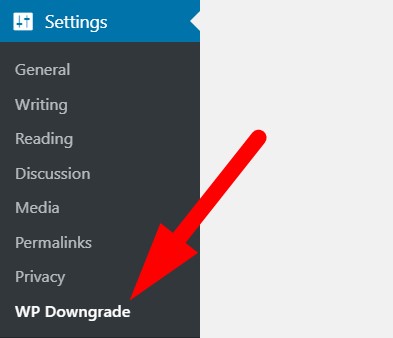
The exact location of the rollback settings depends on the plugin you are using. Some plugins add their controls to the WordPress update screen, while others provide a separate settings page. Maybe you can try this plugin WP Downgrade .
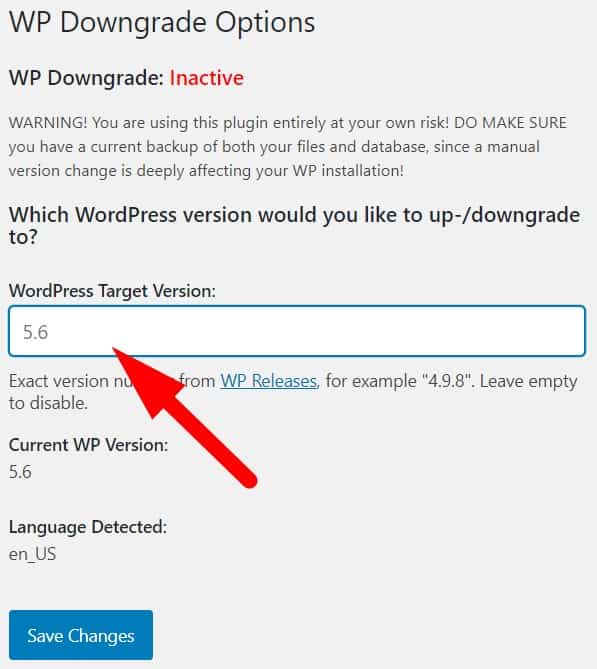
Step 4: Select the Previous Version
Choose the WordPress version you want to install.
For example, if you are currently running a newer version and want to return to the version that was previously installed, select that specific version from the available list.
Be careful when choosing the version because installing the wrong version can create additional compatibility problems.
Step 5: Start the Rollback
Follow the plugin's instructions to begin replacing the WordPress core files.
The process may temporarily make your website unavailable or require you to log in again.
Do not close the browser or interrupt the process while WordPress files are being replaced.
Step 6: Check the Website
After the downgrade has completed, open the front end of your website and test important functions.
Check your:
- Homepage
- Blog posts
- Pages
- Navigation menus
- Contact forms
- Login system
- Plugins
- Theme functionality
- Media library
- WooCommerce features, if applicable
- WordPress dashboard
If everything works normally, the downgrade may have resolved the immediate compatibility problem.
Method 2: Manually Downgrade WordPress Using FTP
Another method for how to downgrade WordPress to previous version is manually replacing the WordPress core files using FTP.
This method is more technical, but it can be useful when you cannot access the WordPress dashboard.
Step 1: Download the Previous WordPress Version
Download the exact WordPress version that you want to install from the official WordPress release archive.
Always obtain WordPress core files from an official or highly trusted source rather than downloading modified copies from unknown websites.
After downloading the ZIP archive, extract it on your computer.
Step 2: Connect to Your Website Using FTP
Use an FTP client such as FileZilla or another suitable FTP application to connect to your hosting account.
You will normally need:
- FTP hostname
- FTP username
- FTP password
- FTP port
Your hosting provider should provide these credentials.
Step 3: Open the WordPress Installation Directory
Navigate to the directory containing your WordPress installation.
For many websites, this will be the public_html directory, although the exact location depends on your hosting configuration.
Step 4: Delete the Existing Core Directories
Before replacing the core files, you generally need to remove the existing wp-admin and wp-includes directories.
Do not delete the wp-content directory because it contains your themes, plugins, uploads, and other important website content.
Also be extremely careful with the WordPress root directory because configuration and user-generated files may be stored there.
Step 5: Upload the Older WordPress Files
Upload the wp-admin and wp-includes directories from the older WordPress package.
You will also need to replace the WordPress root core files with the corresponding files from the older version.
Be careful not to overwrite important custom configuration files unnecessarily.
Step 6: Log In and Complete Any Required Database Update
After the files have been replaced, log in to your WordPress dashboard.
WordPress may display a message asking you to update the database. Follow the instructions only when appropriate for the version you are installing.
Once complete, check whether the website is functioning correctly.
Method 3: Restore a Full Website Backup
If the problem began immediately after an update and you have a reliable backup from before the update, restoring that backup can be one of the most straightforward recovery options.
A complete backup can restore:
- WordPress core files
- Plugins
- Themes
- Uploads
- Database
- Website configuration
This can be especially useful if the update caused multiple problems rather than a single plugin compatibility issue.
However, restoring a backup can also remove changes made after the backup was created. For example, if you published several articles or received new orders after the backup date, those changes could potentially be lost.
For websites with active content or e-commerce transactions, carefully consider the consequences before restoring a complete backup.
Method 4: Downgrade Through Your Hosting Provider
Some managed WordPress hosting providers provide backup restoration or staging features that make it easier to recover a previous version of a website.
If your hosting provider maintains automatic backups, you may be able to restore the website to a previous point in time.
This can be particularly useful when the WordPress dashboard is inaccessible.
Contact your hosting provider if you are uncertain about the available recovery options. Before asking them to restore the website, confirm the backup date and whether the restoration includes both website files and the database.
WordPress Core Files You Should Be Careful With
When manually downgrading WordPress, understanding the difference between core files and user-generated content is important.
The wp-admin directory contains files responsible for the WordPress administration area.
The wp-includes directory contains many WordPress core libraries and functions.
The wp-content directory contains your themes, plugins, uploads, and other content-related files.
The wp-config.php file contains important database and configuration information.
The .htaccess file may contain server-level configuration rules, particularly on Apache-based hosting environments.
Because these files serve different purposes, careless replacement or deletion can make your website unavailable.
What Should You Do After Downgrading WordPress?
Downgrading is not the end of the troubleshooting process. After the website has been restored, investigate why the newer WordPress version caused the problem.
First, identify the plugin or theme responsible for the incompatibility if possible.
Update all plugins and themes that have newer compatible versions.
Check the PHP version used by your hosting account because compatibility problems can sometimes be related to PHP rather than WordPress itself.
You should also review error logs if the website previously displayed fatal errors or server errors.
If you have access to WordPress debugging tools, enabling debugging temporarily on a staging or development environment can help identify problematic code.
Test Plugins One by One
If you suspect a plugin caused the problem, test plugins systematically rather than randomly changing several settings at once.
Deactivate non-essential plugins and check whether the problem disappears.
If the website becomes functional again, reactivate plugins individually until the problematic plugin is identified.
Once you identify the plugin, check whether its developer has released a newer version that addresses compatibility with the WordPress version you want to use.
Test Your Theme
Themes can also cause compatibility problems.
Temporarily switch to a default WordPress theme and test the website.
If the problem disappears after changing themes, the issue may be related to the original theme.
This is particularly important for websites using older themes containing deprecated functions or custom PHP code.
Use a Staging Website for Testing
A staging website is one of the safest places to test WordPress upgrades and downgrades.
Instead of changing your live website immediately, create a copy of your website on a staging environment.
You can then test:
- WordPress updates
- WordPress downgrades
- Plugin updates
- Theme updates
- PHP upgrades
- Custom code changes
If the staging website works correctly, you can plan the change for the live website with much lower risk.
Should You Stay on an Older WordPress Version?
Generally, a downgrade should be viewed as a temporary troubleshooting measure rather than a permanent solution.
Older WordPress versions may not contain the latest security fixes and improvements. In addition, plugin and theme developers generally continue developing against newer WordPress versions.
Remaining on an outdated version for a long period can therefore increase maintenance and security risks.
The better long-term approach is usually to identify the compatibility problem and resolve it so that the website can eventually return to a supported WordPress version.
Common Problems After Downgrading WordPress
Several issues can occur after a downgrade.
The Website Shows a White Screen
A white screen may indicate a PHP fatal error caused by a plugin, theme, or incompatible code.
Check your server error logs and consider temporarily disabling plugins or switching to a default theme.
The WordPress Dashboard Does Not Work
If the dashboard becomes inaccessible, try accessing the website through FTP or your hosting file manager.
You may be able to rename the plugins directory temporarily to determine whether a plugin is preventing WordPress from loading correctly.
Plugins Stop Working
Some plugins may require newer WordPress functionality. If a plugin stops working after a downgrade, check its compatibility requirements.
The Website Looks Broken
A theme may rely on features introduced in a newer WordPress version. In such cases, the theme itself may need to be updated or replaced.
Database Compatibility Problems
A WordPress downgrade can sometimes involve database compatibility considerations. This is another reason why a complete backup should be created before changing the WordPress version.
Best Practices When Downgrading WordPress
Before performing a downgrade, follow these best practices to reduce the possibility of data loss or prolonged downtime.
| Best Practice | Why It Matters |
|---|---|
| Create a complete backup | Allows you to restore the website if something goes wrong |
| Identify the exact previous version | Prevents installing an unsuitable release |
| Use official WordPress files | Reduces the risk of modified or malicious files |
| Test on staging first | Allows you to identify problems without affecting visitors |
| Check plugin compatibility | Helps identify the actual cause of the problem |
| Check theme compatibility | Prevents theme-related errors |
| Review PHP compatibility | WordPress problems can sometimes originate from PHP |
| Monitor error logs | Helps identify technical errors |
| Avoid unnecessary downgrades | Reduces exposure to outdated software |
| Plan an eventual upgrade | Keeps the website maintained and secure |
How to Prevent WordPress Update Problems
Preventing update-related problems is generally better than repeatedly downgrading WordPress.
Before performing major updates, create a backup of the website.
Next, review plugin and theme compatibility information. If your website depends on critical plugins, confirm that those plugins support the WordPress version you intend to install.
Testing updates on a staging environment can also significantly reduce the risk of breaking a production website.
You should also avoid updating every component simultaneously when possible. Updating WordPress, PHP, the theme, and numerous plugins at exactly the same time can make troubleshooting much more difficult because you will not know which change caused the problem.
Instead, make changes systematically and test the website after important updates.
Final Thoughts
Learning how to downgrade WordPress to previous version can be useful when a recent WordPress update causes compatibility problems or unexpected errors. However, the process should be approached carefully because WordPress is made up of interconnected core files, plugins, themes, database components, and server configurations.
The safest starting point is to create a complete backup of your website before making any changes. After that, identify the exact WordPress version you want to restore and choose an appropriate downgrade method. Beginners may prefer a reputable rollback plugin, while experienced users can manually replace the core files through FTP or a hosting file manager.
If you have a reliable backup from before the update, restoring the complete website may also be an effective recovery option. However, always consider whether new content, orders, comments, or other database changes have been made since the backup was created.
Most importantly, treat a downgrade as a temporary solution whenever possible. Once the website is stable, investigate the underlying compatibility problem and work toward upgrading WordPress to a current supported version. Maintaining compatible plugins, themes, PHP versions, backups, and staging environments will help reduce the likelihood of similar WordPress update problems in the future.
Frequently Asked Questions
Can I downgrade WordPress to an older version?
Yes, you can downgrade WordPress to an earlier version by using a reputable rollback plugin, manually replacing WordPress core files, or restoring a complete website backup. The method you choose depends on whether you can access your WordPress dashboard and how comfortable you are with technical website management.
Is it safe to downgrade WordPress?
Downgrading WordPress can be performed safely when proper precautions are taken, but it is not completely risk-free. You should create a complete backup of your website before changing the WordPress version because an unsuccessful downgrade could cause compatibility problems or make the website temporarily unavailable.
Will downgrading WordPress delete my posts and pages?
Normally, downgrading the WordPress core does not intentionally delete your posts, pages, media files, users, or other website content. However, unexpected problems can occur during the process, which is why creating a complete database and file backup before downgrading is strongly recommended.
What is the easiest way to downgrade WordPress?
For beginners, using a reputable WordPress rollback plugin is generally easier than manually replacing core files. However, you should still create a complete backup and verify that the plugin is compatible with your current WordPress installation before starting the downgrade.
Can I downgrade WordPress without a plugin?
Yes. You can manually downgrade WordPress by downloading the required older version and replacing the appropriate WordPress core files using FTP or your hosting provider's file manager. This method requires more technical knowledge and should be performed carefully to avoid deleting important website files.
How do I choose which WordPress version to downgrade to?
Ideally, choose the exact WordPress version that was working correctly before the problem occurred. For example, if your website worked normally on an earlier version and started experiencing errors immediately after an update, returning to that previous version may help determine whether the update caused the compatibility problem.
Should I downgrade WordPress if a plugin stops working?
A downgrade may temporarily restore compatibility, but it is better to first determine whether the plugin itself has an available update. The plugin developer may have already released a version that supports the newer WordPress release, making a downgrade unnecessary.
Can a WordPress theme cause problems after an update?
Yes. Themes that use outdated functions, custom code, or older WordPress APIs can experience compatibility problems after a WordPress update. Testing the website with a default WordPress theme can help determine whether the theme is responsible for the problem.
Can I downgrade WordPress if I cannot access the dashboard?
Yes. If the WordPress dashboard is inaccessible, you can potentially downgrade WordPress using FTP, a hosting file manager, or a backup restoration feature provided by your hosting company. Before modifying the files, make sure you have a reliable backup or recovery method available.
Do I need to back up my WordPress database before downgrading?
Yes. A database backup is highly recommended because the database contains important information such as posts, pages, users, comments, settings, and other WordPress data. Ideally, you should create both a database backup and a backup of your website files.
Can I upgrade WordPress again after downgrading?
Yes. After identifying and resolving the compatibility problem, you can upgrade WordPress again. It is recommended to test the newer version on a staging website first, particularly if your website relies on important plugins, a customized theme, or custom code.
Should I stay on the older WordPress version permanently?
Generally, a downgrade should be considered a temporary troubleshooting measure rather than a permanent solution. Older WordPress versions may not contain the latest security improvements and may eventually become incompatible with newer plugins, themes, PHP versions, and hosting environments.
What should I do if the website breaks after downgrading WordPress?
If the website breaks after a downgrade, restore the backup you created before starting the process if necessary. You can then investigate whether the problem is related to a plugin, theme, database compatibility, PHP version, custom code, or the downgrade itself.
Can I test a WordPress downgrade before changing my live website?
Yes. Using a staging website is one of the safest ways to test a WordPress downgrade. A staging environment allows you to determine whether the older WordPress version works correctly with your plugins, theme, custom code, and hosting environment before making changes to the live website.
Is it better to downgrade WordPress or update the problematic plugin?
If a plugin is causing compatibility problems, updating the plugin to a version that supports your current WordPress installation is generally preferable to keeping WordPress on an older version. However, if no compatible plugin update is available, a temporary WordPress downgrade may be considered while waiting for a proper fix.
References
- How to Downgrade WordPress (Roll Back to Previous Version) - jetpack.com/resources
- How to Downgrade Your WordPress Site - kinsta.com/blog
