
How to Manage Google Account If You Pass Away? | Have you ever wondered what will happen to your Google Account if you pass away? Your Google Account may contain important personal information, emails, photos, documents, videos, and other digital assets that you may want your family members to access in the future.
Google provides a useful feature called Inactive Account Manager that allows you to decide what should happen to your account after a specified period of inactivity. You can choose trusted contacts to receive selected data from your account or instruct Google to delete your account after it becomes inactive.
This feature is particularly useful for people who want to protect their digital privacy while making sure their important information is handled according to their wishes.
In this tutorial, I will show you how to set up Google Inactive Account Manager, select trusted contacts, choose the information they can access, and configure your account deletion preferences.
Table of Contents
How to Manage Google Account If You Pass Away
What Is Google Inactive Account Manager?
Google Inactive Account Manager is a feature that allows you to plan what happens to your Google Account when you stop using it for a specified period.
For example, if you pass away or become unable to use your account for an extended period, Google can notify people you have selected or allow them to download certain account data, depending on the settings you configure.
You can also choose to delete your Google Account after it has remained inactive for the period you specify.
This feature gives you greater control over your digital legacy and helps ensure that your personal information is handled according to your preferences.
Your Google Account may be connected to several services, including:
- Gmail
- Google Drive
- Google Photos
- YouTube
- Blogger
- Google AdSense
- Google Calendar
- Google Contacts
If you use your Google Account for blogging, business, or content creation, it may also contain important files, published content, and business-related information. Planning ahead can help your trusted contacts understand what information they may access and what should happen to your account.
However, granting a trusted contact access to selected data does not automatically transfer ownership of every service or asset associated with your account. Different Google products may have their own rules and procedures.
Why Should You Set Up Google Inactive Account Manager?
There are several reasons to configure this feature before you need it.
First, it allows you to decide who should receive access to selected information. Instead of leaving your family members uncertain about how to handle your digital information, you can specify trusted contacts in advance.
Second, you can protect your privacy by deciding which types of data can be shared. You do not have to provide access to everything stored in your Google Account.
Third, you can choose whether your account should eventually be deleted. This is useful if you prefer not to leave your personal information stored online indefinitely.
For bloggers, website owners, and online business operators, planning is especially important. Your account may be connected to websites, advertising services, email communications, and important business documents. You should consider how these assets will be managed separately, particularly if other people depend on them.
How to Set Up Google Inactive Account Manager
Follow the steps below to configure your Google Account preferences.
Step 1: Visit the Google Inactive Account Manager Page
First, visit the official Google Inactive Account Manager page using the link below.
Make sure you are signed in to the Google Account you want to manage. If you have multiple Google Accounts, check that you have selected the correct one before proceeding.
You should use the account that contains the information you want to protect or manage in the future.
Step 2: Click the Start Button
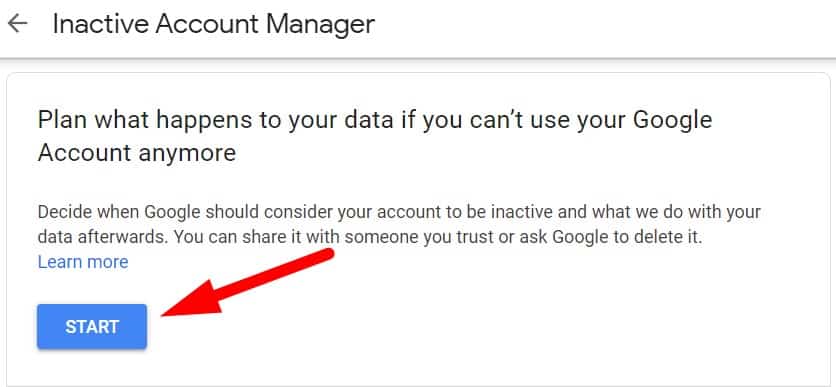
Once you open the Inactive Account Manager page, click the “Start” button to begin configuring your plan.
Google will guide you through several settings, including the inactivity period, trusted contacts, data-sharing preferences, and account deletion options.
Follow the instructions displayed on the screen. The available options and their wording may change as Google updates its services.
Step 3: Choose When Google Should Consider Your Account Inactive
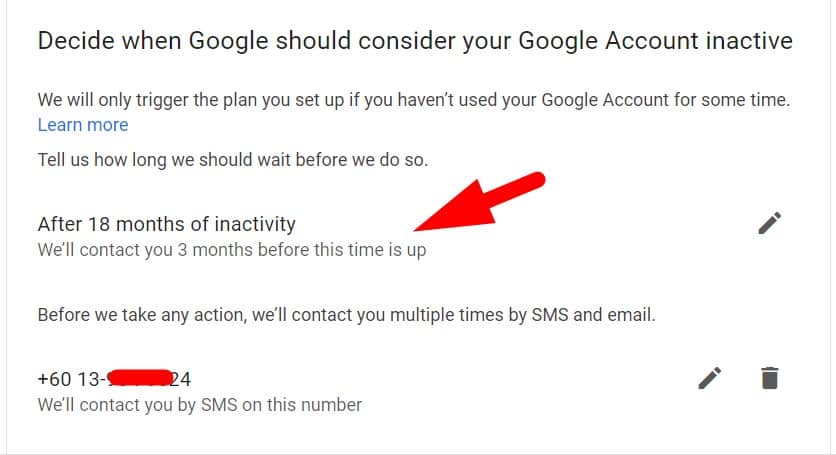
Next, Google will ask you to choose how long it should wait after your last account activity before activating your plan.
The available options may include three months, six months, 12 months, or 18 months, depending on the current interface.
Choose a period that suits your circumstances.
For example, selecting 12 months means that your plan is intended to be triggered after the specified period of inactivity, subject to Google's activity detection and notification process.
Before the plan is triggered, Google may send notifications to your Google Account and recovery email address. These notifications give you an opportunity to respond if you are still using your account.
It is important to understand that this setting does not establish that you have passed away. Google uses account activity to determine whether the configured inactivity period has been reached. You could be alive but unable to access your account, or you could simply have stopped using Google services.
Choose your preferred inactivity period carefully, then click “Next” to continue.
Step 4: Add a Trusted Contact
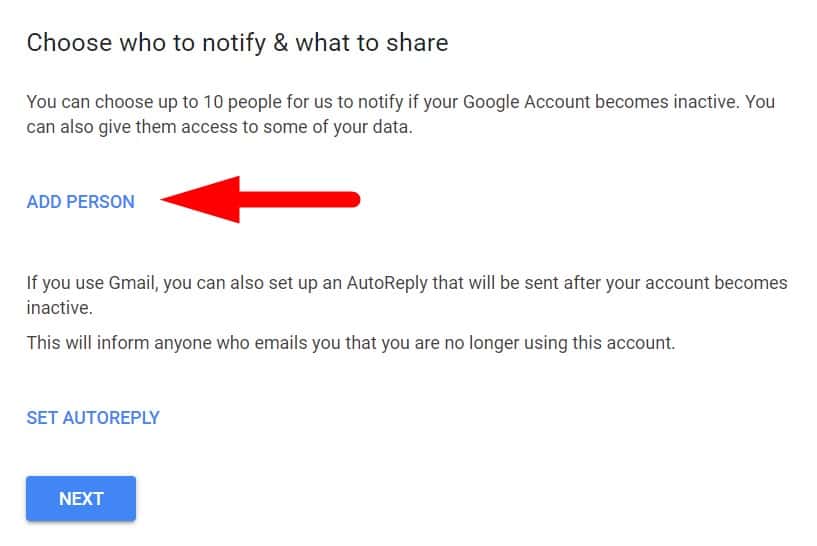
After selecting the inactivity period, you can choose whether to notify trusted contacts or share selected account data with them.
A trusted contact could be your spouse, sibling, adult child, or another person you trust to handle your information responsibly.
Enter the person's email address when prompted. Google may allow you to add up to 10 trusted contacts, and you can choose different data-sharing options for different people.
For example, you might select a family member to receive your Google Photos data and another trusted person to receive selected files from Google Drive.
Choose your contacts carefully because they may receive access to private information that you have chosen to share.
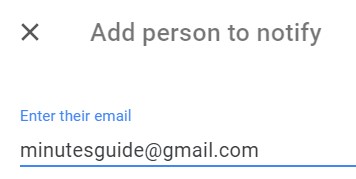
Step 5: Select the Google Services and Data You Want to Share
After adding a trusted contact, you can choose which types of account data that person may access.
Depending on the available options, you may be able to select data associated with services such as Gmail, Google Drive, Google Photos, YouTube, and other supported Google products.
For example, you might want a family member to receive selected photos and videos, while allowing a trusted business partner to access certain files that are relevant to your online business.
You do not have to share every type of data. Select only the information you want each contact to receive.
Review your choices carefully before continuing. Some account information may not be available for sharing through Inactive Account Manager, and access to selected data does not necessarily grant control over the corresponding Google service.
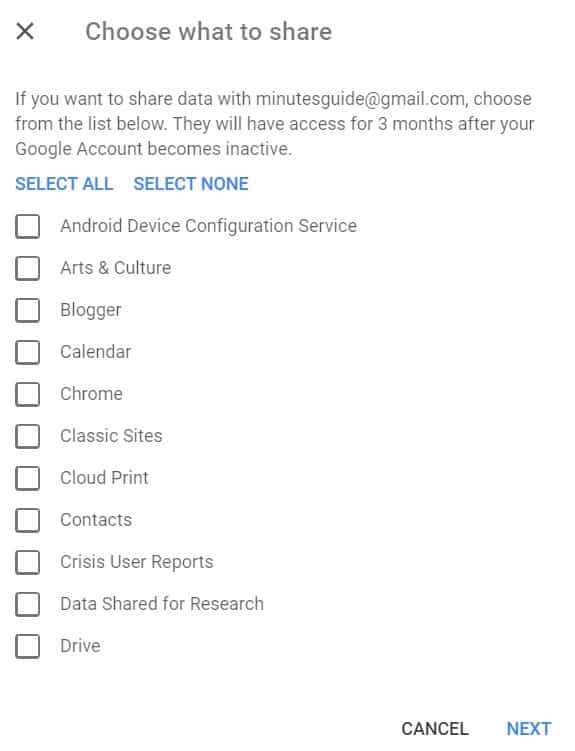
Step 6: Verify the Trusted Contact's Information
Google may ask you to provide a phone number for your trusted contact.
This phone number is used as an additional security measure to help ensure that the person downloading your data is the intended recipient.
Enter the requested information accurately and review the email address and phone number before proceeding.
An incorrect email address or phone number could prevent your trusted contact from receiving or accessing the information you have chosen to share.
Once you have checked the details, save your settings and continue with the remaining instructions.
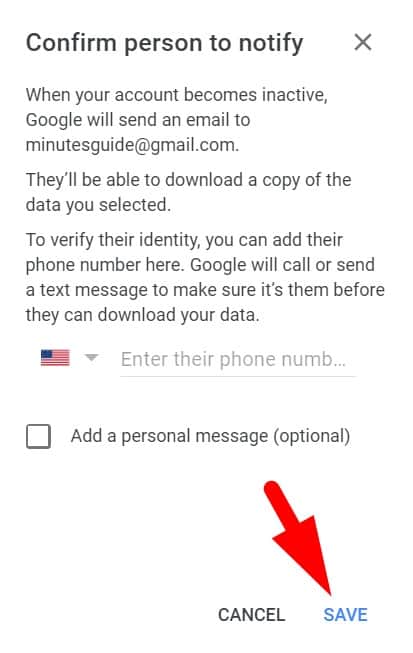
Step 7: Decide Whether Google Should Delete Your Account
Google also allows you to configure whether your account should be deleted after the inactivity period has been reached.
If you want Google to delete your account automatically as part of your plan, enable the account deletion option and follow the instructions displayed on the screen.
If you prefer to preserve your account and share selected information with trusted contacts, you can leave the deletion option disabled.
Think carefully before enabling this setting. Deleting your Google Account can affect access to Gmail, Google Drive, Google Photos, YouTube, Blogger, Google AdSense, and other associated services.
For example, if you use Blogger to publish articles or Google AdSense to earn advertising revenue, deleting your account may have significant consequences for your online activities and associated data.
You should also consider downloading important files and making separate arrangements for any business assets that need to be preserved.
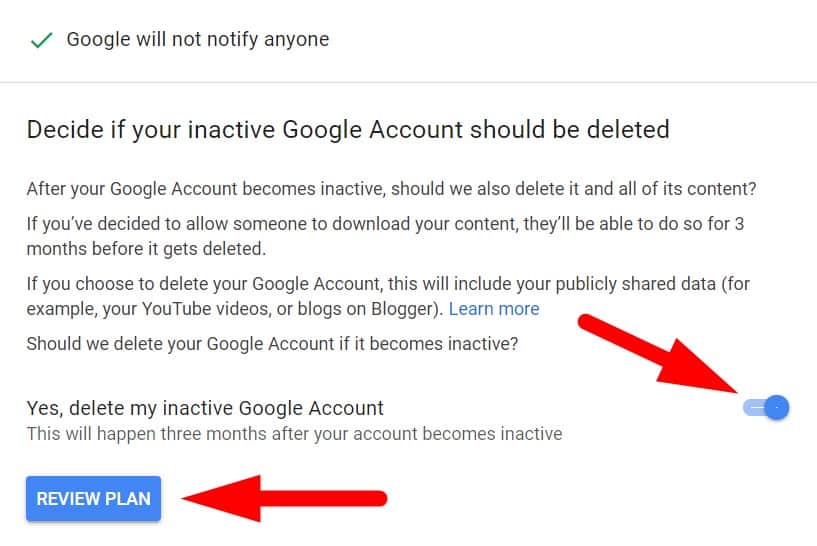
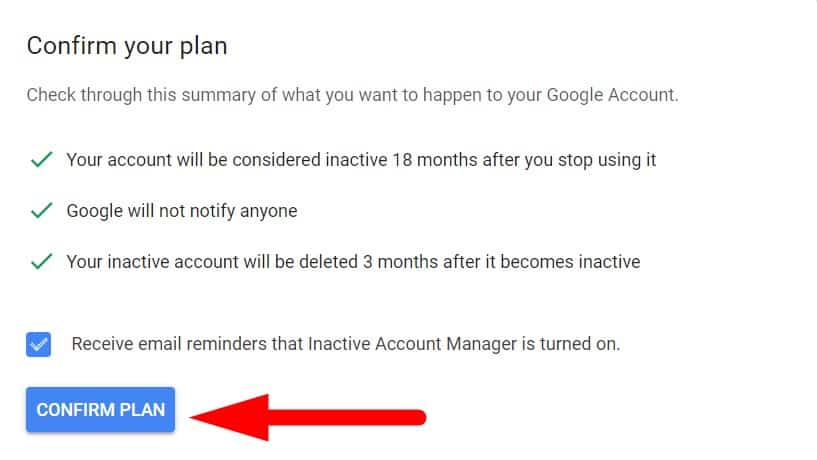
Step 8: Review and Confirm Your Plan
Before completing the setup, review all the settings you have selected.
Check your inactivity period, trusted contacts, data-sharing permissions, and account deletion preferences. Make sure that each setting reflects your intentions.
If everything is correct, click the confirmation button, which may be labelled “Confirm Plan” or something similar in the current interface.
Google will save your Inactive Account Manager preferences.
Step 9: Your Inactive Account Manager Plan Is Ready
Once your plan has been confirmed, your settings will be in place.
If your Google Account becomes inactive for the period you selected, Google will follow the configured plan, subject to its activity detection and notification procedures.
Your trusted contacts will not necessarily receive an immediate notification when you complete the setup. Notifications and data-sharing actions are intended to occur when the conditions specified in your plan are met.
You can return to the Inactive Account Manager page whenever you want to review or update your preferences.
If your circumstances change, you can modify your trusted contacts, change the data you want to share, adjust the inactivity period, or turn off the plan.
How to Turn Off Google Inactive Account Manager
If you no longer want to use this feature, visit the official Inactive Account Manager page:
Sign in to the relevant Google Account and follow the available instructions to turn off your plan. The interface may display an option such as “Turn Off My Plan.”
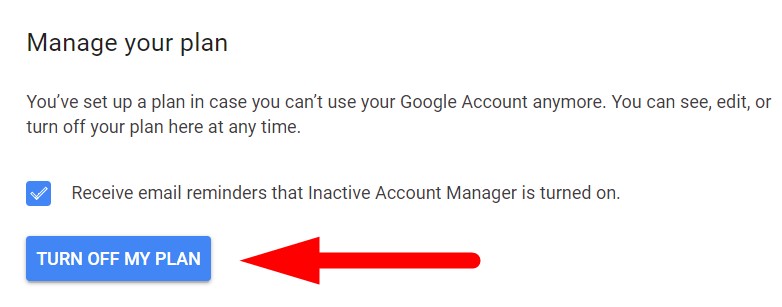
Once the plan is turned off, Google will no longer follow that particular Inactive Account Manager plan. However, turning off the plan does not disable Google's separate inactive account policies.
According to Google's current policy, personal Google Accounts that have not been used for at least two years may be considered inactive and may be deleted, subject to the policy's terms and exceptions.
You should therefore continue to use your account if you want to keep it active, and review Google's current policies if you have concerns about preserving your data.
What If Someone Has Already Passed Away Without Setting Up a Plan?
If a family member or someone close to you has passed away without configuring Inactive Account Manager, Google provides a separate process for submitting a request regarding the deceased person's account.
You can visit Google's official help page here:
Depending on the circumstances, immediate family members or authorised representatives may request account closure, access to certain data, or assistance with funds associated with the account.
Google reviews these requests individually to protect the deceased person's privacy and security. It does not provide passwords or other login credentials through this process, and approval is not guaranteed.
If you need information from a deceased person's account, consider submitting a request for the relevant data before requesting account closure. Google states that it cannot process a later request to provide account contents once an account closure request has been completed.
Conclusion
Google Inactive Account Manager is a useful feature for anyone who wants to plan what happens to their digital information after a prolonged period of inactivity.
By configuring your plan in advance, you can choose trusted contacts, select the data they may receive, and decide whether your Google Account should eventually be deleted.
If you use Google services for personal memories, blogging, or online business, take time to review your settings and make separate arrangements for any important files or business assets that you want to preserve.
Planning ahead can help protect your privacy and make it easier for the people you trust to handle your digital information according to your wishes.
Frequently Asked Questions (FAQs)
What happens to my Google Account if I pass away?
If you pass away, your Google Account does not automatically become accessible to your family. You can use Google Inactive Account Manager to decide what happens to selected account data after a specified period of inactivity. You can also choose to have your account deleted when the conditions in your plan are met.
What is Google Inactive Account Manager?
Google Inactive Account Manager is a feature that allows you to plan what happens to your Google Account after you stop using it for a specified period. You can choose trusted contacts, share selected account data, and configure account deletion preferences.
How do I set up Google Inactive Account Manager?
Visit https://myaccount.google.com/inactive and sign in to your Google Account. Click “Start” and follow the instructions to choose an inactivity period, add trusted contacts, select the data you want to share, and configure your account deletion preferences.
Can my family access my Gmail account after I die?
Your family members do not automatically receive access to your Gmail account when you pass away. You can configure Inactive Account Manager to share selected data with trusted contacts. Alternatively, an eligible family member or authorised representative can submit a request to Google, which will review the circumstances and applicable requirements.
Can I choose who receives my Google Account data?
Yes. Google Inactive Account Manager allows you to nominate trusted contacts and select the types of data they can receive. Choose people you trust and review the information carefully before confirming your settings.
Can I delete my Google Account automatically after I die?
You can configure Inactive Account Manager to delete your Google Account after the specified inactivity period. However, the feature detects inactivity rather than confirming that you have passed away. Make sure you understand the consequences before enabling automatic deletion.
How long does Google wait before considering an account inactive?
You can select an inactivity period in Inactive Account Manager. Available options may include three, six, 12, or 18 months. Separately, Google's general inactive account policy states that personal accounts unused for at least two years may be deleted, subject to applicable terms and exceptions.
Will Google notify my trusted contacts when my account becomes inactive?
Depending on your settings, Google can notify your selected contacts when the conditions in your Inactive Account Manager plan are met. You may also configure the plan to share selected account data with them. Notifications are not necessarily sent immediately when you create the plan.
What happens to my Google Photos and Google Drive files if my account is deleted?
Deleting your Google Account can result in the loss of access to associated photos, videos, documents, emails, and other data. If you want to preserve important information, consider downloading backups and configuring data-sharing options before account deletion occurs.
Can I change my Inactive Account Manager settings later?
Yes. You can revisit https://myaccount.google.com/inactive to review or update your plan. Depending on the available settings, you can change your inactivity period, trusted contacts, data-sharing preferences, or account deletion option.
What should I do if a family member dies without setting up Inactive Account Manager?
Visit Google's official account support process for deceased users at https://support.google.com/accounts/troubleshooter/6357590. Google may consider requests to close the account or provide certain account data, depending on the circumstances and its requirements. Access is not guaranteed.
Does Google Inactive Account Manager transfer ownership of my online business?
No. Sharing selected account data through Inactive Account Manager does not automatically transfer ownership of your websites, Google AdSense account, YouTube channel, or other business assets. If you operate an online business, make separate arrangements for succession, ownership, and access to important services.
References
- Submit a request regarding a deceased user's account - support.google.com
- How to set your Google account to delete itself after you die - cnbc.com