
Breadcrumbs are a useful navigation feature that can make a WordPress website easier to understand and navigate. They show visitors where they are within the structure of your website and provide an easy way to move back to a higher-level page or category.
If you are using the Genesis Framework, you can enable breadcrumbs through the Genesis theme settings without having to manually add complicated code to your website. Genesis includes built-in support for breadcrumbs, allowing you to choose where they should appear on your site.
In this tutorial, you will learn how to add breadcrumbs to a WordPress website using the Genesis Framework. You will also learn how to change the breadcrumb separator if you want to customize its appearance.
Table of Contents
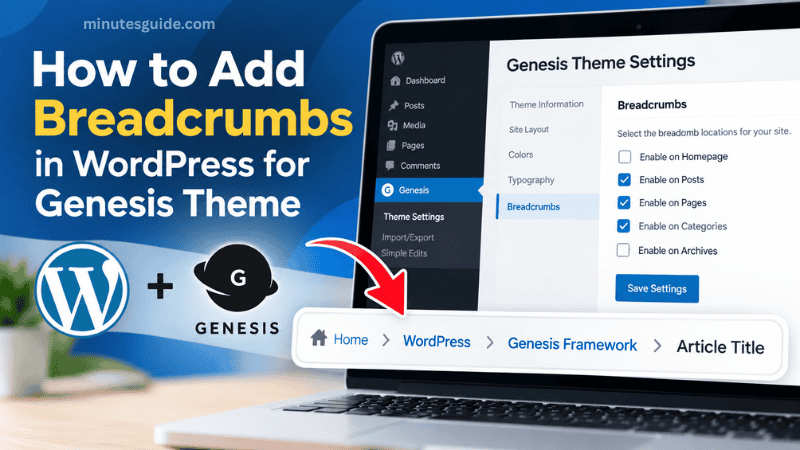
How to Add Breadcrumbs in WordPress for Genesis Theme
What Are Breadcrumbs?
A breadcrumb is a small navigation trail that usually appears near the top of a webpage. It shows the visitor where the current page is located within the overall structure of the website.
For example, a breadcrumb on a blog post could look like this:
Home / WordPress / Genesis Framework / How to Add Breadcrumbs in WordPress
Each part of the breadcrumb can normally be clicked to return to a higher level of the website. This makes it easier for visitors to understand the relationship between the current page and the rest of the site.
Breadcrumbs are particularly useful for websites with many pages, blog categories, subcategories, or other levels of content. Instead of using the browser's back button or returning to the main navigation menu, visitors can use the breadcrumb trail to move through the site's hierarchy.
Breadcrumbs can also help search engines understand the structure and hierarchy of your website. Depending on the implementation and the information available to search engines, breadcrumb information can also be used in search results. Yoast SEO provides breadcrumb functionality and the necessary structured data when its breadcrumbs are properly implemented.
How to Add Breadcrumbs to WordPress for Genesis Theme
If you are using the Genesis Framework, you can enable its built-in breadcrumb functionality through the Genesis theme settings.
The exact appearance of the settings may vary slightly depending on your Genesis version and the child theme you are using, but the basic process remains straightforward.
Step 1: Make Sure Genesis Is Installed
First, make sure that the Genesis Framework and a compatible Genesis child theme are installed and active on your WordPress website.
If you have not installed Genesis yet, you will need to install and activate it before configuring its breadcrumb settings.
Genesis includes built-in breadcrumb support, so you do not necessarily need to install another plugin just to create basic Genesis breadcrumbs.
Step 2: Open the Genesis Theme Settings
From your WordPress dashboard, go to:
Genesis → Theme Settings
Depending on your WordPress and Genesis configuration, some theme settings may also be accessible through the WordPress Customizer.
Look for the Breadcrumbs section in the Genesis theme settings.
Genesis provides options that allow you to control where breadcrumbs should appear on your website.

Step 3: Choose Where to Display Breadcrumbs
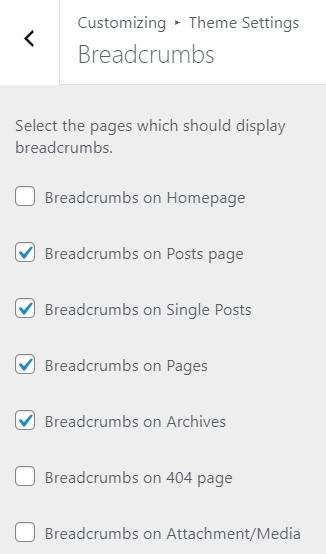
In the Breadcrumbs section, you should see several options for controlling where breadcrumbs are displayed.
For example, you may be able to enable breadcrumbs for:
- Homepage
- Posts
- Pages
- Categories
- Archives
- Other supported content types
Select the locations where you want the breadcrumb navigation to appear.
You do not necessarily need to enable breadcrumbs everywhere. For example, you may prefer to display them on individual posts and pages while leaving them disabled on the homepage.
Choose the locations that make the most sense for the structure of your website.
Step 4: Save Your Changes
After selecting the locations where you want breadcrumbs to appear, click Publish or save the settings.
Your Genesis website should now display breadcrumbs in the selected locations.
For example, when viewing a blog post inside a category, visitors may see something similar to:
Home / WordPress / Genesis Framework / Article Title
This immediately gives visitors a better understanding of where they are on your website.
How to Disable Breadcrumbs in Genesis
If you decide that you no longer want to display breadcrumbs, you can disable them from the same Genesis theme settings.
Go to:
Genesis → Theme Settings → Breadcrumbs
Then remove the selections from the locations where breadcrumbs are currently enabled and save or publish the changes.
If breadcrumbs continue to appear after disabling the Genesis option, check whether another plugin is generating them. SEO plugins such as Yoast SEO can provide their own breadcrumb functionality, which operates separately from Genesis' built-in breadcrumbs.
How to Change the Breadcrumb Separator
By default, breadcrumbs use a separator between each level of the navigation path.
For example:
Home / WordPress / Genesis Framework / Article Title
The slash (/) is one common separator, but you may prefer another symbol such as >.
For example:
Home > WordPress > Genesis Framework > Article Title
If you are using Yoast SEO for your breadcrumbs, you can change the separator from the Yoast SEO settings.
Step 1: Open Yoast SEO Settings
From your WordPress dashboard, go to:
Yoast SEO → Settings
The location of the settings has changed in newer versions of Yoast SEO. Older versions of the plugin used menu paths such as SEO → Search Appearance, but the current interface places breadcrumb settings under the Advanced section.
Step 2: Open the Breadcrumbs Settings
Inside Yoast SEO settings, go to:
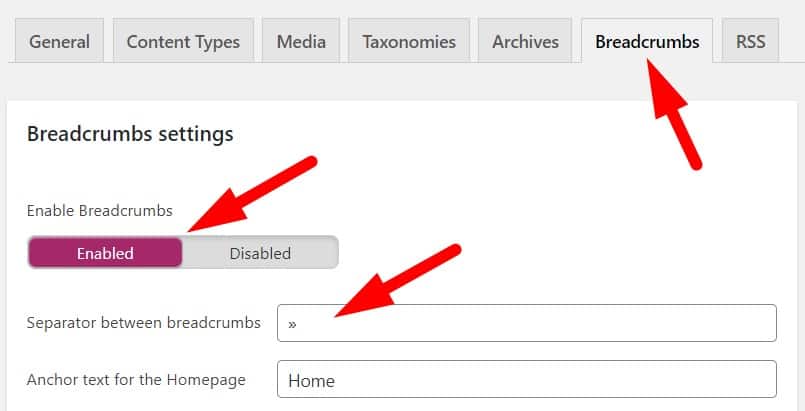
Advanced → Breadcrumbs
The Breadcrumbs settings allow you to configure how your breadcrumb navigation is displayed.
Yoast SEO provides settings for elements such as the breadcrumb separator, homepage label, and other breadcrumb-related options.
Step 3: Change the Separator
Look for the option called:
Separator between breadcrumbs
Choose the separator that you prefer.
For example, you could use a greater-than symbol:
Home > WordPress > Genesis Framework > Article Title
You can choose an appropriate separator based on the visual design of your website. A simple separator is usually preferable because it keeps the breadcrumb easy to read.
Step 4: Save the Changes
After selecting your preferred separator, save the changes.
Visit one of your posts or pages to check how the breadcrumbs look on the front end of your website.
If the breadcrumbs are being generated by Yoast SEO, the new separator should be reflected in the breadcrumb trail.
Genesis Breadcrumbs vs Yoast SEO Breadcrumbs
It is important to understand that Genesis and Yoast SEO can both provide breadcrumb functionality.
Genesis has built-in support for breadcrumbs, while Yoast SEO also provides its own breadcrumb system.
If both systems are configured to display breadcrumbs, you may end up with duplicate breadcrumb trails on the same page.
For this reason, it is a good idea to determine which system is responsible for displaying your breadcrumbs and avoid enabling two separate breadcrumb implementations at the same location.
If you are already using Genesis' built-in breadcrumbs and they meet your requirements, there may be no need to add another breadcrumb system simply for basic navigation.
On the other hand, if you want to use Yoast SEO's breadcrumb functionality and its additional configuration options, you can use Yoast SEO instead, provided it is correctly integrated with your theme. Yoast explains that themes can declare support for its breadcrumb functionality, while breadcrumbs can also be added using the Yoast breadcrumb block or shortcode.
Why Breadcrumbs Are Useful
Breadcrumbs are more than just a visual navigation element. They can improve the usability of a website by showing visitors how individual pages are organized.
For example, imagine that a visitor lands directly on a blog post from a search engine. Without breadcrumbs, the visitor may not immediately know which section or category the article belongs to.
With breadcrumbs, the visitor might see:
Home > WordPress > Themes > Genesis Framework > Article Title
The visitor can then click the relevant category or parent section to explore related content.
Breadcrumbs can therefore be especially useful for websites with a large amount of content or a deep website hierarchy.
They can also provide search engines with additional information about the relationship between pages and their position within the site's structure. Yoast notes that breadcrumbs can help users understand site structure and can potentially appear in search results when implemented correctly.
Tips for Using Breadcrumbs on Your WordPress Website
When adding breadcrumbs to your Genesis website, keep the navigation simple and consistent.
Make sure the breadcrumb hierarchy accurately reflects the structure of your website. If your categories and pages are poorly organized, breadcrumbs may also become confusing.
It is also a good idea to check the breadcrumbs on different types of pages, including blog posts, pages, category archives, and other important sections of your website.
After making changes, check the website from the visitor's perspective. Make sure the breadcrumb links work correctly, are easy to read, and do not interfere with your page title or other navigation elements.
If you use Yoast SEO, remember that the current breadcrumb settings are located under Yoast SEO → Settings → Advanced → Breadcrumbs.
Conclusion
Adding breadcrumbs to a WordPress website using the Genesis Framework is relatively simple because Genesis includes built-in breadcrumb support.
You can enable breadcrumbs from the Genesis theme settings and select the types of pages where you want them to appear. This provides visitors with a clear navigation path and makes it easier for them to understand the structure of your website.
If you want to customize the breadcrumb separator and are using Yoast SEO's breadcrumb functionality, you can configure the separator under Yoast SEO → Settings → Advanced → Breadcrumbs.
Remember to check whether Genesis or Yoast SEO is responsible for displaying your breadcrumbs. Using two different breadcrumb systems at the same location can result in duplicate navigation trails.
Once everything is configured correctly, breadcrumbs can provide a simple but useful navigation feature that makes your WordPress website easier for visitors to explore.
Frequently Asked Questions
What are breadcrumbs in WordPress?
Breadcrumbs are a navigation trail that shows visitors where they are within the structure of a website. For example, a breadcrumb may display Home > WordPress > Genesis Framework > Article Title. Visitors can use the links to navigate back to a parent category or section of the website.
Does the Genesis Framework support breadcrumbs?
Yes. The Genesis Framework includes built-in support for breadcrumbs. You can configure them through the Genesis theme settings and choose where you want them to appear on your website.
How do I enable breadcrumbs in the Genesis Framework?
You can enable Genesis breadcrumbs by logging in to your WordPress dashboard and going to Genesis → Theme Settings. Find the Breadcrumbs section and select the types of pages where you want breadcrumbs to appear. Save or publish your changes when you are finished.
Can I display breadcrumbs only on blog posts?
Yes. Genesis provides options that allow you to control where breadcrumbs are displayed. If you only want breadcrumbs on individual blog posts, enable them for posts while leaving the other page types disabled.
Can I use Yoast SEO for breadcrumbs with Genesis?
Yes. Yoast SEO provides its own breadcrumb functionality. However, you should avoid displaying both Genesis breadcrumbs and Yoast SEO breadcrumbs in the same location because this can result in duplicate breadcrumb navigation.
How do I change the breadcrumb separator?
If you are using Yoast SEO breadcrumbs, go to Yoast SEO → Settings → Advanced → Breadcrumbs. From there, you can configure the separator between breadcrumb items according to your preferred design.
What breadcrumb separator should I use?
A simple separator such as / or > is usually easy to understand. For example, you can use Home / WordPress / Themes or Home > WordPress > Themes. Choose a separator that fits the overall design and typography of your website.
Do breadcrumbs improve website navigation?
Yes. Breadcrumbs can make navigation easier by showing visitors the relationship between the current page and its parent categories or sections. This can be particularly helpful on websites with many pages or multiple levels of content.
Are breadcrumbs good for SEO?
Breadcrumbs can help search engines understand the hierarchy and structure of your website. When implemented correctly, breadcrumb information may also be used in search results. However, breadcrumbs should primarily be added to improve navigation and usability rather than solely for SEO purposes.
Why are my breadcrumbs appearing twice?
Duplicate breadcrumbs usually occur when two different systems are generating them. For example, you may have Genesis breadcrumbs enabled while Yoast SEO breadcrumbs are also active. Check both configurations and disable the breadcrumb system you do not want to use.
Can I remove breadcrumbs from my Genesis website?
Yes. You can disable Genesis breadcrumbs from Genesis → Theme Settings by removing the breadcrumb selections for the relevant page types. If breadcrumbs remain visible, check whether another plugin, such as Yoast SEO, is generating them.
Do I need a plugin to add breadcrumbs to Genesis?
Not necessarily. Genesis has built-in breadcrumb functionality, so you can enable basic breadcrumbs without installing an additional plugin. However, you may choose to use Yoast SEO or another solution if you need additional breadcrumb features or customization options.
Conclusion
- Genesis - Add or remove breadcrumbs from your site - support.17thavenuedesigns.com
- Breadcrumb Navigation Menu in Genesis Theme - wisdmlabs.com