
Finding the database used by a WordPress website is an important task for website owners, developers, system administrators, and anyone responsible for maintaining a WordPress installation. The database stores essential website information, including posts, pages, users, settings, comments, categories, plugin data, and many other pieces of information required for WordPress to operate correctly.
If you are migrating a WordPress website, creating a backup, troubleshooting a database connection problem, moving your website to another hosting provider, or manually managing your WordPress database, you may need to know exactly which database belongs to your installation.
Fortunately, finding the database for a WordPress installation is usually straightforward. The most reliable method is to check the wp-config.php file because WordPress stores its database connection details there. You can also identify the database through hosting control panels, phpMyAdmin, WP-CLI, or server configuration files, depending on how your website is hosted.
This guide explains how to find database for a WordPress installation using several practical methods. It also explains how to identify the correct database, understand the database credentials, avoid common mistakes, and verify that you have found the database associated with the correct WordPress website.
Table of Contents
How to Find Database for a WordPress Installation?
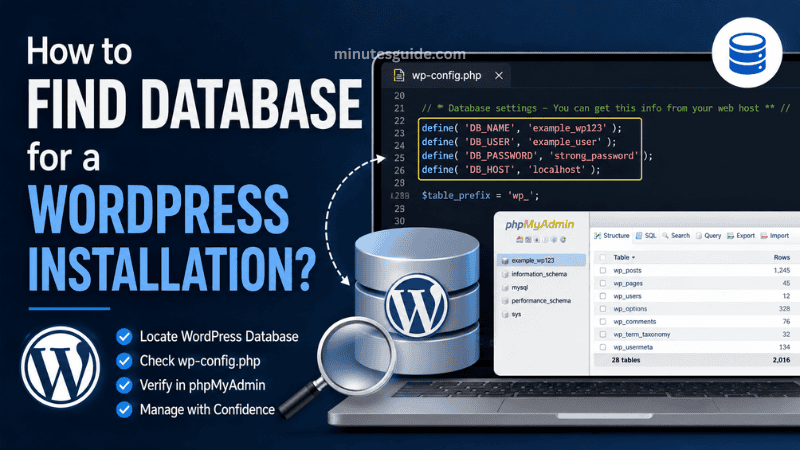
What Is the WordPress Database?
A WordPress database is where WordPress stores much of the dynamic information required to operate a website. While WordPress files contain the core software, themes, plugins, uploaded media, and other filesystem-based resources, the database contains structured information such as posts, pages, website settings, user accounts, comments, taxonomies, and metadata.
WordPress normally uses MySQL or a compatible database system, and it connects to that database using configuration values defined in the wp-config.php file. WordPress's official documentation identifies wp-config.php as one of the most important files in a WordPress installation because it contains the database connection information.
A typical WordPress database configuration looks similar to this:
define( 'DB_NAME', 'wordpress_database' );
define( 'DB_USER', 'wordpress_user' );
define( 'DB_PASSWORD', 'your_database_password' );
define( 'DB_HOST', 'localhost' );
These four values provide the basic information WordPress needs to connect to its database.
DB_NAME identifies the database itself, while DB_USER identifies the database user. DB_PASSWORD contains the password for that database user, and DB_HOST specifies the server where the database is hosted. WordPress documentation notes that the database hostname is commonly localhost, although this can vary depending on the hosting environment.
Why Do You Need to Find the WordPress Database?
There are several situations where knowing the database name and connection details can be useful.
For example, you may need the database name when migrating a WordPress website from one hosting provider to another. During a migration, the website files and database are normally transferred separately, so you need to identify the correct database before exporting it.
The database is also important when creating a manual backup. A complete WordPress backup generally requires both the website files and the database because the two contain different parts of the website.
You may also need database information when troubleshooting an error such as "Error establishing a database connection." In such situations, checking the database name, username, password, and hostname in wp-config.php can help determine whether WordPress is attempting to connect to the correct database. WordPress's own installation documentation recommends checking the database information in wp-config.php when database connection errors occur.
Other common situations include:
- Migrating a WordPress website.
- Restoring a website from a backup.
- Importing or exporting a database.
- Troubleshooting database connection errors.
- Moving a website to a different server.
- Accessing WordPress data through phpMyAdmin.
- Using WP-CLI to manage the database.
- Identifying the database associated with an old WordPress installation.
- Cleaning unused databases from a hosting account.
- Performing advanced WordPress maintenance.
Method 1: Find the Database in wp-config.php
The easiest and most reliable method to find the database for a WordPress installation is to examine its wp-config.php file.
The wp-config.php file is normally located in the root directory of the WordPress installation. WordPress documentation confirms that this file contains the website's database connection information.
For example, if your WordPress website is installed in:
public_html/
you will commonly find the configuration file at:
public_html/wp-config.php
If WordPress is installed in a subdirectory, the file may instead be located at:
public_html/blog/wp-config.php
The exact location depends on where the WordPress files were installed on your server.
Step 1: Access Your WordPress Files
First, access the files belonging to your WordPress website.
Depending on your hosting environment, you may use:
- cPanel File Manager.
- Plesk File Manager.
- DirectAdmin File Manager.
- FTP.
- SFTP.
- SSH.
- Your hosting provider's file management system.
If you are using cPanel, open File Manager and navigate to the directory where your WordPress website is installed.
For many shared hosting accounts, the main website is located inside:
public_html
However, this is not universal. Some hosting providers use different directory structures, particularly when multiple websites are hosted under the same account.
Step 2: Locate wp-config.php
Look for a file named:
wp-config.php
Do not confuse this file with:
wp-config-sample.php
The sample file is a template supplied with WordPress and normally contains placeholder database information. The actual wp-config.php file contains the configuration used by the particular WordPress installation.
Step 3: Open wp-config.php
Open wp-config.php using your hosting file manager's text editor or another plain-text editor.
Avoid using Microsoft Word or another word processor to edit WordPress configuration files. WordPress specifically recommends using a plain-text editor when working with these files.
Look for a section containing database settings similar to:
define( 'DB_NAME', 'wordpress_database' );
define( 'DB_USER', 'wordpress_user' );
define( 'DB_PASSWORD', 'password_here' );
define( 'DB_HOST', 'localhost' );
The value after DB_NAME is the database name.
For example:
define( 'DB_NAME', 'example_wp123' );
In this example, the WordPress database name is:
example_wp123
This is usually the most important value if your goal is simply to determine which database belongs to the WordPress installation.
Understanding the Database Information in wp-config.php
When you open wp-config.php, you may see several database-related constants. Understanding each one can help you correctly identify and access the database.
DB_NAME
DB_NAME specifies the name of the database used by WordPress.
For example:
define( 'DB_NAME', 'mywebsite_wp' );
The database name is:
mywebsite_wp
This is the value you would normally look for in phpMyAdmin or another database management interface.
DB_USER
DB_USER specifies the MySQL database username used by WordPress.
For example:
define( 'DB_USER', 'mywebsite_user' );
The username is:
mywebsite_user
The database user is not necessarily the same as your WordPress administrator username. This distinction is important because the WordPress administrator account and the MySQL database account serve completely different purposes.
DB_PASSWORD
DB_PASSWORD contains the password associated with the database user.
For example:
define( 'DB_PASSWORD', 'example_password' );
You generally do not need to know the database password simply to identify the database name. However, it may be required if you need to connect directly to the database from a command-line client or another database management application.
Treat this password as sensitive information and never publish it publicly.
DB_HOST
DB_HOST identifies the database server.
A common configuration is:
define( 'DB_HOST', 'localhost' );
However, localhost is not guaranteed to be used in every hosting environment. A remote database server may have a hostname or IP address instead. WordPress documentation specifically notes that the database hostname is usually localhost, but the correct value depends on the server configuration.
For example:
define( 'DB_HOST', 'mysql.example.com' );
In this situation, the database is hosted on a server named mysql.example.com.
Method 2: Find the Database Through cPanel
If your website uses cPanel, you can use phpMyAdmin to inspect the databases available under your hosting account.
However, simply looking at the list of databases may not immediately tell you which one belongs to your WordPress website. The safest approach is to first identify the database name from wp-config.php and then locate that exact name in cPanel or phpMyAdmin.
Step 1: Log In to cPanel
Log in to your hosting account and open cPanel.
The exact interface can vary between hosting providers, but many cPanel installations provide a section containing database management tools.
Step 2: Open phpMyAdmin
Find and open:
phpMyAdmin
phpMyAdmin allows you to view and manage MySQL or compatible databases through a web interface.
Step 3: Look at the Database List
After opening phpMyAdmin, you will usually see a list of databases in the left-hand navigation area.
Compare the database names with the value listed under:
DB_NAME
inside wp-config.php.
For example, if your configuration contains:
define( 'DB_NAME', 'username_wordpress' );
look for:
username_wordpress
in phpMyAdmin.
If the database exists and contains WordPress tables, you have likely found the correct database.
WordPress documentation also provides instructions for working with WordPress databases using phpMyAdmin and notes that hosting environments may impose particular database naming requirements.
Method 3: Identify the Database by Looking at WordPress Tables
Sometimes you may have access to several databases and need to determine which one contains your WordPress website.
In that situation, database tables can provide useful clues.
A standard WordPress installation typically contains tables such as:
wp_posts
wp_options
wp_users
wp_usermeta
wp_terms
wp_term_taxonomy
wp_term_relationships
wp_comments
wp_commentmeta
wp_postmeta
The exact prefix does not have to be wp_. A WordPress installation can use a custom database table prefix configured in wp-config.php. WordPress documentation confirms that the $table_prefix value determines the prefix placed in front of database tables.
For example, a website may use:
abc123_posts
abc123_options
abc123_users
abc123_usermeta
instead of:
wp_posts
wp_options
wp_users
wp_usermeta
Therefore, do not assume that every WordPress database will contain tables beginning with wp_.
Check the wp_options Table
One particularly useful table is the options table.
In a standard installation, it is usually:
wp_options
although the prefix may be different.
The options table contains important WordPress configuration information. Looking at its records can help confirm that the database belongs to a particular website.
For example, you may find the website URL stored in the relevant options records.
If you are comparing several databases, this can be a useful way to distinguish one WordPress installation from another.
Method 4: Check the Database Table Prefix
Another useful way to confirm that you have identified the correct database is to examine the $table_prefix setting in wp-config.php.
For example:
$table_prefix = 'wp_';
This means WordPress expects its standard tables to use the wp_ prefix.
Another installation might contain:
$table_prefix = 'site7_';
In that case, you would expect tables such as:
site7_posts
site7_options
site7_users
This is especially useful when several WordPress installations share the same database. WordPress allows multiple installations to use one database when each installation has a unique table prefix, although WordPress documentation recommends considering security implications when doing so.
Method 5: Use WP-CLI to Find the Database
If you have SSH access to the server and WP-CLI is installed, you can use WP-CLI to work with the WordPress database.
WP-CLI is a command-line interface for managing WordPress installations.
First, navigate to the directory containing your WordPress installation:
cd /path/to/wordpress
You can then inspect the configuration or use WP-CLI database commands.
For example, the following command can list the database tables associated with the current WordPress installation:
wp db tables
The official WP-CLI documentation states that wp db tables lists database tables registered to the $wpdb database handler.
This can be particularly useful for developers and system administrators managing multiple WordPress installations from the command line.
You can also use:
wp config create
when creating a configuration file, although this command is primarily intended for generating wp-config.php rather than simply discovering an existing database. The command supports database parameters such as database name, database user, database password, database host, and table prefix.
Method 6: Find the Database Through the Hosting Database Manager
Different hosting providers offer different interfaces for managing databases.
Some providers use:
- cPanel.
- Plesk.
- DirectAdmin.
- Custom hosting dashboards.
- Cloud control panels.
- Managed WordPress dashboards.
The names and locations of database management tools may therefore differ.
Regardless of the interface, the basic process remains similar. First identify the DB_NAME value in wp-config.php, then locate the corresponding database using your hosting provider's database management interface.
For example, WordPress's official documentation provides database creation instructions for phpMyAdmin, Plesk, cPanel, DirectAdmin, and MySQL client environments.
How to Confirm You Have Found the Correct Database
Finding a database with a familiar name does not automatically prove that it belongs to your WordPress website.
This is particularly important when your hosting account contains multiple websites or several old databases.
There are several ways to confirm the database.
Check the Database Name
Start by comparing the database name in phpMyAdmin with:
DB_NAME
in wp-config.php.
If they match exactly, that is a strong indication that you have identified the database configured for that WordPress installation.
Check the Table Prefix
Next, compare the $table_prefix value in wp-config.php with the table names inside the database.
For example:
$table_prefix = 'abc_';
should correspond to tables such as:
abc_posts
abc_options
abc_users
Check Website Information
You can also inspect the WordPress options table and look for website-related information.
If the values correspond to your website, this provides another useful confirmation.
Check Recent Content
Another practical approach is to inspect the posts table and determine whether it contains posts associated with your website.
You should be cautious when making changes in phpMyAdmin, however. Merely viewing records is generally safe, but editing or deleting records can affect the website immediately.
What If wp-config.php Does Not Exist?
In some situations, you may not find a wp-config.php file.
There are several possible explanations.
The website may not actually be a complete WordPress installation. Alternatively, you may be looking in the wrong directory, particularly if WordPress is installed in a subdirectory.
Another possibility is that the installation was configured differently or that the file was accidentally deleted.
WordPress's installation process can create wp-config.php during setup when the file is not already present. Official documentation explains that the setup process can generate the file after you provide the database information.
If you cannot find the file, first verify that you are looking in the correct WordPress installation directory.
What If There Are Many Databases?
Shared hosting accounts can contain many databases, especially when multiple websites have been hosted on the same account over several years.
Do not guess which database belongs to your WordPress website based only on the database name.
Instead, open the relevant wp-config.php file and identify:
DB_NAME
Then compare that value with the database list in your hosting panel.
If several WordPress installations share a database, also compare:
$table_prefix
with the prefixes of the database tables.
This method is much safer than randomly selecting a database and attempting to modify it.
What If the Database Name Does Not Exist?
If DB_NAME in wp-config.php does not correspond to an available database, the database may have been deleted, renamed, moved, or become inaccessible.
For example, your configuration might contain:
define( 'DB_NAME', 'website_database' );
but phpMyAdmin may not show a database with that name.
In this situation, do not immediately create a new database with the same name and assume that it will restore the website. Creating an empty database will not recreate the missing WordPress content.
Instead, investigate whether the original database still exists elsewhere, whether your hosting provider has a backup, or whether the database was moved to another server.
What If You Get "Error Establishing a Database Connection"?
If WordPress displays an error about establishing a database connection, checking wp-config.php is one of the first troubleshooting steps you should perform.
Verify the following values:
define( 'DB_NAME', 'database_name' );
define( 'DB_USER', 'database_user' );
define( 'DB_PASSWORD', 'database_password' );
define( 'DB_HOST', 'localhost' );
Make sure the database name is correct, the database user exists, the password is correct, and the database server hostname is appropriate for your hosting environment.
Also verify that the database user has the required permissions to access the database.
WordPress's official installation documentation specifically recommends checking the database information, ensuring the WordPress user has permission to access the database, and confirming that the database server is running when database connection errors occur.
Database Name vs WordPress Table Prefix
It is important to understand the difference between the database name and the database table prefix.
The database name identifies the entire database.
For example:
mywebsite_wordpress
The table prefix identifies the beginning of the individual tables inside that database.
For example:
wp_
Therefore, these are not the same thing.
A database might be named:
mywebsite_wordpress
while its tables might be:
abc_posts
abc_options
abc_users
In this example:
Database name: mywebsite_wordpress
Table prefix: abc_
This distinction becomes particularly important when troubleshooting multiple WordPress installations.
Is It Safe to Open wp-config.php?
Opening wp-config.php to identify the database is generally appropriate when you have legitimate administrative access to the website.
However, the file contains sensitive information, particularly the database password and authentication keys.
Do not share the complete contents of `wp-config.php publicly.
For example, you should never post the following information in a public support forum:
define( 'DB_PASSWORD', 'your_real_password' );
If you need assistance from another person, remove or obscure passwords, secret keys, and other sensitive credentials before sharing configuration information.
It is also important to make a backup before making changes to wp-config.php or the database. WordPress documentation recommends caution when changing advanced configuration settings and emphasizes maintaining regular backups.
How to Find the Database for a WordPress Installation: Quick Summary
The simplest process is:
- Access the WordPress installation files.
- Locate
wp-config.php. - Open the file using a plain-text editor.
- Find the
DB_NAMEconstant. - Copy the value assigned to
DB_NAME. - Open phpMyAdmin or your hosting provider's database manager.
- Locate the database with the same name.
- Check the table prefix using
$table_prefix. - Confirm that the database contains WordPress tables.
- Verify website-related information if necessary.
For example, if your wp-config.php contains:
define( 'DB_NAME', 'example_wordpress' );
define( 'DB_USER', 'example_user' );
define( 'DB_PASSWORD', 'example_password' );
define( 'DB_HOST', 'localhost' );

$table_prefix = 'wp_';
then:
Database name: example_wordpress
Database user: example_user
Database host: localhost
Table prefix: wp_
You would then look for the example_wordpress database and expect to see tables beginning with wp_.
Common Mistakes When Finding a WordPress Database
Several mistakes can cause confusion when trying to identify a WordPress database.
Mistake 1: Looking Only at the Database Name
Database names are not always descriptive. Hosting providers frequently add account prefixes, numbers, or automatically generated names.
Always compare the database name against DB_NAME rather than relying on the name alone.
Mistake 2: Assuming Every Table Starts With wp_
The default table prefix is commonly wp_, but WordPress installations can use custom prefixes.
Always check $table_prefix in wp-config.php when you need to identify the tables belonging to a specific installation.
Mistake 3: Confusing the Database User With the WordPress User
The DB_USER value is a database account, not the username used to log into the WordPress dashboard.
These two accounts have different purposes and should not be confused.
Mistake 4: Editing the Database Without a Backup
Database changes can have immediate consequences.
Deleting or modifying the wrong record can cause missing content, configuration problems, broken plugins, or even a completely inaccessible website.
Always create an appropriate backup before making significant database changes.
Mistake 5: Sharing Database Credentials
Database credentials should be treated as confidential information.
If someone obtains the database username and password, they may potentially gain unauthorized access to the database depending on the permissions assigned to that account.
Conclusion
Learning how to find database for a WordPress installation is an important technical skill for anyone who manages WordPress websites. In most cases, the fastest and most reliable approach is to locate the wp-config.php file and look for the DB_NAME value.
The DB_NAME constant tells you which database WordPress is configured to use, while DB_USER, DB_PASSWORD, and DB_HOST provide the credentials and server information WordPress uses to establish its database connection. WordPress officially documents these database settings as part of the wp-config.php configuration.
Once you have identified the database name, you can locate it through phpMyAdmin, cPanel, Plesk, DirectAdmin, or another database management system. You can further verify the database by checking its WordPress tables and comparing their prefix with the $table_prefix value in wp-config.php.
For developers and advanced users, WP-CLI provides additional ways to inspect and manage WordPress databases, including commands for listing database tables.
The most important rule is to avoid guessing. When multiple databases exist on a hosting account, always use the configuration of the specific WordPress installation to identify its database. This approach reduces the risk of modifying, exporting, backing up, or deleting the wrong database.
By understanding the relationship between wp-config.php, DB_NAME, the database server, database users, and WordPress table prefixes, you can confidently identify the correct database whenever you need to perform a WordPress migration, backup, troubleshooting task, or other database-related maintenance.
Frequently Asked Questions About Finding a WordPress Database
How do I find the database name for a WordPress installation?
The easiest way to find the database name is to open the wp-config.php file located in your WordPress installation directory. Look for the DB_NAME line, such as define( 'DB_NAME', 'example_database' );. In this example, example_database is the database used by the WordPress installation.
Where is the WordPress database stored?
The WordPress database is stored on a database server, usually a MySQL or compatible database server. It is separate from the WordPress files stored on your web server. You can usually access the database through phpMyAdmin, a hosting control panel, WP-CLI, or another database management tool.
Where can I find the wp-config.php file?
The wp-config.php file is normally located in the root directory of your WordPress installation. For many hosting accounts, this is the public_html directory. If WordPress was installed in a subdirectory, the file may be located inside that directory instead.
How do I find the WordPress database in phpMyAdmin?
First, open the wp-config.php file and find the value assigned to DB_NAME. Then log in to phpMyAdmin and look for a database with the same name. You can further confirm that it is the correct database by checking whether it contains WordPress tables such as wp_posts, wp_options, and wp_users, or tables using a custom prefix.
What is DB_NAME in WordPress?
DB_NAME is a configuration constant in wp-config.php that specifies the name of the database WordPress uses. For example, define( 'DB_NAME', 'my_wordpress' ); means that WordPress is configured to use a database named my_wordpress.
What is the difference between DB_NAME and DB_USER?
DB_NAME identifies the database, while DB_USER identifies the database account WordPress uses to connect to that database. They serve different purposes and should not be confused with the username used to log in to the WordPress administration dashboard.
What if I cannot find wp-config.php?
First, make sure you are looking in the correct WordPress installation directory. If the file is still missing, the installation may be incomplete, the file may have been deleted, or WordPress may have been configured differently. You should investigate the website's server configuration and available backups before making changes.
Can multiple WordPress websites use the same database?
Yes, multiple WordPress installations can use the same database when they use different database table prefixes. For example, one installation might use wp_ while another uses site2_. However, this setup requires careful management because changing or deleting the wrong tables can affect another WordPress installation.
How can I tell which database belongs to my WordPress website?
Start by checking the DB_NAME value in the website's wp-config.php file. Then compare it with the databases available in phpMyAdmin or your hosting control panel. You can also compare the $table_prefix value and inspect the WordPress options and posts tables to further confirm that you have found the correct database.
Is the WordPress database the same as the WordPress files?
No. The WordPress database and WordPress files are separate components of a website. The files contain WordPress core files, themes, plugins, and uploaded files, while the database stores information such as posts, pages, users, settings, comments, and metadata. A complete WordPress backup normally needs to include both components.
Is it safe to edit the WordPress database directly?
Directly editing the WordPress database can be risky because incorrect changes may cause content loss, configuration problems, plugin errors, or website failures. Always create a reliable backup before modifying database records, and avoid changing database values unless you understand their purpose.
What should I do if the database listed in DB_NAME does not exist?
If the database specified by DB_NAME cannot be found in your hosting account, do not immediately create an empty database and assume that the problem is solved. The original database may have been deleted, renamed, moved to another server, or become inaccessible. Check your hosting account, server configuration, and available backups to determine what happened.
Can I find the WordPress database using WP-CLI?
Yes. If you have SSH access and WP-CLI is installed, you can use WP-CLI to inspect the WordPress database. For example, the wp db tables command can display the database tables associated with the current WordPress installation, which can help you verify that you are working with the correct database.
What is the WordPress database table prefix?
The database table prefix is the text placed at the beginning of WordPress database table names. The default prefix is commonly wp_, resulting in tables such as wp_posts and wp_users. However, WordPress installations can use custom prefixes, so you should check the $table_prefix value in wp-config.php rather than assuming that the prefix is always wp_.
Can I find the database name without accessing WordPress?
Yes. You do not need access to the WordPress administration dashboard to find the database name. If you have access to the website's files, you can inspect wp-config.php and find the DB_NAME value. You can then use the database management tools provided by your hosting provider to locate the corresponding database.
References
- How to know which database my WordPress uses - helpdesk.cdmon.com
- Which MySQL database is my WordPress install using? - stackoverflow.com
