
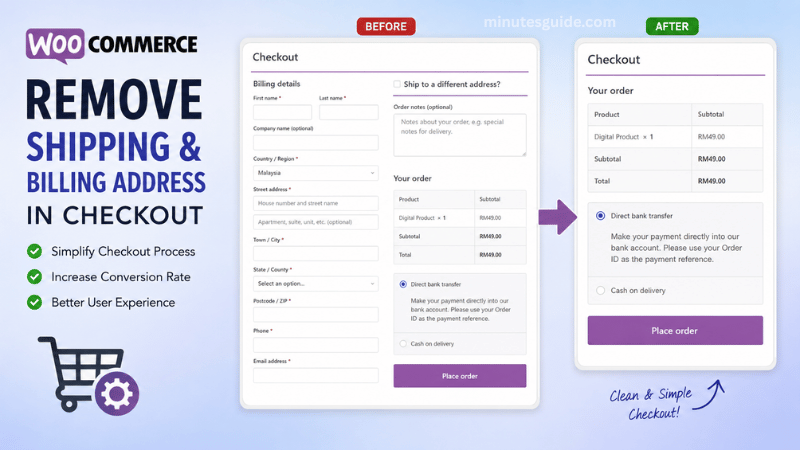
Remove Shipping and Billing Address in WooCommerce Checkout | By default, WooCommerce displays billing and shipping fields on the checkout page. These fields allow customers to enter their billing address, shipping address, phone number, and other personal information before completing an order.
However, not every WooCommerce store requires this information. If you sell digital products, online courses, memberships, software licenses, or other virtual items, asking customers for shipping details creates unnecessary friction during checkout.
A simpler checkout process can provide a better user experience and may even help improve your conversion rate by reducing the number of fields customers need to complete.
Unfortunately, WooCommerce does not include a built-in option to completely remove all billing and shipping fields from the checkout page. To achieve this, you'll need to add a small PHP snippet to your website.
In this guide, you'll learn how to remove the shipping and billing address fields in WooCommerce safely and how to remove individual checkout fields if you only want to hide specific information.
Table of Contents
How to Remove Shipping and Billing Address in WooCommerce Checkout
Why Remove Shipping and Billing Fields?
Removing unnecessary checkout fields offers several benefits, especially for stores that sell non-physical products.
Some common use cases include:
- Selling digital downloads
- Online courses
- Membership websites
- Software or license keys
- Consulting services
- Ebook stores
- Appointment bookings
- Donation websites
By displaying only the information you actually need, customers can complete their purchases more quickly, resulting in a smoother checkout experience.
How to Remove Shipping and Billing Address in WooCommerce Checkout
Follow these simple steps to remove the checkout fields.
Step 1: Copy the PHP Code
Copy the PHP code provided below.
Step 2: Add the Code to Your Website
Paste the code into your child theme's functions.php file.
Using a child theme is strongly recommended because your customizations won't be overwritten when your main theme is updated.
Alternatively, you can use a plugin such as Code Snippets to add the code without editing your theme files directly.
After saving the changes, refresh your checkout page. The billing and shipping address fields should now be removed from the WooCommerce checkout.
How to Remove Only Specific Checkout Fields
You may not want to remove every field. In many cases, you only need to hide one or two fields, such as the Order Notes field.
This can be done by keeping only the unset() statement for the field you want to remove and deleting the others from the code snippet.
For example, if you only want to remove the Order Notes (Order Comment) field, keep only the corresponding unset() line in your PHP code.
(Insert your order comment code snippet here.)
You can use the same approach for any other checkout field, including:
- First Name
- Last Name
- Company Name
- Address Line 1
- Address Line 2
- City
- State
- Postcode
- Phone Number
- Email Address (not recommended)
- Order Notes
Simply keep the unset() line for the field you want to remove and delete the rest before saving the file.
Things to Consider Before Removing Billing Fields
Before removing billing information, make sure your payment gateway does not require these fields.
Some payment providers use billing details for fraud prevention, payment verification, or tax calculations. Removing required fields without testing your checkout may cause payment failures or unexpected errors.
After making any checkout customization, always place a test order to ensure that your payment gateway works correctly.
If your store sells both physical and digital products, you may want to remove shipping fields only for virtual products instead of removing them entirely.
Troubleshooting
If the checkout fields are still visible after adding the code, check the following:
- Make sure the code has been added to the correct
functions.phpfile. - Verify that there are no PHP syntax errors.
- Clear your website and browser cache.
- Temporarily disable checkout customization plugins to check for conflicts.
- Switch to a default WooCommerce theme to determine whether your theme is overriding the checkout template.
Conclusion
Removing unnecessary billing and shipping fields is an effective way to simplify the WooCommerce checkout process, especially for stores that sell digital products or services.
In this tutorial, you've learned how to remove all billing and shipping address fields from the WooCommerce checkout page, as well as how to remove individual fields such as Order Notes, First Name, Last Name, and others.
Remember to test your checkout thoroughly after making any changes to ensure everything functions correctly with your payment gateway and WooCommerce setup. A cleaner checkout experience can make purchasing faster and easier for your customers, helping you create a more user-friendly online store.
Frequently Asked Questions (FAQs)
Can I remove the billing address in WooCommerce without using a plugin?
Yes. You can remove billing address fields by adding a PHP code snippet to your theme's functions.php file or by using the free Code Snippets plugin. This approach allows you to customize the checkout page without installing an additional WooCommerce extension.
Is it safe to remove the shipping address from WooCommerce?
Yes, as long as your store only sells digital products, virtual services, memberships, or other non-physical items. If you sell physical products that require delivery, you should keep the shipping address fields enabled.
Will removing checkout fields improve conversion rates?
It can. A shorter and simpler checkout process reduces the amount of information customers need to enter, which may decrease cart abandonment and improve conversion rates. However, the impact varies depending on your products and customers.
Can I remove only specific checkout fields instead of all billing fields?
Yes. WooCommerce allows you to remove individual checkout fields using PHP code. For example, you can remove only the Order Notes, Company Name, Address Line 2, or Phone Number fields while keeping the rest of the checkout form intact.
How do I remove the Order Notes field in WooCommerce?
You can remove the Order Notes field by adding a PHP snippet that unsets the order_comments field from the checkout form. Simply keep the unset() statement for the Order Notes field and remove any other unset() statements you do not need.
Can I remove shipping fields only for virtual products?
Yes. WooCommerce automatically hides shipping options when the cart contains only virtual products. You can also use conditional PHP code to remove shipping fields only when customers purchase digital or virtual products.
Will removing billing fields affect my payment gateway?
Possibly. Some payment gateways require certain billing information for payment verification, fraud prevention, or tax calculations. After making any checkout changes, always place a test order to ensure your payment gateway continues to function correctly.
Where should I add the PHP code?
The recommended location is your child theme's functions.php file. Alternatively, you can use the free Code Snippets plugin, which is often safer because your custom code remains unaffected when you update your theme.
Why are the checkout fields still showing after I add the code?
This usually happens because of caching, a theme conflict, or another plugin overriding the checkout page. Clear your website cache, deactivate checkout customization plugins temporarily, and verify that the code has been added correctly without syntax errors.
Can I restore the default WooCommerce checkout fields later?
Yes. Simply remove or disable the custom PHP code you added. Once the code is removed, WooCommerce will restore the default billing and shipping fields automatically.
References
- Can't Remove Billing Address at Checkout - wordpress.org/support
- Removing the address field from WooCommerce checkout - funnelkit.com
