
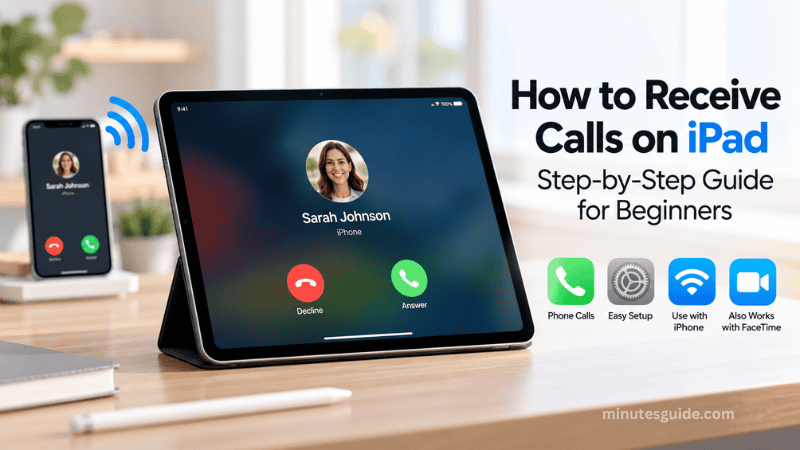
If you are wondering how to receive calls on iPad, the good news is that you can use your iPad to answer regular phone calls without needing to hold your iPhone in your hand. Apple provides several features that allow an iPad to receive calls through an iPhone, while supported iPad models and mobile carriers can also use Wi-Fi Calling for phone calls.
However, an iPad does not generally function like an independent iPhone simply because it has cellular connectivity. Even an iPad Wi-Fi + Cellular model primarily uses its cellular connection for mobile data rather than traditional cellular voice calls. For ordinary iPhone cellular calls, Apple provides Continuity features that relay calls from your iPhone to your iPad.
This guide explains how to receive calls on iPad step by step, including the requirements, iPhone settings, iPad settings, Wi-Fi Calling option, how to answer incoming calls, and what to do if calls are not appearing on your iPad.
Table of Contents
How to Receive Calls on iPad: Step-by-Step Guide for Beginners
Can You Receive Phone Calls on an iPad?
Yes, you can receive regular phone calls on an iPad when it is configured to use your iPhone's cellular connection or, where supported, Wi-Fi Calling.
The most common method is to connect your iPad and iPhone through Apple's Continuity features. Your iPhone remains the device associated with your mobile phone number and cellular voice service, while the iPad acts as another Apple device that can make and receive calls through the iPhone.
Apple's current instructions require the devices to be appropriately configured with the same Apple Account, and for the standard iPhone relay method, the iPhone and iPad should have Wi-Fi enabled and be connected to the same Wi-Fi network. The devices should also be reasonably close to each other for the feature to work correctly.
There is also a separate Wi-Fi Calling option. If your carrier supports Wi-Fi Calling on connected Apple devices, you may be able to make and receive calls on the iPad over Wi-Fi without relying on the iPhone being nearby. Carrier availability varies, so this option may not be available to every user.
What You Need Before Setting Up Calls on iPad
Before learning how to receive calls on iPad, it is important to make sure that your devices meet the basic requirements.
You will normally need an iPhone with an active cellular plan, an iPad that supports the relevant software and features, Wi-Fi connectivity, and the same Apple Account configured on both devices.
1. An iPhone With an Active Cellular Plan
For the standard method, your iPhone provides the cellular phone connection. Apple states that the iPhone used for call relay requires an activated carrier plan.
Your iPad therefore does not replace the iPhone's mobile number. Instead, the iPhone relays the call to the iPad.
2. An iPad
The iPad can be a Wi-Fi model or a Wi-Fi + Cellular model for the standard iPhone relay method because the phone call is being handled through the iPhone.
Having a cellular-enabled iPad does not automatically mean that it can make traditional cellular phone calls independently. Apple explains that Wi-Fi + Cellular iPad models primarily provide cellular data service, and phone calls require an appropriate Wi-Fi Calling or iPhone-based configuration.
3. The Same Apple Account
Your iPhone and iPad should use the same Apple Account for the relevant Continuity and FaceTime features.
Using different Apple Accounts can prevent the devices from appearing as eligible devices for call relay. Apple specifically recommends checking that the same Apple Account is being used on the devices when troubleshooting call connectivity.
4. Wi-Fi
For the standard iPhone-to-iPad call relay method, Wi-Fi should be enabled on both devices, and Apple recommends that they are connected to the same Wi-Fi network.
If a VPN is installed on either device, its configuration can sometimes interfere with local networking and Continuity features. Apple recommends checking VPN settings if the feature does not work correctly.
How to Receive Calls on iPad Using Your iPhone
The easiest method for most users is to allow your iPhone to relay phone calls to your iPad.
Follow the steps below carefully.
Step 1: Connect Your iPhone and iPad to Wi-Fi
First, connect both devices to Wi-Fi.
On your iPhone, open Settings and make sure Wi-Fi is enabled. Connect to your preferred Wi-Fi network.
Then open Settings on your iPad and make sure Wi-Fi is enabled. Ideally, connect the iPad to the same Wi-Fi network as the iPhone.
This is important because Apple's standard call relay feature relies on communication between the devices over the network.
Step 2: Make Sure You Use the Same Apple Account
Next, check that your iPhone and iPad are signed in with the same Apple Account.
On both devices, open Settings and review the account information shown at the top of the Settings screen.
If the accounts are different, the call relay feature may not work as expected. Apple also recommends using the same Apple Account for iCloud and FaceTime when configuring related calling features.
Step 3: Enable FaceTime on Your iPhone
On your iPhone, open Settings.
Depending on your version of iOS, go to Apps, then FaceTime.
Make sure FaceTime is turned on.
You should also check that your phone number is enabled as a reachable FaceTime address and that the appropriate Caller ID settings are configured. Apple lists these settings as part of the setup process for making and receiving calls on other Apple devices.
Step 4: Enable Calls on Other Devices
This is one of the most important steps when learning how to receive calls on iPad.
On your iPhone:
- Open Settings.
- Tap Apps.
- Tap Phone.
- Tap Calls on Other Devices.
- Turn on Allow Calls on Other Devices.
- Look for your iPad in the list of available devices.
- Turn on the switch for your iPad.
Once this is enabled, your iPhone can relay phone calls to the selected Apple devices. Apple states that supported devices can make and receive calls when they are properly configured, signed in to the same Apple Account, and connected appropriately.
Step 5: Enable Calls From iPhone on Your iPad
After configuring the iPhone, move to your iPad.
Open Settings.
Then go to Apps and select FaceTime.
Look for the Calls from iPhone option and make sure it is turned on.
This setting allows the iPad to use the iPhone's cellular connection for compatible phone calls. Apple specifically identifies this option as part of the iPad setup for receiving iPhone cellular calls.
Step 6: Test the Connection
Once all the settings have been enabled, ask someone to call your iPhone.
If the setup is working correctly, an incoming call notification should appear on your iPad as well.
You can then answer the call directly from the iPad rather than reaching for your iPhone.
Apple explains that when an incoming call arrives, you can use the notification on the iPad to answer or decline it.
How to Answer a Phone Call on iPad
Once the feature has been configured correctly, answering a phone call on the iPad is relatively straightforward.
When someone calls your iPhone, an incoming call notification can appear on your iPad.
To answer the call, tap the Answer button.
If the iPad is locked, you may need to drag the appropriate slider to answer the call, depending on the current interface and software version. Apple also provides options for silencing or declining incoming calls.
If you do not want to answer the call, you can decline it or silence the incoming notification.
For supported phone calls, the iPad can also provide options such as responding with a message or handling the call through the available phone interface.
How to Make Calls From iPad
The same setup can also allow you to make phone calls from your iPad.
Depending on your iPadOS version, you can use the Phone app, FaceTime, Contacts, Messages, Safari, or other locations where a phone number appears.
Apple's current iPad documentation explains that the Phone app can be used to dial a number, while phone numbers in supported apps can also be tapped to initiate calls.
For example, you can open Contacts, select a person, and tap their phone number. The call can then be relayed through the configured iPhone connection.
On supported versions of iPadOS, the Phone app is available directly on iPad. If the Phone app is not installed on your iPad, Apple says it can be downloaded from the App Store.
How to Receive Calls on iPad Without Your iPhone Nearby
If you want to receive calls on your iPad even when your iPhone is not nearby, Wi-Fi Calling may provide another option.
However, this feature depends on your mobile carrier and the services supported in your country or region.
Apple states that if your network provider supports Wi-Fi Calling on iCloud-connected devices, you can make and receive Wi-Fi calls on other Apple devices.
Step 1: Enable Wi-Fi Calling on iPhone
On your iPhone, open Settings.
Go to Apps, then Phone.
Select Wi-Fi Calling and turn on Wi-Fi Calling on This iPhone.
If your iPhone has multiple SIMs or cellular lines, you may need to select the relevant line before configuring Wi-Fi Calling.
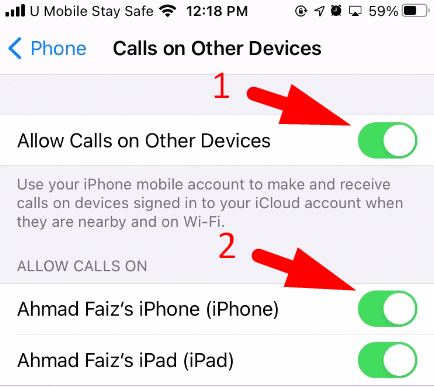
Step 2: Enable Calls on Other Devices
Return to the Phone settings.
Tap Calls on Other Devices.
Turn on Allow Calls on Other Devices.
Then select the iPad that you want to use.
Apple's Wi-Fi Calling documentation explains that eligible devices can appear under the Allow Calls On section when the required services are enabled.
Step 3: Enable Calls From iPhone on iPad
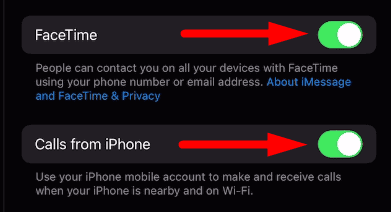
On your iPad, open Settings.
Go to Apps, then FaceTime.
Turn on Calls from iPhone.
If the carrier supports Wi-Fi Calling on connected devices and the configuration is correct, your iPad may then be able to make and receive calls through Wi-Fi.
Can a Cellular iPad Make Phone Calls Without an iPhone?
This is an important distinction.
A Wi-Fi + Cellular iPad is not automatically equivalent to an iPhone with cellular voice service. Its cellular capability is primarily designed for mobile data.
Apple's iPad documentation specifically states that Wi-Fi + Cellular models support cellular data rather than ordinary cellular phone service. To make and receive phone calls, Apple directs users toward Wi-Fi Calling and an iPhone.
Therefore, simply inserting or activating a cellular data plan on an iPad does not necessarily give the device an independent traditional mobile phone number capable of receiving ordinary cellular calls.
If your objective is to receive your existing iPhone number's calls on the iPad, the iPhone relay method is generally the relevant setup.
How to Receive FaceTime Calls on iPad
Regular cellular phone calls and FaceTime calls are not exactly the same thing.
FaceTime allows you to make and receive internet-based audio and video calls directly on the iPad.
To configure FaceTime, open Settings, go to Apps, and select FaceTime. Make sure FaceTime is enabled and that you are signed in with your Apple Account.
When someone calls you through FaceTime, an incoming FaceTime notification appears on your iPad.
Tap the Accept button to answer the call.
FaceTime can work over Wi-Fi, and supported iPad models can also use cellular data for FaceTime calls. Availability of FaceTime and FaceTime Audio can vary by country, region, and network provider.
Difference Between iPhone Calls and FaceTime Calls on iPad
It is useful to understand the difference between these two calling methods.
| Feature | iPhone Cellular Calls | FaceTime Calls |
|---|---|---|
| Uses your normal mobile number | Yes | Not necessarily |
| Requires an iPhone for standard setup | Yes | No |
| Uses the internet | May use Wi-Fi for relay | Yes |
| Can make video calls | No, standard phone call | Yes |
| Can make audio calls | Yes | Yes |
| Requires FaceTime | Used for device configuration | Yes |
| Carrier support required | Yes | Internet access required |
| Can work directly on iPad | Through supported iPhone/Wi-Fi Calling setup | Yes |
The most important distinction is that a normal phone call to your mobile number can be relayed from your iPhone to your iPad, while FaceTime calls are handled through Apple's internet-based calling service.
What to Do If Your iPad Does Not Receive Calls
If you have followed the setup steps but incoming calls are still not appearing on your iPad, several settings should be checked.
Check Wi-Fi
Make sure Wi-Fi is enabled on both the iPhone and iPad.
For the standard iPhone relay method, verify that both devices are connected to the same Wi-Fi network.
Check the Apple Account
Confirm that the same Apple Account is being used on both devices.
This is particularly important for Continuity and Wi-Fi Calling features.
Check Calls on Other Devices
On the iPhone, go to Settings > Apps > Phone > Calls on Other Devices.
Make sure Allow Calls on Other Devices is enabled.
Then check that your iPad is selected.
Check Calls From iPhone
On the iPad, open Settings > Apps > FaceTime and check whether Calls from iPhone is enabled.
If this option is disabled, your iPad may not receive phone calls relayed from the iPhone.
Check FaceTime
Make sure FaceTime is turned on and correctly signed in.
Apple also recommends checking that the phone number is configured correctly for FaceTime on the iPhone when setting up calls on other devices.
Keep the Devices Near Each Other
For the standard iPhone relay method, the iPhone and iPad should be reasonably close to one another.
Apple states that devices using this feature should be near the iPhone and connected to the same Wi-Fi network. Apple gives approximately 30 feet or 10 meters as a troubleshooting guideline for devices that are having difficulty with phone calls and related features.
Check Your VPN
If you use a VPN, temporarily check whether its configuration interferes with local network communication.
Apple notes that VPN configurations can interfere with some Continuity features when they prevent local networking.
Update Your Devices
Make sure your iPhone and iPad are running compatible, up-to-date versions of iOS and iPadOS.
Software updates can resolve compatibility problems and may also provide the latest versions of Apple's calling features.
Check Carrier Support
If you are attempting to use Wi-Fi Calling, contact your mobile carrier to confirm that the feature is supported for your plan and region.
Apple specifically notes that Wi-Fi Calling is not available from all carriers.
How to Silence an Incoming Call on iPad
If you are busy and do not want to answer an incoming call, you can silence the call instead of declining it.
According to Apple's iPad instructions, pressing the top button or either volume button can silence an incoming call. The call can still be answered until it goes to voicemail.
This can be useful when you are working, attending a meeting, watching a video, or using your iPad in a public environment.
If you want to decline the call completely, you can use the decline option displayed on the incoming call interface. Depending on the configuration and region, declining the call may send it to voicemail or disconnect it.
Can You Use Bluetooth Headphones for Calls on iPad?
Yes. Once you are on a phone call through the iPad, you can use the iPad's built-in speaker or a compatible Bluetooth audio device.
Apple's iPad documentation explains that during a phone call, you can change the audio destination to the speaker or a Bluetooth device.
This can be particularly useful if you frequently answer calls on an iPad while working at a desk.
For example, you could keep your iPad on a stand and use Bluetooth headphones to handle incoming calls without needing to pick up your iPhone.
Can You Use Other Apps While on a Call?
Yes. You can continue using the iPad while a phone call is active.
Apple provides a call indicator that allows you to return to the ongoing call after opening another application. This means you can potentially check information in Safari, open Notes, view Contacts, or use another supported app while continuing the conversation.
This feature can be useful for business calls because you can keep relevant documents, emails, notes, or websites available while talking to the other person.
Important Things to Remember
There are several important points to remember when setting up calls on an iPad.
First, a cellular iPad does not automatically become an iPhone simply because it supports a cellular data connection. Traditional phone calls generally require an iPhone relay configuration or a supported Wi-Fi Calling setup.
Second, the standard method requires appropriate configuration on both the iPhone and iPad. Turning on only one setting may not be enough.
Third, carrier support matters if you want to use Wi-Fi Calling. The feature is not universally available, and the exact options can vary depending on your mobile provider and location.
Finally, FaceTime should not be confused with ordinary mobile phone calls. FaceTime is a separate Apple calling service that can operate directly on the iPad with an internet connection.
Final Thoughts
Learning how to receive calls on iPad is relatively simple once the relationship between your iPhone, iPad, Apple Account, Wi-Fi connection, and carrier service is understood.
For most users, the simplest approach is to enable Allow Calls on Other Devices on the iPhone and then activate Calls from iPhone on the iPad. Once configured correctly, incoming calls to your iPhone can appear on the iPad, allowing you to answer them directly from the larger screen.
If you need your iPad to handle calls when your iPhone is not nearby, Wi-Fi Calling may be another option, provided that your carrier supports the feature.
The key is to determine which type of call you want to receive. If you want calls made to your ordinary mobile number, configure iPhone call relay or supported Wi-Fi Calling. If you simply want internet-based audio or video calls, FaceTime can be used directly on the iPad.
With the correct settings enabled, your iPad can become a convenient extension of your iPhone, allowing you to answer calls while working, browsing the web, watching content, or using other applications.
Frequently Asked Questions About Receiving Calls on iPad
Can I receive normal phone calls on my iPad?
Yes. You can receive normal phone calls on an iPad by connecting it to an iPhone and enabling the appropriate call relay settings. Your iPhone handles the cellular connection, while the iPad receives the call through Apple's Continuity features.
How do I receive calls on iPad without an iPhone?
An iPad generally cannot receive ordinary cellular phone calls independently just because it has cellular connectivity. However, supported carriers may allow Wi-Fi Calling on connected Apple devices. Alternatively, you can use FaceTime or other internet-based calling services directly on the iPad.
Do I need the same Apple Account on my iPhone and iPad?
Yes. For Apple's call relay features, your iPhone and iPad should generally be signed in to the same Apple Account. This allows the devices to work together through Apple's Continuity features.
Can I receive iPhone calls on my iPad when my iPhone is nearby?
Yes. You can enable Calls on Other Devices on your iPhone and Calls from iPhone on your iPad. When configured correctly, incoming calls to your iPhone can also appear on your iPad.
Can I receive calls on my iPad when my iPhone is turned off?
The standard iPhone call relay method requires the iPhone to be available to provide the cellular connection. However, supported Wi-Fi Calling features may allow calls on other Apple devices under certain carrier and account configurations.
Can a cellular iPad make regular phone calls?
A cellular iPad does not automatically function as an independent mobile phone. Its cellular connection is primarily designed for mobile data. Regular phone calls can be made through an iPhone or through supported Wi-Fi Calling functionality.
Why is my iPad not receiving calls from my iPhone?
Check that both devices are using the same Apple Account, connected to Wi-Fi, and have the relevant calling settings enabled. On the iPhone, check Calls on Other Devices, while on the iPad, check Calls from iPhone under FaceTime settings. Restarting both devices and updating their software may also resolve connection problems.
Can I answer an iPhone call on my iPad?
Yes. When the required settings are enabled, an incoming call to your iPhone can appear on your iPad. You can tap the Answer button on the iPad to answer the call and use the iPad's microphone and speakers or a compatible Bluetooth audio device.
Can I make calls from my iPad using my iPhone number?
Yes. With the appropriate iPhone call relay configuration, you can make calls from your iPad using the cellular connection associated with your iPhone. The iPhone acts as the connection to the mobile network.
Can I use FaceTime to receive calls on my iPad?
Yes. FaceTime calls can be received directly on an iPad without requiring an iPhone to relay the call. FaceTime uses an internet connection and supports audio and video calling.
What is the difference between an iPhone call and a FaceTime call on iPad?
An iPhone call is a traditional cellular phone call associated with a mobile number, while FaceTime is Apple's internet-based calling service. An iPhone call normally requires an iPhone or supported Wi-Fi Calling configuration, whereas FaceTime can operate directly on a compatible iPad.
Can I use Bluetooth headphones when answering calls on iPad?
Yes. A compatible Bluetooth headset or headphones can be used for supported phone calls on the iPad. This can make the iPad more convenient for answering calls while working or performing other tasks.
References
- Use iPhone to allow calls and text messages on your iPad - support.apple.com
- How to Make Calls From iPad - truely.com
